The introductory paper Orthodox
Editorsintroduced some ideas on which this page was build. Here is the
abstract of the paper:
This paper tried to introduce a new concept: orthodox editors as a special
category of editors that have command line set of command and respective glue
macrolanguage. We have found two such families:
Eastern Orthodox family represented by such editors as Xedit, Kedit,
THE. It uses REXX as a glue macrolanguage.
Western Orthodox family represented by vi and its derivatives with VIM
6 as the top representative of the category.
We define the notion of "orthodox editors" as having at least three
distinct features:
They have a command line editing support and respective glue
macro that be some common scripting language (TCL, REXX) or unique for the
application (YASL - yet another scripting language) like in vim 6
They support of folding (all command in XEDIT and its
derivatives; folding capabilities in vim6 )
They permit doing any editing task using keyboard (although mouse
can speed up or simplify many of those tasks).
This article is a modest attempt to create a basic classification useful
for further studying this important class of editors. The author argues that
this class of editors can serve as viable mid-weight editors for programmers
(see a companion paper
A Note on Size-based
Classification of Text Editors for discussion of this editor classification)
The selection of editor is of paramount importance for a programmer or Linux sysadmin. It is better to select the editor which
Has staying power. If you inverted several years in mastering the editor, wrote you own set of complex macros, develop
customarization scheme, and it is discontinued it is a huge hit. Many months of your life are lost. It happened to me twice (my
first editor was MultiEdit which has proprietary macro language, and the second Kedit -- which has REXX as a
macrolanguage). Even loss of your favorite terminal emulator is painful hit (I once was forced to switch from Teraterm to
Putty as my windows terminal emulator and lost all my macros), but the loss of editor is ten times more
painful.
Has editing power (distinction between buffers and windows)
Has macrolanguage preferably close to the your favorite scripting language, or, at least, the ability to pipe parts of the
editing buffer into filter and replace the selection with the results.
Has folding: just the ability to hide comments in your programs and script and edit "naked" code is of tremendous value.
VIM satisfies those requirement and as such represents a huge step forward in comparison with "level 0" editors like nano.
I would like to stress the currently vim is probably
the best implementation of vi philosophy. It preserved two modes editing paradigm
and all important achievements of the original vi including:
Connection of the editing buffer to pipes
Strong (although not perfect) support of regular expressions
Command line commands
Macros (although "yet another macrolanguage" is used instead of, say, LUA)
Tremendous amount of plugins with some being really innovative and valuable (like the plugin which implement XEDIT
all command -- XEDIT style folding).
Timeback machine -- As long as you do not exit VIM (and exiting VIM that's a bad idea; it make sense to have a
separate window of terminal session it it opened and controlled by screen ;-), you get get to the version of your
program/script that existed , say, 1 hour ago without GIT and associated complexities ;-)
Textbuffer execution
At the same time vim inherited the key deficiency of vi: it is impossible for a mere mortal to remember plethora of VIM commands.
Posts like 130+ essential vim commands are a cruel joke. That also means that gvim -- GUI version of vim -- which
resembles more typical Windows editor editing mode is preferable version to use. It has better windows control,
Perl interface (starting with version 5.x), folding (from
version 6).
It is definitely a preferable version of VIM to use, if you have an access to GUI.
Most sysadmins use minimal subset and only among programmer, who adopted VIM as "poor man IDE" we see real sophistication and
mastery of VIM usage. that's bad that this is how it is. Please understand that advantages of VIM far outweigh
disadvantages and it makes sense to spend some time learning "level II" features of VIM. Among other things they can help you pass
Rhcsa and similar exams ;-).
Again, VIM is a powerful and flexible editor with very few competitors among programmable editors. It has complex semantic
and some unique capabilities what are well worth studying and using. And it is available on all Linux distributions as a
default. In essence, it is de facto standard among editors for Linux syadmins.
Plain vanilla folding primitives in vim6 are too low level to be convenient for
the most users. I highly recommend you to install
allfold
macros developed by Marion Berryman. It's better to add basic script (allfold_basic.vim)
to plugin directory. It provides all the necessary folding functionality. He also
provided more complex experimental script (allfold_full.vim) that you can
play with if you became addicted to this folding ;-). Some ideas developed
by Marion in those two scripts are really good !!!. Here is a short description
of the plugin:
The allfold scripts implement a feature set which allows VIM users to view
ALL interesting lines in a buffer and FOLD the rest away.
Lines are selected to be interesting in one of the two following ways:
1. They match a regular expression pattern.
2. They are in a block of lines delimited inclusively by a line that matches a beginning RE pattern and a line that matches an ending RE pattern.
Sets of lines matching different selection criteria can be combined using logical
"and" and "or" operations. The selections may be inverted so that lines not
matching the selection criteria are actually selected.
Beyond these basics other features do such things as manipulating lists of selection
commands and using the raw selection "bit-map" directly to enhance the capabilities
and ease of use of the scripts.
I would change the mnemonic to include the word "all" to respect history of this
command. For example:
Please note that in the definitions above "All" is command to fold text and "ALL"
to unfold. Actually if no parameters supplied to All, it can unfold the text (remove
folding). This was the original Xedit semantic and it makes sense to preserve
it.
Like in other orthodox editors the central idea of vi is the idea of the
command line command set, the idea that as I stressed before isin some respects more powerful and convenient than getting the same functionality
implicitly via cascading menus. An interesting and pretty logical extensions of
this idea in vi is the ability to generate command-line command parameters (or even
whole commands) using screen.
The main ideas vi is pretty close to the orthodox editors paradigm
that I discussed on the main page of the section.
BJ: What happened is that Ken Thompson came to Berkeley and brought this
broken Pascal system, and we got this summer job to fix it. While we were fixing
it, we got frustrated with the editor we were using which was named ed.
ed is certainly frustrating.
We got this code from a guy named George Coulouris at University College
in London called em -- Editor for Mortals -- since only immortals could
use ed to do anything. By the way, before that summer, we could only
type in uppercase. That summer we got lowercase ROMs for our terminals. It was
really exciting to finally use lowercase.
LM: What year was that?
BJ: '76 or '77. It was the summer Carter was president. So we modified
em and created en. I don't know if there was an eo or an
ep but finally there was ex. [laughter] I remember en but
I don't know how it got to ex. So I had a terminal at home and a 300
baud modem so the cursor could move around and I just stayed up all night
for a few months and wrote vi.
LM: So you didn't really write vi in one weekend like everybody
says?
BJ: No. It took a long time. It was really hard to do because you've
got to remember that I was trying to make it usable over a 300 baud modem.
That's also the reason you have all these funny commands. It just barely worked
to use a screen editor over a modem. It was just barely fast enough. A 1200
baud modem was an upgrade. 1200 baud now is pretty slow.
9600 baud is faster than you can read. 1200 baud is way slower. So
the editor was optimized so that you could edit and feel productive when it
was painting slower than you could think. Now that computers are so
much faster than you can think, nobody understands this anymore.
The people doing Emacs were sitting in labs at MIT with what were essentially
fibre-channel links to the host, in contemporary terms. They were working on
a PDP-10, which was a huge machine by comparison, with infinitely fast screens.
So they could have funny commands with the screen shimmering and all that,
and meanwhile, I'm sitting at home in sort of World War II surplus housing at
Berkeley with a modem and a terminal that can just barely get the cursor off
the bottom line.
It was a world that is now extinct.People don't know
that vi was written for a world that doesn't exist anymore -- unless you decide
to get a satellite phone and use it to connect to the Net at 2400 baud,
in which case you'll realize that the Net is not usable at 2400 baud. It used
to be perfectly usable at 1200 baud. But these days you can't use the Web at
2400 baud because the ads are 24 kilobytes.
The original UNIX editor was ed. It was a line editor of reluctant and recalcitrant
style. When UNIX (version 4) got to Queen Mary College, London, in 1973, George
Coulouris -- a Professor of Computing -- wasn't happy with it. So he wrote a
screen editor, which he called "em," or "ed for mortals."
Coulouris went on sabbatical to Berkeley, where he installed em on "his"
machine. A graduate student noticed it one day, and asked about it. Coulouris
explained. He then went off to New Jersey to Bell Labs, and when he returned
to Berkeley, he found that em had been transmuted into ex, a display editor
that is a superset of ed and a number of extensions -- primarily the one that
enables display editing.
At the beginning of 1978, the first Berkeley Software Distribution was available.
It consisted of a tape of the Berkeley Pascal System and the ex text editor.
The graduate student was Bill Joy, and the distribution cost $50. The next year
Berkeley got some ADM-3a terminals, and Joy rewrote em to vi -- a truly visual
editor.
In sum, ed came out of Bell Labs in New Jersey, went to Queen Mary College
in London, from there to the University of California at Berkeley, and from
there back to New Jersey, where it was incorporated into the next edition of
UNIX.
Step 1:
Open
the file using vim editor with command:
$ vim ostechnix.txt
Step 2:
Highlight
the lines that you want to comment out. To do so, go to the line you want to comment and move the cursor to the beginning of a line.
Press
SHIFT+V
to
highlight the whole line after the cursor. After highlighting the first line, press
UP
or
DOWN
arrow
keys or
k
or
j
to
highlight the other lines one by one.
Here is how the lines will look like after highlighting them.
Highlight
lines in Vim editor
Step 3:
After
highlighting the lines that you want to comment out, type the following and hit
ENTER
key:
:s/^/# /
Please mind
the
space
between
#
and
the last forward slash (
/
).
Now you will see the selected lines are commented out i.e.
#
symbol
is added at the beginning of all lines.
Comment
out multiple lines at once in Vim editor
Here,
s
stands
for
"substitution"
.
In our case, we substitute the
caret
symbol
^
(in
the beginning of the line) with
#
(hash).
As we all know, we put
#
in-front
of a line to comment it out.
Step 4:
After
commenting the lines, you can type
:w
to
save the changes or type
:wq
to
save the file and exit.
Let us move on to the next method.
Method 2:
Step 1:
Open
the file in vim editor.
$ vim ostechnix.txt
Step 2:
Set
line numbers by typing the following in vim editor and hit ENTER.
:set number
Set
line numbers in Vim
Step 3:
Then
enter the following command:
:1,4s/^/#
In this case, we are commenting out the lines from
1
to
4
.
Check the following screenshot. The lines from
1
to
4
have
been commented out.
Comment
out multiple lines at once in Vim editor
Step 4:
Finally,
unset the line numbers.
:set nonumber
Step 5:
To
save the changes type
:w
or
:wq
to
save the file and exit.
The same procedure can be used for uncommenting the lines in a file. Open the file and set the line numbers as shown in Step 2.
Finally type the following command and hit ENTER at the Step 3:
:1,3s/^#/
After uncommenting the lines, simply remove the line numbers by entering the following command:
:set nonumber
Let us go ahead and see the third method.
Method 3:
This one is similar to Method 2 but slightly different.
Step 1:
Open
the file in vim editor.
$ vim ostechnix.txt
Step 2:
Set
line numbers by typing:
:set number
Step 3:
Type
the following to comment out the lines.
:1,4s/^/# /
The above command will comment out lines from 1 to 4.
Comment
out multiple lines at once in Vim editor
Step 4:
Finally,
unset the line numbers by typing the following.
:set nonumber
Method 4:
This method is suggested by one of our reader
Mr.Anand
Nande
in the comment section below.
Step 1:
Open
file in vim editor:
$ vim ostechnix.txt
Step 2:
Go
to the line you want to comment. Press
Ctrl+V
to
enter into
'Visual
block'
mode.
Enter
into Visual block mode in Vim editor
Step 3:
Press
UP
or
DOWN
arrow
or the letter
k
or
j
in
your keyboard to select all the lines that you want to be commented in your file.
Select
the lines to comment in Vim
Step 4:
Press
Shift+i
to
enter into
INSERT
mode.
This will place your cursor on the first line.
Step 5:
And
then insert
#
(press
Shift+3
)
before your first line.
Insert
hash symbol before a line in Vim
Step 6:
Finally,
press
ESC
key.
This will insert
#
on
all other selected lines.
Comment
out multiple lines at once in Vim editor
As you see in the above screenshot, all other selected lines including the first line are commented out.
Method 5:
This method is suggested by one of our Twitter follower and friend
Mr.Tim
Chase
. We can even target lines to comment out by
regex
.
In other words, we can comment all the lines that contains a specific word.
Step 1:
Open
the file in vim editor.
$ vim ostechnix.txt
Step 2:
Type
the following and press ENTER key:
:g/\Linux/s/^/# /
The above command will comment out all lines that contains the word
"Linux"
.
Replace
"Linux"
with
a word of your choice.
Comment
out all lines that contains a specific word in Vim editor
As you see in the above output, all the lines have the word
"Linux"
,
hence all of them are commented out.
And, that's all for now. I hope this was useful. If you know any other method than the given methods here, please let me know in the
comment section below. I will check and add them in the guide.
...Now, let us edit these two files at a time using Vim editor. To do so, run:
$ vim file1.txt file2.txt
Vim will display the contents of the files in an order. The first file's contents will be
shown first and then second file and so on.
Edit Multiple Files Using Vim Editor Switch between files
To move to the next file, type:
:n
Switch between files in Vim editor
To go back to previous file, type:
:N
Here, N is capital (Type SHIFT+n).
Start editing the files as the way you do with Vim editor. Press 'i' to switch to
interactive mode and modify the contents as per your liking. Once done, press ESC to go back to
normal mode.
Vim won't allow you to move to the next file if there are any unsaved changes. To save the
changes in the current file, type:
ZZ
Please note that it is double capital letters ZZ (SHIFT+zz).
To abandon the changes and move to the previous file, type:
:N!
To view the files which are being currently edited, type:
:buffers
View files in buffer in VIm
You will see the list of loaded files at the bottom.
List of files in buffer in Vim
To switch to the next file, type :buffer followed by the buffer number. For example, to
switch to the first file, type:
:buffer 1
Or, just do:
:b 1
Switch to next file in Vim
Just remember these commands to easily switch between buffers:
:bf            # Go to first file.
:bl            # Go to last file
:bn            # Go to next file.
:bp            # Go to previous file.
:b number  # Go to n'th file (E.g :b 2)
:bw            # Close current file.
Opening additional files for editing
We are currently editing two files namely file1.txt, file2.txt. You might want to open
another file named file3.txt for editing. What will you do? It's easy! Just type :e followed by
the file name like below.
:e file3.txt
Open additional files for editing in Vim
Now you can edit file3.txt.
To view how many files are being edited currently, type:
:buffers
View all files in buffers in Vim
Please note that you can not switch between opened files with :e using either :n or :N . To
switch to another file, type :buffer followed by the file buffer number.
Copying contents
of one file into another
You know how to open and edit multiple files at the same time. Sometimes, you might want to
copy the contents of one file into another. It is possible too. Switch to a file of your
choice. For example, let us say you want to copy the contents of file1.txt into file2.txt.
To do so, first switch to file1.txt:
:buffer 1
Place the move cursor in-front of a line that wants to copy and type yy to yank(copy) the
line. Then, move to file2.txt:
:buffer 2
Place the mouse cursor where you want to paste the copied lines from file1.txt and type p .
For example, you want to paste the copied line between line2 and line3. To do so, put the mouse
cursor before line and type p .
Sample output:
line1
line2
ostechnix
line3
line4
line5
Copying contents of one file into another file using Vim
To save the changes made in the current file, type:
ZZ
Again, please note that this is double capital ZZ (SHIFT+z).
To save the changes in all files and exit vim editor. type:
:wq
Similarly, you can copy any line from any file to other files.
Copying entire file
contents into another
We know how to copy a single line. What about the entire file contents? That's also
possible. Let us say, you want to copy the entire contents of file1.txt into file2.txt.
To do so, open the file2.txt first:
$ vim file2.txt
If the files are already loaded, you can switch to file2.txt by typing:
:buffer 2
Move the cursor to the place where you wanted to copy the contents of file1.txt. I want to
copy the contents of file1.txt after line5 in file2.txt, so I moved the cursor to line 5. Then,
type the following command and hit ENTER key:
:r file1.txt
Copying entire contents of a file into another file
Here, r means read .
Now you will see the contents of file1.txt is pasted after line5 in file2.txt.
line1
line2
line3
line4
line5
ostechnix
open source
technology
linux
unix
Copying entire file contents into another file using Vim
To save the changes in the current file, type:
ZZ
To save all changes in all loaded files and exit vim editor, type:
:wq
Method 2
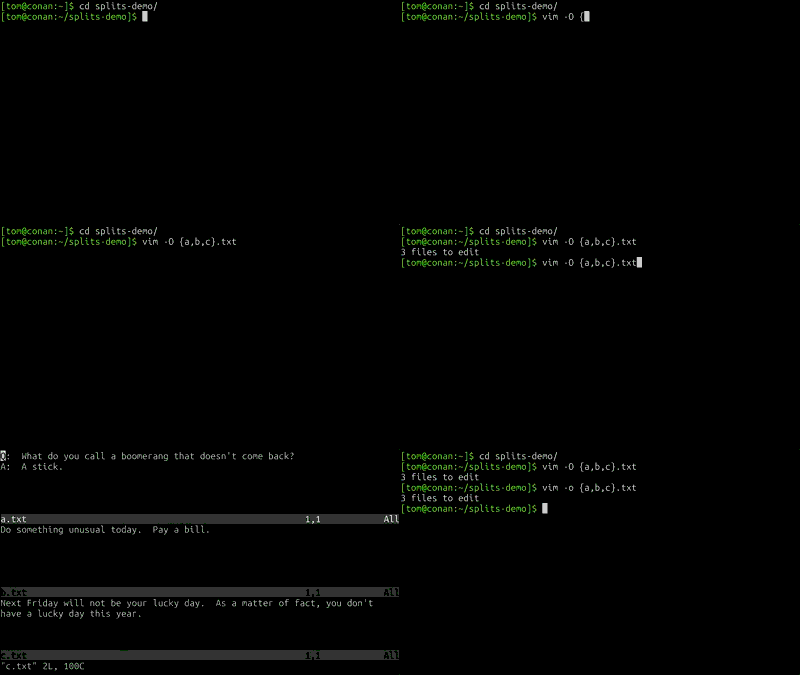
The another method to open multiple files at once is by using either -o or -O flags.
To open multiple files in horizontal windows, run:
$ vim -o file1.txt file2.txt
Open multiple files at once in Vim
To switch between windows, press CTRL-w w (i.e Press CTRL+w and again press w ). Or, use the
following shortcuts to move between windows.
CTRL-w k - top window
CTRL-w j - bottom window
To open multiple files in vertical windows, run:
$ vim -O file1.txt file2.txt file3.txt
Open multiple files in vertical windows in Vim
To switch between windows, press CTRL-w w (i.e Press CTRL+w and again press w ). Or, use the
following shortcuts to move between windows.
CTRL-w l - left window
CTRL-w h - right window
Everything else is same as described in method 1.
For example, to list currently loaded files, run:
:buffers
To switch between files:
:buffer 1
To open an additional file, type:
:e file3.txt
To copy entire contents of a file into another:
:r file1.txt
The only difference in method 2 is once you saved the changes in the current file using ZZ ,
the file will automatically close itself. Also, you need to close the files one by one by
typing :wq . But, had you followed the method 1, when typing :wq all changes will be saved in
all files and all files will be closed at once.
In this case, we are commenting out the lines from 1 to 3. Check the following screenshot.
The lines from 1 to 3 have been commented out.
Comment out multiple lines at once in vim
To uncomment those lines, run:
:1,3s/^#/
Once you're done, unset the line numbers.
:set nonumber
Let us go ahead and see third method.
Method 3:
This one is same as above but slightly different.
Open the file in vim editor.
$ vim ostechnix.txt
Set line numbers:
:set number
Then, type the following command to comment out the lines.
:1,4s/^/# /
The above command will comment out lines from 1 to 4.
Comment out multiple lines in vim
Finally, unset the line numbers by typing the following.
:set nonumber
Method 4:
This method is suggested by one of our reader Mr.Anand Nande in the comment section
below.
Open file in vim editor:
$ vim ostechnix.txt
Press Ctrl+V to enter into 'Visual block' mode and press DOWN arrow to select all the lines
in your file.
Select lines in Vim
Then, press Shift+i to enter INSERT mode (this will place your cursor on the first line).
Press Shift+3 which will insert '#' before your first line.
Insert '#' before the first line in Vim
Finally, press ESC key, and you can now see all lines are commented out.
Comment out multiple lines using vim Method 5:
This method is suggested by one of our Twitter follower and friend Mr.Tim Chase .
We can even target lines to comment out by regex. Open the file in vim editor.
$ vim ostechnix.txt
And type the following:
:g/\Linux/s/^/# /
The above command will comment out all lines that contains the word "Linux".
Comment out all lines that contains a specific word in Vim
And, that's all for now. I hope this helps. If you know any other easier method than the
given methods here, please let me know in the comment section below. I will check and add them
in the guide. Also, have a look at the comment section below. One of our visitor has shared a
good guide about Vim usage.
NUNY3 November 23, 2017 - 8:46 pm
If you want to be productive in Vim you need to talk with Vim with *language* Vim is using.
Every solution that gets out of "normal
mode" is most probably not the most effective.
METHOD 1
Using "normal mode". For example comment first three lines with: I#j.j.
This is strange isn't it, but:
I –> capital I jumps to the beginning of row and gets into insert mode
# –> type actual comment character
–> exit insert mode and gets back to normal mode
j –> move down a line
. –> repeat last command. Last command was: I#
j –> move down a line
. –> repeat last command. Last command was: I#
You get it: After you execute a command, you just repeat j. cobination for the lines you would
like to comment out.
METHOD 2
There is "command line mode" command to execute "normal mode" command.
Example: :%norm I#
Explanation:
% –> whole file (you can also use range if you like: 1,3 to do only for first three
lines).
norm –> (short for normal)
I –> is normal command I that is, jump to the first character in line and execute
insert
# –> insert actual character
You get it, for each range you select, for each of the line normal mode command is executed
METHOD 3
This is the method I love the most, because it uses Vim in the "I am talking to Vim" with Vim
language principle.
This is by using extension (plug-in, add-in): https://github.com/tomtom/tcomment_vim
extension.
How to use it? In NORMAL MODE of course to be efficient. Use: gc+action.
Examples:
gcap –> comment a paragraph
gcj –> comment current line and line bellow
gc3j –> comment current line and 3 lines bellow
gcgg –> comment current line and all the lines including first line in file
gcG –> comment current line and all the lines including last line in file
gcc –> shortcut for comment a current line
You name it it has all sort of combinations. Remember, you have to talk with Vim, to
properly efficially use it.
Yes sure it also works with "visual mode", so you use it like: V select the lines you would
like to mark and execute: gc
You see if I want to impress a friend I am using gc+action combination. Because I always
get: What? How did you do it? My answer it is Vim, you need to talk with the text editor, not
using dummy mouse and repeat actions.
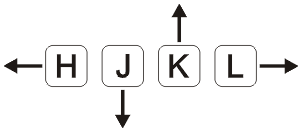
NOTE: Please stop telling people to use DOWN arrow key. Start using h, j, k and l keys to
move around. This keys are on home row of typist. DOWN, UP, LEFT and RIGHT key are bed habit
used by beginners. It is very inefficient. You have to move your hand from home row to arrow
keys.
VERY IMPORTANT: Do you want to get one million dollar tip for using Vim? Start using Vim
like it was designed for use normal mode. Use its language: verbs, nouns, adverbs and
adjectives. Interested what I am talking about? You should be, if you are serious about using
Vim. Read this one million dollar answer on forum:
https://stackoverflow.com/questions/1218390/what-is-your-most-productive-shortcut-with-vim/1220118#1220118
MDEBUSK November 26, 2019 - 7:07 am
I've tried the "boxes" utility with vim and it can be a lot of fun.
"... Apart from regular absolute line numbers, Vim supports relative and hybrid line numbers too to help navigate around text files. The 'relativenumber' vim option displays the line number relative to the line with the cursor in front of each line. Relative line numbers help you use the count you can precede some vertical motion commands with, without having to calculate it yourself. ..."
"... We can enable both absolute and relative line numbers at the same time to get "Hybrid" line numbers. ..."
How do I show
line numbers in Vim by default on Linux? Vim (Vi IMproved) is not just free text editor, but it
is the number one editor for Linux sysadmin and software development work.
By default, Vim
doesn't show line numbers on Linux and Unix-like systems, however, we can turn it on using the
following instructions.
.... Let us see how to display the line number in vim
permanently. Vim (Vi IMproved) is not just free text editor, but it is the number one editor
for Linux sysadmin and software development work.
By default, Vim doesn't show line numbers on
Linux and Unix-like systems, however, we can turn it on using the following instructions. My
experience shows that line numbers are useful for debugging shell scripts, program code, and
configuration files. Let us see how to display the line number in vim permanently.
Vim show line numbers by default
Turn on absolute line numbering by default in vim:
Open vim configuration file ~/.vimrc by typing the following command: vim ~/.vimrc
Append set number
Press the Esc key
To save the config file, type :w and hit Enter key
You can temporarily disable the absolute line numbers within vim session, type: :set nonumber
Want to enable disabled the absolute line numbers within vim session? Try: :set number
We can see vim line numbers on the left side.
Relative line numbers
Apart from regular absolute line numbers, Vim supports relative and hybrid line numbers too
to help navigate around text files. The 'relativenumber' vim option displays the line number
relative to the line with the cursor in front of each line. Relative line numbers help you use
the count you can precede some vertical motion commands with, without having to calculate it
yourself. Once again edit the ~/vimrc, run: vim ~/vimrc
Finally, turn relative line numbers on: set relativenumber Save and close the file
in vim text editor.
How to show "Hybrid" line numbers in Vim by default
What happens when you put the following two config directives in ~/.vimrc ? set number
set relativenumber
That is right. We can enable both absolute and relative line numbers at the same time to get
"Hybrid" line numbers.
Conclusion
Today we learned about permanent line number settings for the vim text editor. By adding the
"set number" config directive in Vim configuration file named ~/.vimrc, we forced vim to show
line numbers each time vim started. See vim docs here for more info and following tutorials too:
Vim
is one of the best, most popular, feature-rich and powerful text editor. There is no doubt
about that. It has lot of features. For example, the beginners can easily learn the basics of
Vim from the built-in help-section by running "vimtutor" command in Terminal. Learning Vim is
worth the effort. Today, in this guide, we will be discussing one of the most-widely used
feature called "spell check" in Vim editor. If you're a programmer who edits lots of text, then
"spell check" feature might be quite useful. It helps you to avoid embarrassing spelling
mistakes/typos while editing text files using Vim. Use Spell Check Feature In Vim Text
EditorEnable Spell Check
To enable Spell Check feature in Vim, open it and type the following from Command Mode:
:set spell
Enable Spell Check feature in Vim
Remember you need to type the above command inside Vim session, not in the Terminal
window.
Find and correct spelling mistakes, typos
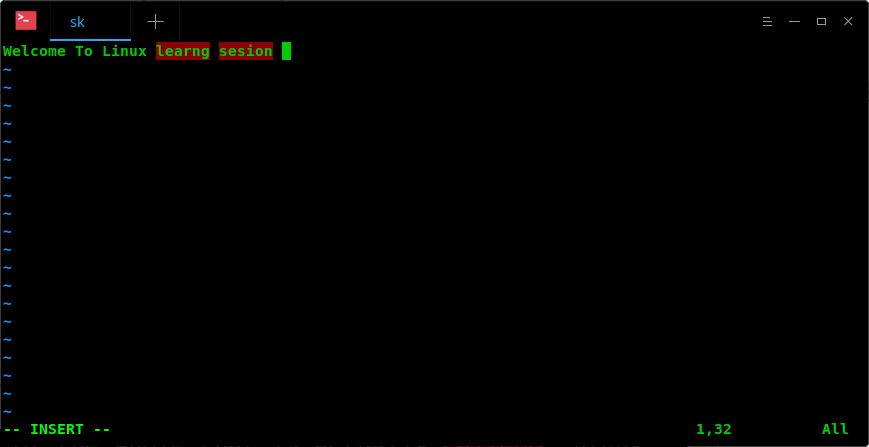
Now, go to "Insert Mode" (type "i" to switch to Insert Mode from Command mode) and type any
misspelled letters. Vim will instantly highlight the misspelled words.
As you see in the above output, I have typed "Welcome to Linux learng sesion" instead of
"Welcome to Linux learning session" and vim is highlighting the misspelled words "learng" and
"sesion" in red color.
Now, go back to Command mode by simply pressing the ESC key.
You can navigate through the misspelled words by typing any one of the following
letters:
]s – Find the misspelled word after the cursor (Forward search).
[s – Find the misspelled word before the cursor (Backward search).
]S (Note the capital "S") – Similar to "]s" but only stop at bad words, not at rare
words or words for another region.
[S – Similar to "[s" but search backwards.
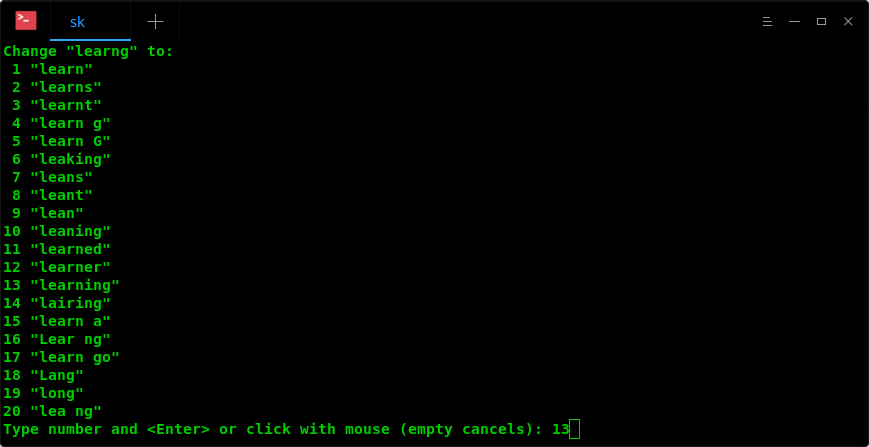
After you located the misspelled word, type z= to find suggestions for the that particular
word. Here, Vim shows me the list of suggestions for the misspelled word "learng". Pick the
correct word from the list by typing the respective number and press ENTER key to update the
misspelled word with right one.
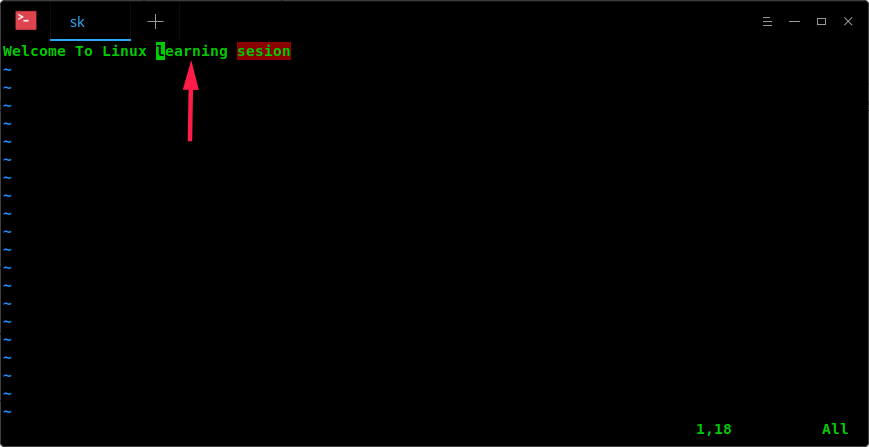
As you see in the above screenshot, I entered number 13 to replace the misspelled word
"learng" with correct word "learning. Vim immediately updated the correct word in the input
after I hit ENTER key.
Similarly, correct all spelling mistakes in your text as described above. Once you've
corrected all mistakes type :wq to save the changes and quit Vim editor.
Please remember – we can only check the spelling mistakes, not the grammar
mistakes.
Set Spell language
By default, Vim uses "en" (all regions of English) to check for spelling mistakes. We can
also choose our own spell language. For instance, to set US region English, type the following
from the Command mode in Vim editor:
:set spell spelllang=en_us
The list of all available regions for the English language is:
en – all regions
en_au – Australia
en_ca – Canada
en_gb – Great Britain
en_nz – New Zealand
en_us – USA
Add words to Spellfile
Some times you might want to add some words as exceptions, for example your name, a command,
Email etc. In such cases, you can add those specific words to the Spellefile . This file
contains all exceptions.
Make sure you have ~/.vim/spell/ directory in your system. If it is not, create one:
$ mkdir -p ~/.vim/spell/
Then, set spellfile using:
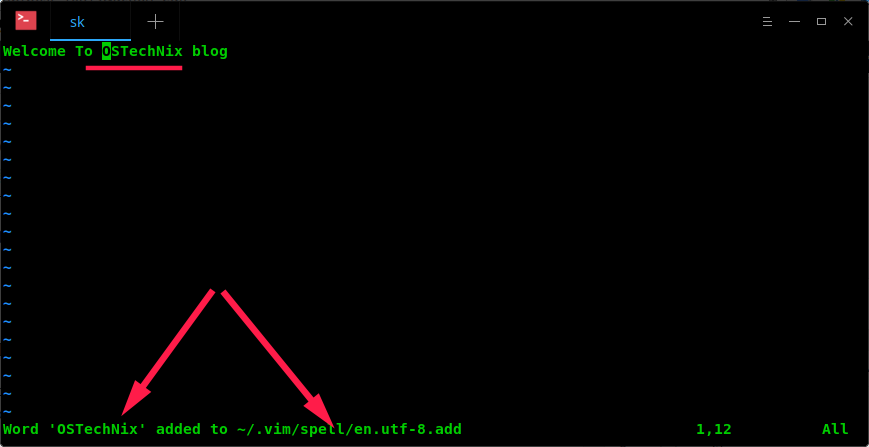
:set spellfile=~/.vim/spell/en.utf-8.add
Now, any words which are not in Dictionary, locate the misspelled word (use z= ) and type zg
. It will add the word under the cursor as good word in spellfile. i.e adds the words to your
own dictionary.
To undo this add (remove the word from spellfile), just use zug . To mark the mispelled
word, type zw . To undo this action, use zuw .
Disable Spell Check in Vim
Vim will highlight all misspelled and words which are not available in the Dictionary. Some
times, you find this annoying while writing code or a README file that contains a lot of words
which are not available in the Dictionary. In such cases, you can disable the "Spell Check"
feature by simply typing the following command:
:set nospell
Disable Spell Check feature in Vim
That's it. Now, Vim will highlight nothing. You can enable the spell check feature at any
time by running ":set spell" from the Command mode in Vim.
Vim has more built-in help pages for Spell Check feature. To know more about spell check
feature, run:
:help spell
You also refer individual help section for every options, for example:
The :e# command can help you copy blocks of text from one file to another. When you call vim
with the names of several files as arguments, you can use :n to edit the next file, :e# to edit
the file you just edited, and :rew to rewind the sequence of files so that you are editing the
first file again.
As you move between files, you can copy text from one file into a buffer and
paste that text into another file. You can use :n! to force vim to close a file without writing
out changes before it opens the next file.
"... A buffer is a file loaded into memory for editing. All opened files are associated with a buffer. There are also buffers not associated with any file. ..."
You can use a Named buffer with any of the Delete, Yank, or Put commands. Each of the 26
Named buffers is named by a letter of the alphabet. Each Named buffer can store a different
block of text and you can recall each block as needed. Unlike the General-Purpose buffer, vim
does not change the contents of a Named buffer unless you issue a command that specifically
overwrites that buffer. The vim editor maintains the contents of the Named buffers throughout
an editing session.
The vim editor stores text in a Named buffer if you precede a Delete or Yank command with a
double quotation mark ( " ) and a buffer name (for example, " kyy
yanks a copy of the current line into buffer k ). You can put information from the Work buffer
into a Named buffer in two ways. First, if you give the name of the buffer as a lowercase
letter, vim overwrites the contents of the buffer when it deletes or yanks text into the
buffer. Second, if you use an uppercase letter for the buffer name, vim appends the newly
deleted or yanked text to the end of the buffer. This feature enables you to collect blocks of
text from various sections of a file and deposit them at one place in the file with a single
command. Named buffers are also useful when you are moving a section of a file and do not want
to give a Put command immediately after the corresponding Delete command, and when you want to
insert a paragraph, sentence, or phrase repeatedly in a document.
If you have one sentence you use throughout a document, you can yank that sentence into a
Named buffer and put it wherever you need it by using the following procedure: After entering
the first occurrence of the sentence and pressing ESCAPE to return to Command
mode, leave the cursor on the line containing the sentence. (The sentence must appear on a line
or lines by itself for this procedure to work.) Then yank the sentence into Named buffer a by
giving the " ayy command (or " a2yy if the sentence takes up two
lines). Now anytime you need the sentence, you can return to Command mode and give the command
" ap to put a copy of the sentence below the current line.
This technique provides a quick and easy way to insert text that you use frequently in a
document. For example, if you were editing a legal document, you might store the phrase The
Plaintiff alleges that the Defendant in a Named buffer to save yourself the trouble of typing
it every time you want to use it. Similarly, if you were creating a letter that frequently used
a long company name, such as National Standards Institute , you might put it into a Named
buffer.
Numbered Buffers
In addition to the 26 Named buffers and 1 General-Purpose buffer, 9 Numbered buffers are
available. They are, in one sense, readonly buffers. The vim editor fills them with the nine
most recently deleted chunks of text that are at least one line long. The most recently deleted
text is held in " 1 , the next most recent in " 2 , and so on. If you
delete a block of text and then give other vim commands so that you cannot reclaim the deleted
text with an Undo command, you can use " 1p to paste the most recently deleted
chunk of text below the location of the cursor. If you have deleted several blocks of text and
want to reclaim a specific one, proceed as follows: Paste the contents of the first buffer with
"1p . If the first buffer does not hold the text you are looking for, undo the paste operation
with u and then give the period ( . ) command to repeat the previous command. The Numbered
buffers work in a unique way with the period command: Instead of pasting the contents of buffer
" 1 , the period command pastes the contents of the next buffer ( " 2
). Another u and period would replace the contents of buffer " 2 with that of
buffer " 3 , and so on through the nine buffers.
What
is a Vim buffer?
A buffer is a file loaded into memory for editing. All opened files are associated with a
buffer. There are also buffers not associated with any file.
Vim buffers are identified using a name and a number. The name of the buffer is the name of
the file associated with that buffer. The buffer number is a unique sequential number assigned
by Vim. This buffer number will not change in a single Vim session.
When you open a file using any of the Vim commands, a buffer is automatically created. For
example, if you use :edit file to edit a file, a new buffer is automatically
created. An empty buffer can be created by entering :new or :vnew
.
How do I add a new buffer for a file to the buffer list without opening the file?
You can add a new buffer for a file without opening it, using the ":badd" command. For
example,
:badd f1.txt
:badd f2.txt
The above commands will add two new buffers for the files f1.txt and f2.txt to the buffer
list.
You can delete a buffer using the ":bdelete" command. You can use either the buffer name or
the buffer number to specify a buffer. For example,
:bdelete f1.txt
:bdelete 4
The above commands will delete the buffer named "f1.txt" and the fourth buffer in the buffer
list. The ":bdelete" command will remove the buffer from the buffer list.
When a buffer is deleted, the buffer becomes an unlisted-buffer and is no longer included in
the buffer list. But the buffer name and other information associated with the buffer is still
remembered. To completely delete the buffer, use the ":bwipeout" command. This command will
remove the buffer completely (i.e. the buffer will not become a unlisted buffer).
You can remove a buffer displayed in a window in several ways:
Close the window or edit another buffer/file in that window.
Use the ":bunload" command. This command will remove the buffer from the window and
unload the buffer contents from memory. The buffer will not be removed from the buffer
list.
How do I edit an existing buffer from the buffer list?
You can edit or jump to a buffer in the buffer list in several ways:
Use the ":buffer" command passing the name of an existing buffer or the buffer number.
Note that buffer name completion can be used here by pressing the <Tab> key.
You can enter the buffer number you want to jump/edit and press the Ctrl-^ key.
Use the ":sbuffer" command passing the name of the buffer or the buffer number. Vim will
split open a new window and open the specified buffer in that window.
You can enter the buffer number you want to jump/edit and press the Ctrl-W ^ or Ctrl-W
Ctrl-^ keys. This will open the specified buffer in a new window.
You can open all the loaded buffers in the buffer list using the ":unhide" or ":sunhide"
commands. Each buffer will be loaded in a separate new window.
You can open the next or a specific modified buffer using the ":bmodified" command. You can
open the next or a specific modified buffer in a new window using the ":sbmodified"
command.
Is there a simpler way for using the buffers under gvim (GUI Vim)?
Yes, use the 'Buffers' menu to list all the buffers. You can select a buffer name to edit
the buffer. You can also delete a buffer or browse the buffer list. Click the dashed line at
the top of the menu to tear it off so you can always see a list of the buffers.
Is it possible to save and restore the buffer list across Vim sessions?
Yes. To save and restore the buffer list across Vim session, include the '%' flag in the
'viminfo' option. Note that if Vim is invoked with a filename argument, then the buffer list
will not be restored from the last session. To use buffer lists across sessions, invoke Vim
without passing filename arguments.
The point is to overwrite the global setting by calling local setting after the 'viminfo'
setting, for example.
set viminfo='1025,f1,%1024
call SetLocalOptions(".")
How do I remove all the entries from the buffer list?
You can remove all the entries in the buffer list by starting Vim with a file argument. You
can also manually remove all the buffers using the ":bdelete" command.
What is a hidden buffer?
A hidden buffer is a buffer with some unsaved modifications and is not displayed in a
window. Hidden buffers are useful, if you want to edit multiple buffers without saving the
modifications made to a buffer while loading other buffers.
How do I load buffers in a window, which currently has a buffer with unsaved
modifications?
By setting the option 'hidden', you can load a buffer in a window that currently has a
modified buffer. Vim will remember your modifications to the buffer. When you quit Vim, you
will be asked to save the modified buffers. It is important to note that, if you have the
'hidden' option set, and you quit Vim forcibly, for example using ":quit!", then you will lose
all your modifications to the hidden buffers.
Is it possible to unload or delete a buffer when it becomes hidden?
By setting the 'bufhidden' option to either 'hide' or 'unload' or 'delete', you can control
what happens to a buffer when it becomes hidden. When 'bufhidden' is set to 'delete', the
buffer is deleted when it becomes hidden. When 'bufhidden' is set to 'unload', the buffer is
unloaded when it becomes hidden. When 'bufhidden' is set to 'hide', the buffer is hidden.
When I open an existing buffer from the buffer list, if the buffer is already displayed
in one of the existing windows, I want Vim to jump to that window instead of creating a new
window for this buffer. How do I do this?
When opening a buffer using one of the split open buffer commands (:sbuffer, :sbnext), Vim
will open the specified buffer in a new window. If the buffer is already opened in one of the
existing windows, then you will have two windows containing the same buffer. You can change
this behavior by setting the 'switchbuf' option to 'useopen'. With this setting, if a buffer is
already opened in one of the windows, Vim will jump to that window, instead of creating a new
window.
Every buffer in the buffer list contains information about the last cursor position, marks,
jump list, etc.
What is the difference between deleting a buffer and unloading a buffer?
When a buffer is unloaded, it is not removed from the buffer list. Only the file contents
associated with the buffer are removed from memory. When a buffer is deleted, it is unloaded
and removed from the buffer list. A deleted buffer becomes an 'unlisted' buffer.
Is it possible to configure Vim, by setting some option, to re-use the number of a
deleted buffer for a new buffer?
No. Vim will not re-use the buffer number of a deleted buffer for a new buffer. Vim will
always assign the next sequential number for a new buffer. The buffer number assignment is
implemented this way, so that you can always jump to a buffer using the same buffer number. One
method to achieve buffer number reordering is to restart Vim. If you restart Vim, it will
re-assign numbers sequentially to all the buffers in the buffer list (assuming you have
properly set 'viminfo' to save and restore the buffer list across Vim sessions).
This creates a temporary buffer which is not associated with a file, which does not have an
associated swap file, and which will be hidden when its window is closed. On exit, Vim discards
any text in a scratch buffer without warning.
Also you can use scratch.vim for creating a scratch
buffer.
How do I determine whether a buffer is modified or not?
There are several ways to find out whether a buffer is modified or not. The simplest way is
to look at the status line or the title bar. If the displayed string contains a '+' character,
then the buffer is modified. Another way is to check whether the 'modified' option is set or
not. If 'modified' is set, then the buffer is modified. To check the value of modified, use
:set modified?
You can also explicitly set the 'modified' option to mark the buffer as modified like
this:
To change two vertically split windows to horizontal split: Ctrl - WtCtrl - WK
Horizontally to vertically: Ctrl - WtCtrl - WH
Explanations:
Ctrl - W t -- makes the first (topleft) window current
Ctrl - W K -- moves the current window to full-width at the very
top
Ctrl - W H -- moves the current window to full-height at far
left
Note that the t is lowercase, and the K and H are uppercase.
Also, with only two windows, it seems like you can drop the Ctrl - Wt part because if you're already in one of only two windows, what's the point of
making it current?
Just toggle your NERDTree panel closed before 'rotating' the splits, then toggle it
back open. :NERDTreeToggle (I have it mapped to a function key for convenience).
The command ^W-o is great! I did not know it. –
Masi Aug 13 '09 at 2:20
add a comment | up vote 6
down vote The following ex commands will (re-)split
any number of windows:
To split vertically (e.g. make vertical dividers between windows), type :vertical
ball
To split horizontally, type :ball
If there are hidden buffers, issuing these commands will also make the hidden buffers
visible.
This is very ugly, but hey, it seems to do in one step exactly what I asked for (I tried). +1, and accepted. I was looking for
a native way to do this quickly but since there does not seem to be one, yours will do just fine. Thanks! –
greg0ireJan 23
'13 at 15:27
You're right, "very ugly" shoud have been "very unfamiliar". Your command is very handy, and I think I definitely going to carve
it in my .vimrc – greg0ireJan 23
'13 at 16:21
By "move a piece of text to a new file" I assume you mean cut that piece of text from the current file and create a new file containing
only that text.
Various examples:
:1,1 w new_file to create a new file containing only the text from line number 1
:5,50 w newfile to create a new file containing the text from line 5 to line 50
:'a,'b w newfile to create a new file containing the text from mark a to mark b
set your marks by using ma and mb where ever you like
The above only copies the text and creates a new file containing that text. You will then need to delete afterward.
This can be done using the same range and the d command:
:5,50 d to delete the text from line 5 to line 50
:'a,'b d to delete the text from mark a to mark b
Or by using dd for the single line case.
If you instead select the text using visual mode, and then hit : while the text is selected, you will see the
following on the command line:
:'<,'>
Which indicates the selected text. You can then expand the command to:
:'<,'>w >> old_file
Which will append the text to an existing file. Then delete as above.
One liner:
:2,3 d | new +put! "
The breakdown:
:2,3 d - delete lines 2 through 3
| - technically this redirects the output of the first command to the second command but since the first command
doesn't output anything, we're just chaining the commands together
new - opens a new buffer
+put! " - put the contents of the unnamed register ( " ) into the buffer
The bang ( ! ) is there so that the contents are put before the current line. This causes and
empty line at the end of the file. Without it, there is an empty line at the top of the file.
Your assumption is right. This looks good, I'm going to test. Could you explain 2. a bit more? I'm not very familiar with ranges.
EDIT: If I try this on the second line, it writes the first line to the other file, not the second line. –
greg0ireJan 23
'13 at 14:09
Ok, if I understand well, the trick is to use ranges to select and write in the same command. That's very similar to what I did.
+1 for the detailed explanation, but I don't think this is more efficient, since the trick with hitting ':' is what I do for the
moment. – greg0ireJan 23
'13 at 14:41
I have 4 steps for the moment: select, write, select, delete. With your method, I have 6 steps: select, delete, split, paste,
write, close. I asked for something more efficient :P – greg0ireJan 23
'13 at 13:42
That's better, but 5 still > 4 :P – greg0ireJan 23
'13 at 13:46
Based on @embedded.kyle's answer and this Q&A , I ended
up with this one liner to append a selection to a file and delete from current file. After selecting some lines with Shift+V
, hit : and run:
'<,'>w >> test | normal gvd
The first part appends selected lines. The second command enters normal mode and runs gvd to select the last selection
and then deletes.
Visual selection is a common feature in applications, but Vim's visual selection has several
benefits.
To cut-and-paste or copy-and-paste:
Position the cursor at the beginning of the text you want to cut/copy.
Press v to begin character-based visual selection, or V to select whole
lines, or Ctrl-v or Ctrl-q to select a block.
Move the cursor to the end of the text to be cut/copied. While selecting text, you can
perform searches and other advanced movement.
Press d (delete) to cut, or y (yank) to copy.
Move the cursor to the desired paste location.
Press p to paste after the cursor, or P to paste before.
Visual selection (steps 1-3) can be performed using a mouse.
If you want to change the selected text, press c instead of d or y in
step 4. In a visual selection, pressing c performs a change by deleting the selected
text and entering insert mode so you can type the new text.
Pasting over a block of text
You can copy a block of text by pressing Ctrl-v (or Ctrl-q if you use Ctrl-v for paste),
then moving the cursor to select, and pressing y to yank. Now you can move
elsewhere and press p to paste the text after the cursor (or P to
paste before). The paste inserts a block (which might, for example, be 4 rows by 3
columns of text).
Instead of inserting the block, it is also possible to replace (paste over) the
destination. To do this, move to the target location then press 1vp (
1v selects an area equal to the original, and p pastes over it).
When a count is used before v , V , or ^V (character,
line or block selection), an area equal to the previous area, multiplied by the count, is
selected. See the paragraph after :help
<LeftRelease> .
Note that this will only work if you actually did something to the previous visual
selection, such as a yank, delete, or change operation. It will not work after visually
selecting an area and leaving visual mode without taking any actions.
NOTE: after selecting the visual copy mode, you can hold the shift key while selection
the region to get a multiple line copy. For example, to copy three lines, press V, then hold
down the Shift key while pressing the down arrow key twice. Then do your action on the
buffer.
I have struck out the above new comment because I think it is talking about something
that may apply to those who have used :behave mswin . To visually select
multiple lines, you type V , then press j (or cursor down). You
hold down Shift only to type the uppercase V . Do not press Shift after that. If
I am wrong, please explain here. JohnBeckett 10:48, October 7, 2010
(UTC)
If you just want to copy (yank) the visually marked text, you do not need to 'y'ank it.
Marking it will already copy it.
Using a mouse, you can insert it at another position by clicking the middle mouse
button.
This also works in across Vim applications on Windows systems (clipboard is inserted)
This is a really useful thing in Vim. I feel lost without it in any other editor. I have
some more points I'd like to add to this tip:
While in (any of the three) Visual mode(s), pressing 'o' will move the cursor to the
opposite end of the selection. In Visual Block mode, you can also press 'O', allowing you to
position the cursor in any of the four corners.
If you have some yanked text, pressing 'p' or 'P' while in Visual mode will replace the
selected text with the already yanked text. (After this, the previously selected text will be
yanked.)
Press 'gv' in Normal mode to restore your previous selection.
It's really worth it to check out the register functionality in Vim: ':help
registers'.
If you're still eager to use the mouse-juggling middle-mouse trick of common unix
copy-n-paste, or are into bending space and time with i_CTRL-R<reg>, consider checking
out ':set paste' and ':set pastetoggle'. (Or in the latter case, try with
i_CTRL-R_CTRL-O..)
You can replace a set of text in a visual block very easily by selecting a block, press c
and then make changes to the first line. Pressing <Esc> twice replaces all the text of
the original selection. See :help v_b_c .
On Windows the <mswin.vim> script seems to be getting sourced for many users.
Result: more Windows like behavior (ctrl-v is "paste", instead of visual-block selection).
Hunt down your system vimrc and remove sourcing thereof if you don't like that behavior (or
substitute <mrswin.vim> in its place, see VimTip63 .
With VimTip588 one can
sort lines or blocks based on visual-block selection.
With reference to the earlier post asking how to paste an inner block
Select the inner block to copy usint ctrl-v and highlighting with the hjkl keys
yank the visual region (y)
Select the inner block you want to overwrite (Ctrl-v then hightlight with hjkl keys)
paste the selection P (that is shift P) , this will overwrite keeping the block
formation
The "yank" buffers in Vim are not the same as the Windows clipboard (i.e., cut-and-paste)
buffers. If you're using the yank, it only puts it in a Vim buffer - that buffer is not
accessible to the Windows paste command. You'll want to use the Edit | Copy and Edit | Paste
(or their keyboard equivalents) if you're using the Windows GUI, or select with your mouse and
use your X-Windows cut-n-paste mouse buttons if you're running UNIX.
Double-quote and star gives one access to windows clippboard or the unix equivalent. as an
example if I wanted to yank the current line into the clipboard I would type "*yy
If I wanted to paste the contents of the clippboard into Vim at my current curser location I
would type "*p
The double-qoute and start trick work well with visual mode as well. ex: visual select text
to copy to clippboard and then type "*y
I find this very useful and I use it all the time but it is a bit slow typing "* all the
time so I am thinking about creating a macro to speed it up a bit.
Copy and Paste using the System Clipboard
There are some caveats regarding how the "*y (copy into System Clipboard) command works. We
have to be sure that we are using vim-full (sudo aptitude install vim-full on debian-based
systems) or a Vim that has X11 support enabled. Only then will the "*y command work.
For our convenience as we are all familiar with using Ctrl+c to copy a block of text in most
other GUI applications, we can also map Ctrl+c to "*y so that in Vim Visual Mode, we can simply
Ctrl+c to copy the block of text we want into our system buffer. To do that, we simply add this
line in our .vimrc file:
map <C-c> "+y<CR>
Restart our shell and we are good. Now whenever we are in Visual Mode, we can Ctrl+c to grab
what we want and paste it into another application or another editor in a convenient and
intuitive manner.
You are talking about text selecting and copying, I think that you should give a look to the
Vim Visual Mode .
In the visual mode, you are able to select text using Vim commands, then you can do
whatever you want with the selection.
Consider the following common scenarios:
You need to select to the next matching parenthesis.
You could do:
v% if the cursor is on the starting/ending parenthesis
vib if the cursor is inside the parenthesis block
You want to select text between quotes:
vi" for double quotes
vi' for single quotes
You want to select a curly brace block (very common on C-style languages):
viB
vi{
You want to select the entire file:
ggVG
Visual
block selection is another really useful feature, it allows you to select a rectangular
area of text, you just have to press Ctrl - V to start it, and then
select the text block you want and perform any type of operation such as yank, delete, paste,
edit, etc. It's great to edit column oriented text.
I have two files, say a.txt and b.txt , in the same session of vim
and I split the screen so I have file a.txt in the upper window and
b.txt in the lower window.
I want to move lines here and there from a.txt to b.txt : I
select a line with Shift + v , then I move to b.txt in the
lower window with Ctrl + w↓ , paste with p
, get back to a.txt with Ctrl + w↑ and I
can repeat the operation when I get to another line I want to move.
My question: is there a quicker way to say vim "send the line I am on (or the test I
selected) to the other window" ?
I presume that you're deleting the line that you've selected in a.txt . If not,
you'd be pasting something else into b.txt . If so, there's no need to select
the line first. – Anthony Geoghegan
Nov 24 '15 at 13:00
This sounds like a good use case for a macro. Macros are commands that can be recorded and
stored in a Vim register. Each register is identified by a letter from a to z.
Recording
To start recording, press q in Normal mode followed by a letter (a to z).
That starts recording keystrokes to the specified register. Vim displays
"recording" in the status line. Type any Normal mode commands, or enter Insert
mode and type text. To stop recording, again press q while in Normal mode.
For this particular macro, I chose the m (for move) register to store it.
I pressed qm to record the following commands:
dd to delete the current line (and save it to the default register)
CtrlWj to move to the window below
p to paste the contents of the default register
and CtrlWk to return to the window above.
When I typed q to finish recording the macro, the contents of the
m register were:
dd^Wjp^Wk
Usage
To move the current line, simply type @m in Normal mode.
To repeat the macro on a different line, @@ can be used to execute the most
recently used macro.
To execute the macro 5 times (i.e., move the current line with the following four lines
below it), use 5@m or 5@@ .
I asked to see if there is a command unknown to me that does the job: it seems there is none.
In absence of such a command, this can be a good solution. – brad
Nov 24 '15 at 14:26
@brad, you can find all the commands available to you in the documentation. If it's not there
it doesn't exist no need to ask random strangers. – romainl
Nov 26 '15 at 9:54
@romainl, yes, I know this but vim documentation is really huge and, although it doesn't
scare me, there is always the possibility to miss something. Moreover, it could also be that
you can obtain the effect using the combination of 2 commands and in this case it would be
hardly documented – brad
Nov 26 '15 at 10:17
I normally work with more than 5 files at a time. I use buffers to open different files. I
use commands such as :buf file1, :buf file2 etc. Is there a faster way to move to different
files?
Below I describe some excerpts from sections of my .vimrc . It includes mapping
the leader key, setting wilds tab completion, and finally my buffer nav key choices (all
mostly inspired by folks on the interweb, including romainl). Edit: Then I ramble on about my
shortcuts for windows and tabs.
" easier default keys {{{1

let mapleader=','
nnoremap <leader>2 :@"<CR>
The leader key is a prefix key for mostly user-defined key commands (some
plugins also use it). The default is \ , but many people suggest the easier to
reach , .
The second line there is a command to @ execute from the "
clipboard, in case you'd like to quickly try out various key bindings (without relying on
:so % ). (My nmeumonic is that Shift - 2 is @
.)
" wilds {{{1

set wildmenu wildmode=list:full
set wildcharm=<C-z>
set wildignore+=*~ wildignorecase
For built-in completion, wildmenu is probably the part that shows up yellow
on your Vim when using tab completion on command-line. wildmode is set to a
comma-separated list, each coming up in turn on each tab completion (that is, my list is
simply one element, list:full ). list shows rows and columns of
candidates. full 's meaning includes maintaining existence of the
wildmenu . wildcharm is the way to include Tab presses
in your macros. The *~ is for my use in :edit and
:find commands.
The ,3 is for switching between the "two" last buffers (Easier to reach than
built-in Ctrl - 6 ). Nmeuonic is Shift - 3 is
# , and # is the register symbol for last buffer. (See
:marks .)
,bh is to select from hidden buffers ( ! ).
,bw is to bwipeout buffers by number or name. For instance, you
can wipeout several while looking at the list, with ,bw 1 3 4 8 10 <CR> .
Note that wipeout is more destructive than :bdelete . They have their pros and
cons. For instance, :bdelete leaves the buffer in the hidden list, while
:bwipeout removes global marks (see :help marks , and the
description of uppercase marks).
I haven't settled on these keybindings, I would sort of prefer that my ,bb
was simply ,b (simply defining while leaving the others defined makes Vim pause
to see if you'll enter more).
Those shortcuts for :BufExplorer are actually the defaults for that plugin,
but I have it written out so I can change them if I want to start using ,b
without a hang.
You didn't ask for this:
If you still find Vim buffers a little awkward to use, try to combine the functionality
with tabs and windows (until you get more comfortable?).
Notice how nice ,w is for a prefix. Also, I reserve Ctrl key for
resizing, because Alt ( M- ) is hard to realize in all
environments, and I don't have a better way to resize. I'm fine using ,w to
switch windows.
" tabs {{{3

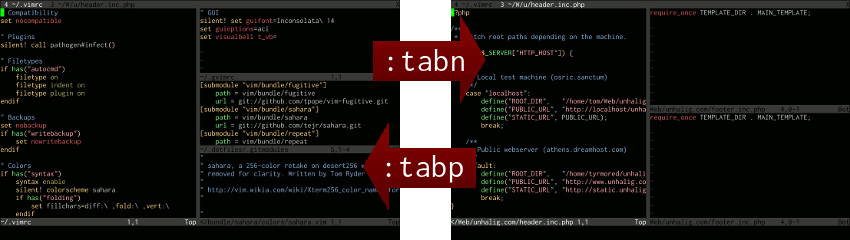
nnoremap <leader>t :tab
nnoremap <M-n> :tabn<cr>
nnoremap <M-p> :tabp<cr>
nnoremap <C-Tab> :tabn<cr>
nnoremap <C-S-Tab> :tabp<cr>
nnoremap tn :tabe<CR>
nnoremap te :tabe<Space><C-z><S-Tab>
nnoremap tf :tabf<Space>
nnoremap tc :tabc<CR>
nnoremap to :tabo<CR>
nnoremap tm :tabm<CR>
nnoremap ts :tabs<CR>

nnoremap th :tabr<CR>
nnoremap tj :tabn<CR>
nnoremap tk :tabp<CR>
nnoremap tl :tabl<CR>

" or, it may make more sense to use
" nnoremap th :tabp<CR>
" nnoremap tj :tabl<CR>
" nnoremap tk :tabr<CR>
" nnoremap tl :tabn<CR>
In summary of my window and tabs keys, I can navigate both of them with Alt ,
which is actually pretty easy to reach. In other words:
" (modifier) key choice explanation {{{3
"
"       KEYS        CTRL                  ALT
"       hjkl        resize windows        switch windows
"       np          switch buffer         switch tab
"
" (resize windows is hard to do otherwise, so we use ctrl which works across
" more environments. i can use ',w' for windowcmds o.w.. alt is comfortable
" enough for fast and gui nav in tabs and windows. we use np for navs that
" are more linear, hjkl for navs that are more planar.)
"
This way, if the Alt is working, you can actually hold it down while you find
your "open" buffer pretty quickly, amongst the tabs and windows.
,
There are many ways to solve. The best is the best that WORKS for YOU. You have lots of fuzzy
match plugins that help you navigate. The 2 things that impress me most are
The NERD tree allows you to explore your filesystem and to open files and directories. It presents the filesystem to you in
the form of a tree which you manipulate with the keyboard and/or mouse. It also allows you to perform simple filesystem operations.
The tree can be toggled easily with :NERDTreeToggle which can be mapped to a more suitable key. The keyboard shortcuts in the
NERD tree are also easy and intuitive.
For those of us not wanting to follow every link to find out about each plugin, care to furnish us with a brief synopsis? –
SpoonMeiserSep 17 '08
at 19:32
Pathogen is the FIRST plugin you have to install on every Vim installation! It resolves the plugin management problems every Vim
developer has. – Patrizio RulloSep 26
'11 at 12:11
A very nice grep replacement for GVim is Ack . A search plugin written
in Perl that beats Vim's internal grep implementation and externally invoked greps, too. It also by default skips any CVS directories
in the project directory, e.g. '.svn'.
This blog shows a way to integrate Ack with vim.
A.vim is a great little plugin. It allows you
to quickly switch between header and source files with a single command. The default is :A , but I remapped it to
F2 reduce keystrokes.
I really like the SuperTab plugin, it allows
you to use the tab key to do all your insert completions.
community wiki Greg Hewgill, Aug 25, 2008
at 19:23
I have recently started using a plugin that highlights differences in your buffer from a previous version in your RCS system (Subversion,
git, whatever). You just need to press a key to toggle the diff display on/off. You can find it here:
http://github.com/ghewgill/vim-scmdiff . Patches welcome!
It doesn't explicitly support bitkeeper at the moment, but as long as bitkeeper has a "diff" command that outputs a normal patch
file, it should be easy enough to add. – Greg HewgillSep 16 '08
at 9:26
@Yogesh: No, it doesn't support ClearCase at this time. However, if you can add ClearCase support, a patch would certainly be
accepted. – Greg HewgillMar 10
'10 at 1:39
Elegant (mini) buffer explorer - This
is the multiple file/buffer manager I use. Takes very little screen space. It looks just like most IDEs where you have a top
tab-bar with the files you've opened. I've tested some other similar plugins before, and this is my pick.
TagList - Small file explorer, without
the "extra" stuff the other file explorers have. Just lets you browse directories and open files with the "enter" key. Note
that this has already been noted by
previouscommenters
to your questions.
SuperTab - Already noted by
WMR in this
post, looks very promising. It's an auto-completion replacement key for Ctrl-P.
Moria color scheme - Another good, dark
one. Note that it's gVim only.
Enahcned Python syntax - If you're using
Python, this is an enhanced syntax version. Works better than the original. I'm not sure, but this might be already included
in the newest version. Nonetheless, it's worth adding to your syntax folder if you need it.
Not a plugin, but I advise any Mac user to switch to the MacVim
distribution which is vastly superior to the official port.
As for plugins, I used VIM-LaTeX for my thesis and was very
satisfied with the usability boost. I also like the Taglist
plugin which makes use of the ctags library.
clang complete - the best c++ code completion
I have seen so far. By using an actual compiler (that would be clang) the plugin is able to complete complex expressions including
STL and smart pointers.
With version 7.3, undo branches was added to vim. A very powerful feature, but hard to use, until
Steve Losh made
Gundo which makes this feature possible to use with a ascii
representation of the tree and a diff of the change. A must for using undo branches.
My latest favourite is Command-T . Granted, to install it
you need to have Ruby support and you'll need to compile a C extension for Vim. But oy-yoy-yoy does this plugin make a difference
in opening files in Vim!
Definitely! Let not the ruby + c compiling stop you, you will be amazed on how well this plugin enhances your toolset. I have
been ignoring this plugin for too long, installed it today and already find myself using NERDTree lesser and lesser. –
Victor FarazdagiApr 19
'11 at 19:16
just my 2 cents.. being a naive user of both plugins, with a few first characters of file name i saw a much better result with
commandt plugin and a lots of false positives for ctrlp. –
FUDDec
26 '12 at 4:48
Conque Shell : Run interactive commands inside a Vim buffer
Conque is a Vim plugin which allows you to run interactive programs, such as bash on linux or powershell.exe on Windows, inside
a Vim buffer. In other words it is a terminal emulator which uses a Vim buffer to display the program output.
The vcscommand plugin provides global ex commands
for manipulating version-controlled source files and it supports CVS,SVN and some other repositories.
You can do almost all repository related tasks from with in vim:
* Taking the diff of current buffer with repository copy
* Adding new files
* Reverting the current buffer to the repository copy by nullifying the local changes....
Just gonna name a few I didn't see here, but which I still find extremely helpful:
Gist plugin - Github Gists (Kind of
Githubs answer to Pastebin, integrated with Git for awesomeness!)
Mustang color scheme (Can't link directly due to low reputation, Google it!) - Dark, and beautiful color scheme. Looks
really good in the terminal, and even better in gVim! (Due to 256 color support)
One Plugin that is missing in the answers is NERDCommenter
, which let's you do almost anything with comments. For example {add, toggle, remove} comments. And more. See
this blog entry for some examples.
This script is based on the eclipse Task List. It will search the file for FIXME, TODO, and XXX (or a custom list) and put
them in a handy list for you to browse which at the same time will update the location in the document so you can see exactly
where the tag is located. Something like an interactive 'cw'
I really love the snippetsEmu Plugin. It emulates
some of the behaviour of Snippets from the OS X editor TextMate, in particular the variable bouncing and replacement behaviour.
For vim I like a little help with completions.
Vim has tons of completion modes, but really, I just want vim to complete anything it can, whenver it can.
I hate typing ending quotes, but fortunately
this plugin obviates the need for such misery.
Those two are my heavy hitters.
This one may step up to roam my code like
an unquiet shade, but I've yet to try it.
The Txtfmt plugin gives you a sort of "rich text" highlighting capability, similar to what is provided by RTF editors and word
processors. You can use it to add colors (foreground and background) and formatting attributes (all combinations of bold, underline,
italic, etc...) to your plain text documents in Vim.
The advantage of this plugin over something like Latex is that with Txtfmt, your highlighting changes are visible "in real
time", and as with a word processor, the highlighting is WYSIWYG. Txtfmt embeds special tokens directly in the file to accomplish
the highlighting, so the highlighting is unaffected when you move the file around, even from one computer to another. The special
tokens are hidden by the syntax; each appears as a single space. For those who have applied Vince Negri's conceal/ownsyntax patch,
the tokens can even be made "zero-width".
To copy two lines, it's even faster just to go yj or yk,
especially since you don't double up on one character. Plus, yk is a backwards
version that 2yy can't do, and you can put the number of lines to reach
backwards in y9j or y2k, etc.. Only difference is that your count
has to be n-1 for a total of n lines, but your head can learn that
anyway. – zelk
Mar 9 '14 at 13:29
If you would like to duplicate a line and paste it right away below the current like, just
like in Sublime Ctrl + Shift + D, then you can add this to
your .vimrc file.
y7yp (or 7yyp) is rarely useful; the cursor remains on the first line copied so that p pastes
the copied lines between the first and second line of the source. To duplicate a block of
lines use 7yyP – Nefrubyr
Jul 29 '14 at 14:09
For someone who doesn't know vi, some answers from above might mislead him with phrases like
"paste ... after/before current line ".
It's actually "paste ... after/before cursor ".
yy or Y to copy the line
or dd to delete the line
then
p to paste the copied or deleted text after the cursor
or P to paste the copied or deleted text before the cursor
For those starting to learn vi, here is a good introduction to vi by listing side by side vi
commands to typical Windows GUI Editor cursor movement and shortcut keys. It lists all the
basic commands including yy (copy line) and p (paste after) or
P (paste before).
When you press : in visual mode, it is transformed to '<,'>
so it pre-selects the line range the visual selection spanned over. So, in visual mode,
:t0 will copy the lines at the beginning. – Benoit
Jun 30 '12 at 14:17
For the record: when you type a colon (:) you go into command line mode where you can enter
Ex commands. vimdoc.sourceforge.net/htmldoc/cmdline.html
Ex commands can be really powerful and terse. The yyp solutions are "Normal mode" commands.
If you want to copy/move/delete a far-away line or range of lines an Ex command can be a lot
faster. – Niels Bom
Jul 31 '12 at 8:21
Y is usually remapped to y$ (yank (copy) until end of line (from
current cursor position, not beginning of line)) though. With this line in
.vimrc : :nnoremap Y y$ – Aaron Thoma
Aug 22 '13 at 23:31
gives you the advantage of preserving the cursor position.
,Sep 18, 2008 at 20:32
You can also try <C-x><C-l> which will repeat the last line from insert mode and
brings you a completion window with all of the lines. It works almost like <C-p>
This is very useful, but to avoid having to press many keys I have mapped it to just CTRL-L,
this is my map: inoremap ^L ^X^L – Jorge Gajon
May 11 '09 at 6:38
1 gotcha: when you use "p" to put the line, it puts it after the line your cursor is
on, so if you want to add the line after the line you're yanking, don't move the cursor down
a line before putting the new line.
Use the > command. To indent 5 lines, 5>> . To mark a block of lines and indent it, Vjj>
to indent 3 lines (vim only). To indent a curly-braces block, put your cursor on one of the curly braces and use >%
.
If you're copying blocks of text around and need to align the indent of a block in its new location, use ]p
instead of just p . This aligns the pasted block with the surrounding text.
Also, the shiftwidth
setting allows you to control how many spaces to indent.
My problem(in gVim) is that the command > indents much more than 2 blanks (I want just two blanks but > indent something like
5 blanks) – Kamran Bigdely
Feb 28 '11 at 23:25
The problem with . in this situation is that you have to move your fingers. With @mike's solution (same one i use) you've already
got your fingers on the indent key and can just keep whacking it to keep indenting rather than switching and doing something else.
Using period takes longer because you have to move your hands and it requires more thought because it's a second, different, operation.
– masukomi
Dec 6 '13 at 21:24
I've an XML file and turned on syntax highlighting. Typing gg=G just puts every line starting from position 1. All
the white spaces have been removed. Is there anything else specific to XML? –
asgs
Jan 28 '14 at 21:57
This is cumbersome, but is the way to go if you do formatting outside of core VIM (for instance, using vim-prettier
instead of the default indenting engine). Using > will otherwise royally scew up the formatting done by Prettier.
– oligofren
Mar 27 at 15:23
I find it better than the accepted answer, as I can see what is happening, the lines I'm selecting and the action I'm doing, and
not just type some sort of vim incantation. – user4052054
Aug 17 at 17:50
Suppose | represents the position of the cursor in Vim. If the text to be indented is enclosed in a code block like:
int main() {
line1
line2|
line3
}
you can do >i{ which means " indent ( > ) inside ( i ) block ( { )
" and get:
int main() {
    line1
    line2|
    line3
}
Now suppose the lines are contiguous but outside a block, like:
do
line2|
line3
line4
done
To indent lines 2 thru 4 you can visually select the lines and type > . Or even faster you can do >2j
to get:
do
    line2|
    line3
    line4
done
Note that >Nj means indent from current line to N lines below. If the number of lines to be indented
is large, it could take some seconds for the user to count the proper value of N . To save valuable seconds you can
activate the option of relative number with set relativenumber (available since Vim version 7.3).
Not on my Solaris or AIX boxes it doesn't. The equals key has always been one of my standard ad hoc macro assignments. Are you
sure you're not looking at a vim that's been linked to as vi ? –
rojomoke
Jul 31 '14 at 10:09
In ex mode you can use :left or :le to align lines a specified amount. Specifically,
:left will Left align lines in the [range]. It sets the indent in the lines to [indent] (default 0).
:%le3 or :%le 3 or :%left3 or :%left 3 will align the entire file by padding
with three spaces.
:5,7 le 3 will align lines 5 through 7 by padding them with 3 spaces.
:le without any value or :le 0 will left align with a padding of 0.
Awesome, just what I was looking for (a way to insert a specific number of spaces -- 4 spaces for markdown code -- to override
my normal indent). In my case I wanted to indent a specific number of lines in visual mode, so shift-v to highlight the lines,
then :'<,'>le4 to insert the spaces. Thanks! –
Subfuzion
Aug 11 '17 at 22:02
There is one more way that hasn't been mentioned yet - you can use norm i command to insert given text at the beginning
of the line. To insert 10 spaces before lines 2-10:
:2,10norm 10i
Remember that there has to be space character at the end of the command - this will be the character we want to have inserted.
We can also indent line with any other text, for example to indent every line in file with 5 underscore characters:
:%norm 5i_
Or something even more fancy:
:%norm 2i[ ]
More practical example is commenting Bash/Python/etc code with # character:
:1,20norm i#
To re-indent use x instead of i . For example to remove first 5 characters from every line:
...what? 'indent by 4 spaces'? No, this jumps to line 4 and then indents everything from there to the end of the file, using the
currently selected indent mode (if any). – underscore_d
Oct 17 '15 at 19:35
There are clearly a lot of ways to solve this, but this is the easiest to implement, as line numbers show by default in vim and
it doesn't require math. – HoldOffHunger
Dec 5 '17 at 15:50
How to indent highlighted code in vi immediately by a # of spaces:
Option 1: Indent a block of code in vi to three spaces with Visual Block mode:
Select the block of code you want to indent. Do this using Ctrl+V in normal mode and arrowing down to select
text. While it is selected, enter : to give a command to the block of selected text.
The following will appear in the command line: :'<,'>
To set indent to 3 spaces, type le 3 and press enter. This is what appears: :'<,'>le 3
The selected text is immediately indented to 3 spaces.
Option 2: Indent a block of code in vi to three spaces with Visual Line mode:
Open your file in VI.
Put your cursor over some code
Be in normal mode press the following keys:
Vjjjj:le 3
Interpretation of what you did:
V means start selecting text.
jjjj arrows down 4 lines, highlighting 4 lines.
: tells vi you will enter an instruction for the highlighted text.
le 3 means indent highlighted text 3 lines.
The selected code is immediately increased or decreased to three spaces indentation.
Option 3: use Visual Block mode and special insert mode to increase indent:
Open your file in VI.
Put your cursor over some code
Be in normal mode press the following keys:
Ctrl+V
jjjj
(press spacebar 5 times)
EscShift+i
All the highlighted text is indented an additional 5 spaces.
This answer summarises the other answers and comments of this question, and adds extra information based on the
Vim documentation and the
Vim wiki . For conciseness, this answer doesn't distinguish between Vi and
Vim-specific commands.
In the commands below, "re-indent" means "indent lines according to your
indentation settings ."
shiftwidth is the
primary variable that controls indentation.
General Commands
>>   Indent line by shiftwidth spaces
<<   De-indent line by shiftwidth spaces
5>>  Indent 5 lines
5==  Re-indent 5 lines

>%   Increase indent of a braced or bracketed block (place cursor on brace first)
=%   Reindent a braced or bracketed block (cursor on brace)
<%   Decrease indent of a braced or bracketed block (cursor on brace)
]p   Paste text, aligning indentation with surroundings

=i{  Re-indent the 'inner block', i.e. the contents of the block
=a{  Re-indent 'a block', i.e. block and containing braces
=2a{ Re-indent '2 blocks', i.e. this block and containing block

>i{  Increase inner block indent
<i{  Decrease inner block indent
You can replace { with } or B, e.g. =iB is a valid block indent command.
Take a look at "Indent a Code Block" for a nice example
to try these commands out on.
Also, remember that
. Repeat last command
, so indentation commands can be easily and conveniently repeated.
Re-indenting complete files
Another common situation is requiring indentation to be fixed throughout a source file:
gg=G Re-indent entire buffer
You can extend this idea to multiple files:
" Re-indent all your c source code:
:args *.c
:argdo normal gg=G
:wall
Or multiple buffers:
" Re-indent all open buffers:
:bufdo normal gg=G:wall
In Visual Mode
Vjj> Visually mark and then indent 3 lines
In insert mode
These commands apply to the current line:
CTRL-t   insert indent at start of line
CTRL-d   remove indent at start of line
0 CTRL-d remove all indentation from line
Ex commands
These are useful when you want to indent a specific range of lines, without moving your cursor.
:< and :> Given a range, apply indentation e.g.
:4,8>   indent lines 4 to 8, inclusive
set expandtab       "Use softtabstop spaces instead of tab characters for indentation
set shiftwidth=4    "Indent by 4 spaces when using >>, <<, == etc.
set softtabstop=4   "Indent by 4 spaces when pressing <TAB>

set autoindent      "Keep indentation from previous line
set smartindent     "Automatically inserts indentation in some cases
set cindent         "Like smartindent, but stricter and more customisable
Vim has intelligent indentation based on filetype. Try adding this to your .vimrc:
if has ("autocmd")
    " File type detection. Indent based on filetype. Recommended.
    filetype plugin indent on
endif
Both this answer and the one above it were great. But I +1'd this because it reminded me of the 'dot' operator, which repeats
the last command. This is extremely useful when needing to indent an entire block several shiftspaces (or indentations)
without needing to keep pressing >} . Thanks a long –
Amit
Aug 10 '11 at 13:26
5>> Indent 5 lines : This command indents the fifth line, not 5 lines. Could this be due to my VIM settings, or is your
wording incorrect? – Wipqozn
Aug 24 '11 at 16:00
Great summary! Also note that the "indent inside block" and "indent all block" (<i{ >a{ etc.) also works with parentheses and
brackets: >a( <i] etc. (And while I'm at it, in addition to <>'s, they also work with d,c,y etc.) –
aqn
Mar 6 '13 at 4:42
Using Python a lot, I find myself needing frequently needing to shift blocks by more than one indent. You can do this by using
any of the block selection methods, and then just enter the number of indents you wish to jump right before the >
Eg. V5j3> will indent 5 lines 3 times - which is 12 spaces if you use 4 spaces for indents
The beauty of vim's UI is that it's consistent. Editing commands are made up of the command and a cursor move. The cursor moves
are always the same:
H to top of screen, L to bottom, M to middle
n G to go to line n, G alone to bottom of file, gg to top
n to move to next search match, N to previous
} to end of paragraph
% to next matching bracket, either of the parentheses or the tag kind
enter to the next line
'x to mark x where x is a letter or another '
many more, including w and W for word, $ or 0 to tips of the
line, etc, that don't apply here because are not line movements.
So, in order to use vim you have to learn to move the cursor and remember a repertoire of commands like, for example, >
to indent (and < to "outdent").
Thus, for indenting the lines from the cursor position to the top of the screen you do >H, >G to indent
to the bottom of the file.
If, instead of typing >H, you type dH then you are deleting the same block of lines, cH
for replacing it, etc.
Some cursor movements fit better with specific commands. In particular, the % command is handy to indent a whole
HTML or XML block.
If the file has syntax highlighted ( :syn on ) then setting the cursor in the text of a tag (like, in the "i" of
<div> and entering >% will indent up to the closing </div> tag.
This is how vim works: one has to remember only the cursor movements and the commands, and how to mix them.
So my answer to this question would be "go to one end of the block of lines you want to indent, and then type the >
command and a movement to the other end of the block" if indent is interpreted as shifting the lines, =
if indent is interpreted as in pretty-printing.
When the 'expandtab' option is off (this is the default) Vim uses <Tab>s as much as possible to make the indent. ( :help :> )
– Kent Fredric
Mar 16 '11 at 8:36
The only tab/space related vim setting I've changed is :set tabstop=3. It's actually inserting this every time I use >>: "<tab><space><space>".
Same with indenting a block. Any ideas? – Shane
Reustle
Dec 2 '12 at 3:17
The three settings you want to look at for "spaces vs tabs" are 1. tabstop 2. shiftwidth 3. expandtab. You probably have "shiftwidth=5
noexpandtab", so a "tab" is 3 spaces, and an indentation level is "5" spaces, so it makes up the 5 with 1 tab, and 2 spaces. –
Kent Fredric
Dec 2 '12 at 17:08
For me, the MacVim (Visual) solution was, select with mouse and press ">", but after putting the following lines in "~/.vimrc"
since I like spaces instead of tabs:
set expandtab
set tabstop=2
set shiftwidth=2
Also it's useful to be able to call MacVim from the command-line (Terminal.app), so since I have the following helper directory
"~/bin", where I place a script called "macvim":
#!/usr/bin/env bash
/usr/bin/open -a /Applications/MacPorts/MacVim.app $@
And of course in "~/.bashrc":
export PATH=$PATH:$HOME/bin
Macports messes with "~/.profile" a lot, so the PATH environment variable can get quite long.
A quick way to do this using VISUAL MODE uses the same process as commenting a block of code.
This is useful if you would prefer not to change your shiftwidth or use any set directives and is
flexible enough to work with TABS or SPACES or any other character.
Position cursor at the beginning on the block
v to switch to -- VISUAL MODE --
Select the text to be indented
Type : to switch to the prompt
Replacing with 3 leading spaces:
:'<,'>s/^/ /g
Or replacing with leading tabs:
:'<,'>s/^/\t/g
Brief Explanation:
'<,'> - Within the Visually Selected Range
s/^/ /g - Insert 3 spaces at the beginning of every line within the whole range
(or)
s/^/\t/g - Insert Tab at the beginning of every line within the whole range
Yup, and this is why one of my big peeves is white spaces on an otherwise empty line: they messes up vim's notion of a "paragraph".
– aqn
Mar 6 '13 at 4:47
In addition to the answer already given and accepted, it is also possible to place a marker and then indent everything from the
current cursor to the marker. Thus, enter ma where you want the top of your indented block, cursor down as far as
you need and then type >'a (note that " a " can be substituted for any valid marker name). This is sometimes
easier than 5>> or vjjj> .
And you can select the lines in visual mode, then press : to get :'<,'> (equivalent to the :1,3
part in your answer), and add mo N . If you want to move a single line, just :mo N . If you are really
lazy, you can omit the space (e.g. :mo5 ). Use marks with mo '{a-zA-Z} . –
Júda Ronén
Jan 18 '17 at 21:20
I've heard a lot about Vim, both pros and
cons. It really seems you should be (as a developer) faster with Vim than with any other
editor. I'm using Vim to do some basic stuff and I'm at best 10 times less
productive with Vim.
The only two things you should care about when you talk about speed (you may not care
enough about them, but you should) are:
Using alternatively left and right hands is the fastest way to use the keyboard.
Never touching the mouse is the second way to be as fast as possible. It takes ages for
you to move your hand, grab the mouse, move it, and bring it back to the keyboard (and you
often have to look at the keyboard to be sure you returned your hand properly to the right
place)
Here are two examples demonstrating why I'm far less productive with Vim.
Copy/Cut & paste. I do it all the time. With all the contemporary editors you press
Shift with the left hand, and you move the cursor with your right hand to select
text. Then Ctrl + C copies, you move the cursor and Ctrl +
V pastes.
With Vim it's horrible:
yy to copy one line (you almost never want the whole line!)
[number xx]yy to copy xx lines into the buffer. But you never
know exactly if you've selected what you wanted. I often have to do [number
xx]dd then u to undo!
Another example? Search & replace.
In PSPad :
Ctrl + f then type what you want you search for, then press
Enter .
In Vim: /, then type what you want to search for, then if there are some
special characters put \ before each special character, then press
Enter .
And everything with Vim is like that: it seems I don't know how to handle it the right
way.
You mention cutting with yy and complain that you almost never want to cut
whole lines. In fact programmers, editing source code, very often want to work on whole
lines, ranges of lines and blocks of code. However, yy is only one of many way
to yank text into the anonymous copy buffer (or "register" as it's called in vi ).
The "Zen" of vi is that you're speaking a language. The initial y is a verb.
The statement yy is a synonym for y_ . The y is
doubled up to make it easier to type, since it is such a common operation.
This can also be expressed as ddP (delete the current line and
paste a copy back into place; leaving a copy in the anonymous register as a side effect). The
y and d "verbs" take any movement as their "subject." Thus
yW is "yank from here (the cursor) to the end of the current/next (big) word"
and y'a is "yank from here to the line containing the mark named ' a
'."
If you only understand basic up, down, left, and right cursor movements then vi will be no
more productive than a copy of "notepad" for you. (Okay, you'll still have syntax
highlighting and the ability to handle files larger than a piddling ~45KB or so; but work
with me here).
vi has 26 "marks" and 26 "registers." A mark is set to any cursor location using the
m command. Each mark is designated by a single lower case letter. Thus
ma sets the ' a ' mark to the current location, and mz
sets the ' z ' mark. You can move to the line containing a mark using the
' (single quote) command. Thus 'a moves to the beginning of the
line containing the ' a ' mark. You can move to the precise location of any mark
using the ` (backquote) command. Thus `z will move directly to the
exact location of the ' z ' mark.
Because these are "movements" they can also be used as subjects for other
"statements."
So, one way to cut an arbitrary selection of text would be to drop a mark (I usually use '
a ' as my "first" mark, ' z ' as my next mark, ' b ' as another,
and ' e ' as yet another (I don't recall ever having interactively used more than
four marks in 15 years of using vi ; one creates one's own conventions regarding how marks
and registers are used by macros that don't disturb one's interactive context). Then we go to
the other end of our desired text; we can start at either end, it doesn't matter. Then we can
simply use d`a to cut or y`a to copy. Thus the whole process has a
5 keystrokes overhead (six if we started in "insert" mode and needed to Esc out
command mode). Once we've cut or copied then pasting in a copy is a single keystroke:
p .
I say that this is one way to cut or copy text. However, it is only one of many.
Frequently we can more succinctly describe the range of text without moving our cursor around
and dropping a mark. For example if I'm in a paragraph of text I can use { and
} movements to the beginning or end of the paragraph respectively. So, to move a
paragraph of text I cut it using {d} (3 keystrokes). (If I happen
to already be on the first or last line of the paragraph I can then simply use
d} or d{ respectively.
The notion of "paragraph" defaults to something which is usually intuitively reasonable.
Thus it often works for code as well as prose.
Frequently we know some pattern (regular expression) that marks one end or the other of
the text in which we're interested. Searching forwards or backwards are movements in vi .
Thus they can also be used as "subjects" in our "statements." So I can use d/foo
to cut from the current line to the next line containing the string "foo" and
y?bar to copy from the current line to the most recent (previous) line
containing "bar." If I don't want whole lines I can still use the search movements (as
statements of their own), drop my mark(s) and use the `x commands as described
previously.
In addition to "verbs" and "subjects" vi also has "objects" (in the grammatical sense of
the term). So far I've only described the use of the anonymous register. However, I can use
any of the 26 "named" registers by prefixing the "object" reference with
" (the double quote modifier). Thus if I use "add I'm cutting the
current line into the ' a ' register and if I use "by/foo then I'm
yanking a copy of the text from here to the next line containing "foo" into the ' b
' register. To paste from a register I simply prefix the paste with the same modifier
sequence: "ap pastes a copy of the ' a ' register's contents into the
text after the cursor and "bP pastes a copy from ' b ' to before the
current line.
This notion of "prefixes" also adds the analogs of grammatical "adjectives" and "adverbs'
to our text manipulation "language." Most commands (verbs) and movement (verbs or objects,
depending on context) can also take numeric prefixes. Thus 3J means "join the
next three lines" and d5} means "delete from the current line through the end of
the fifth paragraph down from here."
This is all intermediate level vi . None of it is Vim specific and there are far more
advanced tricks in vi if you're ready to learn them. If you were to master just these
intermediate concepts then you'd probably find that you rarely need to write any macros
because the text manipulation language is sufficiently concise and expressive to do most
things easily enough using the editor's "native" language.
A sampling of more advanced tricks:
There are a number of : commands, most notably the :%
s/foo/bar/g global substitution technique. (That's not advanced but other
: commands can be). The whole : set of commands was historically
inherited by vi 's previous incarnations as the ed (line editor) and later the ex (extended
line editor) utilities. In fact vi is so named because it's the visual interface to ex .
: commands normally operate over lines of text. ed and ex were written in an
era when terminal screens were uncommon and many terminals were "teletype" (TTY) devices. So
it was common to work from printed copies of the text, using commands through an extremely
terse interface (common connection speeds were 110 baud, or, roughly, 11 characters per
second -- which is slower than a fast typist; lags were common on multi-user interactive
sessions; additionally there was often some motivation to conserve paper).
So the syntax of most : commands includes an address or range of addresses
(line number) followed by a command. Naturally one could use literal line numbers:
:127,215 s/foo/bar to change the first occurrence of "foo" into "bar" on each
line between 127 and 215. One could also use some abbreviations such as . or
$ for current and last lines respectively. One could also use relative prefixes
+ and - to refer to offsets after or before the curent line,
respectively. Thus: :.,$j meaning "from the current line to the last line, join
them all into one line". :% is synonymous with :1,$ (all the
lines).
The :... g and :... v commands bear some explanation as they are
incredibly powerful. :... g is a prefix for "globally" applying a subsequent
command to all lines which match a pattern (regular expression) while :... v
applies such a command to all lines which do NOT match the given pattern ("v" from
"conVerse"). As with other ex commands these can be prefixed by addressing/range references.
Thus :.,+21g/foo/d means "delete any lines containing the string "foo" from the
current one through the next 21 lines" while :.,$v/bar/d means "from here to the
end of the file, delete any lines which DON'T contain the string "bar."
It's interesting that the common Unix command grep was actually inspired by this ex
command (and is named after the way in which it was documented). The ex command
:g/re/p (grep) was the way they documented how to "globally" "print" lines
containing a "regular expression" (re). When ed and ex were used, the :p command
was one of the first that anyone learned and often the first one used when editing any file.
It was how you printed the current contents (usually just one page full at a time using
:.,+25p or some such).
Note that :% g/.../d or (its reVerse/conVerse counterpart: :%
v/.../d are the most common usage patterns. However there are couple of other
ex commands which are worth remembering:
We can use m to move lines around, and j to join lines. For
example if you have a list and you want to separate all the stuff matching (or conversely NOT
matching some pattern) without deleting them, then you can use something like: :%
g/foo/m$ ... and all the "foo" lines will have been moved to the end of the file.
(Note the other tip about using the end of your file as a scratch space). This will have
preserved the relative order of all the "foo" lines while having extracted them from the rest
of the list. (This would be equivalent to doing something like: 1G!GGmap!Ggrep
foo<ENTER>1G:1,'a g/foo'/d (copy the file to its own tail, filter the tail
through grep, and delete all the stuff from the head).
To join lines usually I can find a pattern for all the lines which need to be joined to
their predecessor (all the lines which start with "^ " rather than "^ * " in some bullet
list, for example). For that case I'd use: :% g/^ /-1j (for every matching line,
go up one line and join them). (BTW: for bullet lists trying to search for the bullet lines
and join to the next doesn't work for a couple reasons ... it can join one bullet line to
another, and it won't join any bullet line to all of its continuations; it'll only
work pairwise on the matches).
Almost needless to mention you can use our old friend s (substitute) with the
g and v (global/converse-global) commands. Usually you don't need
to do so. However, consider some case where you want to perform a substitution only on lines
matching some other pattern. Often you can use a complicated pattern with captures and use
back references to preserve the portions of the lines that you DON'T want to change. However,
it will often be easier to separate the match from the substitution: :%
g/foo/s/bar/zzz/g -- for every line containing "foo" substitute all "bar" with "zzz."
(Something like :% s/\(.*foo.*\)bar\(.*\)/\1zzz\2/g would only work for the
cases those instances of "bar" which were PRECEDED by "foo" on the same line; it's ungainly
enough already, and would have to be mangled further to catch all the cases where "bar"
preceded "foo")
The point is that there are more than just p, s, and
d lines in the ex command set.
The : addresses can also refer to marks. Thus you can use:
:'a,'bg/foo/j to join any line containing the string foo to its subsequent line,
if it lies between the lines between the ' a ' and ' b ' marks. (Yes, all
of the preceding ex command examples can be limited to subsets of the file's
lines by prefixing with these sorts of addressing expressions).
That's pretty obscure (I've only used something like that a few times in the last 15
years). However, I'll freely admit that I've often done things iteratively and interactively
that could probably have been done more efficiently if I'd taken the time to think out the
correct incantation.
Another very useful vi or ex command is :r to read in the contents of another
file. Thus: :r foo inserts the contents of the file named "foo" at the current
line.
More powerful is the :r! command. This reads the results of a command. It's
the same as suspending the vi session, running a command, redirecting its output to a
temporary file, resuming your vi session, and reading in the contents from the temp.
file.
Even more powerful are the ! (bang) and :... ! ( ex bang)
commands. These also execute external commands and read the results into the current text.
However, they also filter selections of our text through the command! This we can sort all
the lines in our file using 1G!Gsort ( G is the vi "goto" command;
it defaults to going to the last line of the file, but can be prefixed by a line number, such
as 1, the first line). This is equivalent to the ex variant :1,$!sort . Writers
often use ! with the Unix fmt or fold utilities for reformating or "word
wrapping" selections of text. A very common macro is {!}fmt (reformat the
current paragraph). Programmers sometimes use it to run their code, or just portions of it,
through indent or other code reformatting tools.
Using the :r! and ! commands means that any external utility or
filter can be treated as an extension of our editor. I have occasionally used these with
scripts that pulled data from a database, or with wget or lynx commands that pulled data off
a website, or ssh commands that pulled data from remote systems.
Another useful ex command is :so (short for :source ). This
reads the contents of a file as a series of commands. When you start vi it normally,
implicitly, performs a :source on ~/.exinitrc file (and Vim usually
does this on ~/.vimrc, naturally enough). The use of this is that you can
change your editor profile on the fly by simply sourcing in a new set of macros,
abbreviations, and editor settings. If you're sneaky you can even use this as a trick for
storing sequences of ex editing commands to apply to files on demand.
For example I have a seven line file (36 characters) which runs a file through wc, and
inserts a C-style comment at the top of the file containing that word count data. I can apply
that "macro" to a file by using a command like: vim +'so mymacro.ex'
./mytarget
(The + command line option to vi and Vim is normally used to start the
editing session at a given line number. However it's a little known fact that one can follow
the + by any valid ex command/expression, such as a "source" command as I've
done here; for a simple example I have scripts which invoke: vi +'/foo/d|wq!'
~/.ssh/known_hosts to remove an entry from my SSH known hosts file non-interactively
while I'm re-imaging a set of servers).
Usually it's far easier to write such "macros" using Perl, AWK, sed (which is, in fact,
like grep a utility inspired by the ed command).
The @ command is probably the most obscure vi command. In occasionally
teaching advanced systems administration courses for close to a decade I've met very few
people who've ever used it. @ executes the contents of a register as if it were
a vi or ex command.
Example: I often use: :r!locate ... to find some file on my system and read its
name into my document. From there I delete any extraneous hits, leaving only the full path to
the file I'm interested in. Rather than laboriously Tab -ing through each
component of the path (or worse, if I happen to be stuck on a machine without Tab completion
support in its copy of vi ) I just use:
0i:r (to turn the current line into a valid :r command),
"cdd (to delete the line into the "c" register) and
@c execute that command.
That's only 10 keystrokes (and the expression "cdd@c is
effectively a finger macro for me, so I can type it almost as quickly as any common six
letter word).
A sobering thought
I've only scratched to surface of vi 's power and none of what I've described here is even
part of the "improvements" for which vim is named! All of what I've described here should
work on any old copy of vi from 20 or 30 years ago.
There are people who have used considerably more of vi 's power than I ever will.
@Wahnfieden -- grok is exactly what I meant: en.wikipedia.org/wiki/Grok (It's apparently even in
the OED --- the closest we anglophones have to a canonical lexicon). To "grok" an editor is
to find yourself using its commands fluently ... as if they were your natural language.
– Jim
Dennis
Feb 12 '10 at 4:08
wow, a very well written answer! i couldn't agree more, although i use the @
command a lot (in combination with q : record macro) – knittl
Feb 27 '10 at 13:15
Superb answer that utterly redeems a really horrible question. I am going to upvote this
question, that normally I would downvote, just so that this answer becomes easier to find.
(And I'm an Emacs guy! But this way I'll have somewhere to point new folks who want a good
explanation of what vi power users find fun about vi. Then I'll tell them about Emacs and
they can decide.) – Brandon Rhodes
Mar 29 '10 at 15:26
Can you make a website and put this tutorial there, so it doesn't get burried here on
stackoverflow. I have yet to read better introduction to vi then this. – Marko
Apr 1 '10 at 14:47
You are talking about text selecting and copying, I think that you should give a look to the
Vim Visual Mode .
In the visual mode, you are able to select text using Vim commands, then you can do
whatever you want with the selection.
Consider the following common scenarios:
You need to select to the next matching parenthesis.
You could do:
v% if the cursor is on the starting/ending parenthesis
vib if the cursor is inside the parenthesis block
You want to select text between quotes:
vi" for double quotes
vi' for single quotes
You want to select a curly brace block (very common on C-style languages):
viB
vi{
You want to select the entire file:
ggVG
Visual
block selection is another really useful feature, it allows you to select a rectangular
area of text, you just have to press Ctrl - V to start it, and then
select the text block you want and perform any type of operation such as yank, delete, paste,
edit, etc. It's great to edit column oriented text.
Yes, but it was a specific complaint of the poster. Visual mode is Vim's best method of
direct text-selection and manipulation. And since vim's buffer traversal methods are superb,
I find text selection in vim fairly pleasurable. – guns
Aug 2 '09 at 9:54
I think it is also worth mentioning Ctrl-V to select a block - ie an arbitrary rectangle of
text. When you need it it's a lifesaver. – Hamish Downer
Mar 16 '10 at 13:34
Also, if you've got a visual selection and want to adjust it, o will hop to the
other end. So you can move both the beginning and the end of the selection as much as you
like. – Nathan Long
Mar 1 '11 at 19:05
* and # search for the word under the cursor
forward/backward.
w to the next word
W to the next space-separated word
b / e to the begin/end of the current word. ( B
/ E for space separated only)
gg / G jump to the begin/end of the file.
% jump to the matching { .. } or ( .. ), etc..
{ / } jump to next paragraph.
'. jump back to last edited line.
g; jump back to last edited position.
Quick editing commands
I insert at the begin.
A append to end.
o / O open a new line after/before the current.
v / V / Ctrl+V visual mode (to select
text!)
Shift+R replace text
C change remaining part of line.
Combining commands
Most commands accept a amount and direction, for example:
cW = change till end of word
3cW = change 3 words
BcW = to begin of full word, change full word
ciW = change inner word.
ci" = change inner between ".."
ci( = change text between ( .. )
ci< = change text between < .. > (needs set
matchpairs+=<:> in vimrc)
4dd = delete 4 lines
3x = delete 3 characters.
3s = substitute 3 characters.
Useful programmer commands
r replace one character (e.g. rd replaces the current char
with d ).
~ changes case.
J joins two lines
Ctrl+A / Ctrl+X increments/decrements a number.
. repeat last command (a simple macro)
== fix line indent
> indent block (in visual mode)
< unindent block (in visual mode)
Macro recording
Press q[ key ] to start recording.
Then hit q to stop recording.
The macro can be played with @[ key ] .
By using very specific commands and movements, VIM can replay those exact actions for the
next lines. (e.g. A for append-to-end, b / e to move the cursor to
the begin or end of a word respectively)
Example of well built settings
# reset to vim-defaults
if &compatible # only if not set before:
set nocompatible # use vim-defaults instead of vi-defaults (easier, more user friendly)
endif
# display settings
set background=dark # enable for dark terminals
set nowrap # dont wrap lines
set scrolloff=2 # 2 lines above/below cursor when scrolling
set number # show line numbers
set showmatch # show matching bracket (briefly jump)
set showmode # show mode in status bar (insert/replace/...)
set showcmd # show typed command in status bar
set ruler # show cursor position in status bar
set title # show file in titlebar
set wildmenu # completion with menu
set wildignore=*.o,*.obj,*.bak,*.exe,*.py[co],*.swp,*~,*.pyc,.svn
set laststatus=2 # use 2 lines for the status bar
set matchtime=2 # show matching bracket for 0.2 seconds
set matchpairs+=<:> # specially for html
# editor settings
set esckeys # map missed escape sequences (enables keypad keys)
set ignorecase # case insensitive searching
set smartcase # but become case sensitive if you type uppercase characters
set smartindent # smart auto indenting
set smarttab # smart tab handling for indenting
set magic # change the way backslashes are used in search patterns
set bs=indent,eol,start # Allow backspacing over everything in insert mode
set tabstop=4 # number of spaces a tab counts for
set shiftwidth=4 # spaces for autoindents
#set expandtab # turn a tabs into spaces
set fileformat=unix # file mode is unix
#set fileformats=unix,dos # only detect unix file format, displays that ^M with dos files
# system settings
set lazyredraw # no redraws in macros
set confirm # get a dialog when :q, :w, or :wq fails
set nobackup # no backup~ files.
set viminfo='20,\"500 # remember copy registers after quitting in the .viminfo file -- 20 jump links, regs up to 500 lines'
set hidden # remember undo after quitting
set history=50 # keep 50 lines of command history
set mouse=v # use mouse in visual mode (not normal,insert,command,help mode
# color settings (if terminal/gui supports it)
if &t_Co > 2 || has("gui_running")
syntax on # enable colors
set hlsearch # highlight search (very useful!)
set incsearch # search incremently (search while typing)
endif
# paste mode toggle (needed when using autoindent/smartindent)
map <F10> :set paste<CR>
map <F11> :set nopaste<CR>
imap <F10> <C-O>:set paste<CR>
imap <F11> <nop>
set pastetoggle=<F11>
# Use of the filetype plugins, auto completion and indentation support
filetype plugin indent on
# file type specific settings
if has("autocmd")
# For debugging
#set verbose=9
# if bash is sh.
let bash_is_sh=1
# change to directory of current file automatically
autocmd BufEnter * lcd %:p:h
# Put these in an autocmd group, so that we can delete them easily.
augroup mysettings
au FileType xslt,xml,css,html,xhtml,javascript,sh,config,c,cpp,docbook set smartindent shiftwidth=2 softtabstop=2 expandtab
au FileType tex set wrap shiftwidth=2 softtabstop=2 expandtab
# Confirm to PEP8
au FileType python set tabstop=4 softtabstop=4 expandtab shiftwidth=4 cinwords=if,elif,else,for,while,try,except,finally,def,class
augroup END
augroup perl
# reset (disable previous 'augroup perl' settings)
au!
au BufReadPre,BufNewFile
\ *.pl,*.pm
\ set formatoptions=croq smartindent shiftwidth=2 softtabstop=2 cindent cinkeys='0{,0},!^F,o,O,e' " tags=./tags,tags,~/devel/tags,~/devel/C
# formatoption:
# t - wrap text using textwidth
# c - wrap comments using textwidth (and auto insert comment leader)
# r - auto insert comment leader when pressing <return> in insert mode
# o - auto insert comment leader when pressing 'o' or 'O'.
# q - allow formatting of comments with "gq"
# a - auto formatting for paragraphs
# n - auto wrap numbered lists
#
augroup END
# Always jump to the last known cursor position.
# Don't do it when the position is invalid or when inside
# an event handler (happens when dropping a file on gvim).
autocmd BufReadPost *
\ if line("'\"") > 0 && line("'\"") <= line("$") |
\ exe "normal g`\"" |
\ endif
endif # has("autocmd")
The settings can be stored in ~/.vimrc, or system-wide in
/etc/vimrc.local and then by read from the /etc/vimrc file
using:
source /etc/vimrc.local
(you'll have to replace the # comment character with " to make
it work in VIM, I wanted to give proper syntax highlighting here).
The commands I've listed here are pretty basic, and the main ones I use so far. They
already make me quite more productive, without having to know all the fancy stuff.
Better than '. is g;, which jumps back through the
changelist . Goes to the last edited position, instead of last edited line
– naught101
Apr 28 '12 at 2:09
The Control + R mechanism is very useful :-) In either insert mode or
command mode (i.e. on the : line when typing commands), continue with a numbered
or named register:
a - z the named registers
" the unnamed register, containing the text of the last delete or
yank
% the current file name
# the alternate file name
* the clipboard contents (X11: primary selection)
+ the clipboard contents
/ the last search pattern
: the last command-line
. the last inserted text
- the last small (less than a line) delete
=5*5 insert 25 into text (mini-calculator)
See :help i_CTRL-R and :help c_CTRL-R for more details, and
snoop around nearby for more CTRL-R goodness.
+1 for current/alternate file name. Control-A also works in insert mode for last
inserted text, and Control-@ to both insert last inserted text and immediately
switch to normal mode. – Aryeh Leib Taurog
Feb 26 '12 at 19:06
There are a lot of good answers here, and one amazing one about the zen of vi. One thing I
don't see mentioned is that vim is extremely extensible via plugins. There are scripts and
plugins to make it do all kinds of crazy things the original author never considered. Here
are a few examples of incredibly handy vim plugins:
Rails.vim is a plugin written by tpope. It's an incredible tool for people doing rails
development. It does magical context-sensitive things that allow you to easily jump from a
method in a controller to the associated view, over to a model, and down to unit tests for
that model. It has saved dozens if not hundreds of hours as a rails
developer.
This plugin allows you to select a region of text in visual mode and type a quick command
to post it to gist.github.com . This
allows for easy pastebin access, which is incredibly handy if you're collaborating with
someone over IRC or IM.
This plugin provides special functionality to the spacebar. It turns the spacebar into
something analogous to the period, but instead of repeating actions it repeats motions. This
can be very handy for moving quickly through a file in a way you define on the
fly.
This plugin gives you the ability to work with text that is delimited in some fashion. It
gives you objects which denote things inside of parens, things inside of quotes, etc. It can
come in handy for manipulating delimited text.
This script brings fancy tab completion functionality to vim. The autocomplete stuff is
already there in the core of vim, but this brings it to a quick tab rather than multiple
different multikey shortcuts. Very handy, and incredibly fun to use. While it's not VS's
intellisense, it's a great step and brings a great deal of the functionality you'd like to
expect from a tab completion tool.
This tool brings external syntax checking commands into vim. I haven't used it personally,
but I've heard great things about it and the concept is hard to beat. Checking syntax without
having to do it manually is a great time saver and can help you catch syntactic bugs as you
introduce them rather than when you finally stop to test.
Direct access to git from inside of vim. Again, I haven't used this plugin, but I can see
the utility. Unfortunately I'm in a culture where svn is considered "new", so I won't likely
see git at work for quite some time.
A tree browser for vim. I started using this recently, and it's really handy. It lets you
put a treeview in a vertical split and open files easily. This is great for a project with a
lot of source files you frequently jump between.
This is an unmaintained plugin, but still incredibly useful. It provides the ability to
open files using a "fuzzy" descriptive syntax. It means that in a sparse tree of files you
need only type enough characters to disambiguate the files you're interested in from the rest
of the cruft.
Conclusion
There are a lot of incredible tools available for vim. I'm sure I've only scratched the
surface here, and it's well worth searching for tools applicable to your domain. The
combination of traditional vi's powerful toolset, vim's improvements on it, and plugins which
extend vim even further, it's one of the most powerful ways to edit text ever conceived. Vim
is easily as powerful as emacs, eclipse, visual studio, and textmate.
Thanks
Thanks to duwanis for his
vim configs from which I
have learned much and borrowed most of the plugins listed here.
The magical tests-to-class navigation in rails.vim is one of the more general things I wish
Vim had that TextMate absolutely nails across all languages: if I am working on Person.scala
and I do Cmd+T, usually the first thing in the list is PersonTest.scala. – Tom Morris
Apr 1 '10 at 8:50
@Benson Great list! I'd toss in snipMate as well. Very helpful
automation of common coding stuff. if<tab> instant if block, etc. – AlG
Sep 13 '11 at 17:37
Visual mode was mentioned previously, but block visual mode has saved me a lot of time
when editing fixed size columns in text file. (accessed with Ctrl-V).
Additionally, if you use a concise command (e.g. A for append-at-end) to edit the text, vim
can repeat that exact same action for the next line you press the . key at.
– vdboor
Apr 1 '10 at 8:34
Go to last edited location (very useful if you performed some searching and than want go
back to edit)
^P and ^N
Complete previous (^P) or next (^N) text.
^O and ^I
Go to previous ( ^O - "O" for old) location or to the next (
^I - "I" just near to "O" ). When you perform
searches, edit files etc., you can navigate through these "jumps" forward and back.
@Kungi `. will take you to the last edit `` will take you back to the position you were in
before the last 'jump' - which /might/ also be the position of the last edit. –
Grant
McLean
Aug 23 '11 at 8:21
It's pretty new and really really good. The guy who is running the site switched from
textmate to vim and hosts very good and concise casts on specific vim topics. Check it
out!
@SolutionYogi: Consider that you want to add line number to the beginning of each line.
Solution: ggI1<space><esc>0qqyawjP0<c-a>0q9999@q – hcs42
Feb 27 '10 at 19:05
Extremely useful with Vimperator, where it increments (or decrements, Ctrl-X) the last number
in the URL. Useful for quickly surfing through image galleries etc. – blueyed
Apr 1 '10 at 14:47
Whoa, I didn't know about the * and # (search forward/back for word under cursor) binding.
That's kinda cool. The f/F and t/T and ; commands are quick jumps to characters on the
current line. f/F put the cursor on the indicated character while t/T puts it just up "to"
the character (the character just before or after it according to the direction chosen. ;
simply repeats the most recent f/F/t/T jump (in the same direction). – Jim Dennis
Mar 14 '10 at 6:38
:) The tagline at the top of the tips page at vim.org: "Can you imagine how many keystrokes
could have been saved, if I only had known the "*" command in time?" - Juergen Salk,
1/19/2001" – Steve K
Apr 3 '10 at 23:50
As Jim mentioned, the "t/T" combo is often just as good, if not better, for example,
ct( will erase the word and put you in insert mode, but keep the parantheses!
– puk
Feb 24 '12 at 6:45
CTRL-A ;Add [count] to the number or alphabetic character at or after the cursor. {not
in Vi
CTRL-X ;Subtract [count] from the number or alphabetic character at or after the cursor.
{not in Vi}
b. Window key unmapping
In window, Ctrl-A already mapped for whole file selection you need to unmap in rc file.
mark mswin.vim CTRL-A mapping part as comment or add your rc file with unmap
c. With Macro
The CTRL-A command is very useful in a macro. Example: Use the following steps to make a
numbered list.
Create the first list entry, make sure it starts with a number.
Last week at work our project inherited a lot of Python code from another project.
Unfortunately the code did not fit into our existing architecture - it was all done with
global variables and functions, which would not work in a multi-threaded environment.
We had ~80 files that needed to be reworked to be object oriented - all the functions
moved into classes, parameters changed, import statements added, etc. We had a list of about
20 types of fix that needed to be done to each file. I would estimate that doing it by hand
one person could do maybe 2-4 per day.
So I did the first one by hand and then wrote a vim script to automate the changes. Most
of it was a list of vim commands e.g.
" delete an un-needed function "
g/someFunction(/ d

" add wibble parameter to function foo "
%s/foo(/foo( wibble,/

" convert all function calls bar(thing) into method calls thing.bar() "
g/bar(/ normal nmaf(ldi(`aPa.
The last one deserves a bit of explanation:
g/bar(/  executes the following command on every line that contains "bar("
normal   execute the following text as if it was typed in in normal mode
n        goes to the next match of "bar(" (since the :g command leaves the cursor position at the start of the line)
ma       saves the cursor position in mark a
f(       moves forward to the next opening bracket
l        moves right one character, so the cursor is now inside the brackets
di(      delete all the text inside the brackets
`a       go back to the position saved as mark a (i.e. the first character of "bar")
P        paste the deleted text before the current cursor position
a.       go into insert mode and add a "."
For a couple of more complex transformations such as generating all the import statements
I embedded some python into the vim script.
After a few hours of working on it I had a script that will do at least 95% of the
conversion. I just open a file in vim then run :source fixit.vim and the file is
transformed in a blink of the eye.
We still have the work of changing the remaining 5% that was not worth automating and of
testing the results, but by spending a day writing this script I estimate we have saved weeks
of work.
Of course it would have been possible to automate this with a scripting language like
Python or Ruby, but it would have taken far longer to write and would be less flexible - the
last example would have been difficult since regex alone would not be able to handle nested
brackets, e.g. to convert bar(foo(xxx)) to foo(xxx).bar() . Vim was
perfect for the task.
@lpsquiggle: your suggestion would not handle complex expressions with more than one set of
brackets. e.g. if bar(foo(xxx)) or wibble(xxx): becomes if foo(xxx)) or
wibble(xxx.bar(): which is completely wrong. – Dave Kirby
Mar 23 '10 at 17:16
Use the builtin file explorer! The command is :Explore and it allows you to
navigate through your source code very very fast. I have these mapping in my
.vimrc :
I always thought the default methods for browsing kinda sucked for most stuff. It's just slow
to browse, if you know where you wanna go. LustyExplorer from vim.org's script section is a
much needed improvement. – Svend
Aug 2 '09 at 8:48
I recommend NERDtree instead of the built-in explorer. It has changed the way I used vim for
projects and made me much more productive. Just google for it. – kprobst
Apr 1 '10 at 3:53
I never feel the need to explore the source tree, I just use :find,
:tag and the various related keystrokes to jump around. (Maybe this is because
the source trees I work on are big and organized differently than I would have done? :) )
– dash-tom-bang
Aug 24 '11 at 0:35
I am a member of the American Cryptogram Association. The bimonthly magazine includes over
100 cryptograms of various sorts. Roughly 15 of these are "cryptarithms" - various types of
arithmetic problems with letters substituted for the digits. Two or three of these are
sudokus, except with letters instead of numbers. When the grid is completed, the nine
distinct letters will spell out a word or words, on some line, diagonal, spiral, etc.,
somewhere in the grid.
Rather than working with pencil, or typing the problems in by hand, I download the
problems from the members area of their website.
When working with these sudokus, I use vi, simply because I'm using facilities that vi has
that few other editors have. Mostly in converting the lettered grid into a numbered grid,
because I find it easier to solve, and then the completed numbered grid back into the
lettered grid to find the solution word or words.
The problem is formatted as nine groups of nine letters, with - s
representing the blanks, written in two lines. The first step is to format these into nine
lines of nine characters each. There's nothing special about this, just inserting eight
linebreaks in the appropriate places.
So, first step in converting this into numbers is to make a list of the distinct letters.
First, I make a copy of the block. I position the cursor at the top of the block, then type
:y}}p . : puts me in command mode, y yanks the next
movement command. Since } is a move to the end of the next paragraph,
y} yanks the paragraph. } then moves the cursor to the end of the
paragraph, and p pastes what we had yanked just after the cursor. So
y}}p creates a copy of the next paragraph, and ends up with the cursor between
the two copies.
Next, I to turn one of those copies into a list of distinct letters. That command is a bit
more complex:
: again puts me in command mode. ! indicates that the content of
the next yank should be piped through a command line. } yanks the next
paragraph, and the command line then uses the tr command to strip out everything
except for upper-case letters, the sed command to print each letter on a single
line, and the sort command to sort those lines, removing duplicates, and then
tr strips out the newlines, leaving the nine distinct letters in a single line,
replacing the nine lines that had made up the paragraph originally. In this case, the letters
are: ACELNOPST .
Next step is to make another copy of the grid. And then to use the letters I've just
identified to replace each of those letters with a digit from 1 to 9. That's simple:
:!}tr ACELNOPST 0-9 . The result is:
This can then be solved in the usual way, or entered into any sudoku solver you might
prefer. The completed solution can then be converted back into letters with :!}tr 1-9
ACELNOPST .
There is power in vi that is matched by very few others. The biggest problem is that only
a very few of the vi tutorial books, websites, help-files, etc., do more than barely touch
the surface of what is possible.
and an irritation is that some distros such as ubuntu has aliases from the word "vi" to "vim"
so people won't really see vi. Excellent example, have to try... +1 – hhh
Jan 14 '11 at 17:12
I'm baffled by this repeated error: you say you need : to go into command mode,
but then invariably you specify normal mode commands (like y}}p ) which
cannot possibly work from the command mode?! – sehe
Mar 4 '12 at 20:47
My take on the unique chars challenge: :se tw=1 fo= (preparation)
VG:s/./& /g (insert spaces), gvgq (split onto separate lines),
V{:sort u (sort and remove duplicates) – sehe
Mar 4 '12 at 20:56
I find the following trick increasingly useful ... for cases where you want to join lines
that match (or that do NOT match) some pattern to the previous line: :%
g/foo/-1j or :'a,'z v/bar/-1j for example (where the former is "all lines
and matching the pattern" while the latter is "lines between mark a and mark z which fail to
match the pattern"). The part after the patter in a g or v ex
command can be any other ex commmands, -1j is just a relative line movement and join command.
– Jim
Dennis
Feb 12 '10 at 4:15
of course, if you name your macro '2', then when it comes time to use it, you don't even have
to move your finger from the '@' key to the 'q' key. Probably saves 50 to 100 milliseconds
every time right there. =P – JustJeff
Feb 27 '10 at 12:54
I recently discovered q: . It opens the "command window" and shows your most
recent ex-mode (command-mode) commands. You can move as usual within the window, and pressing
<CR> executes the command. You can edit, etc. too. Priceless when you're
messing around with some complex command or regex and you don't want to retype the whole
thing, or if the complex thing you want to do was 3 commands back. It's almost like bash's
set -o vi, but for vim itself (heh!).
See :help q: for more interesting bits for going back and forth.
I just discovered Vim's omnicompletion the other day, and while I'll admit I'm a bit hazy on
what does which, I've had surprisingly good results just mashing either Ctrl +
xCtrl + u or Ctrl + n /
Ctrl + p in insert mode. It's not quite IntelliSense, but I'm still learning it.
<Ctrl> + W and j/k will let you navigate absolutely (j up, k down, as with normal vim).
This is great when you have 3+ splits. – Andrew Scagnelli
Apr 1 '10 at 2:58
after bashing my keyboard I have deduced that <C-w>n or
<C-w>s is new horizontal window, <C-w>b is bottom right
window, <C-w>c or <C-w>q is close window,
<C-w>x is increase and then decrease window width (??),
<C-w>p is last window, <C-w>backspace is move left(ish)
window – puk
Feb 24 '12 at 7:00
As several other people have said, visual mode is the answer to your copy/cut & paste
problem. Vim gives you 'v', 'V', and C-v. Lower case 'v' in vim is essentially the same as
the shift key in notepad. The nice thing is that you don't have to hold it down. You can use
any movement technique to navigate efficiently to the starting (or ending) point of your
selection. Then hit 'v', and use efficient movement techniques again to navigate to the other
end of your selection. Then 'd' or 'y' allows you to cut or copy that selection.
The advantage vim's visual mode has over Jim Dennis's description of cut/copy/paste in vi
is that you don't have to get the location exactly right. Sometimes it's more efficient to
use a quick movement to get to the general vicinity of where you want to go and then refine
that with other movements than to think up a more complex single movement command that gets
you exactly where you want to go.
The downside to using visual mode extensively in this manner is that it can become a
crutch that you use all the time which prevents you from learning new vi(m) commands that
might allow you to do things more efficiently. However, if you are very proactive about
learning new aspects of vi(m), then this probably won't affect you much.
I'll also re-emphasize that the visual line and visual block modes give you variations on
this same theme that can be very powerful...especially the visual block mode.
On Efficient Use of the Keyboard
I also disagree with your assertion that alternating hands is the fastest way to use the
keyboard. It has an element of truth in it. Speaking very generally, repeated use of the same
thing is slow. This most significant example of this principle is that consecutive keystrokes
typed with the same finger are very slow. Your assertion probably stems from the natural
tendency to use the s/finger/hand/ transformation on this pattern. To some extent it's
correct, but at the extremely high end of the efficiency spectrum it's incorrect.
Just ask any pianist. Ask them whether it's faster to play a succession of a few notes
alternating hands or using consecutive fingers of a single hand in sequence. The fastest way
to type 4 keystrokes is not to alternate hands, but to type them with 4 fingers of the same
hand in either ascending or descending order (call this a "run"). This should be self-evident
once you've considered this possibility.
The more difficult problem is optimizing for this. It's pretty easy to optimize for
absolute distance on the keyboard. Vim does that. It's much harder to optimize at the "run"
level, but vi(m) with it's modal editing gives you a better chance at being able to do it
than any non-modal approach (ahem, emacs) ever could.
On Emacs
Lest the emacs zealots completely disregard my whole post on account of that last
parenthetical comment, I feel I must describe the root of the difference between the emacs
and vim religions. I've never spoken up in the editor wars and I probably won't do it again,
but I've never heard anyone describe the differences this way, so here it goes. The
difference is the following tradeoff:
Vim gives you unmatched raw text editing efficiency Emacs gives you unmatched ability to
customize and program the editor
The blind vim zealots will claim that vim has a scripting language. But it's an obscure,
ad-hoc language that was designed to serve the editor. Emacs has Lisp! Enough said. If you
don't appreciate the significance of those last two sentences or have a desire to learn
enough about functional programming and Lisp to develop that appreciation, then you should
use vim.
The emacs zealots will claim that emacs has viper mode, and so it is a superset of vim.
But viper mode isn't standard. My understanding is that viper mode is not used by the
majority of emacs users. Since it's not the default, most emacs users probably don't develop
a true appreciation for the benefits of the modal paradigm.
In my opinion these differences are orthogonal. I believe the benefits of vim and emacs as
I have stated them are both valid. This means that the ultimate editor doesn't exist yet.
It's probably true that emacs would be the easiest platform on which to base the ultimate
editor. But modal editing is not entrenched in the emacs mindset. The emacs community could
move that way in the future, but that doesn't seem very likely.
So if you want raw editing efficiency, use vim. If you want the ultimate environment for
scripting and programming your editor use emacs. If you want some of both with an emphasis on
programmability, use emacs with viper mode (or program your own mode). If you want the best
of both worlds, you're out of luck for now.
Spend 30 mins doing the vim tutorial (run vimtutor instead of vim in terminal). You will
learn the basic movements, and some keystrokes, this will make you at least as productive
with vim as with the text editor you used before. After that, well, read Jim Dennis' answer
again :)
This is the first thing I thought of when reading the OP. It's obvious that the poster has
never run this; I ran through it when first learning vim two years ago and it cemented in my
mind the superiority of Vim to any of the other editors I've used (including, for me, Emacs
since the key combos are annoying to use on a Mac). – dash-tom-bang
Aug 24 '11 at 0:47
Use \c anywhere in a search to ignore case (overriding your ignorecase or
smartcase settings). E.g. /\cfoo or /foo\c will match
foo, Foo, fOO, FOO, etc.
Use \C anywhere in a search to force case matching. E.g. /\Cfoo
or /foo\C will only match foo.
Odd nobody's mentioned ctags. Download "exuberant ctags" and put it ahead of the crappy
preinstalled version you already have in your search path. Cd to the root of whatever you're
working on; for example the Android kernel distribution. Type "ctags -R ." to build an index
of source files anywhere beneath that dir in a file named "tags". This contains all tags,
nomatter the language nor where in the dir, in one file, so cross-language work is easy.
Then open vim in that folder and read :help ctags for some commands. A few I use
often:
Put cursor on a method call and type CTRL-] to go to the method definition.
You asked about productive shortcuts, but I think your real question is: Is vim worth it? The
answer to this stackoverflow question is -> "Yes"
You must have noticed two things. Vim is powerful, and vim is hard to learn. Much of it's
power lies in it's expandability and endless combination of commands. Don't feel overwhelmed.
Go slow. One command, one plugin at a time. Don't overdo it.
All that investment you put into vim will pay back a thousand fold. You're going to be
inside a text editor for many, many hours before you die. Vim will be your companion.
Multiple buffers, and in particular fast jumping between them to compare two files with
:bp and :bn (properly remapped to a single Shift +
p or Shift + n )
vimdiff mode (splits in two vertical buffers, with colors to show the
differences)
Area-copy with Ctrl + v
And finally, tab completion of identifiers (search for "mosh_tab_or_complete"). That's a
life changer.
Probably better to set the clipboard option to unnamed ( set
clipboard=unnamed in your .vimrc) to use the system clipboard by default. Or if you
still want the system clipboard separate from the unnamed register, use the appropriately
named clipboard register: "*p . – R. Martinho Fernandes
Apr 1 '10 at 3:17
Love it! After being exasperated by pasting code examples from the web and I was just
starting to feel proficient in vim. That was the command I dreamed up on the spot. This was
when vim totally hooked me. – kevpie
Oct 12 '10 at 22:38
There are a plethora of questions where people talk about common tricks, notably " Vim+ctags
tips and tricks ".
However, I don't refer to commonly used shortcuts that someone new to Vim would find cool.
I am talking about a seasoned Unix user (be they a developer, administrator, both, etc.), who
thinks they know something 99% of us never heard or dreamed about. Something that not only
makes their work easier, but also is COOL and hackish .
After all, Vim resides in
the most dark-corner-rich OS in the world, thus it should have intricacies that only a few
privileged know about and want to share with us.
Might not be one that 99% of Vim users don't know about, but it's something I use daily and
that any Linux+Vim poweruser must know.
Basic command, yet extremely useful.
:w !sudo tee %
I often forget to sudo before editing a file I don't have write permissions on. When I
come to save that file and get a permission error, I just issue that vim command in order to
save the file without the need to save it to a temp file and then copy it back again.
You obviously have to be on a system with sudo installed and have sudo rights.
Something I just discovered recently that I thought was very cool:
:earlier 15m
Reverts the document back to how it was 15 minutes ago. Can take various arguments for the
amount of time you want to roll back, and is dependent on undolevels. Can be reversed with
the opposite command :later
@skinp: If you undo and then make further changes from the undone state, you lose that redo
history. This lets you go back to a state which is no longer in the undo stack. –
ephemient
Apr 8 '09 at 16:15
Also very usefull is g+ and g- to go backward and forward in time. This is so much more
powerfull than an undo/redo stack since you don't loose the history when you do something
after an undo. – Etienne PIERRE
Jul 21 '09 at 13:53
You don't lose the redo history if you make a change after an undo. It's just not easily
accessed. There are plugins to help you visualize this, like Gundo.vim – Ehtesh Choudhury
Nov 29 '11 at 12:09
This is quite similar to :r! The only difference as far as I can tell is that :r! opens a new
line, :.! overwrites the current line. – saffsd
May 6 '09 at 14:41
An alternative to :.!date is to write "date" on a line and then run
!$sh (alternatively having the command followed by a blank line and run
!jsh ). This will pipe the line to the "sh" shell and substitute with the output
from the command. – hlovdal
Jan 25 '10 at 21:11
:.! is actually a special case of :{range}!, which filters a range
of lines (the current line when the range is . ) through a command and replaces
those lines with the output. I find :%! useful for filtering whole buffers.
– Nefrubyr
Mar 25 '10 at 16:24
And also note that '!' is like 'y', 'd', 'c' etc. i.e. you can do: !!, number!!, !motion
(e.g. !Gshell_command<cr> replace from current line to end of file ('G') with output of
shell_command). – aqn
Apr 26 '13 at 20:52
dab "delete arounb brackets", daB for around curly brackets, t for xml type tags,
combinations with normal commands are as expected cib/yaB/dit/vat etc – sjh
Apr 8 '09 at 15:33
This is possibly the biggest reason for me staying with Vim. That and its equivalent "change"
commands: ciw, ci(, ci", as well as dt<space> and ct<space> – thomasrutter
Apr 26 '09 at 11:11
de Delete everything till the end of the word by pressing . at your heart's desire.
ci(xyz[Esc] -- This is a weird one. Here, the 'i' does not mean insert mode. Instead it
means inside the parenthesis. So this sequence cuts the text inside parenthesis you're
standing in and replaces it with "xyz". It also works inside square and figure brackets --
just do ci[ or ci{ correspondingly. Naturally, you can do di (if you just want to delete all
text without typing anything. You can also do a instead of i if you
want to delete the parentheses as well and not just text inside them.
ci" - cuts the text in current quotes
ciw - cuts the current word. This works just like the previous one except that
( is replaced with w .
C - cut the rest of the line and switch to insert mode.
ZZ -- save and close current file (WAY faster than Ctrl-F4 to close the current tab!)
ddp - move current line one row down
xp -- move current character one position to the right
U - uppercase, so viwU upercases the word
~ - switches case, so viw~ will reverse casing of entire word
Ctrl+u / Ctrl+d scroll the page half-a-screen up or down. This seems to be more useful
than the usual full-screen paging as it makes it easier to see how the two screens relate.
For those who still want to scroll entire screen at a time there's Ctrl+f for Forward and
Ctrl+b for Backward. Ctrl+Y and Ctrl+E scroll down or up one line at a time.
Crazy but very useful command is zz -- it scrolls the screen to make this line appear in
the middle. This is excellent for putting the piece of code you're working on in the center
of your attention. Sibling commands -- zt and zb -- make this line the top or the bottom one
on the sreen which is not quite as useful.
% finds and jumps to the matching parenthesis.
de -- delete from cursor to the end of the word (you can also do dE to delete
until the next space)
bde -- delete the current word, from left to right delimiter
df[space] -- delete up until and including the next space
dt. -- delete until next dot
dd -- delete this entire line
ye (or yE) -- yanks text from here to the end of the word
ce - cuts through the end of the word
bye -- copies current word (makes me wonder what "hi" does!)
yy -- copies the current line
cc -- cuts the current line, you can also do S instead. There's also lower
cap s which cuts current character and switches to insert mode.
viwy or viwc . Yank or change current word. Hit w multiple times to keep
selecting each subsequent word, use b to move backwards
vi{ - select all text in figure brackets. va{ - select all text including {}s
vi(p - highlight everything inside the ()s and replace with the pasted text
b and e move the cursor word-by-word, similarly to how Ctrl+Arrows normally do . The
definition of word is a little different though, as several consecutive delmiters are treated
as one word. If you start at the middle of a word, pressing b will always get you to the
beginning of the current word, and each consecutive b will jump to the beginning of the next
word. Similarly, and easy to remember, e gets the cursor to the end of the
current, and each subsequent, word.
similar to b / e, capital B and E
move the cursor word-by-word using only whitespaces as delimiters.
capital D (take a deep breath) Deletes the rest of the line to the right of the cursor,
same as Shift+End/Del in normal editors (notice 2 keypresses -- Shift+D -- instead of 3)
All the things you're calling "cut" is "change". eg: C is change until the end of the line.
Vim's equivalent of "cut" is "delete", done with d/D. The main difference between change and
delete is that delete leaves you in normal mode but change puts you into a sort of insert
mode (though you're still in the change command which is handy as the whole change can be
repeated with . ). – Laurence Gonsalves
Feb 19 '11 at 23:49
One that I rarely find in most Vim tutorials, but it's INCREDIBLY useful (at least to me), is
the
g; and g,
to move (forward, backward) through the changelist.
Let me show how I use it. Sometimes I need to copy and paste a piece of code or string,
say a hex color code in a CSS file, so I search, jump (not caring where the match is), copy
it and then jump back (g;) to where I was editing the code to finally paste it. No need to
create marks. Simpler.
Ctrl-O and Ctrl-I (tab) will work similarly, but not the same. They move backward and forward
in the "jump list", which you can view by doing :jumps or :ju For more information do a :help
jumplist – Kimball Robinson
Apr 16 '10 at 0:29
@JoshLee: If one is careful not to traverse newlines, is it safe to not use the -b option? I
ask because sometimes I want to make a hex change, but I don't want to close and
reopen the file to do so. – dotancohen
Jun 7 '13 at 5:50
Sometimes a setting in your .vimrc will get overridden by a plugin or autocommand. To debug
this a useful trick is to use the :verbose command in conjunction with :set. For example, to
figure out where cindent got set/unset:
:verbose set cindent?
This will output something like:
cindent
    Last set from /usr/share/vim/vim71/indent/c.vim
This also works with maps and highlights. (Thanks joeytwiddle for pointing this out.) For
example:
:verbose nmap U
n  U             <C-R>
        Last set from ~/.vimrc

:verbose highlight Normal
Normal         xxx guifg=#dddddd guibg=#111111 font=Inconsolata Medium 14
        Last set from ~/src/vim-holodark/colors/holodark.vim
:verbose can also be used before nmap l or highlight
Normal to find out where the l keymap or the Normal
highlight were last defined. Very useful for debugging! – joeytwiddle
Jul 5 '14 at 22:08
When you get into creating custom mappings, this will save your ass so many times, probably
one of the most useful ones here (IMO)! – SidOfc
Sep 24 '17 at 11:26
Not sure if this counts as dark-corner-ish at all, but I've only just learnt it...
:g/match/y A
will yank (copy) all lines containing "match" into the "a / @a
register. (The capitalization as A makes vim append yankings instead of
replacing the previous register contents.) I used it a lot recently when making Internet
Explorer stylesheets.
Sometimes it's better to do what tsukimi said and just filter out lines that don't match your
pattern. An abbreviated version of that command though: :v/PATTERN/d
Explanation: :v is an abbreviation for :g!, and the
:g command applies any ex command to lines. :y[ank] works and so
does :normal, but here the most natural thing to do is just
:d[elete] . – pandubear
Oct 12 '13 at 8:39
You can also do :g/match/normal "Ayy -- the normal keyword lets you
tell it to run normal-mode commands (which you are probably more familiar with). –
Kimball
Robinson
Feb 5 '16 at 17:58
Hitting <C-f> after : or / (or any time you're in command mode) will bring up the same
history menu. So you can remap q: if you hit it accidentally a lot and still access this
awesome mode. – idbrii
Feb 23 '11 at 19:07
For me it didn't open the source; instead it apparently used elinks to dump rendered page
into a buffer, and then opened that. – Ivan Vučica
Sep 21 '10 at 8:07
@Vdt: It'd be useful if you posted your error. If it's this one: " error (netrw)
neither the wget nor the fetch command is available" you obviously need to make one of those
tools available from your PATH environment variable. – Isaac Remuant
Jun 3 '13 at 15:23
I find this one particularly useful when people send links to a paste service and forgot to
select a syntax highlighting, I generally just have to open the link in vim after appending
"&raw". – Dettorer
Oct 29 '14 at 13:47
I didn't know macros could repeat themselves. Cool. Note: qx starts recording into register x
(he uses qq for register q). 0 moves to the start of the line. dw delets a word. j moves down
a line. @q will run the macro again (defining a loop). But you forgot to end the recording
with a final "q", then actually run the macro by typing @q. – Kimball Robinson
Apr 16 '10 at 0:39
Another way of accomplishing this is to record a macro in register a that does some
transformation to a single line, then linewise highlight a bunch of lines with V and type
:normal! @a to applyyour macro to every line in your selection. –
Nathan Long
Aug 29 '11 at 15:33
I found this post googling recursive VIM macros. I could find no way to stop the macro other
than killing the VIM process. – dotancohen
May 14 '13 at 6:00
Assuming you have Perl and/or Ruby support compiled in, :rubydo and
:perldo will run a Ruby or Perl one-liner on every line in a range (defaults to
entire buffer), with $_ bound to the text of the current line (minus the
newline). Manipulating $_ will change the text of that line.
You can use this to do certain things that are easy to do in a scripting language but not
so obvious using Vim builtins. For example to reverse the order of the words in a line:
:perldo $_ = join ' ', reverse split
To insert a random string of 8 characters (A-Z) at the end of every line:
Sadly not, it just adds a funky control character to the end of the line. You could then use
a Vim search/replace to change all those control characters to real newlines though. –
Brian Carper
Jul 2 '09 at 17:26
Go to older/newer position. When you are moving through the file (by searching, moving
commands etc.) vim rember these "jumps", so you can repeat these jumps backward (^O - O for
old) and forward (^I - just next to I on keyboard). I find it very useful when writing code
and performing a lot of searches.
gi
Go to position where Insert mode was stopped last. I find myself often editing and then
searching for something. To return to editing place press gi.
gf
put cursor on file name (e.g. include header file), press gf and the file is opened
gF
similar to gf but recognizes format "[file name]:[line number]". Pressing gF will open
[file name] and set cursor to [line number].
^P and ^N
Auto complete text while editing (^P - previous match and ^N next match)
^X^L
While editing completes to the same line (useful for programming). You write code and then
you recall that you have the same code somewhere in file. Just press ^X^L and the full line
completed
^X^F
Complete file names. You write "/etc/pass" Hmm. You forgot the file name. Just press ^X^F
and the filename is completed
^Z or :sh
Move temporary to the shell. If you need a quick bashing:
press ^Z (to put vi in background) to return to original shell and press fg to return
to vim back
press :sh to go to sub shell and press ^D/exit to return to vi back
With ^X^F my pet peeve is that filenames include = signs, making it
do rotten things in many occasions (ini files, makefiles etc). I use se
isfname-== to end that nuisance – sehe
Mar 4 '12 at 21:50
This is a nice trick to reopen the current file with a different encoding:
:e ++enc=cp1250 %:p
Useful when you have to work with legacy encodings. The supported encodings are listed in
a table under encoding-values (see helpencoding-values ). Similar thing also works for ++ff, so that you
can reopen file with Windows/Unix line ends if you get it wrong for the first time (see
helpff ).
>, Apr 7, 2009 at 18:43
Never had to use this sort of a thing, but we'll certainly add to my arsenal of tricks...
– Sasha
Apr 7 '09 at 18:43
I have used this today, but I think I didn't need to specify "%:p"; just opening the file and
:e ++enc=cp1250 was enough. I – Ivan Vučica
Jul 8 '09 at 19:29
This is a terrific answer. Not the bit about creating the IP addresses, but the bit that
implies that VIM can use for loops in commands . – dotancohen
Nov 30 '14 at 14:56
No need, usually, to be exactly on the braces. Thought frequently I'd just =} or
vaBaB= because it is less dependent. Also, v}}:!astyle -bj matches
my code style better, but I can get it back into your style with a simple %!astyle
-aj – sehe
Mar 4 '12 at 22:03
I remapped capslock to esc instead, as it's an otherwise useless key. My mapping was OS wide
though, so it has the added benefit of never having to worry about accidentally hitting it.
The only drawback IS ITS HARDER TO YELL AT PEOPLE. :) – Alex
Oct 5 '09 at 5:32
@ojblass: Not sure how many people ever right matlab code in Vim, but ii and
jj are commonly used for counter variables, because i and
j are reserved for complex numbers. – brianmearns
Oct 3 '12 at 12:45
@rlbond - It comes down to how good is the regex engine in the IDE. Vim's regexes are pretty
powerful; others.. not so much sometimes. – romandas
Jun 19 '09 at 16:58
The * will be greedy, so this regex assumes you have just two columns. If you want it to be
nongreedy use {-} instead of * (see :help non-greedy for more information on the {}
multiplier) – Kimball Robinson
Apr 16 '10 at 0:32
Not exactly a dark secret, but I like to put the following mapping into my .vimrc file, so I
can hit "-" (minus) anytime to open the file explorer to show files adjacent to the one I
just edit . In the file explorer, I can hit another "-" to move up one directory,
providing seamless browsing of a complex directory structures (like the ones used by the MVC
frameworks nowadays):
map - :Explore<cr>
These may be also useful for somebody. I like to scroll the screen and advance the cursor
at the same time:
map <c-j> j<c-e>
map <c-k> k<c-y>
Tab navigation - I love tabs and I need to move easily between them:
I suppose it would override autochdir temporarily (until you switched buffers again).
Basically, it changes directory to the root directory of the current file. It gives me a bit
more manual control than autochdir does. – rampion
May 8 '09 at 2:55
:set autochdir //this also serves the same functionality and it changes the current directory
to that of file in buffer – Naga Kiran
Jul 8 '09 at 13:44
I like to use 'sudo bash', and my sysadmin hates this. He locked down 'sudo' so it could only
be used with a handful of commands (ls, chmod, chown, vi, etc), but I was able to use vim to
get a root shell anyway:
bash$ sudo vi +'silent !bash' +q
Password: ******
root#
yeah... I'd hate you too ;) you should only need a root shell VERY RARELY, unless you're
already in the habit of running too many commands as root which means your permissions are
all screwed up. – jnylen
Feb 22 '11 at 15:58
Don't forget you can prepend numbers to perform an action multiple times in Vim. So to expand
the current window height by 8 lines: 8<C-W>+ – joeytwiddle
Jan 29 '12 at 18:12
well, if you haven't done anything else to the file, you can simply type u for undo.
Otherwise, I haven't figured that out yet. – Grant Limberg
Jun 17 '09 at 19:29
Commented out code is probably one of the worst types of comment you could possibly put in
your code. There are better uses for the awesome block insert. – Braden Best
Feb 4 '16 at 16:23
I use vim for just about any text editing I do, so I often times use copy and paste. The
problem is that vim by default will often times distort imported text via paste. The way to
stop this is to use
:set paste
before pasting in your data. This will keep it from messing up.
Note that you will have to issue :set nopaste to recover auto-indentation.
Alternative ways of pasting pre-formatted text are the clipboard registers ( *
and + ), and :r!cat (you will have to end the pasted fragment with
^D).
It is also sometimes helpful to turn on a high contrast color scheme. This can be done
with
:color blue
I've noticed that it does not work on all the versions of vim I use but it does on
most.
The "distortion" is happening because you have some form of automatic indentation enabled.
Using set paste or specifying a key for the pastetoggle option is a
common way to work around this, but the same effect can be achieved with set
mouse=a as then Vim knows that the flood of text it sees is a paste triggered by the
mouse. – jamessan
Dec 28 '09 at 8:27
If you have gvim installed you can often (though it depends on what your options your distro
compiles vim with) use the X clipboard directly from vim through the * register. For example
"*p to paste from the X xlipboard. (It works from terminal vim, too, it's just
that you might need the gvim package if they're separate) – kyrias
Oct 19 '13 at 12:15
Here's something not obvious. If you have a lot of custom plugins / extensions in your $HOME
and you need to work from su / sudo / ... sometimes, then this might be useful.
In your ~/.bashrc:
export VIMINIT=":so $HOME/.vimrc"
In your ~/.vimrc:
if $HOME=='/root'
        if $USER=='root'
                if isdirectory('/home/your_typical_username')
                        let rtuser = 'your_typical_username'
                elseif isdirectory('/home/your_other_username')
                        let rtuser = 'your_other_username'
                endif
        else
                let rtuser = $USER
        endif
        let &runtimepath = substitute(&runtimepath, $HOME, '/home/'.rtuser, 'g')
endif
It will allow your local plugins to load - whatever way you use to change the user.
You might also like to take the *.swp files out of your current path and into ~/vimtmp
(this goes into .vimrc):
if ! isdirectory(expand('~/vimtmp'))
   call mkdir(expand('~/vimtmp'))
endif
if isdirectory(expand('~/vimtmp'))
   set directory=~/vimtmp
else
   set directory=.,/var/tmp,/tmp
endif
Also, some mappings I use to make editing easier - makes ctrl+s work like escape and
ctrl+h/l switch the tabs:
I prefer never to run vim as root/under sudo - and would just run the command from vim e.g.
:!sudo tee %, :!sudo mv % /etc or even launch a login shell
:!sudo -i – shalomb
Aug 24 '15 at 8:02
Ctrl-n while in insert mode will auto complete whatever word you're typing based on all the
words that are in open buffers. If there is more than one match it will give you a list of
possible words that you can cycle through using ctrl-n and ctrl-p.
Ability to run Vim on a client/server based modes.
For example, suppose you're working on a project with a lot of buffers, tabs and other
info saved on a session file called session.vim.
You can open your session and create a server by issuing the following command:
vim --servername SAMPLESERVER -S session.vim
Note that you can open regular text files if you want to create a server and it doesn't
have to be necessarily a session.
Now, suppose you're in another terminal and need to open another file. If you open it
regularly by issuing:
vim new_file.txt
Your file would be opened in a separate Vim buffer, which is hard to do interactions with
the files on your session. In order to open new_file.txt in a new tab on your server use this
command:
vim --servername SAMPLESERVER --remote-tab-silent new_file.txt
If there's no server running, this file will be opened just like a regular file.
Since providing those flags every time you want to run them is very tedious, you can
create a separate alias for creating client and server.
I placed the followings on my bashrc file:
alias vims='vim --servername SAMPLESERVER'
alias vimc='vim --servername SAMPLESERVER --remote-tab-silent'
HOWTO: Auto-complete Ctags when using Vim in Bash. For anyone else who uses Vim and Ctags,
I've written a small auto-completer function for Bash. Add the following into your
~/.bash_completion file (create it if it does not exist):
Thanks go to stylishpants for his many fixes and improvements.
_vim_ctags() {
    local cur prev

    COMPREPLY=()
    cur="${COMP_WORDS[COMP_CWORD]}"
    prev="${COMP_WORDS[COMP_CWORD-1]}"

    case "${prev}" in
        -t)
            # Avoid the complaint message when no tags file exists
            if [ ! -r ./tags ]
            then
                return
            fi

            # Escape slashes to avoid confusing awk
            cur=${cur////\\/}

            COMPREPLY=( $(compgen -W "`awk -vORS=" "  "/^${cur}/ { print \\$1 }" tags`" ) )
            ;;
        *)
            _filedir_xspec
            ;;
    esac
}

# Files matching this pattern are excluded
excludelist='*.@(o|O|so|SO|so.!(conf)|SO.!(CONF)|a|A|rpm|RPM|deb|DEB|gif|GIF|jp?(e)g|JP?(E)G|mp3|MP3|mp?(e)g|MP?(E)G|avi|AVI|asf|ASF|ogg|OGG|class|CLASS)'

complete -F _vim_ctags -f -X "${excludelist}" vi vim gvim rvim view rview rgvim rgview gview
Once you restart your Bash session (or create a new one) you can type:
Code:
~$ vim -t MyC<tab key>
and it will auto-complete the tag the same way it does for files and directories:
Code:
MyClass MyClassFactory
~$ vim -t MyC
I find it really useful when I'm jumping into a quick bug fix.
Auto reloads the current buffer..especially useful while viewing log files and it almost
serves the functionality of "tail" program in unix from within vim.
Checking for compile errors from within vim. set the makeprg variable depending on the
language let's say for perl
:setlocal makeprg = perl\ -c \ %
For PHP
set makeprg=php\ -l\ %
set errorformat=%m\ in\ %f\ on\ line\ %l
Issuing ":make" runs the associated makeprg and displays the compilation errors/warnings
in quickfix window and can easily navigate to the corresponding line numbers.
:make will run the makefile in the current directory, parse the compiler
output, you can then use :cn and :cp to step through the compiler
errors opening each file and seeking to the line number in question.
I was sure someone would have posted this already, but here goes.
Take any build system you please; make, mvn, ant, whatever. In the root of the project
directory, create a file of the commands you use all the time, like this:
mvn install
mvn clean install
... and so forth
To do a build, put the cursor on the line and type !!sh. I.e. filter that line; write it
to a shell and replace with the results.
The build log replaces the line, ready to scroll, search, whatever.
When you're done viewing the log, type u to undo and you're back to your file of
commands.
Why wouldn't you just set makeprg to the proper tool you use for your build (if
it isn't set already) and then use :make ? :copen will show you the
output of the build as well as allowing you to jump to any warnings/errors. –
jamessan
Dec 28 '09 at 8:29
==========================================================
In normal mode
==========================================================
gf ................ open file under cursor in same window --> see :h path
Ctrl-w f .......... open file under cursor in new window
Ctrl-w q .......... close current window
Ctrl-w 6 .......... open alternate file --> see :h #
gi ................ init insert mode in last insertion position
'0 ................ place the cursor where it was when the file was last edited
Due to the latency and lack of colors (I love color schemes :) I don't like programming on
remote machines in PuTTY .
So I developed this trick to work around this problem. I use it on Windows.
You will need
1x gVim
1x rsync on remote and local machines
1x SSH private key auth to the remote machine so you don't need to type the
password
Configure rsync to make your working directory accessible. I use an SSH tunnel and only
allow connections from the tunnel:
address = 127.0.0.1
hosts allow = 127.0.0.1
port = 40000
use chroot = false
[bledge_ce]
    path = /home/xplasil/divine/bledge_ce
    read only = false
Then start rsyncd: rsync --daemon --config=rsyncd.conf
Setting up local machine
Install rsync from Cygwin. Start Pageant and load your private key for the remote machine.
If you're using SSH tunelling, start PuTTY to create the tunnel. Create a batch file push.bat
in your working directory which will upload changed files to the remote machine using
rsync:
SConstruct is a build file for scons. Modify the list of files to suit your needs. Replace
localhost with the name of remote machine if you don't use SSH tunelling.
Configuring Vim That is now easy. We will use the quickfix feature (:make and error list),
but the compilation will run on the remote machine. So we need to set makeprg:
This will first start the push.bat task to upload the files and then execute the commands
on remote machine using SSH ( Plink from the PuTTY
suite). The command first changes directory to the working dir and then starts build (I use
scons).
The results of build will show conviniently in your local gVim errors list.
I use Vim for everything. When I'm editing an e-mail message, I use:
gqap (or gwap )
extensively to easily and correctly reformat on a paragraph-by-paragraph basis, even with
quote leadin characters. In order to achieve this functionality, I also add:
-c 'set fo=tcrq' -c 'set tw=76'
to the command to invoke the editor externally. One noteworthy addition would be to add '
a ' to the fo (formatoptions) parameter. This will automatically reformat the paragraph as
you type and navigate the content, but may interfere or cause problems with errant or odd
formatting contained in the message.
autocmd FileType mail set tw=76 fo=tcrq in your ~/.vimrc will also
work, if you can't edit the external editor command. – Andrew Ferrier
Jul 14 '14 at 22:22
":e ." does the same thing for your current working directory which will be the same as your
current file's directory if you set autochdir – bpw1621
Feb 19 '11 at 15:13
retab 1. This sets the tab size to one. But it also goes through the code and adds extra
tabs and spaces so that the formatting does not move any of the actual text (ie the text
looks the same after ratab).
% s/^I/ /g: Note the ^I is tthe result of hitting tab. This searches for all tabs and
replaces them with a single space. Since we just did a retab this should not cause the
formatting to change but since putting tabs into a website is hit and miss it is good to
remove them.
% s/^/ /: Replace the beginning of the line with four spaces. Since you cant actually
replace the beginning of the line with anything it inserts four spaces at the beging of the
line (this is needed by SO formatting to make the code stand out).
Note that you can achieve the same thing with cat <file> | awk '{print " "
$line}' . So try :w ! awk '{print " " $line}' | xclip -i . That's
supposed to be four spaces between the "" – Braden Best
Feb 4 '16 at 16:40
When working on a project where the build process is slow I always build in the background
and pipe the output to a file called errors.err (something like make debug 2>&1
| tee errors.err ). This makes it possible for me to continue editing or reviewing the
source code during the build process. When it is ready (using pynotify on GTK to inform me
that it is complete) I can look at the result in vim using quickfix . Start by
issuing :cf[ile] which reads the error file and jumps to the first error. I personally like
to use cwindow to get the build result in a separate window.
A short explanation would be appreciated... I tried it and could be very usefull! You can
even do something like set colorcolumn=+1,+10,+20 :-) – Luc M
Oct 31 '12 at 15:12
colorcolumn allows you to specify columns that are highlighted (it's ideal for
making sure your lines aren't too long). In the original answer, set cc=+1
highlights the column after textwidth . See the documentation for
more information. – mjturner
Aug 19 '15 at 11:16
Yes, but that's like saying yank/paste functions make an editor "a little" more like an IDE.
Those are editor functions. Pretty much everything that goes with the editor that concerns
editing text and that particular area is an editor function. IDE functions would be, for
example, project/files management, connectivity with compiler&linker, error reporting,
building automation tools, debugger ... i.e. the stuff that doesn't actually do nothing with
editing text. Vim has some functions & plugins so he can gravitate a little more towards
being an IDE, but these are not the ones in question. – Rook
May 12 '09 at 21:25
Also, just FYI, vim has an option to set invnumber. That way you don't have to "set nu" and
"set nonu", i.e. remember two functions - you can just toggle. – Rook
May 12 '09 at 21:31
:ls lists all the currently opened buffers. :be opens a file in a
new buffer, :bn goes to the next buffer, :bp to the previous,
:b filename opens buffer filename (it auto-completes too). buffers are distinct
from tabs, which i'm told are more analogous to views. – Nona Urbiz
Dec 20 '10 at 8:25
In insert mode, ctrl + x, ctrl + p will complete
(with menu of possible completions if that's how you like it) the current long identifier
that you are typing.
if (SomeCall(LONG_ID_ <-- type c-x c-p here
            [LONG_ID_I_CANT_POSSIBLY_REMEMBER]
             LONG_ID_BUT_I_NEW_IT_WASNT_THIS_ONE
             LONG_ID_GOSH_FORGOT_THIS
             LONG_ID_ETC
             ∶
Neither of the following is really diehard, but I find it extremely useful.
Trivial bindings, but I just can't live without. It enables hjkl-style movement in insert
mode (using the ctrl key). In normal mode: ctrl-k/j scrolls half a screen up/down and
ctrl-l/h goes to the next/previous buffer. The µ and ù mappings are especially
for an AZERTY-keyboard and go to the next/previous make error.
A small function I wrote to highlight functions, globals, macro's, structs and typedefs.
(Might be slow on very large files). Each type gets different highlighting (see ":help
group-name" to get an idea of your current colortheme's settings) Usage: save the file with
ww (default "\ww"). You need ctags for this.
nmap <Leader>ww :call SaveCtagsHighlight()<CR>

"Based on: http://stackoverflow.com/questions/736701/class-function-names-highlighting-in-vim
function SaveCtagsHighlight()
    write

    let extension = expand("%:e")
    if extension!="c" && extension!="cpp" && extension!="h" && extension!="hpp"
        return
    endif

    silent !ctags --fields=+KS *
    redraw!

    let list = taglist('.*')
    for item in list
        let kind = item.kind

        if     kind == 'member'
            let kw = 'Identifier'
        elseif kind == 'function'
            let kw = 'Function'
        elseif kind == 'macro'
            let kw = 'Macro'
        elseif kind == 'struct'
            let kw = 'Structure'
        elseif kind == 'typedef'
            let kw = 'Typedef'
        else
            continue
        endif

        let name = item.name
        if name != 'operator=' && name != 'operator ='
            exec 'syntax keyword '.kw.' '.name
        endif
    endfor
    echo expand("%")." written, tags updated"
endfunction
I have the habit of writing lots of code and functions and I don't like to write
prototypes for them. So I made some function to generate a list of prototypes within a
C-style sourcefile. It comes in two flavors: one that removes the formal parameter's name and
one that preserves it. I just refresh the entire list every time I need to update the
prototypes. It avoids having out of sync prototypes and function definitions. Also needs
ctags.
"Usage: in normal mode, where you want the prototypes to be pasted:
":call GenerateProptotypes()
function GeneratePrototypes()
    execute "silent !ctags --fields=+KS ".expand("%")
    redraw!
    let list = taglist('.*')
    let line = line(".")
    for item in list
        if item.kind == "function"  &&  item.name != "main"
            let name = item.name
            let retType = item.cmd
            let retType = substitute( retType, '^/\^\s*','','' )
            let retType = substitute( retType, '\s*'.name.'.*', '', '' )

            if has_key( item, 'signature' )
                let sig = item.signature
                let sig = substitute( sig, '\s*\w\+\s*,',        ',',   'g')
                let sig = substitute( sig, '\s*\w\+\(\s)\)', '\1', '' )
            else
                let sig = '()'
            endif
            let proto = retType . "\t" . name . sig . ';'
            call append( line, proto )
            let line = line + 1
        endif
    endfor
endfunction


function GeneratePrototypesFullSignature()
    "execute "silent !ctags --fields=+KS ".expand("%")
    let dir = expand("%:p:h");
    execute "silent !ctags --fields=+KSi --extra=+q".dir."/* "
    redraw!
    let list = taglist('.*')
    let line = line(".")
    for item in list
        if item.kind == "function"  &&  item.name != "main"
            let name = item.name
            let retType = item.cmd
            let retType = substitute( retType, '^/\^\s*','','' )
            let retType = substitute( retType, '\s*'.name.'.*', '', '' )

            if has_key( item, 'signature' )
                let sig = item.signature
            else
                let sig = '(void)'
            endif
            let proto = retType . "\t" . name . sig . ';'
            call append( line, proto )
            let line = line + 1
        endif
    endfor
endfunction
" Pasting in normal mode should append to the right of cursor
nmap <C-V>      a<C-V><ESC>
" Saving
imap <C-S>      <C-o>:up<CR>
nmap <C-S>      :up<CR>
" Insert mode control delete
imap <C-Backspace> <C-W>
imap <C-Delete> <C-O>dw
nmap    <Leader>o       o<ESC>k
nmap    <Leader>O       O<ESC>j
" tired of my typo
nmap :W     :w
I rather often find it useful to on-the-fly define some key mapping just like one would
define a macro. The twist here is, that the mapping is recursive and is executed
until it fails.
I am completely aware of all the downsides - it just so happens that I found it rather
useful in some occasions. Also it can be interesting to watch it at work ;).
Macros are also allowed to be recursive and work in pretty much the same fashion when they
are, so it's not particularly necessary to use a mapping for this. – 00dani
Aug 2 '13 at 11:25
"... The .vimrc settings should be heavily commented ..."
"... Look also at perl-support.vim (a Perl IDE for Vim/gVim). Comes with suggestions for customizing Vim (.vimrc), gVim (.gvimrc), ctags, perltidy, and Devel:SmallProf beside many other things. ..."
"... Perl Best Practices has an appendix on Editor Configurations . vim is the first editor listed. ..."
"... Andy Lester and others maintain the official Perl, Perl 6 and Pod support files for Vim on Github: https://github.com/vim-perl/vim-perl ..."
There are a lot of threads pertaining to how to configure Vim/GVim for Perl
development on PerlMonks.org .
My purpose in posting this question is to try to create, as much as possible, an ideal configuration for Perl development using
Vim/GVim. Please post your suggestions for .vimrc settings as well as useful plugins.
I will try to merge the recommendations into a set of .vimrc settings and to a list of recommended plugins, ftplugins
and syntax files.
.vimrc settings
"Create a command :Tidy to invoke perltidy"
"By default it operates on the whole file, but you can give it a"
"range or visual range as well if you know what you're doing."
command -range=% -nargs=* Tidy <line1>,<line2>!
    \perltidy -your -preferred -default -options <args>

vmap <tab> >gv    "make tab in v mode indent code"
vmap <s-tab> <gv

nmap <tab> I<tab><esc> "make tab in normal mode indent code"
nmap <s-tab> ^i<bs><esc>

let perl_include_pod   = 1    "include pod.vim syntax file with perl.vim"
let perl_extended_vars = 1    "highlight complex expressions such as @{[$x, $y]}"
let perl_sync_dist     = 250  "use more context for highlighting"

set nocompatible "Use Vim defaults"
set backspace=2  "Allow backspacing over everything in insert mode"

set autoindent   "Always set auto-indenting on"
set expandtab    "Insert spaces instead of tabs in insert mode. Use spaces for indents"
set tabstop=4    "Number of spaces that a <Tab> in the file counts for"
set shiftwidth=4 "Number of spaces to use for each step of (auto)indent"

set showmatch    "When a bracket is inserted, briefly jump to the matching one"
@Manni: You are welcome. I have been using the same .vimrc for many years and a recent bunch of vim related questions
got me curious. I was too lazy to wade through everything that was posted on PerlMonks (and see what was current etc.), so I figured
we could put together something here. – Sinan Ünür
Oct 15 '09 at 20:02
Rather than closepairs, I would recommend delimitMate or one of the various autoclose plugins. (There are about three named autoclose,
I think.) The closepairs plugin can't handle a single apostrophe inside a string (i.e. print "This isn't so hard, is it?"
), but delimitMate and others can. github.com/Raimondi/delimitMate
– Telemachus
Jul 8 '10 at 0:40
Three hours later: turns out that the 'p' in that mapping is a really bad idea. It will bite you when vim's got something to paste.
– innaM
Oct 21 '09 at 13:22
@Manni: I just gave it a try: if you type, pt, vim waits for you to type something else (e.g. <cr>) as a signal that
the command is ended. Hitting, ptv will immediately format the region. So I would expect that vim recognizes that
there is overlap between the mappings, and waits for disambiguation before proceeding. –
Ether
Oct 21 '09 at 19:44
" Create a command :Tidy to invoke perltidy.
" By default it operates on the whole file, but you can give it a
" range or visual range as well if you know what you're doing.
command -range=% -nargs=* Tidy <line1>,<line2>!
    \perltidy -your -preferred -default -options <args>
Look also at perl-support.vim (a Perl
IDE for Vim/gVim). Comes with suggestions for customizing Vim (.vimrc), gVim (.gvimrc), ctags, perltidy, and Devel:SmallProf beside
many other things.
I hate the fact that \$ is changed automatically to a "my $" declaration (same with \@ and \%). Does the author never use references
or what?! – sundar
Mar 11 '10 at 20:54
" Allow :make to run 'perl -c' on the current buffer, jumping to
" errors as appropriate
" My copy of vimparse: http://irc.peeron.com/~zigdon/misc/vimparse.pl

set makeprg=$HOME/bin/vimparse.pl\ -c\ %\ $*

" point at wherever you keep the output of pltags.pl, allowing use of ^-]
" to jump to function definitions.

set tags+=/path/to/tags
@sinan it enables quickfix - all it does is reformat the output of perl -c so that vim parses it as compiler errors. The the usual
quickfix commands work. – zigdon
Oct 16 '09 at 18:51
Here's an interesting module I found on the weekend:
App::EditorTools::Vim
. Its most interesting feature seems to be its ability to rename lexical variables. Unfortunately, my tests revealed that it doesn't
seem to be ready yet for any production use, but it sure seems worth to keep an eye on.
Here are a couple of my .vimrc settings. They may not be Perl specific, but I couldn't work without them:
set nocompatible        " Use Vim defaults (much better!) "
set bs=2                " Allow backspacing over everything in insert mode "
set ai                  " Always set auto-indenting on "
set showmatch           " show matching brackets "

" for quick scripts, just open a new buffer and type '_perls' "
iab _perls #!/usr/bin/perl<CR><BS><CR>use strict;<CR>use warnings;<CR>
The first one I know I picked up part of it from someone else, but I can't remember who. Sorry unknown person. Here's how I
made "C^N" auto complete work with Perl. Here's my .vimrc commands.
" to use CTRL+N with modules for autocomplete "
set iskeyword+=:
set complete+=k~/.vim_extras/installed_modules.dat
Then I set up a cron to create the installed_modules.dat file. Mine is for my mandriva system. Adjust accordingly.
locate *.pm | grep "perl5" | sed -e "s/\/usr\/lib\/perl5\///" | sed -e "s/5.8.8\///" | sed -e "s/5.8.7\///" | sed -e "s/vendor_perl\///" | sed -e "s/site_perl\///" | sed -e "s/x86_64-linux\///" | sed -e "s/\//::/g" | sed -e "s/\.pm//" >/home/jeremy/.vim_extras/installed_modules.dat
The second one allows me to use gf in Perl. Gf is a shortcut to other files. just place your cursor over the file and type
gf and it will open that file.
" To use gf with perl "
set path+=$PWD/**,
set path +=/usr/lib/perl5/*,
set path+=/CompanyCode/*,   " directory containing work code "
autocmd BufRead *.p? set include=^use
autocmd BufRead *.pl set includeexpr=substitute(v:fname,'\\(.*\\)','\\1.pm','i')
I can't believe you want to turn recording off! I would show a really annoying popup 'Are you
sure?' if one asks to turn it off (or probably would like to give options like the Windows 10
update gives). – 0xc0de
Aug 12 '16 at 9:04
As seen other places, it's q followed by a register. A really cool (and possibly
non-intuitive) part of this is that these are the same registers used by things like
delete, yank, and put. This means that you can yank text from the editor into a register,
then execute it as a command. – Cascabel
Oct 6 '09 at 20:13
One more thing to note is you can hit any number before the @ to replay the recording that
many times like (100@<letter>) will play your actions 100 times – Tolga E
Aug 17 '13 at 3:07
You could add it afterward, by editing the register with put/yank. But I don't know why you'd
want to turn recording on or off as part of a macro. ('q' doesn't affect anything when typed
in insert mode.) – anisoptera
Dec 4 '14 at 9:43
                           *q* *recording*
q{0-9a-zA-Z"}           Record typed characters into register {0-9a-zA-Z"}
                        (uppercase to append).  The 'q' command is disabled
                        while executing a register, and it doesn't work inside
                        a mapping.  {Vi: no recording}

q                       Stops recording.  (Implementation note: The 'q' that
                        stops recording is not stored in the register, unless
                        it was the result of a mapping)  {Vi: no recording}


                                                        *@*
@{0-9a-z".=*}           Execute the contents of register {0-9a-z".=*} [count]
                        times.  Note that register '%' (name of the current
                        file) and '#' (name of the alternate file) cannot be
                        used.  For "@=" you are prompted to enter an
                        expression.  The result of the expression is then
                        executed.  See also |@:|.  {Vi: only named registers}
only answer about "how to turn off" part of the question. Well, it makes recording
inaccessible, effectively turning it off - at least noone expects vi to have a separate
thread for this code, I guess, including me. – n611x007
Oct 4 '15 at 7:16
Actually, it's q{0-9a-zA-Z"} - you can record a macro into any register (named by digit,
letter, "). In case you actually want to use it... you execute the contents of a register
with @<register>. See :help q and :help @ if you're
interested in using it. – Cascabel
Oct 6 '09 at 20:08
Vim provides an incredibly powerful (and flexible) set of commands, which allow a set of
arbitrary commands to be executed against an entire list. In Vim parlance a "list" could be one
of the following: a group of open buffers, tabs, windows, and even Vim's argument list (which
I'll explain near the end of this chapter).
For each list type (buffer list, tab list, window list, argument list) Vim provides a
command which enables us to carry out actions in bulk (i.e., across multiple items). Let's take
a look at each of these commands in turn.
bufdo
windo
tabdo
argdo
bufdo
As we already know, when you open a file in Vim, you're, in fact, actually opening a buffer
that holds a copy of the file you requested. (If you're unsure, I suggest going back and
reading Chapter 3 ).
Every buffer we create in Vim is added into an internal buffer list. This internal list is
what allows Vim to keep track of the current buffer and facilitates commands such as bn and bp
, among others, for navigating back and forth among all open buffers.
If we wanted to execute the same command for each buffer that exists in our buffer list, we
would have to use the :bufdo command
. The flow of how this looks internally is something like the following:
:bf : Vim moves to the first buffer.
:{command} : Vim executes the command specified.
:bn : Vim moves to the next buffer in the list.
:{command} : Vim executes the command specified.
. . . etc. . . .
At this point, if an error occurs, Vim will stop processing the buffers and return the
error. If, on the other hand, Vim manages to process all the buffers, the last one becomes the
current buffer within the viewport.
Simple Example
Now that we have an understanding of what a buffer list is, we can look at how the bufdo
command works. Let's consider a simple example, in which we have a set of buffers already open
within Vim and we've made changes to each of the buffers already.
We want to exit Vim, but as we do, we have to make sure that each buffer is written back to
the relevant file it corresponds to, so we don't lose any of our changes. The following command
demonstrates how to do this:
:bufdo wq
Effectively, we've told Vim to process each buffer (using the bufdo command), and within
each buffer, we want Vim to execute the command wq (meaning we want it to first write the
buffer, then close the buffer).
Note In the preceding example, you can also achieve the same result with :wa ( :h :wa ),
which effectively allows you to write only the buffers that have been changed in some way.
Vim's Visual mode allows us to define a selection of text and then operate upon it. This
should feel pretty intuitive, since it is the model that most editing software follows. But
Vim's take is characteristically different, so we'll start by making sure we grok Visual mode (
Tip
20 ).
Vim has three variants of Visual mode involving working with characters, lines, or
rectangular blocks of text. We'll explore ways of switching between these modes as well as some
useful tricks for modifying the bounds of a selection ( Tip
21 ).
We'll see that the dot command can be used to repeat Visual mode commands, but that it's
especially effective when operating on line-wise regions. When working with character-wise
selections, the dot command can sometimes fall short of our expectations. We'll see that in
these scenarios, operator commands may be preferable.
Visual-Block mode is rather special in that it allows us to operate on rectangular columns
of text. You'll find many uses for this feature, but we'll focus on three tips that demonstrate
some of its capabilities.
Visual mode allows us to select a range of text and then operate upon it. However intuitive
this might seem, Vim's perspective on selecting text is different from other text editors.
Suppose for a minute that we're not working with Vim but instead filling out a text area on
a web page. We've written the word "March," but it should read "April," so using the mouse, we
double-click the word to select it. Having highlighted the word, we could hit the backspace key
to delete it and then type out the correct month as a replacement.
You probably already know that there's no need to hit the backspace key in this example.
With the word "March" selected, we would only have to type the letter "A" and it would replace
the selection, preparing the way so that we could type out the rest of the word "April." It's
not much, but a keystroke saved is a keystroke earned.
If you expect this behavior to carry over to Vim's Visual mode, you're in for a surprise.
The clue is right there in the name: Visual mode is just another mode, which means that each
key performs a different function.
Many of the commands that you are familiar with from Normal mode work just the same in
Visual mode. We can still use h , j , k , and l as cursor keys. We can use f{char} to jump to a
character on the current line and then repeat or reverse the jump with the ; and , commands,
respectively. We can even use the search command (and n / N ) to jump to pattern matches. Each
time we move our cursor in Visual mode, we change the bounds of the selection.
Some Visual mode commands perform the same basic function as in Normal mode but with a
slight twist. For example, the c command is consistent in both modes in that it deletes the
specified text and then switches to Insert mode. The difference is in how we specify the range
on which to act. From Normal mode, we trigger the change command first and then specify the
range as a motion. This, if you'll remember from Tip 12 , is
called an operator command. Whereas in Visual mode, we start off by making the selection and
then trigger the change command. This inversion of control can be generalized for all operator
commands (see Table 2,
Vim's Operator Commands
). For most people, the Visual mode approach feels more intuitive.
Let's revisit the simple example where we wanted to change the word "March" to "April." This
time, suppose that we have left the confines of the text area on a web page and we're
comfortably back inside Vim. We place our cursor somewhere on the word "March" and run viw to
visually select the word. Now, we can't just type the word "April" because that would trigger
the A command and append the text "pril"! Instead, we'll use the c command to change the
selection, deleting the word and dropping us into Insert mode, where we can type out the word
"April" in full. This pattern of usage is similar to our original example, except that we use
the c key instead of backspace.
Meet Select Mode
In a typical text editing environment, selected text is deleted when we type any printable
character. Vim's Visual mode doesn't follow this convention -- but Select mode does. According
to Vim's built-in documentation, it "resembles the selection mode in Microsoft Windows" (see
Select-mode ⓘ ). Printable characters
cause the selection to be deleted, Vim enters Insert mode, and the typed character is
inserted.
We can toggle between Visual and Select modes by pressing <C-g> . The only visible
difference is the message at the bottom of screen, which switches between -- VISUAL -- and --
SELECT -- . But if we type any printable character in Select mode, it will replace the
selection and switch to Insert mode. Of course, from Visual mode you could just as well use the
c key to change the selection.
If you are happy to embrace the modal nature of Vim, then you should find little use for
Select mode, which holds the hand of users who want to make Vim behave more like other text
editors. I can think of only one place where I consistently use Select mode: when using a
plugin that emulates TextMate's snippet functionality, Select mode highlights the active
placeholder.
I have been using vim for quite some time and am aware that selecting blocks of text in
visual mode is as simple as SHIFT + V and moving the arrow key up or
down line-by-line until I reach the end of the block of text that I want selected.
My question is - is there a faster way in visual mode to select a block of text for
example by SHIFT + V followed by specifying the line number in which I
want the selection to stop? (via :35 for example, where 35 is the line number I
want to select up to - this obviously does not work so my question is to find how if
something similar to this can be done...)
+1 Good question as I have found myself doing something like this often. I am wondering if
perhaps this isn't the place start using using v% or v/pattern or
something else? – user786653
Sep 13 '11 at 19:08
V35G will visually select from current line to line 35, also V10j
or V10k will visually select the next or previous 10 lines – Stephan
Sep 29 '14 at 22:49
for line selecting I use shortcut: nnoremap <Space> V . When in visual
line mode just right-click with mouse to define selection (at least on linux it is so).
Anyway, more effective than with keyboard only. – Mikhail V
Mar 27 '15 at 16:52
In addition to what others have said, you can also expand your selection using pattern
searches.
For example, v/foo will select from your current position to the next instance
of "foo." If you actually wanted to expand to the next instance of "foo," on line
35, for example, just press n to expand selection to the next instance, and so
on.
update
I don't often do it, but I know that some people use marks extensively to make visual
selections. For example, if I'm on line 5 and I want to select to line 35, I might press
ma to place mark a on line 5, then :35 to move to line 35.
Shift + v to enter linewise visual mode, and finally `a to
select back to mark a .
@DanielPark To select the current word, use viw . If
you want to select the current contiguous non-whitespace, use viShift + w . The difference would be when the caret is here
MyCla|ss.Method , the first combo would select MyClass and second
would select the whole thing. – Jay
Oct 31 '13 at 0:18
G                       Goto line [count], default last line, on the first
                        non-blank character linewise.  If 'startofline' not
                        set, keep the same column.
                        G is a one of jump-motions.
Vim is a language. To really understand Vim, you have to know the language. Many commands are
verbs, and vim also has objects and prepositions.
V100G
V100gg
This means "select the current line up to and including line 100."
Text objects are where a lot of the power is at. They introduce more objects with
prepositions.
Vap
This means "select around the current paragraph", that is select the current paragraph and
the blank line following it.
V2ap
This means "select around the current paragraph and the next paragraph."
}V-2ap
This means "go to the end of the current paragraph and then visually select it and the
preceding paragraph."
Understanding Vim as a language will help you to get the best mileage out of it.
After you have selecting down, then you can combine with other commands:
Vapd
With the above command, you can select around a paragraph and delete it. Change the
d to a y to copy or to a c to change or to a
p to paste over.
Once you get the hang of how all these commands work together, then you will eventually
not need to visually select anything. Instead of visually selecting and then deleting a
paragraph, you can just delete the paragraph with the dap command.
I've compiled a list of essential Vim commands that I use every day. I then give a
few instructions on how to making Vim as great as it should be, because it's painful without
configuration.
##Cursor movement (Inside command/normal mode)
w - jump by start of words (punctuation considered words)
W - jump by words (spaces separate words)
e - jump to end of words (punctuation considered words)
E - jump to end of words (no punctuation)
b - jump backward by words (punctuation considered words)
B - jump backward by words (no punctuation)
0 - (zero) start of line
^ - first non-blank character of line (same as 0w)
$ - end of line
Advanced (in order of what I find useful)
Ctrl+d - move down half a page
Ctrl+u - move up half a page
} - go forward by paragraph (the next blank line)
{ - go backward by paragraph (the next blank line)
gg - go to the top of the page
G - go the bottom of the page
: [num] [enter] - Go To that line in the document
Searching
f [char] - Move to the next char on the current line after the
cursor
F [char] - Move to the next char on the current line before the
cursor
t [char] - Move to before the next char on the current line after
the cursor
T [char] - Move to before the next char on the current line before
the cursor
All these commands can be followed by ; (semicolon) to go to the
next searched item, and , (comma) to go the the previous searched
item
##Insert/Appending/Editing Text
Results in insert mode
i - start insert mode at cursor
I - insert at the beginning of the line
a - append after the cursor
A - append at the end of the line
o - open (append) blank line below current line (no need to press
return)
O - open blank line above current line
cc - change (replace) an entire line
c [movement command] - change (replace) from the cursor to the move-to
point.
ex. ce changes from the cursor to the end of the cursor word
Esc or Ctrl+[ - exit insert mode
r [char] - replace a single character with the specified char (does not use
insert mode)
d - delete
d - [movement command] deletes from the cursor to the move-to
point.
ex. de deletes from the cursor to the end of the current word
dd - delete the current line
Advanced
J - join line below to the current one
##Marking text (visual mode)
v - starts visual mode
From here you can move around as in normal mode (hjkl, etc.) and can then do a
command (such as y , d , or c )
V - starts linewise visual mode
Ctrl+v - start visual block mode
Esc or Ctrl+[ - exit visual mode
Advanced
O - move to Other corner of block
o - move to other end of marked area
##Visual commands Type any of these while some text is selected to apply the action
y - yank (copy) marked text
d - delete marked text
c - delete the marked text and go into insert mode (like c does above)
##Cut and Paste
yy - yank (copy) a line
p - put (paste) the clipboard after cursor
P - put (paste) before cursor
dd - delete (cut) a line
x - delete (cut) current character
X - delete previous character (like backspace)
##Exiting
:w - write (save) the file, but don't exit
:wq - write (save) and quit
:q - quit (fails if anything has changed)
:q! - quit and throw away changes
##Search/Replace
/pattern - search for pattern
?pattern - search backward for pattern
n - repeat search in same direction
N - repeat search in opposite direction
:%s/old/new/g - replace all old with new throughout file ( gn is better though)
:%s/old/new/gc - replace all old with new throughout file with
confirmations
##Working with multiple files
:e filename - Edit a file
:tabe - Make a new tab
gt - Go to the next tab
gT - Go to the previous tab
Advanced
:vsp - vertically split windows
ctrl+ws - Split windows horizontally
ctrl+wv - Split windows vertically
ctrl+ww - switch between windows
ctrl+wq - Quit a window
##Marks Marks allow you to jump to designated points in your code.
m{a-z} - Set mark {a-z} at cursor position
A capital mark {A-Z} sets a global mark and will work between files
'{a-z} - move the cursor to the start of the line where the mark was
set
'' - go back to the previous jump location
##General
u - undo
Ctrl+r - redo
. - repeat last command
#Making Vim actually useful Vim is quite unpleasant out of the box. For example, typeing
:w for every file save is awkward and copying and pasting to the system clipboard
does not work. But a few changes will get you much closer to the editor of your dreams.
##.vimrc
My
.vimrc file has some pretty great ideas I haven't seen elsewhere.
This is a minimal vimrc that focuses on three priorities:
adding options that are strictly better (like more information showing in
autocomplete)
more convenient keystrokes (like [space]w for write, instead of :w
[enter] )
a similar workflow to normal text editors (like enabling the mouse)
Installation
Copy this to your home directory and restart Vim. Read through it to see what you can now
do (like [space]w to save a file)
Mac users - making a hidden normal file is suprisingly tricky. Here's one way:
in the command line, go to the home directory
type nano .vimrc
paste in the contents of the .vimrc file
ctrl+x , y , [enter] to save
You should now be able to press [space]w in normal mode to save a file.
[space]p should paste from the system clipboard (outside of Vim).
If you can't paste, it's probably because Vim was not built with the system clipboard
option. To check, run vim --version and see if +clipboard
exists. If it says -clipboard , you will not be able to copy from outside of
Vim.
For Mac users, homebrew install Vim with the clipboard option. Install homebrew and
then run brew install vim .
then move the old Vim binary: $ mv /usr/bin/vim /usr/bin/vimold
restart your terminal and you should see vim --version now with
+clipboard
##Plugins
The easiest way to make Vim more powerful is to use Vintageous in Sublime Text (version
3). This gives you Vim mode inside sublime. I suggest this (or a similar setup with the Atom
editor) if you aren't a Vim master. Check out Advanced Vim if you are.
Vintageous is great, but I suggest you change a few settings to make it better.
Clone this
repository to ~/.config/sublime-text-3/Packages/Vintageous , or similar.
Then check out the "custom" branch.
Alternatively, you can get a more updated Vintageous version by cloning
the official
repository and then copying over
this patch .
Change the user settings ( User/Preferences.sublime-settings ) to
include:
"caret_style": "solid"
This will make the cursor not blink, like in Vim.
Sublime Text might freeze when you do this. It's a bug; just restart Sublime Text
after changing the file.
ctrl+r in Vim means "redo". But there is a handy Ctrl + R shortcut in
Sublime Text that gives an "outline" of a file. I remapped it to alt+r by putting this
in the User keymap
Mac users: you will not have the ability to hold down a navigation key (like holding
j to go down). To fix this, run the commands specified here: https://gist.github.com/kconragan/2510186
Now you should be able to restart sublime and have a great vim environment! Sweet
Dude.
##Switch Caps Lock and Escape
I highly recommend you switch the mapping of your caps lock and escape keys. You'll love
it, promise! Switching the two keys is platform dependent; Google should get you the
answer
##Other I don't personally use these yet, but I've heard other people do!
:wqa - Write and quit all open tabs (thanks Brian Zick)
  ZZ      Exit, saving changes           t<x>   Up to <x> forward
  Q       Enter ex mode                  T<x>   Back up to <x>
  <ESC>   End of insert                  <x>|   Go to column <x>
  :<cmd>  Execute ex command             w,W    Forward one word
  :!<cmd> Shell command                  b,B    Back one word
  ^g      Show filename/size             e,E    End of word
  ^f      Forward one screen             ^h     Erase last character
  ^b      Back one screen                ^w     Erase last word
  ^d      Forward half screen            ^?     Interrupt
  ^u      Backward half screen           ~      Toggle character case
  <x>G    Go to line <x>                 a      Append after
  /<x>    Search forward for <x>         i,I    Insert before
  ?<x>    Search backward for <x>        A      Append at end of line
  n       Repeat last search             o      Open line below
  N       Reverse last search            O      Open line above
  ]]      Next section/function          r      Replace character
  [[      Previous section/function      R      Replace characters
  %       Find matching () { or }        d      Delete
  ^l      Redraw screen                  dd     Delete line
  ^r      Refresh screen                 c      Change
  z<CR>   Current line at top            y      Yank lines to buffer
  z-      Current line at bottom         C      Change rest of line
  ^e      Scroll down one line           D      Delete rest of line
  ^y      Scroll up one line             s      Substitute character
  ``      Previous context               S      Substitute lines
  H       Home window line               J      Join lines
  L       Last window line               x      Delete after
  M       Middle window line             X      Delete before
  +       Next line                      Y      Yank current line
  hjkl    Cursor movement:               p      Put back lines
          left/down/up/right             P      Put before
  0       Beginning of line              <<     Shift line left
  $       End of line                    >>     Shift line right
  f<x>    Find <x> forward               u      Undo last change
  F<x>    Find <x> backward              U      Restore current line
Ex mode commands:
  q       Quit                        set <x>   Enable option
  q!      Quit, discard changes       set no<v> Disable option
  r <f>   Read in file <f>            set all   Show all options
  sh      Invoke shell
  vi      Vi mode
  wq      Write and quit
  w <f>   Write file <f>
  w! <f>  Overwrite file <f>
Options:
  autoindent      Automatic line indentation
  autowrite       Write before quit
  ignorecase      Ignore case in searches
  number          Display line numbers
  showmatch       Show matches to ) and } as typed
  terse           Quiet mode
  wrapscan        Wraparound in searches
  wrapmargin      Automatic line splitting
The book "Unix in a Nutshell" discusses about accessing multiple files on pages 572-573.
There seem to be very useful commands such as ":e", ":e #", ":e new_file", ":n files",
":args", ":prev" and ":n!". The commands confuse me:
":n Edit next file in the list of files."
":args Display list of files to be edited."
":prev Edit previous file in the list of files."
I cannot see no real list when I do ":args". There is only a small text at the corner. I
would like to see all files that I accessed with ":e", ie a list of files in the buffer.
Where can I see the list when I do the command ":n files"? What are the commands ":prev"
and ":n" supposed to do? I got the error message:
Regarding the last part: If you have only one buffer open, then you cannot toggle through
them ('cause there is only one open). – Rook
Apr 19 '09 at 3:25
Is the notation of buffer the same as in Emacs? Interestingly, the book defines buffer only
for Emacs :( It states "When you open a file in Emacs, the file is put into a Buffer. -- The
view of the buffer contents that you have at any point in time is called a window." Are the
buffers and windows different to the things in Vim? – Léo
Léopold Hertz 준영
Apr 19 '09 at 3:57
Yes, you could say that. There are some differences in types of available buffers, but in
principle, that's it. I'm not sure about emacs, he has windows/frames .., while vim has
windows/tabs. Regarding vim: a window is only y method of showing what vim has in a buffer. A
tab is a method of showing several windows on screen (tabs in vim have only recently been
introduced). – Rook
Apr 19 '09 at 11:08
In addition to what Jonathan Leffler said, if you don't invoke Vim with multiple files from
the commandline, you can set Vim's argument list after Vim is open via:
:args *.c
Note that the argument list is different from the list of open buffers you get from
:ls . Even if you close all open buffers in Vim, the argument list stays the
same. :n and :prev may open a brand new buffer in Vim (if a buffer
for that file isn't already open), or may take you to an existing buffer.
Similarly you can open multiple buffers in Vim without affecting the argument list (or
even if the arg list is empty). :e opens a new buffer but doesn't necessarily
affect the argument list. The list of open buffers and the argument list are independent. If
you want to iterate through the list of open buffers rather than iterate through the argument
list, use :bn and :bp and friends.
The :n :p :ar :rew :last operate on the command line argument list.
E.g.
> touch aaa.txt bbb.txt ccc.txt
> gvim *.txt
vim opens in aaa.txt
:ar gives a status line

[aaa.txt] bbb.txt ccc.txt

:n moves to bbb.txt

:ar gives the status line

aaa.txt [bbb.txt] ccc.txt

:rew rewinds us back to the start of the command line arg list to aaa.txt

:last sends us to ccc.txt

:e ddd.txt edits a new file ddd.txt

:ar gives the status line

aaa.txt bbb.txt [ccc.txt]
So the command set only operates on the initial command line argument list.
,
To clarify, Vim has the argument list, the buffer list, windows, and tab pages. The argument
list is the list of files you invoked vim with (e.g. vim file1 file2); the :n and :p commands
work with this. The buffer list is the list of in-memory copies of the files you are editing,
just like emacs. Note that all the files loaded at start (in the argument list) are also in
the buffer list. Try :help buffer-list for more information on both.
Windows are viewports for buffers. Think of windows as "desks" on which you can put
buffers to work on them. Windows can be empty or be displaying buffers that can also be
displayed in other windows, which you can use for example to look at two different areas of
the same buffer at the same time. Try :help windows for more info.
Tabs are collections of windows. For example, you can have one tab with one window, and
another tab with two windows vertically split. Try :help tabpage for more info
This tip shows how to apply a command multiple times using
:argdo
(all files in argument list), or
:bufdo
(all buffers), or
:tabdo
(all tabs), or
:windo
(all windows in the
current tab). See
search and replace in multiple buffers
for the common requirement to perform a substitute multiple times.
You may want to perform the same operation on each buffer. For example, you may have
recorded a macro
to register
a
and want
to apply the macro to each buffer. You could do that by entering:
:bufdo execute "normal! @a" | w
The
w
will write each buffer to disk (whether the buffer was changed or not). To only write if
changed, use:
:bufdo execute "normal! @a" | update
An alternative is to set the
'autowrite'
option so changed buffers are automatically saved when
switching to another buffer:
:set autowrite
:bufdo normal! @a
Yet another alternative is to set the
'hidden'
option so buffers do not need to be saved, then use
:wa
to save all changes (only changed buffers are written):
:set hidden
:bufdo normal! @a
:wa
TO DO
Refactor following.
The command to do normal commands from the command-line is "normal" and I wanted to run the macro recorded in
register
a
, so that explains the "normal @a".
I also wanted to do this over multiple buffers, which explains the "bufdo".
However, I also wanted to make the changes and then save the file so it moved happily onto the next buffer and
everything was saved. This required the use of the | w. Initially I tried:
:bufdo normal @a | w
but that didn't work as the "| w" part was interpreted as a normal command, so that's where the exe command
comes from.
The commands bufdo, windo and tabdo are great for operating on all buffers or windows or tabs. However, the
commands finish in a different place from where you started.
These versions (Bufdo, Windo and Tabdo) restore the current window or buffer or tab, when the command is
finished.
For example, to turn on line numbers everywhere, I use
:Windo set nu
. Using
:windo set nu
does the same, but the cursor finishes in a different window.
" Like windo but restore the current window.
function! WinDo(command)
  let currwin=winnr()
  execute 'windo ' . a:command
  execute currwin . 'wincmd w'
endfunction
com! -nargs=+ -complete=command Windo call WinDo(<q-args>)
" Like bufdo but restore the current buffer.
function! BufDo(command)
  let currBuff=bufnr("%")
  execute 'bufdo ' . a:command
  execute 'buffer ' . currBuff
endfunction
com! -nargs=+ -complete=command Bufdo call BufDo(<q-args>)
" Like tabdo but restore the current tab.
function! TabDo(command)
  let currTab=tabpagenr()
  execute 'tabdo ' . a:command
  execute 'tabn ' . currTab
endfunction
com! -nargs=+ -complete=command Tabdo call TabDo(<q-args>)
If you care about the alternate window or buffer as well, you can save these along with the current window or
buffer:
" Like windo but restore the current window.
function! WinDo(command)
  let currwin=winnr()
  let curaltwin=winnr('#')
  execute 'windo ' . a:command
  " restore previous/alt window
  execute curaltwin . 'wincmd w'
  " restore current window
  execute currwin . 'wincmd w'
endfunction
com! -nargs=+ -complete=command Windo call WinDo(<q-args>)
Tips 1160 and 1161 have some interesting code (although I would never use it). Tip 1160 mentions 'autowrite',
and can be used as a 'see also' here. Although perhaps my new examples are sufficient?
Tip 1161 has a WinDo command. Perhaps move anything useful from there to here (or perhaps move all the "Xdo and
restore" from here to there?).
Need to explain argdo somewhere, and need a little more on windo and tabdo. Should start this tip with
something that does not use 'normal' (which requires the tricky execute when using bar).
If you're like me and don't keep your buffer list very tidy, or just work on multiple things at once in a
single Vim, bufdo is rarely useful. If you want to act on a bunch of files, too many to readily open a new tab
with a window for each of them, then windo is not very useful either. argdo shines for quickly doing a command
on a large batch of files when you're already using Vim with a bunch of buffers unrelated to the task. For
example, I recently had to:
cd /doc/directory/of/unnamed/tool
args *.html
argdo 0put ='<!DOCTYPE HTML PUBLIC \"-//W3C//DTD HTML 4.01 Transitional//EN\" \"http://www.w3.org/TR/html1/DTD/html-trad.dtd\">' | w
A tool which will remain unnamed because they ought to know better, distributed their tool with HTML
documentation which is broken partially due to the lack of a doctype causing IE8 to parse it in "quirks mode"
(even though they specifically targeted this browser version for the tool itself). So, I used the above command
to very quickly correct the problem on every html file in their documentation directory in my install location.
Truth be told, in reality I did not use argdo, I instead recorded a macro to do
ggP:wnext<CR>
and just pressed @@ on each file (because I wanted to check for a doctype on each before adding one). But, were
I confident I needed to do this on ALL the files, I would have used argdo as above.
I wanted to put the cursor on the next occurrence of pattern in each buffer, but I found that
:bufdo
                  normal! n
or other search attempts did not work. I thought I had searched before, but I could not make it
work without the trick above. Any insight?
JohnBeckett
08:15, August 12,
2011 (UTC)
No idea, I would expect this to work. Maybe you've got some autocmd in your .vimrc to restore a search or
something when loading a buffer? I note that search history is in the .viminfo file, but that should only be
loaded on startup.
It seems to work for me, though for some reason the current buffer jumps the cursor to the line containing
the match, but not to the match itself. Probably that's something in my config.
Very strange, I just tried it again and there was no problem. Must have been a blunder or some temporary
config glitch. Thanks. I'm getting converted to argdo, and I'm planning a rewrite featuring argdo, and
mentioning the others.
JohnBeckett
10:37, August 13, 2011 (UTC)
Yeah, I almost never used the arglist until I discovered
:args
and
:argl
. Now I use it almost exclusively when doing batch edits. Although, I normally use
:next
and
:wnext
rather than
:argdo
.
Fritzophrenic
15:33, August 15, 2011 (UTC)
The "files" is not strictly correct since it might be just a buffer with no file. However, for simplicity (and
Google searching), using "files" for the title seems best?
JohnBeckett
10:37, August 13,
2011 (UTC)
I'm all for simplicity. But what about making the actual tip say "buffers" and make a redirect with
"files"? I'm not sure how well Google handles that but obviously the wikia search handles it well. That way we
can satisfy both the pedantic and those searching for an answer. --
Fritzophrenic
15:33, August 15, 2011 (UTC)
OK. Tips will be "buffers", and redirects "files". Will do, and will remove these comments.
JohnBeckett
03:52, August
16, 2011 (UTC)
created 2001 · complexity basic · author Yegappan
· version 6.0
Vim provides various commands and options to support editing multiple buffers. This document
covers some of the questions asked about using multiple buffers with Vim. You can get more
detailed information about Vim buffer support using the :help windows.txt command in
Vim. You can also use the help keywords mentioned in this document to read more about a
particular command or option. To read more about a particular command or option use the ":help
<helpkeyword>" command (replace helpkeyword with the command or option name).
Vim buffers are identified using a name and a number. The name of the buffer is the name of
the file associated with that buffer. The buffer number is a unique sequential number assigned
by Vim. This buffer number will not change in a single Vim session.
When you open a file using any of the Vim commands, a buffer is automatically created. For
example, if you use :edit file to edit a file, a new buffer is automatically
created. An empty buffer can be created by entering :new or :vnew
.
How do I add a new buffer for a file to the buffer list without opening the file?
You can add a new buffer for a file without opening it, using the ":badd" command. For
example,
:badd f1.txt
:badd f2.txt
The above commands will add two new buffers for the files f1.txt and f2.txt to the buffer
list.
You can delete a buffer using the ":bdelete" command. You can use either the buffer name or
the buffer number to specify a buffer. For example,
:bdelete f1.txt
:bdelete 4
The above commands will delete the buffer named "f1.txt" and the fourth buffer in the buffer
list. The ":bdelete" command will remove the buffer from the buffer list.
When a buffer is deleted, the buffer becomes an unlisted-buffer and is no longer included in
the buffer list. But the buffer name and other information associated with the buffer is still
remembered. To completely delete the buffer, use the ":bwipeout" command. This command will
remove the buffer completely (i.e. the buffer will not become a unlisted buffer).
You can remove a buffer displayed in a window in several ways:
Close the window or edit another buffer/file in that window.
Use the ":bunload" command. This command will remove the buffer from the window and
unload the buffer contents from memory. The buffer will not be removed from the buffer
list.
How do I edit an existing buffer from the buffer list?
You can edit or jump to a buffer in the buffer list in several ways:
Use the ":buffer" command passing the name of an existing buffer or the buffer number.
Note that buffer name completion can be used here by pressing the <Tab> key.
You can enter the buffer number you want to jump/edit and press the Ctrl-^ key.
Use the ":sbuffer" command passing the name of the buffer or the buffer number. Vim will
split open a new window and open the specified buffer in that window.
You can enter the buffer number you want to jump/edit and press the Ctrl-W ^ or Ctrl-W
Ctrl-^ keys. This will open the specified buffer in a new window.
You can open all the loaded buffers in the buffer list using the ":unhide" or ":sunhide"
commands. Each buffer will be loaded in a separate new window.
You can open the next or a specific modified buffer using the ":bmodified" command. You can
open the next or a specific modified buffer in a new window using the ":sbmodified"
command.
Is there a simpler way for using the buffers under gvim (GUI Vim)?
Yes, use the 'Buffers' menu to list all the buffers. You can select a buffer name to edit
the buffer. You can also delete a buffer or browse the buffer list. Click the dashed line at
the top of the menu to tear it off so you can always see a list of the buffers.
Is it possible to save and restore the buffer list across Vim sessions?
Yes. To save and restore the buffer list across Vim session, include the '%' flag in the
'viminfo' option. Note that if Vim is invoked with a filename argument, then the buffer list
will not be restored from the last session. To use buffer lists across sessions, invoke Vim
without passing filename arguments.
The point is to overwrite the global setting by calling local setting after the 'viminfo'
setting, for example.
set viminfo='1025,f1,%1024
call SetLocalOptions(".")
How do I remove all the entries from the buffer list?
You can remove all the entries in the buffer list by starting Vim with a file argument. You
can also manually remove all the buffers using the ":bdelete" command.
What is a hidden buffer?
A hidden buffer is a buffer with some unsaved modifications and is not displayed in a
window. Hidden buffers are useful, if you want to edit multiple buffers without saving the
modifications made to a buffer while loading other buffers.
How do I load buffers in a window, which currently has a buffer with unsaved
modifications?
By setting the option 'hidden', you can load a buffer in a window that currently has a
modified buffer. Vim will remember your modifications to the buffer. When you quit Vim, you
will be asked to save the modified buffers. It is important to note that, if you have the
'hidden' option set, and you quit Vim forcibly, for example using ":quit!", then you will lose
all your modifications to the hidden buffers.
Is it possible to unload or delete a buffer when it becomes hidden?
By setting the 'bufhidden' option to either 'hide' or 'unload' or 'delete', you can control
what happens to a buffer when it becomes hidden. When 'bufhidden' is set to 'delete', the
buffer is deleted when it becomes hidden. When 'bufhidden' is set to 'unload', the buffer is
unloaded when it becomes hidden. When 'bufhidden' is set to 'hide', the buffer is hidden.
When I open an existing buffer from the buffer list, if the buffer is already displayed
in one of the existing windows, I want Vim to jump to that window instead of creating a new
window for this buffer. How do I do this?
When opening a buffer using one of the split open buffer commands (:sbuffer, :sbnext), Vim
will open the specified buffer in a new window. If the buffer is already opened in one of the
existing windows, then you will have two windows containing the same buffer. You can change
this behavior by setting the 'switchbuf' option to 'useopen'. With this setting, if a buffer is
already opened in one of the windows, Vim will jump to that window, instead of creating a new
window.
Every buffer in the buffer list contains information about the last cursor position, marks,
jump list, etc.
What is the difference between deleting a buffer and unloading a buffer?
When a buffer is unloaded, it is not removed from the buffer list. Only the file contents
associated with the buffer are removed from memory. When a buffer is deleted, it is unloaded
and removed from the buffer list. A deleted buffer becomes an 'unlisted' buffer.
Is it possible to configure Vim, by setting some option, to re-use the number of a
deleted buffer for a new buffer?
No. Vim will not re-use the buffer number of a deleted buffer for a new buffer. Vim will
always assign the next sequential number for a new buffer. The buffer number assignment is
implemented this way, so that you can always jump to a buffer using the same buffer number. One
method to achieve buffer number reordering is to restart Vim. If you restart Vim, it will
re-assign numbers sequentially to all the buffers in the buffer list (assuming you have
properly set 'viminfo' to save and restore the buffer list across Vim sessions).
This creates a temporary buffer which is not associated with a file, which does not have an
associated swap file, and which will be hidden when its window is closed. On exit, Vim discards
any text in a scratch buffer without warning.
Also you can use scratch.vim for creating a scratch
buffer.
How do I determine whether a buffer is modified or not?
There are several ways to find out whether a buffer is modified or not. The simplest way is
to look at the status line or the title bar. If the displayed string contains a '+' character,
then the buffer is modified. Another way is to check whether the 'modified' option is set or
not. If 'modified' is set, then the buffer is modified. To check the value of modified, use
:set modified?
You can also explicitly set the 'modified' option to mark the buffer as modified like
this:
How does one execute a command in a new buffer? For example, execute :tj from the function
you're on, in a new buffer window? This is very useful if you don't want to close the buffer
you're on, but want to open a new buffer where the code is located.
You're confusing the terminology. What you're really asking for is not a new
buffer, but a new window. You can get a new window in many ways. See :help opening-window for
the basic commands. In addition, there are many commands (like :tj ) that also
have a duplicate command that automatically splits the window first (like :stj
). -- Fritzophrenic 19:36, September 3, 2010
(UTC)
How can one take all open buffers and merge content into a single Buffer? I will try a small
script to walk through the bufferlist yank'ing the data to a single buffer but if anyone has a
neater way... then thanks in advance. -- Chumbawumba69 06:22, October 5, 2011 (UTC)
(sorry if answered but could not find)
I don't think such an answer would belong in an FAQ, but you can probably accomplish this
using the Bufdo command,
combined with :yank . -- Fritzophrenic 17:39, October 5, 2011
(UTC)
Try uppercase register to keep appending conent like "Ayy and then put "ap. Try also
articles on the wiki about the global command Power_of_g
Regarding the section on "creating" a scratch buffer, do those commands actually
create a buffer, or do they simply transform an existing buffer into a scratch
buffer? (I believe it's the latter.) -- Joe Sewell ( talk ) 19:59, April 8, 2014 (UTC)
Yes, you're right. I edited the section to clarify. JohnBeckett ( talk ) 11:50, April 9, 2014 (UTC)
How do I
open and edit multiple files on a VIM text editor running under Ubuntu Linux / UNIX-like
operating systems to improve my productivity?
Vim offers multiple file editing with the help of windows. You can easily open multiple
files and edit them using the concept of buffers.
Understanding vim buffer
A buffer is nothing but a file loaded into memory for editing. The original file remains
unchanged until you write the buffer to the file using w or other file saving
related commands.
Understanding vim window
A window is noting but a viewport onto a buffer. You can use multiple windows on one buffer,
or several windows on different buffers. By default, Vim starts with one window, for example
open /etc/passwd file, enter: $ vim /etc/passwd
Open two windows using vim at shell promot
Start vim as follows to open two windows stacked, i.e. split horizontally : $ vim -o /etc/passwd /etc/hosts
OR $ vim -o file1.txt resume.txt
Sample outputs:
(Fig.01: split horizontal windows under VIM)
The -O option allows you to open two windows side by side, i.e. split vertically ,
enter: $ vim -O /etc/passwd /etc/hostsHow do I switch or jump between open
windows?
This operation is also known as moving cursor to other windows. You need to use the
following keys:
Press CTRL + W + <Left arrow key> to activate left windows
Press CTRL + W + <Right arrow key> to activate right windows
Press CTRL + W + <Up arrow key> to activate to windows above current one
Press CTRL + W + <Down arrow key> to activate to windows down current one
Press CTRL-W + CTRL-W (hit CTRL+W twice) to move quickly between all open windows
How do I edit current buffer?
Use all your regular vim command such as i, w and so on for editing and saving
text.
How do I close windows?
Press CTRL+W CTRL-Q to close the current windows. You can also press [ESC]+:q to
quit current window.
How do I open new empty window?
Press CTRL+W + n to create a new window and start editing an empty file in
it.
Press [ESC]+:new /path/to/file. This will create a new window and start editing file
/path/to/file in it. For example, open file called /etc/hosts.deny, enter: :new /etc/hosts.deny
Sample outputs:
(Fig.02: Create a new window and start editing file /etc/hosts.deny in it.)
(Fig.03: Two files opened in a two windows)
How do I resize Window?
You can increase or decrease windows size by N number. For example, increase windows size by
5, press [ESC] + 5 + CTRL + W+ + . To decrease windows size by 5, press [ESC]+
5 + CTRL+ W + - .
Moving windows cheat sheet
Key combination
Action
CTRL-W h
move to the window on the left
CTRL-W j
move to the window below
CTRL-W k
move to the window above
CTRL-W l
move to the window on the right
CTRL-W t
move to the TOP window
CTRL-W b
move to the BOTTOM window
How do I quit all windows?
Type the following command (also known as quit all command): :qall
If any of the windows contain changes, Vim will not exit. The cursor will automatically be
positioned in a window with changes. You can then either use ":write" to save the changes: :write
or ":quit!" to throw them away: :quit!
How do save and quit all windows?
To save all changes in all windows and quite , use this command: :wqall
This writes all modified files and quits Vim. Finally, there is a command that quits Vim and
throws away all changes: :qall!
Further readings:
Refer "Splitting windows" help by typing :help under vim itself.
To open multiple files, command would be same as is for a single file; we just add the file
name for second file as well.
$ vi file1 file2 file 3
Now to browse to next file, we can use
$ :n
or we can also use
$ :e filename
Run external commands inside the editor
We can run external Linux/Unix commands from inside the vi editor, i.e. without exiting the
editor. To issue a command from editor, go back to Command Mode if in Insert mode & we use
the BANG i.e. '!' followed by the command that needs to be used. Syntax for running a command
is,
$ :! command
An example for this would be
$ :! df -H
Searching for a pattern
To search for a word or pattern in the text file, we use following two commands in command
mode,
command '/' searches the pattern in forward direction
command '?' searched the pattern in backward direction
Both of these commands are used for same purpose, only difference being the direction they
search in. An example would be,
$ :/ search pattern (If at beginning of the file)
$ :/ search pattern (If at the end of the file)
Searching & replacing a
pattern
We might be required to search & replace a word or a pattern from our text files. So
rather than finding the occurrence of word from whole text file & replace it, we can issue
a command from the command mode to replace the word automatically. Syntax for using search
& replacement is,
$ :s/pattern_to_be_found/New_pattern/g
Suppose we want to find word "alpha" & replace it with word "beta", the command would
be
$ :s/alpha/beta/g
If we want to only replace the first occurrence of word "alpha", then the command would
be
$ :s/alpha/beta/
Using Set commands
We can also customize the behaviour, the and feel of the vi/vim editor by using the set
command. Here is a list of some options that can be use set command to modify the behaviour of
vi/vim editor,
$ :set ic ignores cases while searching
$ :set smartcase enforce case sensitive search
$ :set nu display line number at the begining of the line
$ :set hlsearch highlights the matching words
$ : set ro change the file type to read only
$ : set term prints the terminal type
$ : set ai sets auto-indent
$ :set noai unsets the auto-indent
Some other commands to modify vi editors are,
$ :colorscheme its used to change the color scheme for the editor. (for VIM editor only)
$ :syntax on will turn on the color syntax for .xml, .html files etc. (for VIM editor
only)
This complete our tutorial, do mention your queries/questions or suggestions in the comment
box below.
Posted on Vim will show you
the decimal, octal, and hex index of the character under the cursor if you type ga
in normal mode. Keying this on an ASCII a character yields the following in the
status bar:
<a> 97, Hex 61, Octal 141
This information can be useful, but it's worth it to extend it to include some other
relevant information, including the Unicode point and name of the character, its HTML entity
name (if applicable), and any digraph entry method . This
can be done by installing the characterize plugin by Tim Pope .
With this plugin installed, pressing ga over a yields a bit more
information:
<a> 97, \141, U+0061 LATIN SMALL LETTER A
This really shines however when inspecting characters that are available as HTML entities,
or as Vim digraphs, particularly commonly used characters like an EM DASH:
Note that ga shows you all the Unicode information for the character, along
with any methods to type it as a digraph, and an appropriate HTML entity if applicable.
If you work with multibyte characters a lot, whether for internationalization reasons or for
typographical correctness in web pages, this may be very useful to you.
You can tell a lot about a shell user by looking at their prompt. Most shell users
will use whatever the system's default prompt is for their entire career. Under many GNU/Linux
distributions, this prompt includes the username, the hostname, and the current working
directory, along with a $ sigil for regular users, and a # for
root .
tom@sanctum:~$
This format works well for most users, and it's so common that it's often used in tutorials
to represent the user's prompt in lieu of the single-character standard $ and
# . It shows up as the basis for many of the custom prompt setups you'll find
online.
Some users may have made the modest steps of perhaps adding some brackets around the prompt,
or adding the time or date:
[10:11][tom@sanctum:~]$
Still others make the prompt into a grand multi-line report of their shell's state, or
indeed their entire system, full of sound and fury and signifying way too much:
Then there are the BSD users and other minimalist contrarians who can't abide anything more
than a single character cluttering their screens:
$
Getting your prompt to work right isn't simply a cosmetic thing, however. If done right and
in a style consistent with how you work, it can provide valuable feedback on how the system is
reacting to what you're doing with it, and also provide you with visual cues that could save
you a lot of confusion -- or even prevent your making costly mistakes.
I'll be working in Bash. Many of these principles work well for Zsh as well, but Zsh users
might want to read Steve Losh's article on his prompt setup first to
get an idea of the syntactical differences.
Why is this important?
One of the primary differences between terminals and windowed applications is that there
tends to be much less emphasis on showing metadata about the running program and its
environment. For the most part, to get information about what's going on, you need to
request it with calls like pwd , whoami ,
readlink , env , jobs , and echo $? .
The habit of keeping metadata out of the terminal like this unless requested may appeal to a
sense of minimalism, but like a lot of things in the command line world, it's partly the olden
days holding us back. When mainframes and other dinosaurs roamed the earth, terminal screens
were small, and a long or complex prompt amounted to a waste of space and cycles (or even
paper). In our futuristic 64-bit world, where tiny CRTs are a thing of the past and we think
nothing of throwing gigabytes of RAM at a single process, this is much less of a problem.
Customising the prompt doesn't have many "best practices" to it like a lot of things in the
shell; there isn't really a right way to do it. Some users will insist it's valuable to have
the path to the terminal device before every prompt, which I think is crazy as I almost never
need that information, and when I do, I can get it with a call to tty . Others
will suggest that including the working directory makes the length of the prompt too variable
and distracting, whereas I would struggle to work without it. It's worth the effort to design a
prompt that reflects your working style, and includes the information that's consistently
important to you on the system.
So, don't feel like you're wasting time setting up your prompt to get it just right, and
don't be so readily impressed by people with gargantuan prompts in illegible rainbow colors
that they copied off some no-name wiki. If you use Bash a lot, you'll be staring at your prompt
for several hours a day. You may as well spend an hour or two to make it useful, or at least
easier on the eyes.
The basics
The primary Bash prompt is stored in the variable PS1 . Its main function is to
signal to the user that the shell is done with its latest foreground task, and is ready to
accept input. PS1 takes the form of a string that can contain escape
sequences for certain common prompt elements like usernames and hostnames, and which is
evaluated at printing time for escape sequences, variables, and command or function
calls within it.
You can inspect your current prompt definition with echo . If you're using
GNU/Linux, it will probably look similar to this:
tom@sanctum:~$ echo $PS1
\u@\h:\w\$
PS1 works like any other Bash variable; you can assign it a new value, append
to it, and apply substitutions to it. To add the text bash to the start of my
prompt, I could do this:
There are other prompts -- PS2 is used for "continued line" prompts, such as
when you start writing a for loop and continue another part of it on a new line,
or terminate your previous line with a backslash to denote the next line continues on from it.
By default this prompt is often a right angle bracket > :
$ for f in a b c; do
>   do echo "$f"
> done
There are a couple more prompt strings which are much more rarely seen. PS3 is
used by the select structure in shell scripts; PS4 is used while
tracing output with set -x . Ramesh Natarajan breaks this down very well in his
article on the Bash prompt . Personally, I only ever modify PS1 , because I
see the other prompts so rarely that the defaults work fine for me.
As PS1 is a property of interactive shells, it makes the most sense to put its
definitions in $HOME/.bashrc on GNU/Linux or BSD systems. It's likely there's
already code in there doing just that. For Mac OS X, you'll likely need to put it into
$HOME/.bash_profile instead.
Escapes
Bash will perform some substitutions for you in the first pass of its evaluation of your
prompt string, replacing escape sequences with appropriate elements of information
that are often useful in prompts. Below are the escape sequences as taken from the Bash
man page:
\a     an ASCII bell character (07)
\d     the date in "Weekday Month Date" format (e.g., "Tue May 26")
\D{format}
       the format is passed to strftime(3) and the result is inserted into
       the prompt string; an empty format results in a locale-specific time
       representation. The braces are required
\e     an ASCII escape character (033)
\h     the hostname up to the first `.'
\H     the hostname
\j     the number of jobs currently managed by the shell
\l     the basename of the shell's terminal device name
\n     newline
\r     carriage return
\s     the name of the shell, the basename of $0 (the portion following
       the final slash)
\t     the current time in 24-hour HH:MM:SS format
\T     the current time in 12-hour HH:MM:SS format
\@     the current time in 12-hour am/pm format
\A     the current time in 24-hour HH:MM format
\u     the username of the current user
\v     the version of bash (e.g., 2.00)
\V     the release of bash, version + patch level (e.g., 2.00.0)
\w     the current working directory, with $HOME abbreviated with a tilde
       (uses the value of the PROMPT_DIRTRIM variable)
\W     the basename of the current working directory, with $HOME
       abbreviated with a tilde
\!     the history number of this command
\#     the command number of this command
\$     if the effective UID is 0, a #, otherwise a $
\nnn   the character corresponding to the octal number nnn
\\     a backslash
\[     begin a sequence of non-printing characters, which could be used to
       embed a terminal control sequence into the prompt
\]     end a sequence of non-printing characters
As an example, the default PS1 definition on many GNU/Linux systems uses four
of these codes:
\u@\h:\w\$
The \! escape sequence, which expands to the history item number of the current
command, is worth a look in particular. Including this in your prompt allows you to quickly
refer to other commands you may have entered in your current session by history number with a
! prefix, without having to actually consult history :
$ PS1="(\!)\$"
(6705)$ echo "test"
test
(6706)$ !6705
echo "test"
test
Keep in mind that you can refer to history commands
relatively rather than by absolute number. The previous command can be referenced by using
!! or !-1 , and the one before that by !-2 , and so on,
provided that you have left the histexpand option on.
Also of particular interest are the delimiters \[ and \] . You can
use these to delimit sections of "non-printing characters", typically things like terminal
control characters to do things like moving the cursor around, starting to print in another
color, or changing properties of the terminal emulator such as the title of the window. Placing
these non-printing characters within these delimiters prevents the terminal from assuming an
actual character has been printed, and hence correctly manages things like the user deleting
characters on the command line.
Colors
There are two schools of thought on the use of color in prompts, very much a matter of
opinion:
Focus should be on the output of commands, not on the prompt, and using color in the
prompt makes it distracting, particularly when output from some programs may also be in
color.
The prompt standing out from actual program output is a good thing, and judicious use of
color conveys useful information rather than being purely decorative.
If you agree more with the first opinion than the second, you can probably just skip to the
next section of this article.
Printing text in color in terminals is done with escape sequences, prefixed with the
\e character as above. Within one escape sequence, the foreground, background, and
any styles for the characters that follow can be set.
For example, to include only your username in red text as your prompt, you might use the
following PS1 definition:
PS1='\[\e[31m\]\u\[\e[0m\]'
Broken down, the opening sequence works as follows:
\[ -- Open a series of non-printing characters, in this case, an escape
sequence.
\e -- An ASCII escape character, used to confer special meaning to the
characters that follow it, normally to control the terminal rather than to enter any
characters.
[31m -- Defines a display attribute, corresponding to foreground red, for
the text to follow; opened with a [ character and terminated with an
m .
\] -- Close the series of non-printing characters.
The terminating sequence is very similar, except it uses the 0 display
attribute to reset the text that follows back to the terminal defaults.
The valid display attributes for 16-color terminals are:
Style
0 -- Reset all attributes
1 -- Bright
2 -- Dim
4 -- Underscore
5 -- Blink
7 -- Reverse
8 -- Hidden
Foreground
30 -- Black
31 -- Red
32 -- Green
33 -- Yellow
34 -- Blue
35 -- Magenta
36 -- Cyan
37 -- White
Background
40 -- Black
41 -- Red
42 -- Green
43 -- Yellow
44 -- Blue
45 -- Magenta
46 -- Cyan
47 -- White
Note that blink may not work on a lot of terminals, often by design, as it tends to be
unduly distracting. It'll work on a linux console, though. Also keep in mind that
for a lot of terminal emulators, by default "bright" colors are printed in bold.
More than one of these display attributes can be applied in one hit by separating them with
semicolons. The below will give you underlined white text on a blue background, after first
resetting any existing attributes:
\[\e[0;4;37;44m\]
It's helpful to think of these awkward syntaxes in terms of opening and closing, rather like
HTML tags, so that you open before and then reset after all the attributes of a section of
styled text. This usually amounts to printing \[\e[0m\] after each such
passage.
These sequences are annoying to read and to type, so it helps to put commonly used styles
into variables:
This may be preferable if you use some esoteric terminal types, as it queries the
terminfo or termcap databases to generate the appropriate escapes for
your terminal.
The set of eight colors -- or sixteen, depending on how you look at it -- can be extended to 256
colors in most modern terminal emulators with a little extra setup. The escape sequences
are not very different, but their range is vastly increased to accommodate the larger
palette.
A useful application for prompt color can be a quick visual indication of the privileges
available to the current user. The following code changes the prompt to green text for a normal
user, red for root , and yellow for any other user attained via sudo
:
color_root=$(tput setaf 1)
color_user=$(tput setaf 2)
color_sudo=$(tput setaf 3)
color_reset=$(tput sgr0)

if (( EUID == 0 )); then
    PS1="\\[$color_root\\]$PS1\\[$color_reset\\]"
elif [[ $SUDO_USER ]]; then
    PS1="\\[$color_sudo\\]$PS1\\[$color_reset\\]"
else
    PS1="\\[$color_user\\]$PS1\\[$color_reset\\]"
fi
Otherwise, you could simply use color to make different regions of your prompt more or less
visually prominent.
Variables
Provided the promptvars option is enabled, you can reference Bash variables
like $? to get the return value of the previous command in your prompt string.
Some people find this valuable to show error codes in the prompt when the previous command
given fails:
$ shopt -s promptvars
$ PS1='$? \$'
1 $ echo "test"
test
0 $ fail
-bash: fail: command not found
127 $
The usual environment variables like USER and HOME will work too,
though it's preferable to use the escape sequences above for those particular variables. Note
that it's important to quote the variable references as well, so that they're
evaluated at runtime, and not during the assignment itself.
Commands
If the information you want in your prompt isn't covered by any of the escape codes, you can
include the output of commands in your prompt as well, using command substitution with the syntax
$(command) :
This requires the promptvars option to be set, the same way variables in the
prompt do. Again, note that you need to use single quotes so that the command is run when the
prompt is being formed, and not immediately as part of the assignment.
This can include pipes to format the data with tools like awk or
cut , if you only need a certain part of the output:
Note that as a normal part of command substitution, trailing newlines are stripped from the
output of the command, so here the output of uptime appears on a single line.
A common usage of this pattern is showing metadata about the current directory, particularly
if it happens to be a version control repository or working copy; you can use this syntax with
functions to show the type of version control system, the current branch, and whether any
changes require committing. Working with Git, Mercurial, and Subversion most often, I include
the relevant logic as part of my prompt
function .
When appended to my PS1 string, $(prompt vcs) gives me prompts
that look like the following when I'm in directories running under the appropriate VCS. The
exclamation marks denote that there are uncommitted changes in the repositories.
In general, where this really shines is adding pieces to your prompt conditionally
, to make them collapsible. Certain sections of your prompt therefore only show up if they're
relevant. This snippet, for example, prints the number of jobs running in the background of the
current interactive shell in curly brackets, but only if the count is non-zero:
prompt_jobs() {
    local jobc
    while read -r _; do
        ((jobc++))
    done < <(jobs -p)
    if ((jobc > 0)); then
        printf '{%d}' "$jobc"
    fi
}
It's important to make sure that none of what your prompt does takes too long to run; an
unresponsive prompt can make your terminal sessions feel very clunky.
Note that you can also arrange to run a set of commands before the prompt is
evaluated and printed, using the PROMPT_COMMAND . This tends to be a good place to
put commands that don't actually print anything, but that do need to be run before or after
each command, such as operations working with history :
PROMPT_COMMAND='history -a'
Switching
If you have a very elaborate or perhaps even computationally expensive prompt, it may
occasionally be necessary to turn it off to revert to a simpler one. I like to handle this by
using functions, one of which sets up my usual prompt and is run by default, and another which
changes the prompt to the minimal $ or # character so often used in
terminal demonstrations. Something like the below works well:
You can then switch your prompt whenever you need to by typing prompt_on and
prompt_off .
This can also be very useful if you want to copy text from your terminal into documentation,
or into an IM or email message; it removes your distracting prompt from the text, where it
would otherwise almost certainly differ from that of the user following your instructions. This
is also occasionally helpful if your prompt does not work on a particular machine, or the
machine is suffering a very high load average that means your prompt is too slow to
load.
Further reading
Predefined prompt strings are all over the web, but the above will hopefully enable you to
dissect what they're actually doing more easily and design your own. To take a look at some
examples, the relevant page on the Arch Wiki is
a great start. Ramesh Natarajan over at The Geek Stuff has a great article with some examples
as well, with the curious theme of making your prompt as
well-equipped as Angelina Jolie .
Finally, please feel free to share your prompt setup in the comments (whether you're a Bash
user or not). It would be particularly welcome if you explain why certain sections of your
prompt are so useful to you for your particular work.
"... Update 2016: Recent Hacker News discussion has reminded me of my long-standing mistake in asserting that ed(1) is included in every Unix and Unix-like system's base installation. This is not even close to true–many others exclude it–and the claim has been removed, which I should have done years ago. ..."
"... Thanks to A. Pedro Cunha for a couple of fixes to show correct typical output. ..."
The classic ed
editor is a really good example of a sparse, minimal, standard Unix tool that does one thing, and
does it well. Because there are so many good screen-oriented editors for Unix, there's seldom
very much call for using ed , unless you're working on very old or very limited
hardware that won't run anything else.
However, if part of the reason you use vi is because you think it will always
be there (it may not be), then you should learn ed too. If your terminal is broken
and neither vi nor nano will work, or you break it some other way,
your choices may well be between cat and ed . Or even the grand
heresy of sed -i
Not a friendly editor
Even more than its uppity grandchild ex / vi , ed has
developed a reputation as terse and intimidating to newcomers. When you type ed at
the command line, nothing happens, and the only error message presented by default is
? . If you're reading this, it's likely your first and only experience with
ed went something like this:
$ ed
help
?
h
Invalid command suffix
?
?
^C
?
exit
?
quit
?
^Z
$ killall ed
$ vi
So, ed is not a terribly intuitive editor. However, it's not nearly as hard to
learn as it might seem, especially if you're a veteran vi user and thereby
comfortable with the ex command set. With a little practice, you can actually get
rather quick with it; there's an elegance to its almost brutal simplicity.
It's also very interesting to learn how ed works and how to use it, not just
because it might very well be useful for you one day, but because it occupies an important
position in the heritage of the sed stream editor, the ex line
editor, the vi visual editor, the grep tool, and many other
contexts.
Why is ed so terse?
When ed was developed, the usual method of accessing a Unix system was via a
teletype device, on which it wouldn't have been possible to use a screen-oriented editor like
vi . Similarly, modems were slow, and memory was precious; using abbreviated
commands and terse error messages made a lot of sense, because the user would otherwise be
wasting a lot of time waiting for the terminal to react to commands, and didn't have a whole
lot of memory to throw around for anything besides the buffer of text itself.
Of course, this is almost a non-issue for most Unix-like systems nowadays, so one of the
first things we'll do is make ed a little bit less terse and more
user-friendly.
Error messages
Start ed up the usual way:
$ ed
We'll start by deliberately doing something wrong. Type b and press Enter:
b
?
There's that tremendously unhelpful ? again. But if you press h ,
you can see what went wrong:
h
Unknown command
Of course, since it's the future now, we can spare the terminal cycles to have
ed print the error message for us every time. You can set this up by pressing
H :
H
b
?
Unknown command
That's a bit more useful, and should make things easier.
Quitting
You can quit ed with q . Go ahead and do that. If you had unsaved
changes in a buffer, you could type Q to quit unconditionally. Repeating yourself
works too:
q
?
Warning: buffer modified
q
Command prompt
Let's invoke ed again, but this time we'll use the -p option to
specify a command prompt :
$ ed -p\*
*
We'll use that from now on, which will make things clearer both for interpreting this
tutorial and for remembering whether we're in command mode, or entering text. It might even be
a good idea to make it into a function
:
$ ed() { command ed -p\* "$@" ; }
Basic text input
We'll start by adding a couple of lines of text to the new buffer. When you start
ed with no filename, it starts an empty buffer for you, much like vi
does.
Because there are no lines at all at present, press a to start adding some at
the editor's current position:
*a
Start typing a few lines.
Anything you want, really.
Just go right ahead.
When you're done, just type a period by itself.
.
That's added four new lines to the buffer, and left the editor on line 4. You can tell
that's the case because typing p for print, just by itself, prints the fourth
line:
*p
When you're done, just type a period by itself.
A little more useful is n (or pn in some versions), which will
show both the line number and the contents of the line:
*n
4       When you're done, just type a period by itself.
So just like in ex , the current line is the default for most
commands. You can make this explicit by referring to the current line as . :
*.n
4       When you're done, just type a period by itself.
You can move to a line just by typing its number, which will also print it as a side
effect:
*3
Just go right ahead.
*.n
3       Just go right ahead.
Pressing a like you did before will start inserting lines after the current
line:
*a
Entering another line.
.
*n
4       Entering another line.
Pressing i will allow you to insert lines before the current line:
*i
A line before the current line.
.
*n
4       A line before the current line.
You can replace a line with c :
*c
I decided I like this line better.
.
*n
4       I decided I like this line better.
You can delete lines with d :
*6d
And join two or more lines together with j :
*1,2j
You can prepend an actual line number to any of these commands to move to that line before
running the command on it:
*1c
Here's a replacement line.
.
*1n
1       Here's a replacement line.
For most of these commands, the last line to be changed will become the new current
line.
Ranges
You can select the entire buffer with 1,$ or , for short (
% works too):
*,p
Here's a replacement line.
Just go right ahead.
I decided I liked this line better.
Entering another line.
Or a limited range of specific lines:
*2,3p
Just go right ahead.
I decided I liked this line better.
These ranges can include a reference to the current line with . :
*2
Just go right ahead.
*.,4p
Just go right ahead.
I decided I liked this line better.
Entering another line.
They can also include relative line numbers, prefixed with + or
- :
*2
*-1,+1p
Here's a replacement line.
Just go right ahead.
I decided I liked this line better.
You can drop a mark on a line with k followed by a lowercase letter such as
a , and you're then able to refer to it in ranges as 'a :
*3ka
*'ap
I decided I liked this line better.
Moving and copying
Move a line or range of lines to after a target line with m :
*1,2m$
*,p
I decided I liked this line better.
Entering another line.
Here's a replacement line.
Just go right ahead.
Copy lines to after a target line with t :
*2t4
*,p
I decided I liked this line better.
Entering another line.
Here's a replacement line.
Just go right ahead.
Entering another line.
Regular expressions
You can select lines based on classic regular expressions with the g operator.
To print all lines matching the regular expression /re/ :
*g/re/p
Here's a replacement line.
(Hmm, where have I seen that command before?)
You can invert the match to work with lines that don't match the expression with
v :
*v/re/p
I decided I liked this line better.
Entering another line.
Just go right ahead.
Entering another line.
Just like numbered line ranges, ranges selected with regular expressions can have other
operations applied to them. To move every line containing the expression /re/ to
the bottom of the file:
*g/re/m$
*,p
I decided I liked this line better.
Entering another line.
Just go right ahead.
Entering another line.
Here's a replacement line.
Searching
You can move to the next line after the current one matching a regular expression with
/ . Again, this will print the line's contents as a side effect.
*/like
I decided I like this line better.
You can search backward with ? :
*?Here
Here's a replacement line.
Substituting
You can substitute for the first occurrence per line of an expression within a range of
lines with the s command:
*1s/i/j
I decjded I like this line better.
You can substitute for all the matches on each line by adding the /g
suffix:
*1s/i/j/g
*p
I decjded I ljke thjs ljne better.
Reading and writing
You can write the current buffer to a file with w , which will also print the
total number of bytes written:
*w ed.txt
129
Having done this once, you can omit the filename for the rest of the session:
*w
129
Like most ed commands, w can be prefixed with a range to write
only a subset of lines to the file. This would write lines 1 to 4 to the file
ed.txt :
*1,4w ed.txt
102
You can use W to append to a file, rather than replace it. This would
write lines 3 to 5 to the end of the file ed.txt :
*3,5W
71
You can read in the contents of another file after the current line (or any other line) with
r . Again, this will print the number of bytes read.
*r /etc/hosts
205
The output of a command can be included by prefixing it with ! :
*r !ps -e
5571
If you just want to load the contents of a file or the output of a command into the buffer,
replacing what's already there, use e , or E if you've got an
unmodified buffer and don't care about replacing it:
*E ed.txt
173
If you don't like seeing the byte counts each time, you can start ed with the
-s option for "quiet mode".
Familiar syntax
Almost all of the above command sets will actually be familiar to vi users who
know a little about ex , or Vimscript in Vim. It will also be familiar to those
who have used sed at least occasionally.
Once you get good with ed , it's possible you'll find yourself using it now and
then to make quick edits to files, even on systems where your favourite screen-based editor
will load promptly. You could even try using ex .
Update 2016: Recent Hacker News discussion has reminded me of my long-standing mistake
in asserting that ed(1) is included in every Unix and Unix-like system's base
installation. This is not even close to true–many others exclude it–and the claim
has been removed, which I should have done years ago.
Thanks to A. Pedro Cunha for a couple of fixes to show correct typical output.
Posted on Registers in Vim
are best thought of as scratch spaces for text, some of which are automatically filled by the
editor in response to certain actions. Learning how to use registers fluently has a lot of
subtle benefits, although it takes some getting used to because the syntax for using them is a
little awkward.
If you're reasonably fluent with Vim by now, it's likely you're already familiar with the
basic usage of the 26 named registers , corresponding to the letters of the alphabet. These are
commonly used for recording macros ; for example, to
record a series of keystrokes into register a , you might start recording with
qa , and finish with q ; your keystrokes could then be executed with
@a .
Similarly, we can store text from the buffer itself rather than commands in these registers,
by prepending "a to any command which uses a register, such as the c
, d , and y commands:
"ayy -- Read current line into register a .
"bP -- Paste contents of register b above current line.
"cc3w -- Change three words, putting the previous three words into register
c .
Like many things in Vim, there's a great deal more functionality to registers for those
willing to explore.
Note that here I'll be specifically ignoring the * , + , and
~ registers; that's another post about the generally unpleasant business of making
Vim play nice with system clipboards. Instead, I'll be focussing on stuff that only applies
within a Vim session. All of this is documented in :help registers
.
Capital registers
Yanking and deleting text into registers normally replaces the previous contents of
that register. In some cases it would be preferable to append to a register, for
example while cherry-picking different lines from the file to be pasted elsewhere. This can be
done by simply capitalizing the name of the register as it's referenced:
"ayy -- Replace the contents of register a with the
current line.
"Ayy -- Append the current line to register a .
This works for any context in which an alphabetical register can be used. Similarly, to
append to a macro already recorded in register a , we can start recording with
qA to add more keystrokes to it.
Viewing register contents
A good way to start getting a feel for how all the other registers work is to view a list of
them with their contents during an editing session with :registers . This will
show the contents of any register used in the editing session. It might look something like
this, a little inscrutable at first:
:registers
--- Registers ---
""   Note that much of it includes
"0   execut
"1   ^J^J
"2   16 Oct (2 days ago)^J^Jto Jeff, Alan ^JHi Jeff (cc Alan);^J^JPlease
"3   <?php^Jheader("Content-Type: text/plain; charset=utf-8");^J?>^J.^J
"4   ^J
"5   Business-+InternationalTrade-TelegraphicTransfers-ReceivingInternati
"6   ../^J
"7       diff = auto^J    status = auto^J    branch = auto^J    interacti
"8   ^J[color]^J    ui = auto^J    diff = auto^J    status = auto^J    br
"9       ui = true^J
"a    escrow
"b   03wdei^R=2012-^R"^M^[0j
"c   a
"e   dui{<80>kb^[^[
"g   ^[gqqJgqqjkV>JgqqJV>^[Gkkkjohttp://tldp.org/LDP/abs/html/^[I[4]: ^[k
"h   ^[^Wh:w^Mgg:w^M^L:w^Mjk/src^Mllhh
"j   jjjkkkA Goo<80>kb<80>kb<80>kbThis one is good pio<80>kbped through a
"-   Note that much of it includes
".    OIt<80>kb<80>kb<80>kbIt might looks <80>kb<80>kb something like thi
":   register
"%   advanced-vim-registers.markdown
"/   Frij
The first column contains the name of the register, and the second its contents. The
contents of any of these registers can be pasted into the buffer with "ap , where
a is the name of any of them. Note that there are considerably more registers than
just the named alphabetical ones mentioned above.
Unnamed register
The unnamed register is special in that it's always written to in operations, no matter
whether you specified another register or not. Thus if you delete a line with dd ,
the line's contents are put into the unnamed register; if you delete it with "add
, the line's contents are put into both the unnamed register and into register
a .
If you need to explicitly reference the contents of this register, you can use
" , meaning you'd reference it by tapping " twice: "" .
One handy application for this is that you can yank text into the unnamed register and execute
it directly as a macro with @" .
Man, and you thought Perl looked like line noise.
Black hole register
Another simple register worth mentioning is the black hole register , referenced with
"_ . This register is special in that everything written to it is discarded. It's
the /dev/null of the Vim world; you can put your all into it, and it'll never give
anything back. A pretty toxic relationship.
This may not seem immediately useful, but it does come in handy when running an operation
that you don't want to clobber the existing contents of the unnamed register. For example, if
you deleted three lines into the unnamed register with 3dd with the intent of
pasting them elsewhere with p , but you wanted to delete another line before doing
so, you could do that with "_dd ; line gone, and no harm done.
Numbered
registers
The read-only registers 0 through 9 are your "historical record"
registers. The register 0 will always contain the most recently yanked text , but
never deleted text; this is handy for performing a yank operation, at least one delete
operation, and then pasting the text originally yanked with "0p .
The registers 1 through 9 are for deleted text , with
"1 referencing the most recently deleted text, "2 the text deleted
before that, and so on up to "9 .
The small delete register
This read-only register, referenced by "- , stores any text that you deleted or
changed that was less than one line in length, unless you specifically did so into some other
named register. So if you just deleted three characters with 3x , you'll find it
in here.
Last inserted text register
The read-only register ". contains the text that you last inserted. Don't make
the mistake of using this to repeat an insert operation, though; just tap . for
that after you leave insert mode, or have the foresight to prepend a number to your insert
operation; for example, 6i .
Filename registers
The read-only register "% contains the name of the current buffer's file.
Similarly, the "# register contains the name of the alternate buffer's
file.
Command registers
The read-only register ": contains the most recently executed :
command, such as :w or :help . This is likely only of interest to you
if you're wanting to paste your most recent command into your Vim buffer. For everything else,
such as repeating or editing previous commands, you will almost certainly want to use the
command
window .
Search registers
The read-only register / contains the most recent search pattern; this can be
handy for inserting the search pattern on the command line, by pressing Ctrl-R and
then / -- very useful for performing substitutions using the last search
pattern.
Expression register
Here's the black sheep of the bunch. The expression register = is used to treat
the results of arbitrary expressions in register context. What that means in actual real words
is that you can use it as a calculator, and the result is returned from the register.
Whenever the expression register is referenced, the cursor is put on the command line to
input an expression, such as 2+2 , which is ended with a carriage return.
This means in normal mode you can type "=2+2<Enter>p , and 4
will be placed after the cursor; in insert or command mode you can use Ctrl-R then
=2+2<Enter> for the same result. If you don't find this syntax as impossibly
awkward as I do, then this may well suit you for quick inline calculations personally, I'd drop
to a shell and bust out bc for this.
Posted on
February 1, 2012 by Tom
Ryder The autocompletion for filenames in Vim in command mode is very useful, but by default
it's a bit confusing for people accustomed to tab completion in Bash because it doesn't quite work
the same way. Pressing Tab will complete the filename to the first match, and subsequent presses
will not elicit any list of possible completions that might otherwise be expected; for that, by default
you need to press Ctrl+D rather than Tab. Tab then tab
Fortunately, this is easily changed by using Vim's wildmenu , in an appropriate mode.
Set the following options in your .vimrc :
set wildmenu
set wildmode=longest,list
You should now find that when you complete filenames after commands like :w and
:e , the paths expand in a similar manner to the way they do in the shell. If you'd
prefer to only press Tab once to get both the longest matching unique string and a list
of possible complete matches,
that's possible
to arrange in both Bash and Vim as well.
Ignoring file types
There are probably certain filetypes in your directories that you'll never want to edit with Vim.
There's hence no point in making them options for the autocompletion, and you can exclude them by
pattern to make searching for the right file a bit quicker. This is done using the wildignore
pattern. I use the following settings:
set wildignore+=*.a,*.o
set wildignore+=*.bmp,*.gif,*.ico,*.jpg,*.png
set wildignore+=.DS_Store,.git,.hg,.svn
set wildignore+=*~,*.swp,*.tmp
Compatibility
For the sake of keeping my .vimrcconsistent
and compatible on both older and newer machines, I like to wrap these options in a conditional
block checking that the wildmenu feature is actually available:
" Wildmenu
if has("wildmenu")
    set wildignore+=*.a,*.o
    set wildignore+=*.bmp,*.gif,*.ico,*.jpg,*.png
    set wildignore+=.DS_Store,.git,.hg,.svn
    set wildignore+=*~,*.swp,*.tmp
    set wildmenu
    set wildmode=longest,list
endif
Insert mode
You can also complete file paths and names in insert mode with Ctrl+X Ctrl+F. It can be handy
to map this to Tab if you don't use it for anything else:
Posted on
February 2, 2012 by Tom
Ryder Certain files on a UNIX-like system, such as /etc/passwd and /etc/sudoers
, are integral for managing login and authentication, and it's thus necessary to be very careful
while editing them using sudo not to accidentally leave them in a corrupted state, or
to allow others to edit them at the same time as you. In the worst case scenario it's possible to
lock yourself out of a system or out of root privileges in doing this, and things can only be fixed
via physical access to the server or someone who knows the actual root password, which you may not
necessarily know as a sudo user.
You should therefore never edit /etc/passwd , /etc/group ,
or /etc/sudoers by simply invoking them in your editor of choice. A set of simple utilities
exist to help you make these edits safely.
vipw and vigr
If you want to safely edit the /etc/passwd file, for which you'll need to have root
privileges, you should use the vipw tool. It doesn't require an argument.
# vipw
This will load a temporary copy of the file into your $EDITOR , and allow you to
make changes. If all is well after you save and quit, you'll see a message like:
You have modified /etc/passwd.
You may need to modify /etc/shadow for consistency.
Please use the command 'vipw -s' to do so.
If you've made changes which might require changing something in the /etc/shadow
file, you should follow these instructions too.
The command to edit groups, vigr , works in much the same way:
# vigr
visudo
The analogous tool for editing the /etc/sudoers file is visudo . This
file not only does the necessary lock and file corruption checking as vipw does, it
also does some basic checking of the syntax of the file after you save it.
# visudo
If the changes you make to this file work correctly, you'll simply be returned to your prompt.
However, if you've made some sort of edit that means sudo won't be able to correctly
parse the file, you'll get warned and prompted for an appropriate action:
visudo: >>> /etc/sudoers: syntax error near line 28 <<<
visudo: >>> /etc/sudoers: syntax error near line 29 <<<
visudo: >>> /etc/sudoers: syntax error near line 29 <<<
What now?
If you press ? here and then Enter, you'll get a list of the actions you can take:
Options are:
(e)dit sudoers file again
e(x)it without saving changes to sudoers file
(Q)uit and save changes to sudoers file (DANGER!)
You'll probably want the first one, to edit your changes again and make them work properly, but
you may want to hose them and start again via the second option. You should only choose the third
if you absolutely know what you're doing.
sudoedit
In general, you can edit root-owned files using sudoedit , or sudo -e
, which will operate on temporary copies of the file and overwrite the original if changes are detected:
$ sudo -e /etc/network/interfaces
This has the added bonus of preserving all of your environment variables for the editing session,
which may not be the case when invoking an editor and file via sudo . This turns out
to be handy for newer versions of sudo which do not preserve the user's $HOME
directory by default, meaning that configuration files for your editor, such as .vimrc
, might not be read.
Entering
search patterns and replacement strings in Vim can sometimes be a pain, particularly if the
search or replacement text is already available in a register or under the cursor. There are a
few ways to make working with search and replace in Vim quicker and less cumbersome for some
common operations, and thereby save a bit of error-prone typing. Insert contents of a
register
As in command mode or insert mode, you can insert the contents of any register by pressing
Ctrl+R and then the register key. For example, to directly insert the contents of
register a , you can type Ctrl+R and then a while typing
a search pattern or replacement string.
Reference contents of a register
Similarly, if you want to use the contents of a register in a pattern or replacement but
don't want to directly insert it, you can instead reference the contents of register
a with \=@a :
:s/search/\=@a/
Both of the above tips work for both the search and replacement patterns, and for special
registers like " (default unnamed register) and / (last searched
text) as well as the alphabetical ones.
Insert word under cursor
If you happen to be hovering over a word that you want to use as as a search or replacement
string, as a special case of the above you can do so by typing Ctrl+R and then
Ctrl+W for a normal word, or Ctrl+R and then Ctrl+A for
a space-delimited word.
Empty search string
You can use the previous search as a search pattern or replacement string by including it
from the special / register, in the same way as any other register above, by
inserting it with Ctrl+R and then / , or representing it with
\=@/ . There's a convenient shorthand for this however in just using an empty
search string:
:s//replacement/
This will replace all occurences of the previous search string with replacement
. It turns out to be a particularly convenient shorthand when searching for words by pressing
* or # .
"... Thanks to user bairui for suggesting a safer alternative for yanking macro lines from buffers, which I've changed. He's written a whole blog post replying to this one. It's a good read if you're interested in going in to even more depth about when to use macros in Vim. ..."
Vim's massive command set in
both normal and command mode makes the concept of a macro especially powerful. Most Vim users,
if they ever use macros at all, will perhaps quickly record an edit to one line, starting with
qq and finishing with q , executing with @q , and
otherwise never give the concept much thought.
For slightly more advanced Vim users, macros may be more frequently useful, but they perhaps
still believe that macros are a niche Vim function unto themselves, and not really open to the
deft manipulation of text that pretty much everything else in Vim is.
As is typical in Vim, the rabbit hole of functionality goes much deeper than most users will
ever plumb.
Vanilla Vim macros
Suppose I had a plaintext table loaded into a Vim buffer containing the name, subject matter
expertise, birth year, and nationality of a few well-known programmers:
Stallman  Richard GNU 1953  USA
Wall  Larry   Perl  1954  USA
Moolenar  Bram  Vim 1961  Netherlands
Tridgell  Andrew  Samba  1967  Australia
Matsumoto  Yukihiro  Ruby  1965  Japan
Ritchie  Dennis  C  1941  USA
Thompson  Ken  Unix  1943  USA
Actually, that's kind of untidy. Let's start by formatting it a bit, by running it through
Unix's column tool.
:%!column -t

Stallman   Richard   GNU    1953  USA
Wall       Larry     Perl   1954  USA
Moolenar   Bram      Vim    1961  Netherlands
Tridgell   Andrew    Samba  1967  Australia
Matsumoto  Yukihiro  Ruby   1965  Japan
Ritchie    Dennis    C      1941  USA
Thompson   Ken       Unix   1943  USA
May as well sort it by surname too:
:%!sort -k1

Matsumoto  Yukihiro  Ruby   1965  Japan
Moolenar   Bram      Vim    1961  Netherlands
Ritchie    Dennis    C      1941  USA
Stallman   Richard   GNU    1953  USA
Thompson   Ken       Unix   1943  USA
Tridgell   Andrew    Samba  1967  Australia
Wall       Larry     Perl   1954  USA
That's better.
Now, suppose we've got the task of replacing the fourth column of this table with the
approximate age of the person, which we can get naturally enough by sutracting their birth year
from the current year. This is a little awkward to do in pure ex, so we'll record a macro for
doing it on one line.
Experimenting a bit, we find that the following works well:
03wdei^R=2012-^R"^M^[0j
Broken down, this does the following:
0 -- Move to the start of the line
3w -- Skip three words, in this case to the fourth column
de -- Delete to the end of the word
i -- Enter insert mode
^R= -- Insert the contents of the special = register, which
accepts an expression to evaluate
2012-^R"^M -- Enter the expression 2012-(birth year) and press Enter
(literal ^M), which completes the operation, and inserts the result
^[ -- Leave insert mode
0 -- Return to the start of the line
j -- Move down a line
So we record it into a macro a (to stand for "age", no other reason) as we fix
up the first line:
qa03wdei^R=2012-^R"^M^[0jq

Matsumoto  Yukihiro  Ruby   47  Japan
Moolenar   Bram      Vim    1961  Netherlands
Ritchie    Dennis    C      1941  USA
Stallman   Richard   GNU    1953  USA
Thompson   Ken       Unix   1943  USA
Tridgell   Andrew    Samba  1967  Australia
Wall       Larry     Perl   1954  USA
This now means that for each line, we can run the macro by just tapping @a a
few times:
Matsumoto  Yukihiro  Ruby   47  Japan
Moolenar   Bram      Vim    51  Netherlands
Ritchie    Dennis    C      71  USA
Stallman   Richard   GNU    59  USA
Thompson   Ken       Unix   69  USA
Tridgell   Andrew    Samba  45  Australia
Wall       Larry     Perl   58  USA
That's all pretty stock-standard macro stuff that you'll likely have learned in other
tutorials. The only thing that's slightly voodoo (and certainly not vi-compatible) is the
arithmetic done with the special = register. You can read about that in
:help @= , if you're curious.
Repeating Vim macros
As a first very simple hint, if you're running a macro several times, don't forget that you
can prepend a count to it; in our case, 6@a would have fixed up all the remaining
lines. To take advantage of this, it's good practice to compose your macros so that they make
sense when run multiple times; in the example above, note that the end of the macro is moving
down onto the next line, ready to run the macro again if appropriate.
Similarly, if you've already run a macro once, you can run the same one again by just
tapping the @ key twice, @@ . This repeats the last run macro. Again,
you can prepend a count to this, @a5@@ .
The true nature of Vim macros
The registers that hold macros are the same registers that you probably use more frequently
for operations like deleting, yanking, and pasting. Running a macro is simply instructing Vim
to take the contents of a register and execute them as keystrokes, as if you were actually
typing them. Thinking about macros this way has a couple of interesting consequences.
First of all, it means you needn't restrict yourself to the single-keystroke vi commands for
Vim when you compose macros. You can include ex commands as well, for example to run a
substitution during a macro:
qb:s/foo/bar/g^Mq
@b
Secondly, and more interestingly, all of the operations that you can apply to registers in
general work with what we normally call macros, with the old standards, delete, yank, and
paste. You can test this with the example macro demonstrated above, by typing "ap
, which will dump the raw text straight into the buffer. Also like other registers, it'll show
up in the output of the :registers command.
All this means is that like everything else in Vim, macros are just text , and all
of Vim's clever tools can be used to work with them.
Editing Vim macros in a buffer
If you've used macros even a little bit you'll be very familiar with how frustrating they
are to record. For some reason, as soon as you press qa to start recording a macro
into register a , your normal fluency with Vim commands goes out the window and
you keep making mistakes that will make the macro unsuitable to apply.
So, don't compose macros on the fly. Just stop doing it. I recommend that if a macro is more
than three keystrokes, you should compose it directly in a scratch Vim buffer so that you can
test it iteratively.
Here's an example using the macro above; suppose I realise partway through writing it that I
made a mistake in typing 2011 instead of 2012. I finish recording the rest of the macro anyway,
and dump the broken keystrokes into a new scratch buffer:
:enew
"ap
This gives me the contents of the macro in plain text in the buffer:
qa03wdei^R=2011-^R"^M^[0jq
So now all I have to do is change that bad year to 2012, and then yank the whole thing back
into register a :
^"ay$
Now I can test it directly with @a on the appropriate file, and if it's still
wrong, I just jump back to my scratch buffer and keep fixing it up until it works.
One potential snag here is that you have to enter keystrokes like Ctrl+R as literal
characters, but once you know you can enter any keystroke in Vim literally in insert or command
mode by prefixing it with Ctrl+V, that isn't really a problem. So to enter a literal Ctrl+R in
insert mode, you type Ctrl+V, then Ctrl+R.
Running a Vim macro on a set of lines
It's occasionally handy to be able to run a macro that you've got ready on a specific subset
of lines of the file, or perhaps just for every line. Fortunately, there's a way to do this,
too.
Using the :normal command, you're able to run macros from the ex command
line:
:normal @a
All it takes is prefixing this with any sort of range definition to allow you to run
a macro on any set of lines that you're able to define.
Run the macro on each line of the whole buffer:
:% normal @a
Between lines 10 and 20:
:10,20 normal @a
On the lines in the current visual selection:
:'<,'> normal @a
On the lines containing the pattern vim:
:g/vim/ normal @a
When you get confident using this, :norm is a nice abbreviation to
use.
Moving a Vim macro into a function
For really useful macros of your own devising, it's occasionally handy to put it into a
function for use in scripts or keystroke mappings. Here again the :normal command
comes in handy.
Suppose I wanted to keep the age calculation macro defined above for later use on
spreadsheets of this kind. I'd start by dumping it into a new buffer:
:enew
"ap
The macro appears as raw text:
03wdei^R=2012-^R"^M^[0j
I prefix it with a :normal call, and wrap a function definition around it:
function! CalculateAge()
normal 03wdei^R=2012-^R"^M^[0j
endfunction
Then all I need to do is include that in a file that gets loaded during Vim's startup,
possibly just .vimrc . I can call it directly from ex:
:call CalculateAge()
But given that I wanted it to be a quick-access macro, maybe it's better to bind it to
\a , or whatever your chosen <leader> character is:
nnoremap <leader>a :call CalculateAge()<CR>
Saving a Vim macro
If you want to have a macro always available to you, that is, always loaded into the
appropriate register at startup, that can be done in your .vimrc file with a call
to let to fill the register with the literal characters required:
let @a='03wdei^R=2012-^R"^M^[0j'
Appending extra keystrokes to a Vim macro
If you just want to tack extra keystrokes onto an existing macro and don't care to edit it
in a Vim buffer, you can do that by recording into it with its capital letter equivalent. So,
if you wanted to add more keystrokes into the register b , start recording with
qB , and finish with the usual q .
Recursive Vim macros
If you're crazy enough to need this, and I never have, there's an excellent Vim Tip for it. But
personally, I think if you need recursion in your text processing then it's time to bust out a
real programming language and not Vimscript
to solve your problem.
If the issue for which you think you need recursion is running a macro on every line of a
buffer with an arbitrary number of lines, then you don't need recursion; just record a one-line
version of the macro and call it with :% normal @a to run it on every
line.
Vim macro gotchas
Here are a few gotchas which will save you some frustration if you know about them ahead of
time:
When you have a hammer, everything starts to look like a nail. Don't try to solve
problems with macros when there are better solutions in the ex command set, or available in
external programs. See the Vim koans page for a couple of
examples.
You need to insert keystrokes like Enter as literal Ctrl+M, so that they look like
^M . The convenience abbreviations in mappings, like <CR> ,
simply don't work. You're likely to find yourself chording Ctrl+V a lot.
Macros tend to stop, sometimes for apparently no reason and with no warning messages, as
soon as they hit some sort of error. One particularly annoying instance of this is when
you're performing several substitutions in a macro, because if it doesn't find any instances
of a pattern it will throw an error and stop executing. You can prevent this by adding the
e flag to the substitution call:
:s/foo/bar/e
Thanks to user bairui for suggesting a safer alternative for yanking macro lines from
buffers, which I've changed. He's written a whole
blog post replying to this one. It's a good read if you're interested in going in to even
more depth about when to use macros in Vim. Posted in Vim Tagged advanced , copy , functions , keep , macros , normal , paste , preserve , registers , vimrc , yank
If you can, it's a good idea to set up your .vimrc file using
conditionals so that it's compatible on all of the systems with which you need to work.
Using one .vimrc file enables you to include it as part of a centralized set of
dotfiles that you can keep under version control
.
However, if on a particular machine there's a special case which means you need to load some
Vim directives for that machine, you can achieve this by way of a local Vim file kept in
.vimrc.local , only on one particular machine, and detecting its existence before
attempting to load it in your master .vimrc file with the following stanza:
if filereadable(glob("~/.vimrc.local"))
source ~/.vimrc.local
endif
As an example, on one of the nameservers that I manage, I wanted to make sure that the
correct filetype was loaded when editing zone files ending in .nz or
.au for New Zealand and Australian domains. The following line in
.vimrc.local did the trick:
autocmd BufNewFile,BufRead *.au,*.nz set filetype=bindzone
If the .vimrc.local file doesn't exist on any particular machine, Vim will
simply not attempt to load it on startup.
Besides machine-specific code, this kind of setup may be advisable if you keep secret or
potentially sensitive information in your .vimrc file that you wouldn't want
published to a public version control tracker like GitHub, such as API keys, usernames, machine
hostnames, or network paths.
Using your .vimrc file on many machines with different versions and
feature sets for Vim is generally not too much of a problem if you apply a little care in
making a gracefully degrading
.vimrc . In most cases, using the output of vim --version and
checking the help files will tell you what features to check in order to determine which parts
of your .vimrc configuration to load, and which to ignore.
There's one particular feature that's less obvious, though, and that's eval .
Vim's help describes it like this in :help +eval :
N *+eval* expression evaluation |eval.txt|
The eval.txt document, in turn, describes the syntax for various features
fundamental to Vimscript, including variables, functions, lists, and dictionaries.
All this makes eval perhaps the most central feature of Vim. Without it, Vim
doesn't have much of its programmable nature, and remains not much more than classic
vi . If your particular build of Vim doesn't include it, then Vimscript
essentially does not work as a programming language, and elementary calls like
function and let will throw errors:
E319: Sorry, the command is not available in this version: function
E319: Sorry, the command is not available in this version: let
If you're getting this kind of error, you're probably using a very stripped-down version of
Vim that doesn't include eval . If you just want to prevent the error by ignoring
a block of code if the feature is unavailable, you can do this with has() :
if has("eval")
...
endif
Vim will still be perfectly functional as a vi -style editor without
+eval , but if you're going to need any Vimscript at all, you should recompile Vim
with a --with-features value for the ./configure line that does
include it, such as normal , big , or huge , or install
a more fully-featured packaged version. For example, on Debian-like systems, the
vim-tiny package that is included in the netinst system does not
include eval , but the vim and vim-runtime packages
do.
Inspecting Vim's source, in particular the ex_docmd.c file, gives some
indication of how fundamental this feature is, applying the C function ex_ni which
simply prints the "not available" error shown above to a large number of control structures and
statements if the FEAT_EVAL constant is not defined:
Vim isn't the best tool for
every task, and there's no reason you shouldn't stick to your GUI IDE if you know it like the
back of your hand and are highly productive in it. The very basic best practices for text
editing in general apply just as well to more familiar editing interfaces as they do to Vim, so
nobody should be telling you that Vim is right for everyone and everything and that you're
wrong not to use it.
However, because Vim and vi -like editors in general have a lot of trouble
shaking off the connotations of their serverside, terminal-only, mouseless past, there are a
few persistent objections to even trying Vim that seem to keep cropping up. If you're
someone curious about Vim but you heard it was useless for any of the following reasons, or if
you're an experienced user looking to convince a hesitant neophyte to try Vim, the following
list might clear a few things up.
Vim takes too long to learn
If you want analogues to all of the features in your IDE, that would likely take some time,
just as it would in any other new editor. However, if all you need to start is to be able to
enter text, move around, and load and save files, you just need to know:
i to enter insert mode, Esc to leave it
Arrow keys to move around in both modes
:e <filename> to load a document
:w <filename> to save a document
:q to quit, :q! to ignore unsaved changes
To do pretty much everything Windows Notepad would let you do, on top of that you'd only
need to learn:
dd to cut a line
yy to copy a line
p to paste a line
/<pattern> to search for text
n to go to the next result
:s/pattern/replacement to replace text
From that point, you only get faster as you learn how to do new things. So saying that Vim
takes weeks to learn is a bit disingenuous when the essentials can easily be mastered with a
few minutes' practice.
Granted, the arrow keys are a bit of an anti-pattern , but you can worry
about that later.
Vim has no GUI
Vim has a GUI
version called Gvim for both Windows and Unix. For Mac OS X, the MacVim port is preferred. For experienced users the
GUI's only real advantage over the terminal version is a wider color palette, but it has a
toolbar and other GUI elements which some new users may find useful.
Vim doesn't have
spell checking
Vim allows spell
checking with system dictionaries, using :set spell and :set
spelllang . Misspelt and unknown words are highlighted appropriately.
Vim doesn't
have syntax highlighting
Vim has support for syntax highlighting that can be turned
on with :syntax enable , for a very wide variety of programming languages, markup
languages, and configuration file syntaxes.
Vim only allows eight colours
This is a limitation of terminal emulators rather than of Vim itself, but most modern GUI
terminal emulators allow 256 colours anyway with a little
extra setup. The GUI version, Gvim, has full color support with the familiar
rrggbb color definitions.
Vim doesn't have class/function folding
Vim does in fact have support
for folding , based on both code structure and manually defined boundaries. See :help
folding for details.
Vim doesn't have autocompletion
Vim allows basic completion using words already in the current buffer, and also more
advanced omnicompletion
using language dictionaries for constants, variables, classes, and functions.
Vim doesn't
have a file browser
Vim has had the Netrw plugin bundled for some time,
which provides a pretty capable filesystem browser.
Vim can't do network editing
Again, the bundled Netrw plugin handles this. Editing files over FTP and SCP links is pretty
transparent. You can open a file on a remote server by entering the following, which will
prompt for your username and password:
:e ftp://ftp.example.com/index.html
When you're done editing, you just enter :w to save the file, and it's
automatically uploaded for you. You can record your FTP credentials in a .netrc
file to save having to type in usernames and passwords all the time. URIs with
scp:// work the same way; with a good public key infrastructure
set up, you can use Vim quite freely as a network-transparent editor.
Vim doesn't have
tabs or windows
The model Vim uses for tabs and windows is rather
different from most GUI editors, but both are supported and have been for some time.
Vim
has too many modes
It has three major modes: normal mode, insert mode, and command mode. There's a fourth
that's Vim-specific, called visual mode, for selecting text.
Most editors are modal in at least some respect; when you bring up a dialog box, or enter a
prefix key to another command, you're effectively changing modes. The only real difference is
that context shifts in Vim are at first less obvious; the screen doesn't look too different
between normal, insert, and command mode.
The showmode option helps to distinguish between insert and normal mode, a
common frustration for beginners. This gets easier when you get into the habit of staying out
of insert mode when not actually entering text.
Vim doesn't work with the mouse
Vim works fine with the mouse ,
in both Gvim and xterm -like terminal emulators, if you really want it. You can
change the position of the cursor, scroll through the document, and select text as normal.
Setting the below generally does the trick:
:set mouse=a
However, even a little experience in Vim may show you that you don't need the mouse as much
as you think. Careful use of the keyboard allows much more speed and precision, and it's quite
easy to run a complex editing session without even moving from the keyboard's "home row", let
alone all the way over to the mouse.
Vim doesn't do Unicode
Vim supports Unicode encodings with the encoding option. It's likely you'll
only need to put the below in your .vimrc file and then never really think about encoding in your editor
again:
:set encoding=utf-8
Vim isn't being developed or maintained
The original author of Vim, and its current maintainer and release manager, is Bram Moolenaar . At the time of
writing, he is working for Google, and is paid to spend some of his time developing Vim. The
development mailing list for Vim is very active, and patches are submitted and applied to the
publically accessible Mercurial repository on a regular basis. Vim is not a dead
project.
Vim is closed source
Vim isn't proprietary or closed source, and never has been. It uses its own GPL-compatible
license called the Vim license .
The original vi used to be proprietary because Bill Joy based the code on the
classic UNIX
text editor ed , but its source code has now been released under a BSD-style license.
Like any highly interactive application, Vim has a few annoyances even for
experienced users. Most of these consist of the editor doing something unexpected, particularly
with motions or the behavior of regular expressions and registers. This is often due to
vi and Vim being such venerable editors; their defaults sometimes make less sense
decades after their creation.
Fortunately, Vim being the configurable editor that it is, many of the more common
annoyances can be easily worked around. Bear in mind that not all of these are necessarily
problems; if you actually prefer the way something behaves, you should stick with
it.
Cursor jumps around while joining lines
If you want to keep the cursor in place when you join lines with J , you can do
this, dropping a mark before the operation to which you return afterwards:
nnoremap J mzJ`z
Jumping lands on top or bottom of screen
If you'd like to center the window automatically around the cursor after jumping to a
location with motions like n (next search pattern occurrence) or }
(end of next paragraph), you can arrange that by remapping to add a zz after the
motion:
nnoremap n nzz
nnoremap } }zz
If you don't need the jump to land you in the exact middle of the screen, but just don't
want it to land right at the edge, you could also use scrolloff :
set scrolloff=10
Note that this also starts scrolling the window with single-line movements like
j and k at this boundary, too, which you may not want.
Skipping
lines when wrap is set
By default, the j and k keys don't move by row ; they
move by line . This means that if you have the wrap option set, you might
skip across several rows to reach the same point in an adjacent line.
This can be frustrating if you prefer the more intuitive behavior of moving up to the
character immediately above the current one. If you don't like this behavior, you can fix it by
mapping j to gj , and k to gk , which moves
by rows rather than lines:
nnoremap j gj
nnoremap k gk
If you think you might need the default behavior at some point, you might want to include
reverse mappings so you can move linewise with gj and gk :
nnoremap gj j
nnoremap gk k
Wrapping breaks words
By default, setting wrap displays lines by breaking words if necessary. You can
force it to preserve words instead by only breaking at certain characters:
set linebreak
You can define the characters at which Vim should be allowed to break lines with the
breakat option. By default this includes spaces and tabs.
Backup files are a
nuisance
If you're developing with a version control system, you might find the in-place backups Vim
keeps for saved files with the ~ suffix more annoying than useful. You can turn
them off completely with nobackup :
set nobackup
Alternatively, you can set a single directory for them to keep them out of the way with
backupdir :
set backupdir=~/.vim/backup
Swap files are a nuisance
Swap files can be similarly annoying, and unnecessary on systems with a lot of memory. If
you don't need them, you can turn them off completely:
set noswapfile
If you do find the swap files useful but want to prevent them cluttering your current
directory, you can set a directory for them with directory :
set directory=~/.vim/swap
Accidentally hitting unwanted keys in normal mode
Some of the keys in normal mode bring up functions that aren't terribly useful to a lot of
people, and tend to accidentally get hit when Caps Lock is on, or when aiming for another key.
Common nuisance keys are:
F1 for help; :help is generally more useful for the experienced
user
Q to start ex mode; annoying when you intended to start
recording a macro with q
K to bring up a man page for the word under the cursor;
annoying when you're not writing in C or shell script, and there isn't a sensible choice of
keywordprg for your chosen language
The simplest way to deal with these is to remap them to <nop> so that
they don't do anything:
nnoremap <F1> <nop>
nnoremap Q <nop>
nnoremap K <nop>
Startup message is irritating
If you don't like the startup message that appears when you open Vim without a filename, you
can remove it by adding the I flag to shortmess :
set shortmess+=I
Can't backspace past start of operation
If you're in insert mode, by default you can't use backspace to delete text past the start
of the insert operation; that is, you can't backspace over where you first pressed insert. This
is old vi behavior, and if you don't like it, you can make backspace work
everywhere instead:
set backspace=indent,eol,start
Flashing screen is annoying
If you don't require the error feedback, you can turn off the flashing screen for the
"visual bell":
set visualbell t_vb=
Don't know what mode I'm in
If you lose track of the current mode, you can get a convenient --INSERT--
indicator at the bottom of the screen with:
set showmode
If you're having this problem a lot, however, you might want to take stock of how much time
you're spending in insert mode when you're not actively typing; it's good Vim practice to stay
out of it otherwise, even when you stop to think.
Keep making typos of common
commands
If you're fat-fingering :wq and similar commands a lot due to a sticky shift
key, take a look at the Vim command typos fix. Also, don't
forget about ZZ and ZQ as quicker alternatives to :wq
and :q! .
Don't want case sensitive patterns
If you don't care for case-sensitive searches and substitutions, you can turn it off
completely:
set ignorecase
You might find the slightly cleverer behavior of smartcase is better, though.
This option only applies case sensitivity if at least one of the letters in the pattern is
uppercase; otherwise, case is ignored.
set smartcase
Doesn't replace all occurrences
The default behavior for the substitute operation,
:s/pattern/replacement/ , is to replace only the first occurrence of the pattern.
To make it replace all occurrences on the appropriate lines, you add the
g suffix. If you find that you never need to substitute for only the first
occurrence of a pattern in a line, you can add that flag to the patterns by default:
set gdefault
If you do happen to need to replace only the first occurrence one day, you can get the
default behavior back by adding the g suffix to your pattern; its meaning
is reversed by this option.
Can't move into blank space in visual block mode
If you need to define a block in visual block mode with bounds outside the actual text (that
is, past the end of lines), you can allow this with:
set virtualedit=block
This will let you move around the screen freely while in visual block mode to define your
selections. As an example, this can make selecting the contents of the last column in a
formatted table much easier.
Filename completion on command line is confusing
If you're used to the behavior of shell autocomplete functions for completing filenames, you
can emulate it in Vim's command mode:
set wildmode=longest,list
With this set, the first Tab press (or whatever your wildchar is set to) will
expand a filename or command in command mode to the longest common string it can, and a second
press will display a list of all possible completions above the command line.
Yanking
lines is inconsistent
D deletes from the cursor to the end of the line; C changes from
the cursor to the end of the line. For some reason, however, Y yanks the entire
line, both before and after the cursor. If this inconsistency bothers you, you can fix it with
a remapping:
nnoremap Y y$
New splits appear in unintuitive places
If your language of choice is read from left to right, you may find it annoying that by
default Vim places new vertical splits to the left of the current pane, and horizontal
splits above the current pane. You can fix both:
set splitbelow
set splitright
Caps Lock sends Vim crazy
Caps Lock in normal mode makes Vim go haywire. This isn't really Vim's fault; Caps Lock is
generally a pretty useless key. It's often useful for Vim users to remap it , so that it sends the same signal as a
more useful key; Control and Escape are common choices. You might even find this reduces strain
on your hands.
Several of these fixes were inspired by Steve Losh's .vimrc file . Thanks also
to commenters Alpha Chen and Rob Hoelz for suggestions.
A good sign of a
philosophically sound interactive Unix tool is the facilities it offers for interacting with
the filesystem and the shell: specifically, how easily can you run file operations and/or shell
commands with reference to data within the tool? The more straightforward this is, the more
likely the tool will fit neatly into a terminal-driven Unix workflow.
If all else fails, you could always suspend the task with Ctrl+Z to drop to a shell, but
it's helpful if the tool shows more deference to the shell than that; it means you can use and
(even more importantly) write tools to manipulate the data in the program in whatever
languages you choose, rather than being forced to use any kind of heretical internal scripting
language, or worse, an over-engineered API.
vi is a good example of a tool that interacts openly and easily with the Unix
shell, allowing you to pass open buffers as streams of text transparently to classic filter and
text processing tools. In the case of Vim, it's particularly useful to get to know these,
because in many cases they allow you to avoid painful Vimscript, and to do things your way,
without having to learn an ad-hoc language or to rely on plugins. This was touched on briefly
in the "Editing" article of the
Unix as IDE
series.
Choosing your shell
By default, vi will use the value of your SHELL environment
variable as the shell in which your commands will be run. In most cases, this is probably what
you want, but it might pay to check before you start:
:set shell?
If you're using Bash, and this prints /bin/bash , you're good to go, and you'll
be able to use Bash-specific features or builtins such as [[ comfortably in your
command lines if you wish.
Running commands
You can run a shell command from vi with the !ex
command. This is inherited from the same behaviour in ed . A good example would be
to read a manual page in the same terminal window without exiting or suspending vi
:
:!man grep
Or to build your project:
:!make
You'll find that exclamation point prefix ! shows up in the context of running
external commands pretty consistently in vi .
You will probably need to press Enter afterwards to return to vi . This is to
allow you to read any output remaining on your screen.
Of course, that's not the only way to do it; you may prefer to drop to a forked shell with
:sh , or suspend vi with ^Z to get back to the original
shell, resuming it later with fg .
You can refer to the current buffer's filename in the command with % , but be
aware that this may cause escaping problems for files with special characters in their
names:
:!gcc % -o foo
If you want a literal % , you will need to escape it with a backslash:
:!grep \% .vimrc
The same applies for the # character, for the alternate buffer .
:!gcc # -o bar
:!grep \# .vimrc
And for the ! character, which expands to the previous command:
:!echo !
:!echo \!
You can try to work around special characters for these expansions by single-quoting
them:
:!gcc '%' -o foo
:!gcc '#' -o bar
But that's still imperfect for files with apostrophes in their names. In Vim (but not
vi ) you can do this:
Also inherited from ed is reading the output of commands into a buffer, which
is done by giving a command starting with ! as the argument to :r
:
:r !grep vim .vimrc
This will insert the output of the command after the current line position in the
buffer; it works in the same way as reading in a file directly.
You can add a line number prefix to :r to place the output after that line
number:
:5r !grep vim .vimrc
To put the output at the very start of the file, a line number of 0 works:
:0r !grep vim .vimrc
And for the very end of the file, you'd use $ :
:$r !grep vim .vimrc
Note that redirections work fine, too, if you want to prevent stderr from being
written to your buffer in the case of errors:
:$r !grep vim .vimrc 2>>vim_errorlog
Writing buffer text into a command
To run a command with standard input coming from text in your buffer, but without
deleting it or writing the output back into your buffer, you can provide a !
command as an argument to :w . Again, this behaviour is inherited from
ed .
By default, the whole buffer is written to the command; you might initially expect that only
the current line would be written, but this makes sense if you consider the usual behaviour of
w when writing directly to a file.
Given a file with a first column full of numbers:
304 Donald Trump
227 Hillary Clinton
3 Colin Powell
1 Spotted Eagle
1 Ron Paul
1 John Kasich
1 Bernie Sanders
We could calculate and view (but not save) the sum of the first column with
awk(1) , to see the expected value of 538 printed to the terminal:
:w !awk '{sum+=$1}END{print sum}'
We could limit the operation to the faithless electoral votes by specifying a line
range:
:3,$w !awk '{sum+=$1}END{print sum}'
You can also give a range of just . , if you only want to write out the current
line.
In Vim, if you're using visual mode, pressing : while you have some text
selected will automatically add the '<,'> range marks for you, and you can
write out the rest of the command:
:'<,'>w !grep Bernie
Note that this writes every line of your selection to the command, not merely the
characters you have selected. It's more intuitive to use visual line mode (Shift+V) if you take
this approach.
Filtering text
If you want to replace text in your buffer by filtering it through a command, you
can do this by providing a range to the ! command:
:1,2!tr '[:lower:]' '[:upper:]'
This example would capitalise the letters in the first two lines of the buffer, passing them
as input to the command and replacing them with the command's output.
304 DONALD TRUMP
227 HILLARY CLINTON
3 Colin Powell
1 Spotted Eagle
1 Ron Paul
1 John Kasich
1 Bernie Sanders
Note that the number of lines passed as input need not match the number of lines of output.
The length of the buffer can change. Note also that by default any stderr is
included; you may want to redirect that away.
You can specify the entire file for such a filter with % :
:%!tr '[:lower:]' '[:upper:]'
As before, the current line must be explicitly specified with . if you want to
use only that as input, otherwise you'll just be running the command with no buffer interaction
at all, per the first heading of this article:
:.!tr '[:lower:]' '[:upper:]'
You can also use ! as a motion rather than an ex command
on a range of lines, by pressing ! in normal mode and then a motion (
w , 3w , } , etc) to select all the lines you want to
pass through the filter. Doubling it ( !! ) filters the current line, in a similar
way to the yy and dd shortcuts, and you can provide a numeric prefix
(e.g. 3!! ) to specify a number of lines from the current line.
This is an example of a general approach that will work with any POSIX-compliant version of
vi . In Vim, you have the gU command available to coerce text to
uppercase, but this is not available in vanilla vi ; the best you have is the
tilde command ~ to toggle the case of the character under the cursor.
tr(1) , however, is specified by POSIX–including the locale-aware
transformation–so you are much more likely to find it works on any modern Unix
system.
If you end up needing such a command during editing a lot, you could make a generic command
for your private
bindir , say named upp for uppercase, that forces all of its standard input to
uppercase:
#!/bin/sh
tr '[:lower:]' '[:upper:]'
Once saved somewhere in $PATH and made executable, this would allow you simply
to write the following to apply the filter to the entire buffer:
:%!upp
The main takeaway from this is that the scripts you use with your editor don't have to be in
shell. You might prefer Awk :
Incidentally, this "filtering" feature is where vi 's heritage from
ed ends as far as external commands are concerned. In POSIX ed ,
there isn't a way to filter buffer text through a command in one hit. It's not too hard to
emulate it with a temporary file, though, using all the syntax learned above:
Being able to
search by regular expression is a pretty fundamental thing in a text editor. Vim takes it to
the next level by making entering a search into a motion all on its own, and even a
few weeks' Vim experience and you'll probably catch yourself using the search to navigate your
buffers.
One of the things I most commonly see recommended in threads and discussions about
useful
Vim features includes turning on two kinds of search highlighting: first, highlighting the
search result on which you'll land as you type it, and secondly, once you've pressed
Enter to run your search, highlighting all of the matches. You turn these
on like this:
:set incsearch
:set hlsearch
This ends up being great for editing code in particular, because if you search for variable
or function names, you can see at a glance where they're declared, defined, or used in your
code. Couple that with the quick forward and backward search that you can do with the
* and # keys, and you have a very convenient way to flick through
successive uses of an identifier.
The only snag, really, is that it doesn't turn itself off, and it gets visually distracting
when you've moved on from whatever task prompted the search, and because you might search to
move around, you don't always actually want the highlighting to stay there. Text editors
following a Windows model would probably clear away the highlighting as soon as you close the
search box, or insert some text. This isn't the case with Vim, which can be good or bad, but
most people I've spoken to about this feature seem to find it annoying.
Bram Moolenar, the author of Vim, addressed this very topic in a Google Tech Talk he gave
about effective text
editing . You can turn off the highlighting temporarily by typing:
:nohlsearch
This is different from :set nohlsearch in that it doesn't permanently
disable the highlighting. It'll turn it on next time you search. I find this is kind of a pain
to type, so I alias it to Ctrl+L in my .vimrc file, so that in addition to its
default behaviour of clearing the screen it clears the search highlighting as well:
nnoremap <C-l> :nohlsearch<CR><C-l>
Additionally, I like to set leader keys to quickly turn the highlighting option on and off
completely if for some particular project it's just thoroughly unhelpful. In this example,
typing \i and \h will toggle the incsearch and
hlsearch settings on and off, respectively. I'm assuming you're using the
backslash key as your <leader> here.
Finally, I find that while I'm in insert mode, I usually don't want to see the highlighting,
so I define events to turn the highlighting off temporarily in the current buffer while I'm
inserting text:
I find these shortcuts make the search highlighting behaviour much less annoying.
Interestingly, according to Vim's help, you can't simply add an event hook to run
:nohlsearch when you enter Insert mode (from :help nohlsearch ):
This command doesn't work in an autocommand, because the highlighting state is saved and
restored when executing autocommands. Same thing for when invoking a user function.
You can work around this by setting the search pattern to empty instead, as suggested by
this Stack Overflow answer ,
but I don't really like doing that because I often like to recurse through more search results
with n and N after leaving insert mode.
Posted on If you've moved to
Vim from an editor like Notepad++ or TextMate, you'll be used to working with the idea of tabs
in a text editor in a certain way. Specifically, a tab represents an open file; while the tab's
there, you've got an open file, as soon as you close it, it goes away. This one-to-one
correspondence is pretty straightforward and is analogous to using tabs in a web browser; while
the page is open, there's a tab there, and you have one page per tab, and one tab per page.
Vim has a system for tabs as well, but it works in a completely different way from how text
editors and browsers do. Beginners with Vim are often frustrated by this because the model for
tabs is used so consistently in pretty much every other program they're accustomed to, and they
might end up spending a lot of fruitless time trying to force Vim to follow the same model
through its configuration.
I think a good way to understand the differences in concept and usage between Vim's three
levels of view abstraction -- buffers windows , and tabs -- is to learn how to use each from
the ground up. So let's start with buffers.
Buffers
A buffer in Vim is probably best thought of for most users as an open instance of a
file , that may not necessarily be visible on the current screen. There's probably a more
accurate technical definition as a buffer need not actually correspond to a file on your disk,
but it'll work for our purposes.
When you open a single file in Vim, that file gets put into a buffer, and it's the only
buffer there on startup. If this buffer is unmodified (or if you're using hidden
), and you open another file with :edit , that buffer goes into the background and
you start working with the new file. The previous buffer only goes away when you explicitly
delete it with a call to :quit or :bdelete , and even then it's still
recoverable unless you do :bwipe .
By default, a buffer can only be in the background like this if it's unmodified. You can
remove this restriction if you like with the :set hidden option.
You can get a quick list of the buffers open in a Vim session with :ls . This
all means that when most people think of tabs in more familiar text editors, the idea of a
buffer in Vim is actually closest to what they're thinking.
Windows
A window in Vim is a viewport onto a single buffer . When you open a new window
with :split or :vsplit , you can include a filename in the call. This
opens the file in a new buffer, and then opens a new window as a view onto it. A buffer can be
viewed in multiple windows within a single Vim session; you could have a hundred windows
editing the same buffer if you wanted to.
Vim Session with multiple windows open, both horizontally and vertically. Tabs
Finally, a tab in Vim is a collection of one or more windows . The best way to
think of tabs, therefore, is as enabling you to group windows usefully. For example, if you
were working on code for both a client program and a server program, you could have the files
for the client program open in the first tab, perhaps in three or four windows, and the files
for the server program open in another, which could be, say, seven windows. You can then flick
back and forth between the tabs using :tabn and :tabp .
Two tabs open in Vim, each with multiple windows. Move between two tabs with :tabn and
:tabp.
This model of buffers, windows, and tabs is quite a bit more intricate than in other
editors, and the terms are sometimes confusing. However, if you know a bit about how they're
supposed to work, you get a great deal more control over the layout of your editing sessions as
a result. Personally, I find I rarely need tabs as with a monitor of sufficient size it
suffices to keep two or three windows open at a time when working on sets of files, but on the
odd occasion I do need tabs, I do find them tremendously useful.
Thanks to Hacker News users anonymous and m0shen for pointing out potential confusion
with the :set hidden option and the :bdelete command.
The command line in
Vim for ex commands can be edited with a few of the GNU Readline key combinations that may be
familiar to Bash or Emacs users, so it's reasonably easy to edit it, for example to type in
complex search patterns and replacements.
However, if you want the full facility of Vim editing for your commands, it can be helpful
to use Vim's command line window, which will allow you to enter commands and edit previous ones
with the usual normal and insert mode.
You can open the command line window from normal mode in one of four ways:
q: -- Open with a command history from normal mode
q/ -- Open with a search history from normal mode (to search forward)
q? -- Open with a search history from normal mode (to search backward)
Ctrl+F -- Open with a command history from command mode
Note that this doesn't work while you're recording macros, since pressing q stops the
recording.
The window is always immediately above the status bar, and its height can be set via the
cmdwinheight option.
Command line window
Once the command line window is opened with q: , you can browse through it and
press Enter on any line to issue the same command again. You can also edit it beforehand,
perhaps to fix a mistyped command. The window will close when this is done, but you can close
it with Ctrl+W, C the same as any other window if you change your
mind.
Vim command line window
Note that you can't move to another window while this one is open, nor can you load another
buffer into it.
Search window
Similar to the above, if you open the command window with q/ or q?
, it shows a history of your searches, and pressing enter on any line will issue the same
again, in the appropriate direction.
Vim search window
For more information on how the command window works, check out :help
command-line-window .
The benefits of
getting to grips with Vim are immense in terms of editing speed and maintaining your "flow"
when you're on a roll, whether writing code, poetry, or prose, but because the learning curve
is so steep for a text editor, it's very easy to retain habits from your time learning the
editor that stick with you well into mastery. Because Vim makes you so fast and fluent, it's
especially hard to root these out because you might not even notice them, but it's worth it.
Here I'll list some of the more common ones. Moving one line at a time
If you have to move more than a couple of lines, moving one line at a time by holding down
j or k is inefficient. There are many more ways to move vertically in
Vim. I find that the two most useful are moving by paragraph and by screenful, but this depends
on how far and how precisely you have to move.
{ -- Move to start of previous paragraph or code block.
} -- Move to end of next paragraph or code block.
Ctrl+F -- Move forward one screenful.
Ctrl+B -- Move backward one screenful.
If you happen to know precisely where you want to go, navigating by searching is the way to
go, searching forward with / and backward with ? .
It's always useful to jump back to where you were, as well, which is easily enough
done with two backticks, or gi to go to the last place you inserted text. If you
like, you can even go back and forth through your entire change list of positions with
g; and g, .
Moving one character at a time
Similarly, moving one character at a time with h and l is often a
waste when you have t and f :
t<char> -- Move forward until the next occurrence of the
character.
f<char> -- Move forward over the next occurrence of the
character.
T<char> -- Move backward until the previous occurrence of the
character.
F<char> -- Move backward over the previous occurrence of the
character.
Moving wordwise with w , W , b , B ,
e , and E is better, too. Again, searching to navigate is good here,
and don't forget you can yank , delete or change forward or backward
to a search result:
Don't bother typing it, or yanking/pasting it; just use * or # .
It's dizzying how much faster this feels when you use it enough for it to become
automatic.
Deleting, then inserting
Deleting text with intent to replace it by entering insert mode immediately afterward isn't
necessary:
d2wi
It's quicker and tidier to use c for change:
c2w
This has the added benefit of making the entire operation repeatable with the .
command.
Using the arrow keys
Vim lets you use the arrow keys to move around in both insert and normal mode, but once
you're used to using hjkl to navigate, moving to the arrow keys to move around in
text feels clumsy; you should be able to spend the vast majority of a Vim session with your
hands firmly centered around home row . Similarly, while the Home and End
keys work the same way they do in most editors, there's no particular reason to use them when
functional equivalents are closer to home in ^ and $ .
So wean yourself off the arrow keys, by the simple expedient of disabling them entirely, at
least temporarily:
The benefits of sticking to home row aren't simply in speed; it feels nicer to be
able to rest your wrists in front of the keyboard and not have to move them too far, and for
some people it has even helped prevent
repetitive strain injury .
Moving in insert mode
There's an additional benefit to the above in that it will ease you into thinking less about
insert mode as a mode in which you move around; that's what normal mode is for. You should, in
general, spend as little time in insert mode as possible. When you want to move, you'll get in
the habit of leaving insert mode, and moving around far more efficiently in normal mode
instead. This distinction also helps to keep your insert operations more atomic , and
hence more useful to repeat.
Moving to Escape
The Escape key on modern keyboards is a lot further from home row than it was on Bill Joy's
keyboard back when he designed vi. Hitting Escape is usually unnecessary; Ctrl+[ is a lot
closer, and more comfortable. It doesn't take long using this combination instead to make
reaching for Escape as you did when you were a newbie feel very awkward. You might also
consider mapping the otherwise pretty useless Caps Lock key to be another Escape key in your
operating system, or even mapping uncommon key combinations like jj to Escape. I
feel this is a bit drastic, but it works well for a lot of people:
inoremap jj <Esc>
Moving to the start or end of the line, then inserting
Just use I and A . Again, these make the action repeatable for
other lines which might need the same operation.
Entering insert mode, then opening a new
line
Just use o and O to open a new line below and above respectively,
and enter insert mode on it at the same time.
Entering insert mode to delete text
This is a pretty obvious contradiction. Instead, delete the text by moving to it and using
d with an appropriate motion or text object. Again, this is repeatable, and means
you're not holding down Backspace. In general, if you're holding down a key in Vim, there's
probably a faster way.
Repeating commands or searches
Just type @: for commands or n / N for searches; Vim
doesn't forget what your last search was as soon as you stop flicking through results. If it
wasn't your most recent command or search but it's definitely in your history, just type
q: or q/ , find it in the list , and hit
Enter.
Repeating substitutions
Just type & to repeat the last substitution on the current line. You can
repeat it on all lines by typing g& .
Repeating macro calls
Just type @@ .
These are really only just a few of the common traps to avoid to increase your speed and
general efficiency with the editor without requiring plugins or substantial remappings. Check
out the Vim Tips wiki for
some other really helpful examples.
While Vim's core is
very stable, problems can come about when extending the editor with plugins, particularly if
there are a high number of them or if they're buggy or not very well written. While Vim offers
a number of ways to keep scripts' behaviours isolated from one another, it may happen that you
find Vim behaving in an unexpected way that you can't quite pin down. There are a few very good
approaches to figuring this out. List your scripts
First of all, it helps to get a handle on what exactly you've got loaded during your Vim
sessions. You can do this with the :scriptnames command:
This list appears in the order in which the files were loaded, which might give you a
starting point for figuring out where the problem lies.
Update your plugins
Check the documentation, release logs, known problems, and in particular the website of your
chosen plugins to see if there are any recent updates to them. If they're hosted on GitHub,
pull down the most recent versions.
Start with no plugins
You can start Vim with no plugins, in a pristine state that doesn't source any
vimrc files from your system or home directories, to figure out if the behaviour
you're observing still occurs with no plugins at all installed. This is done by calling Vim
with the -u and -U options, which normally specify the path to a
custom location for vimrc and gvimrc files respectively, with the
special parameter of NONE :
$ vim -u NONE -U NONE
Vim will open and you'll see the usual blue tildes for opening a line and Vim's opening
splash screen, having completely ignored your laborious setup.
This done, you can source plugins individually until you notice the problem starts
happening, by a process of elimination:
If Vim was compiled with the +startuptime feature, you can also pass the
--startuptime flag to it with a filename argument, and it will save a verbose log
of its startup procedure to that file for you to inspect:
$ vim +q --startuptime startuptime.txt
$ vim startuptime.txt
There's way more information in here than you're ever likely to need, but in the case of a
buggy setup or unacceptably slow startup time, it's very useful for diagnosing the bottleneck
in your setup.
"... Predefined code snippets are files that contain already written code meant for a specific purpose. To add code snippets, type \nr and \nw to read/write predefined code snippets. Issue the command that follows to list default code snippets: ..."
bash-support is a highly-customizable vim plug-in, which allows you to insert: file headers, complete
statements, comments, functions, and code snippets. It also enables you to perform syntax checking,
make a script executable, start a debugger simply with a keystroke; do all this without closing the
editor.
After writing script, save it and type \re to make it executable by pressing [Enter].
Make Script Executable
Make Script Executable
How To Use Predefined Code Snippets To a Bash Script
Predefined code snippets are files that contain already written code meant for a specific
purpose. To add code snippets, type \nr and \nw to read/write predefined code snippets. Issue the
command that follows to list default code snippets:
$ .vim/bash-support/codesnippets/
List of Code Snippets
To use a code snippet such as free-software-comment, type \nr and use auto-completion feature
to select its name, and press [Enter]:
Add Code Snippet to Script
Add Code Snippet to Script
Create Custom Predefined Code Snippets
It is possible to write your own code snippets under ~/.vim/bash-support/codesnippets/. Importantly,
you can also create your own code snippets from normal script code:
choose the section of code that you want to use as a code snippet, then press \nw, and closely give
it a filename.
to read it, type \nr and use the filename to add your custom code snippet.
View Help For the Built-in and Command Under the Cursor
To display help, in normal mode, type:
\hh – for built-in help
\hm – for a command help
View Built-in Command Help
View Built-in Command Help
For more reference, read through the file :
~/.vim/doc/bashsupport.txt #copy of online documentation
~/.vim/doc/tags
Visit the Bash-support plug-in Github repository: https://github.com/WolfgangMehner/bash-support
Visit Bash-support plug-in on the Vim Website: http://www.vim.org/scripts/script.php?script_id=365
That's all for now, in this article, we described the steps of installing and configuring Vim
as a Bash-IDE in Linux using bash-support plug-in. Check out the other exciting features of this
plug-in, and do share them with us in the comments.
The taglist plugin provides the following features:
Displays the tags (functions, classes, structures, variables, etc.)
defined in a file in a vertically or horizontally split Vim window.
In GUI Vim, optionally displays the tags in the Tags drop-down menu
and in the popup menu.
Automatically updates the taglist window as you switch between files/buffers.
As you open new files, the tags defined in the new files are added to the
existing file list and the tags defined in all the files are displayed grouped
by the filename.
When a tag name is selected from the taglist window, positions the cursor
at the definition of the tag in the source file.
Automatically highlights the current tag name.
Groups the tags by their type and displays them in a foldable tree.
Can display the prototype and scope of a tag.
Can optionally display the tag prototype instead of the tag name in
the taglist window.
The tag list can be sorted either by name or by chronological order.
Can be easily extended to support new languages. Support for existing
languages can be modified easily.
Provides functions to display the current tag name in the Vim status
line or the window title bar.
The list of tags and files in the taglist can be saved and restored
across Vim sessions.
Provides commands to get the name and prototype of the current tag.
Runs in both console/terminal and GUI versions of Vim.
Works with the winmanager plugin. Using the winmanager plugin, you can
use Vim plugins like the file explorer, buffer explorer and the taglist
plugin at the same time like an IDE.
"""""""""""""""""""""""""""""""""""""""""""""""""""""""""""""""
" => Text, tab and indent related
"""""""""""""""""""""""""""""""""""""""""""""""""""""""""""""""
" Use spaces instead of tabs
set expandtab
" Be smart when using tabs ;)
set smarttab
" 1 tab == 4 spaces
set shiftwidth=4
set tabstop=4
" Linebreak on 500 characters
set lbr
set tw=500
set ai "Auto indent
set si "Smart indent
set wrap "Wrap lines
Vim Outliner is a Vim plugin that make it behave as a full- featured outliner
of the likes of MaxThink, Grandview, ThinkTank, and more. It has its own add-ons
for checkboxes and hoisting and is compatible with Vim spell-checkers like vimspell
and engspeak. There are several scripts available from other to convert text
outlines to HTML pages, Docbook files, and Open Office Impress files.
Sometimes, you have a lot of syntax coloring
in the file you are editing. This can make the task of tracking the cursor really
hard. If you could just mark the line the cursor is currently in, then it would
be easier to track it.
Many have tried to fix this with Vim scripts, but the results have been near
useless (mainly due to slowness, which prevented scrolling longer texts at an
acceptable speed). Not until version 7 did Vim have a solution for this. But
then it came up with not just one, but two possible solutions for cursor tracking.
The first one is the cursorline command , which basically marks the
entire line with, for example, another background color without breaking the
syntax coloring. To turn it on, use the following command:
:set cursorline
The color it uses is the one defined in the CursorLine color group.
You can change this to any color or styling you like, for example:
If you are working with a lot of aligned file content (such as tab-separated
data), the next solution for cursor tracking comes in handy:
:set cursorcolumn
This command marks the current column (here the cursor is placed) by coloring
the entire column through the entire file, for example.
As with the cursor line, you can change the settings for how the cursor column
should be marked. The color group to change is named cursorcolumn.
Adding both the cursor line and column marking makes the cursor look like
a crosshair, thus making it impossible to miss.
Even though the cursorline and cursorcolumn functionalities are implemented
natively in Vim, it can still give quite a slowdown when scrolling through the
file.
Modifying key bindings
All of us have probably, at some point, used
an editor other than Vim. Because of this, most of us have learned to use some
very specific keyboard shortcuts for doing different tasks. Even though the
key bindings for the keyboard shortcuts in Vim are created with ease and use
of speed in mind, sometimes it can still be faster to use the shortcuts you
already know.
To facilitate this, Vim gives you the possibility to rebind almost every
single key binding it has.
In this recipe, we will learn how to change the key bindings when using Vim
in different modes.The main commands to know when dealing with key bindings
are:
:map: For the Normal, Insert, Visual, and
Command-line modes
:imap: For the Insert mode only
:cmap: For the Command-line mode only
:nmap: For the Normal mode only
:vmap: For the Visual mode only
Each of the command takes two arguments-the first is what keys the command
should be bound to, and the second is the command to bind. So, let's look at
an example. Say you can't really get used to saving an open file by executing
:w in the normal mode because you are used to using Ctrl-S to
save a file and would like to keep it like that.
A mapping for this could be:
:map <C-s> :w<cr>
Notice the <C-s>;in the key binding. This is the Vim way for writing
'key combination Ctrl+S'. Instead of C (Ctrl), you could
also use A (Alt) or M (Meta). The <cr> at
the end of the command is what actually executes the command. Without it, the
command would simply be written to the command line but not executed.
There are several other special notations for some of the other keyboard
keys. The following table shows the most common of them:
Keys
Notation
<BS>
Backspace
<Tab>
Tab
<CR>
Enter
<Enter>
Enter
<Return>
Enter
<Esc>
Escape
<Space>
Space
<Up>
Up arrow
<Down>
Down arrow
<Left>
Left arrow
<Right>
Right arrow
<F1> <F12>
Function keys 1 to 12
#1 #9#0
Function keys F1 to F9, F10
<Insert>
Insert
<Del>
Delete
<Home>
Home
<End>
End
<PageUp>
Page up
<PageDown>
Page down
Maybe you only want to be able to save when you are in the insert mode and
actually editing the file. To change the command for this, you only need to
have the following:
:imap <C-s> <esc>:w<cr>a
So, what happens now is that you map the Ctrl+S to do a combination
of key presses. First, press <esc>; (the Escape key) to get out
of the insert mode and into the normal mode. Then, use :w<cr> to execute
the actual saving of the file, and finally the a to get back into the
insert mode and go to the end of the line.
You could expand the mappings to fit all of the standard copy / paste
/ cut / save shortcuts from many applications. This could be constructed
like this:
" save file (ctrl-s)
:map <C-s> :w<cr>
" copy selected text (ctrl-c)
:vmap <C-c> y
" Paste clipboard contents (ctrl-v)
:imap <C-p> <esc>P
" cut selected text (ctrl-x)
:vmap <C-x> x
If you are in Gvim, you can even get dialogs shown for the save-as
and Open functionalities.
You can get into a situation where you map a key combination in which the
first key is actually bound to a function of its own. An example could be the
$ key, which is bound to the "jump to end of line" functionality in Vim. You
might, however, want to have a key binding like $1 for some functionality,
$2 for some other functionality, and so on. The mapping could then look
like:
Now when you press $, Vim will wait for one second after you press
the $ key, and if it does not get the second character in the key binding
before the timeout, it will execute the normal "jump to end of line" functionality.
However, if you press 1 before the timeout, it will execute your Myfunction1()function
instead.
With the ability to change the keyboard mapping in Vim, you really have an
access to a powerful way of modifying the editor completely according to your
needs.
You can read more about mappings in the Vim help system under:
just thought you might like to know, that vim does actually support windows
keybindings. There should be an mswin.vim file on your system, which you can
load to get ctrl-x, ctrl-v etc.
Now that you know how to enter text, make some changes and so forth, it's
time to learn how to use search and replace in Vim. It's really pretty easy.
If you want to search through the document from command mode, use / followed
by the text you want to search for. So, if I want to search for "bunny" I can
enter / and then bunny and hit enter.
If I want to find it again, I hit n. If I want to look for a previous instance
of the text, I'll use N instead, which will search the opposite direction through
the document.
Want to reverse the direction of your search? Use ? instead of / and Vim
will move backwards through the document. Using n and N as above will reverse
the direction of the search.
/text search for text in the document, going forward.
n move the cursor to the next instance of the text from the last search.
This will wrap to the beginning of the document.
N move the cursor to the previous instance of the text from the last
search.
?text search for text in the document, going backwards.
:%s/text/replacement text/g search through the entire
document for text and replace it with replacement text.
:%s/text/replacement text/gc search through the entire
document and confirm before replacing text.
That's all pretty easy, isn't it? Now to move on to an important operation:
Cutting and pasting text.
... ... ...
Hit v to highlight some text. Then hit y to yank it into the buffer. Then move
the cursor where you want it, and use p in command mode. There you go--you've
just pasted some text!
Vimconfig is a complete set of Vim 6.x configurations files. It includes
a personal vimrc config file with many features and some useful plugins, e.g.
for HTML, TeX, Perl, mail, PHP, and so on.
Note: gvim is not supported. You must be running vim in a console.
Currently tested on Linux and cygwin, but should work on any unix based
platform where screen is supported (OSX, BSD, Solaris, etc.). Note that
in my testing of cygwin, invocations of screen were significantly slower
and less fluid than on Linux.
This plugin aims to simulate an embedded shell in vim by allowing you to
easily convert your current vim session into one running in gnu screen
with a split gnu screen window containing a shell, and to quickly send
statements/code to whatever program is running in that shell (bash,
python, irb, etc.).
Commands:
:ScreenShell [cmd] - Opens the split shell by doing the following:
1. save a session file from your currently running vim instance
(current tab only)
2. start gnu screen with vim running in it
3. load your saved session file
4. create a lower gnu screen split window and start a shell
5. if a command was supplied to :ScreenShell, run it
Ex. :ScreenShell ipython
Note: If you are already in a gnu screen session, then only steps
4 and 5 above will be run.
:ScreenSend - Send the visual selection or the entire buffer contents to
the running gnu screen shell window.
:ScreenQuit - Save all currently modified vim buffers and quit gnu
screen, returning you to your previous vim instance
running outside of gnu screen
Note: :ScreenQuit is not available if you where already in a
gnu
screen session when you ran
:ScreenShell.
Note: By default, if the gnu screen session was started by
:ScreenShell, then exiting
vim will quit the gnu screen session
as well (configurable via
g:ScreenShellQuitOnVimExit).
An example workflow may be:
Open a python file to work on:
$ vim something.py
Decide you want to run all or pieces of the code in an interactive
python shell:
:ScreenShell python
Send code from a vim buffer to the shell:
:ScreenSend
Quit the screen session and return to your original vim session:
:ScreenQuit
or
:qa
Gotchas:
- While running vim in gnu screen, if you detach the session instead of
quitting, then when returning to the non-screen vim, vim will
complain
about swap files already existing. So try to avoid detaching.
- Not all vim plugins support saving state to or loading from vim
session files, so when running :ScreenShell some buffers may
not load
correctly if they are backed by such a plugin.
install details
Download the script and put it in your plugin directory (~/.vim/plugin).
Vimscript is a mechanism for reshaping and extending the Vim editor. Scripting
lets you create new tools (such as a problem-word highlighter) and simplify
common tasks (like changing tabspacing, or inserting time and date information,
or toggling syntax highlighting), and even completely redesign existing editor
features (for example, enhancing CTRL-Y's "copy-the-previous-line" behavior).
For many people, the easiest way to learn any new language is by example.
To that end, you can find an endless supply of sample Vimscripts-most of which
are also useful tools in their own right-on the Vim Tips wiki. Or, for more
extensive examples of Vim scripting, you can trawl the 2000+ larger projects
housed in the Vim script archive. Both are listed in the
Resources section below.
If you're already familiar with Perl or Python or Ruby or PHP or Lua or Awk
or Tcl or any shell language, then Vimscript will be both hauntingly familiar
(in its general approach and concepts) and frustratingly different (in its particular
syntactic idiosyncrasies). To overcome that cognitive dissonance and master
Vimscript, you're going to have to spend some time experimenting, exploring,
and playing with the language. To that end, why not take your biggest personal
gripe about the way Vim currently works and see if you can script a better solution
for yourself?
This article has described only Vimscript's basic variables, values, expressions,
and functions. The range of "better solutions" you're likely to be able to construct
with just those few components is, of course, extremely limited. So, in future
installments, we'll look at more advanced Vimscript tools and techniques: data
structures, flow control, user-defined commands, event-driven scripting, building
Vim modules, and extending Vim using other scripting languages. In particular,
the next article in this series will focus on the features of Vimscript's user-defined
functions and on the many ways they can make your Vim experience better.
Functions in Vimscript are defined using the function keyword,
followed by the name of the function, then the list of parameters (which is
mandatory, even if the function takes no arguments). The body of the function
then starts on the next line, and continues until a matching endfunction
keyword is encountered. For example:
functionExpurgateText (text)
let expurgated_text = a:text
for expletive in [ 'cagal', 'frak', 'gorram', 'mebs', 'zarking']
let expurgated_text
\ = substitute(expurgated_text, expletive, '[DELETED]', 'g')
endfor
return expurgated_text
endfunction
The return value of the function is specified with a return statement.
You can specify as many separate return statements as you need.
You can include none at all if the function is being used as a procedure and
has no useful return value. However, Vimscript functions always return
a value, so if no return is specified, the function automatically
returns zero.
Function names in Vimscript must start with an uppercase letter:
This example defines a function that increments the value of the current buffer's
b:backup_count variable (or initializes it to 1, if it doesn't
yet exist). The function then grabs every line in the current file (getline(1,'$'))
and calls the built-in writefile() function to write them to disk.
The second argument to writefile() is the name of the new file
to be written; in this case, the name of the current file (bufname('%'))
with the counter's new value appended. The value returned is the success/failure
value of the call to writefile(). Finally, the nmap
sets up CTRL-B to call the function to create a numbered backup of the current
file.
Instead of using a leading capital letter, Vimscript functions can also
be declared with an explicit scope prefix (like variables can be, as described
in
Part 1). The most common choice is s:, which makes the function
local to the current script file. If a function is scoped in this way, its name
need not start with a capital; it can be any valid identifier. However, explicitly
scoped functions must always be called with their scoping prefixes. For example:
Function declarations in Vimscript are runtime statements, so if a script
is loaded twice, any function declarations in that script will be executed twice,
re-creating the corresponding functions.
Redeclaring a function is treated as a fatal error (to prevent collisions
where two separate scripts accidentally declare functions of the same name).
This makes it difficult to create functions in scripts that are designed to
be loaded repeatedly, such as custom syntax-highlighting scripts.
So Vimscript provides a keyword modifier (function!) that allows
you to indicate that a function declaration may be safely reloaded as often
as required:
No redeclaration checks are performed on functions defined with this modified
keyword, so it is best used with explicitly scoped functions (in which case
the scoping already ensures that the function won't collide with one from another
script).
"Clean up the current line...
let success = setline('.', ExpurgateText(getline('.')) )
Note, however, that, unlike C or Perl, Vimscript does not allow you to
throw away the return value of a function without using it. So, if you intend
to use the function as a procedure or subroutine and ignore its return value,
you must prefix the invocation with the call command:
Otherwise, Vimscript will assume that the function call is actually a built-in
Vim command and will most likely complain that no such command exists. We'll
look at the difference between functions and commands in a future article in
this series.
Vimscript allows you to define both explicit parameters and variadic
parameter lists, and even combinations of the two.
You can specify up to 20 explicitly named parameters immediately after the
declaration of the subroutine's name. Once specified, the corresponding argument
values for the current call can be accessed within the function by prefixing
an a: to the parameter name:
If you don't know how many arguments a function may be given, you can specify
a variadic parameter list, using an ellipsis (...) instead of named
parameters. In this case, the function may be called with as many arguments
as you wish, and those values are collected into a single variable: an array
named a:000. Individual arguments are also given positional
parameter names: a:1, a:2,
a:3, etc. The number of arguments is available as a:0.
For example:
function Average(...)
let sum = 0.0
for nextval in a:000"a:000 is the list of arguments
let sum += nextval
endfor
return sum / a:0"a:0 is the number of arguments
endfunction
Note that, in this example, sum must be initialized to an
explicit floating-point value; otherwise, all the subsequent computations will
be done using integer arithmetic.
Named and variadic parameters can be used in the same function, simply by
placing the variadic ellipsis after the list of named parameters.
For example, suppose you wanted to create a CommentBlock() function
that was passed a string and formatted it into an appropriate comment block
for various programming languages. Such a function would always require the
caller to supply the string to be formatted, so that parameter should be explicitly
named. But you might prefer that the comment introducer, the "boxing" character,
and the width of the comment all be optional (with sensible defaults when omitted).
Then you could call:
//*******************
// This is a comment
//*******************
Whereas, if you provided extra arguments, they would specify non-default
values for the comment introducer, the "boxing" character, and the comment width.
So this call:
function CommentBlock(comment, ...)
"If 1 or more optional args, first optional arg is introducer...
let introducer = a:0 >= 1 ? a:1 : "//"
"If 2 or more optional args, second optional arg is boxing character...
let box_char = a:0 >= 2 ? a:2 : "*"
"If 3 or more optional args, third optional arg is comment width...
let width = a:0 >= 3 ? a:3 : strlen(a:comment) + 2
" Build the comment box and put the comment inside it...
return introducer . repeat(box_char,width) . "\<CR>"
\ . introducer . " " . a:comment . "\<CR>"
\ . introducer . repeat(box_char,width) . "\<CR>"
endfunction
If there is at least one optional argument (a:0 >= 1), the introducer
parameter is assigned that first option (that is, a:1);
otherwise, it is assigned a default value of "//". Likewise, if
there are two or more optional arguments (a:0 >= 2), the
box_char variable is assigned the second option (a:2),
or else a default value of "*". If three or more optional arguments
are supplied, the third option is assigned to the width
variable. If no width argument is given, the appropriate width is autocomputed
from the comment argument itself (strlen(a:comment)+2).
Finally,
having resolved all the parameter values, the top and bottom lines of the comment
box are constructed using the leading comment introducer, followed by the appropriate
number of repetitions of the boxing character (repeat(box_char,width)),
with the comment text itself sandwiched between them.
Of course, to use this function, you'd need to invoke it somehow. An insertion
map is probably the ideal way to do that:
In each of these maps, the built-in input() function is first called
to request that the user type in the text of the comment. The CommentBlock()
function is then called to convert that text into a comment block. Finally,
the leading <C-R>= inserts the resulting string.
Note that the
first mapping passes only a single argument, so it defaults to using //
as its comment marker. The second and third mappings pass a second argument
to specify # or -- as their respective comment introducers.
The final mapping also passes a third argument, to make the "boxing" character
match its comment introducer.
You can invoke any standard Vim command-including call-with
a preliminary line range, which causes the command to be repeated once for every
line in the range:
"Delete every line from the current line (.) to the end-of-file
($)... :.,$delete
"Replace "foo" with "bar" everywhere in lines 1 to 10 :1,10s/foo/bar/
"Center every line from five above the current line to five below it... :-5,+5center
You can type :help cmdline-ranges in any Vim session to learn
more about this facility.
In the case of the call command, specifying a range causes the
requested function to be called repeatedly: once for each line in the range.
To see why that's useful, let's consider how to write a function that converts
any "raw" ampersands in the current line to proper XML & entities,
but that is also smart enough to ignore any ampersand that is already part of
some other entity. That function could be implemented like so:
function DeAmperfy()
"Get current line...
let curr_line = getline('.')
"Replace raw ampersands...
let replacement = substitute(curr_line,'&\(\w\+;\)\@!','&','g')
"Update current line...
call setline('.', replacement)
endfunction
The first line of DeAmperfy() grabs the current line from the editor
buffer (getline('.')). The second line looks for any &
in that line that isn't followed by an identifier and a colon, using
the negative lookahead pattern '&\(\w\+;\)\@!'(see :help
\@! for details). The substitute() call then replaces all
such "raw" ampersands with the XML entity &. Finally, the third
line of DeAmperfy()updates the current line with the modified text.
If you called this function from the command line:
:call DeAmperfy()
it would perform the replacement on the current line only. But if you specified
a range before the call:
:1,$call DeAmperfy()
then the function would be called once for each line in the range (in this
case, for every line in the file).
This call-the-function-repeatedly-for-each-line behavior is a convenient
default. However, sometimes you might prefer to specify a range but then have
the function called only once, and then handle the range semantics within the
function itself. That's also easy in Vimscript. You simply append a special
modifier (range) to the function declaration:
function DeAmperfyAll() range"Step through each line in the range...
for linenum in range(a:firstline, a:lastline)
"Replace loose ampersands (as in DeAmperfy())...
let curr_line = getline(linenum)
let replacement = substitute(curr_line,'&\(\w\+;\)\@!','&','g')
call setline(linenum, replacement)
endfor
"Report what was done...
if a:lastline > a:firstline
echo "DeAmperfied" (a:lastline - a:firstline + 1) "lines"
endif
endfunction
With the range modifier specified after the parameter list, any
time DeAmperfyAll() is called with a range such as:
:1,$call
DeAmperfyAll()
then the function is invoked only once, and two special arguments, a:firstline and a:lastline, are set to the
first and last line numbers in the range. If no range is specified, both
a:firstline and a:lastline are set to
the current line number.
The function first builds a list of all the relevant line numbers (range(a:firstline,
a:lastline)). Note that this call to the built-in range()
function is entirely unrelated to the use of the range modifier
as part of the function declaration. The range() function is simply
a list constructor, very similar to the range() function in Python,
or the .. operator in Haskell or Perl.
Having determined the list of line numbers to be processed, the function
uses a for loop to step through each:
for linenum in range(a:firstline, a:lastline)
and updates each line accordingly (just as the original DeAmperfy()
did).
Finally, if the range covers more than a single line (in other words, if
a:lastline > a:firstline), the function reports how many lines
were updated.
Once you have a function call that can operate on a range of lines, a particularly
useful technique is to call that function via Visual mode (see :help Visual-mode
for details).
For example, if your cursor is somewhere in a block of text, you could encode
all the ampersands anywhere in the surrounding paragraph with:
Vip:call DeAmperfyAll()
Typing V in Normal mode swaps you into Visual mode. The
ip then causes Visual mode to highlight the entire paragraph you're
inside. Then, the : swaps you to Command mode and automatically
sets the command's range to the range of lines you just selected in Visual mode.
At this point you call DeAmperfyAll() to deamperfy all of them.
Note that, in this instance, you could get the same effect with just:
Vip:call DeAmperfy()
The only difference is that the DeAmperfy() function would be
called repeatedly: once for each line the Vip highlighted in Visual
mode.
Most user-defined functions in Vimscript require very few parameters, and
often none at all. That's because they usually get their data directly from
the current editor buffer and from contextual information (such as the current
cursor position, the current paragraph size, the current window size, or the
contents of the current line).
Moreover, functions are often far more useful and convenient when they obtain
their data through context, rather than through their argument lists. For example,
a common problem when maintaining source code is that assignment operators fall
out of alignment as they accumulate, which reduces the readability of the code:
let applicants_name = 'Luke'
let mothers_maiden_name = 'Amidala'
let closest_relative = 'sister'
let fathers_occupation = 'Sith'
To reduce the tedium of that everyday coding task, you could create a key-mapping
(such as ;=) that selects the current block of code, locates any
lines with assignment operators, and automatically aligns those operators. Like
so:
function AlignAssignments ()
"Patterns needed to locate assignment operators...
let ASSIGN_OP = '[-+*/%|&]\?=\@<!=[=~]\@!'
let ASSIGN_LINE = '^\(.\{-}\)\s*\(' . ASSIGN_OP . '\)'
"Locate block of code to be considered (same indentation, no blanks)
let indent_pat = '^' . matchstr(getline('.'), '^\s*') . '\S'
let firstline = search('^\%('. indent_pat . '\)\@!','bnW') + 1
let lastline = search('^\%('. indent_pat . '\)\@!', 'nW') - 1
if lastline < 0
let lastline = line('$')
endif
"Find the column at which the operators should be aligned...
let max_align_col = 0
let max_op_width = 0
for linetext in getline(firstline, lastline)
"Does this line have an assignment in it?
let left_width = match(linetext, '\s*' . ASSIGN_OP)
"If so, track the maximal assignment column and operator width...
if left_width >= 0
let max_align_col = max([max_align_col, left_width])
let op_width = strlen(matchstr(linetext, ASSIGN_OP))
let max_op_width = max([max_op_width, op_width+1])
endif
endfor
"Code needed to reformat lines so as to align operators...
let FORMATTER = '\=printf("%-*s%*s", max_align_col, submatch(1),
\ max_op_width, submatch(2))'
" Reformat lines with operators aligned in the appropriate column...
for linenum in range(firstline, lastline)
let oldline = getline(linenum)
let newline = substitute(oldline, ASSIGN_LINE, FORMATTER, "")
call setline(linenum, newline)
endfor
endfunction
nmap <silent> ;= :call AlignAssignments()<CR>
The AlignAssignments() function first sets up two regular expressions
(see :help pattern for the necessary details of Vim's regex syntax):
let ASSIGN_OP = '[-+*/%|&]\?=\@<!=[=~]\@!'
let ASSIGN_LINE = '^\(.\{-}\)\s*\(' . ASSIGN_OP . '\)'
The pattern in ASSIGN_OP matches any of the standard
assignment operators: =, +=, -=,
*=, etc. but carefully avoids matching other operators that contain
=, such as == and =~. If your favorite
language has other assignment operators (such as .= or ||=
or ^=), you could extend the ASSIGN_OP regex
to recognize those as well. Alternatively, you could redefine ASSIGN_OP
to recognize other types of "alignables," such as comment introducers or column
markers, and align them instead.
The pattern in ASSIGN_LINE matches only at the start
of a line (^), matching a minimal number of characters (.\{-}),
then any whitespace (\s*), then an assignment operator.
Note that both the initial "minimal number of characters" subpattern and
the operator subpattern are specified within capturing parentheses: \(...\).
The substrings captured by those two components of the regex will later be extracted
using calls to the built-in submatch() function; specifically,
by calling submatch(1) to extract everything before the operator,
and submatch(2) to extract the operator itself.
AlignAssignments() then locates the range of lines on which
it will operate:
let indent_pat = '^' . matchstr(getline('.'), '^\s*') . '\S'
let firstline = search('^\%('. indent_pat . '\)\@!','bnW') + 1
let lastline = search('^\%('. indent_pat . '\)\@!', 'nW') - 1
if lastline < 0
let lastline = line('$')
endif
In earlier examples, functions have relied on an explicit command range or a
Visual mode selection to determine which lines they operate on, but this function
computes its own range directly. Specifically, it first calls the built-in
matchstr() function to determine what leading whitespace ('^\s*')
appears at the start of the current line (getline('.'). It then
builds a new regular expression in indent_pat that matches
exactly the same sequence of whitespace at the start of any non-empty line (hence
the trailing '\S').
AlignAssignments() then calls
the built-in search() function to search upwards (using the flags
'bnW') and locate the first line above the cursor that does
not have precisely the same indentation. Adding 1 to this line number gives
the start of the range of interest, namely, the first contiguous line with the
same indentation as the current line.
A second call to search() then searches downwards ('nW')
to determine lastline: the number of the final contiguous
line with the same indentation. In this second case, the search might hit the
end of the file without finding a differently indented line, in which case
search() would return -1. To handle this case correctly,
the following if statement would explicitly set lastline
to the line number of the end of file (that is, to the line number returned
by line('$')).
The result of these two searches is that AlignAssignments()
now knows the full range of lines immediately above or below the current line
that all have precisely the same indentation as the current line. It uses this
information to ensure that it aligns only those assignment statements at the
same scoping level in the same block of code. Unless, of course, the indentation
of your code doesn't correctly reflect its scope, in which case you fully deserve
the formatting catastrophe about to befall you.
The first for loop in AlignAssignments() determines
the column in which the assignment operators should be aligned. This is done
by walking through the list of lines in the selected range (the lines retrieved
by getline(firstline, lastline)) and checking whether each line
contains an assignment operator (possibly preceded by whitespace):
let left_width = match(linetext, '\s*' . ASSIGN_OP)
If there is no operator in the line, the built-in match()
function will fail to find a match and will return -1. In that
case, the loop simply skips on to the next line. If there is an operator,
match() will return the (positive) index at which that operator
appears. The if statement then uses the built-in max()
function to determine whether this latest column position is further right than
any previously located operator, thereby tracking the maximum column position
required to align all the assignments in the range:
let max_align_col = max([max_align_col, left_width])
The remaining two lines of the if use the built-in matchstr()
function to retrieve the actual operator, then the built-in strlen()
to determine its length (which will be 1 for a "=" but 2 for
'+=', '-=', etc.) The max_op_width
variable is then used to track the maximum width required to align the various
operators in the range:
let op_width = strlen(matchstr(linetext, ASSIGN_OP))
let max_op_width = max([max_op_width, op_width+1])
Once the location and width of the alignment zone have been determined,
all that remains is to iterate through the lines in the range and reformat them
accordingly. To do that reformatting, the function uses the built-in printf()
function. This function is very useful, but also very badly named. It is
not the same as the printf function in C or Perl or PHP. It
is, in fact, the same as the sprintf function in those languages.
That is, in Vimscript, printf doesn't print a formatted version
of its list of data arguments; it returns a string containing a formatted
version of its list of data arguments.
Ideally, in order to reformat each line, AlignAssignments()
would use the built-in substitute() function, and replace everything
up to the operator with a printf'd rearrangement of that text.
Unfortunately, substitute() expects a fixed string as its replacement
value, not a function call.
So, in order to use a printf() to reformat each replacement
text, you need to use the special embedded replacement form: "\=expr".
The leading \= in the replacement string tells substitute()
to evaluate the expression that follows and use the result as the replacement
text. Note that this is similar to the <C-R>= mechanism in Insert
mode, except this magic behavior only works for the replacement string of the
built-in substitute() function (or in the standard :s/.../.../
Vim command).
In this example, the special replacement form will be the same printf
for every line, so it is pre-stored in the FORMATTER variable
before the second for loop begins:
let FORMATTER = '\=printf("%-*s%*s", max_align_col, submatch(1),
\ max_op_width, submatch(2))'
When it is eventually called by substitute(), this embedded
printf() will left-justify (using a %-*s placeholder)
everything to the left of the operator (submatch(1)) and place
the result in a field that's max_align_col characters wide.
It will then right-justify (using a %*s) the operator itself (submatch(2))
into a second field that's max_op_width characters wide.
See :help printf() for details on how the - and
* options modify the two %s format specifiers used
here.
With this formatter now available, the second for loop
can finally iterate through the full range of line numbers, retrieving the corresponding
text buffer contents one line at a time:
for linenum in range(firstline, lastline)
let oldline = getline(linenum)
The loop then uses substitute() to transform those contents, by
matching everything up to and including any assignment operator (using the pattern
in ASSIGN_LINE) and replacing that text with the result
of the printf() call (as specified by FORMATTER):
Once the for loop has iterated all the lines, any assignment operators
within them will now be aligned correctly. All that remains is to create a key-mapping
to invoke AlignAssignments(), like so:
Functions are an essential tool for decomposing an application into correct
and maintainable components, in order to manage the complexity of real-world
Vim programming tasks.
Vimscript allows you to define functions with fixed or variadic parameter
lists, and to have them interact either automatically or in user-controlled
ways with ranges of lines in the editor's text buffer. Functions can call back
to Vim's built-in features (for example, to search() or substitute()
text), and they can also directly access editor state information (such as determining
the current line the cursor is on via line('.')) or interact with
any text buffer currently being edited (via getline() and
setline()).
This is undoubtedly a powerful facility, but our ability to programmatically
manipulate state and content is always limited by how cleanly and accurately
we can represent the data on which our code operates. So far in this
series of articles, we've been restricted to the use of single scalar values
(numbers, strings, and booleans). In the next two articles, we'll explore
the use of much more powerful and convenient data structures: ordered lists
and random-access dictionaries.
Vim is an almost fully-compatible version of the Unix editor Vi. Many new
features have been added including multi-level undo,
syntax highlighting,
commandline history,
online help,
filename completion,
block operations.
It is descended from the vi clone "stevie" and runs on many systems, including
Unix, MS Windows, OS/2, Macintosh, VMS, and Amiga.
Changes:
This is a stable version with many bugfixes and updated runtime files. The only
new feature worth mentioning is support for floating point. Upgrading from a
previous version is highly recommended: A few crashing bugs and several security
issues were fixed.
About: Eclim (Eclipse integration in vim) is a set of eclipse and
vim plugins that bring Eclipse functionality to the vim editor. It exposes Eclipse
features through a server interface and includes a set of vim plugins that communicate
with Eclipse over that interface.
Cream is a configuration of the famous Vim text editor that makes it easier
to use, like an Apple- or Windows-style text editor. It uses Vim's own extensibility
to improve menus, keyboard shortcuts, and editing behavior. Cream seamlessly
maintains Vim's insertmode to access all the power of the original Vim plus
many custom Cream extensions.
Release focus: Minor feature enhancements
Changes:
This is a minor release that adds three common keyboard shortcuts, an updated
French translation for menus, better Apple/Mac behavior, and improvements to
the Email Prettyfier and Slide Generator add-ons. Cream is now distributed under
the newest version of the GNU General Public License, now version 3.
January 24, 2007 | Linux.com
Before Vim 7.0 was released last May, I usually had six or seven xterms or Konsole
windows open, each with a single Vim session in which I was editing a single
file. This takes up a lot of screen space, and isn't very efficient. With Vim
7.0, users now have the option of using tabs within Vim. With Vim's tab features
you can consolidate all your sessions into one window and move between files
more easily.
If you're using an version of Vim older than 7.0, you won't have access to
this feature. By now, though, most distros have moved to Vim 7.0, so if you're
using a recent release you should be OK.
Opening a tab
Let's start by opening a new tab in Vim. There are a few ways to do this.
Probably the easiest to remember is to run the :tabnew command
while in normal mode. This will open a new tab with an empty buffer. If you
want to edit a file in the new tab, you can run :tabnew filenameand Vim will load the file in the new tab.
Another way to do this is to open more than one file at startup using the
-p option. If you want to open three files in separate tabs, you'd
use this syntax:
vim -p file1 file2 file3
This will start a Vim session with file1 in the first tab, file2 in the second
tab, and file3 in the third.
Vim will open up as many tabs as you like on startup, up to the maximum number
of tabs set in the .vimrc file. The default maximum is 10 tabs, but you can
change this by setting the tabpagemax option in your .vimrc, like
so:
set tabpagemax=15
If you exceed the number of tabs allowed by tabpagemax Vim will
simply open the maximum number of tabs, and the other files will be open but
not displayed. You can edit the remaining files by using the :next
or :last command to move to the files that are not displayed in
a tab. Note that this setting only applies to the maximum number of tabs Vim
will open on startup -- you can still open more tabs during your Vim session.
The :tabf command allows you to search for a file in your current
path and open it in a new tab. For instance, if you want to open a file called
inventory.txt that's in your current path, you could run:
:tabf inven*
That will search for a file that matches the string inven and
any number of characters after it. If only one file is found, Vim will open
it in a new tab. If you have several files that match, Vim will complain that
too many files match, and you'll have to narrow the search a little. The
:tabn command will do autocompletion of file names in your path,
so you can just type the first few characters of a filename and hit Tab to find
the right file.
Moving between tabs
You can switch between tabs using :tabn and :tabp,
or you can use gt while you're in normal mode. Of course, if you're
using Vim's GUI, GVim, you can also use the mouse to switch between tabs or
use keyboard shortcuts. In GVim, you can also access a context menu for tabs
by right-clicking on the tab bar. Here you can open new tabs with a new buffer
or an existing file, or close the current tab.
If you have a lot of tabs open, you can use :tabfirst, or just
:tabfir, to jump to the first tab, and :tablast to
jump to the last tab that's open.
By default, the tab labels are shown at the top of the Vim window only when
tabs are open. If you want to see the tab bar all the time, you can modify the
showtabline option in your .vimrc. To set this to display all of
the time, use:
set showtabline=2
If you want to turn it off altogether, use 0 instead of 2.
Note that the tabs are still there, even if the tab bar isn't displayed.
If you have the tabline option set to 0, you can still see what tabs are open
by using the :tabs command, which will provide a summary of open
tabs, as you can see in the figure.
Speaking of setting options, if you don't like the existing shortcuts for
the tab commands, you can add your own. For instance, if you want to make it
easy to open a new tab, you might insert this into your .vimrc:
imap ,t <Esc>:tabnew<CR>
This tells Vim to set up a keymap for ,t in insert mode, to
run Esc to put Vim into normal mode, then :tabnew
and a carriage return to run the command. You can set up mappings for all of
the tab commands that you use regularly. For more on setting up mappings, see
our article Using
Vim mappings and abbreviations.
Rearranging tabs
If you're really meticulous and want to position tabs just so in Vim,
you can move the tabs to a specific spot in the tab order using :tabm
n, where nis the position number that you
want to use. If you don't give the :tabm command an argument, then
the current tab will be moved to the last spot.
Vim starts tab numbering from 0, so if you have six tabs open, you'll have
tab 0 through tab 5. So, if you're in the first tab and want to move it to the
fourth position, you'd run :tab 3.
Note that you can still use
viewports
normally within tabbed windows, and tabs are useful for doing a quick edit in
a file when you have a main Vim window set up with a couple of viewports arranged
just right.
Running commands in tabs
Let's say you're editing six or seven files in Vim and realize that you need
to replace a variable name with a new one. Using the :tabdo command,
you can run a search and replace through all of the tabs at once rather than
changing each file individually. For instance, if you want to replace foo with
bar, you'd run this:
:tabdo %s/foo/bar/g
That will run through each open tab and run the search and replace command
(%s/foo/bar/g) in each one.
Tabs can be extremely useful, and it only takes a short while to become proficient
with them. For more on working with tabs in Vim, run :help tab-page-intro
within Vim.
Even though I'm a die-hard Emacs user, there are times when I have to use the
vi editor -- specifically gVim, the graphical face of the popular vi clone
Vim. Since I use gVim so infrequently, I don't
readily remember many of the editor's basic commands. Either I muddle through
or reach for my well-thumbed copy of the
vi Editor Pocket Reference.
That was until I discovered Cream.
With Cream, gVim becomes an easy-to-use editor -- so easy, in fact, you might
not believe that you're using vi.
Cream is a set of scripts and add-ons that sit on top of gVim. Cream doesn't
change the appearance of gVim, but it does change the way it behaves. You no
longer need to remember or use the traditional colon followed by one or more
letters to execute a command -- for example, :w to save a file.
Instead, you can use keystroke combinations that are common to many Linux and
Windows text editors, such as Ctrl-C to copy text or Alt-F
to open the File menu. Cream's developers bill it as "a modern configuration
of the Vim text editor."
Getting Cream is easy. You can
download the sources,
as well as packages for Debian, Gentoo, Ubuntu, and FreeBSD, from the Cream
Web site. A Windows installer is also available. Ubuntu users can get Cream
using the Synaptic Package Manager, while users of Linspire and Freespire can
install it via the
CNR
Service. If you use Debian, just run apt-get install cream
at the command line.
Cream's gVim menus - click to enlarge
Getting to work
You start Cream by either clicking the icon that was added to your menu (Applications
-> Accessories in Ubuntu), or by typing cream at the command line
or in your application launcher. If you've used gVim before, you'll notice that,
post-Cream, the menus have changed. As one friend of mine put it, "Cream un-techified
Vim." Gone are menus like Syntax and Buffers, which have been replaced by more
user-friendly menus with names like Format, Settings, and Insert. You don't
have to dig as deeply through Cream's menus to find the command that you're
looking for; those commands are just a couple of clicks away.
Cream retains just about all of Vim's features, and it has a few
interesting ones
of its own. Some of the more useful are a tabbed interface (only available if
you're using Vim 7.0 or newer), the ability to quickly wrap or justify text,
and a spelling checker. While version 7.0 of Vim has an on-the-fly spelling
checker, that feature is missing from older versions of the editor -- like the
one I use, version 6.4.6. You can also switch between using Cream keystrokes
and commands and those used by vi or Vim. That way, you get the best of both
worlds, if you're so inclined.
One aspect of Cream that I found a bit frustrating was not being able to
use the handful of Vim extensions that I'd installed. For example, when I open
a LaTeX document in gVim, the
LaTeX extension
displays three additional menus that help me edit and compile files -- but not
if I have Cream installed. I wasn't able to find a way to get around this problem.
Files via Cream - click to enlarge
Using add-ons and plugins
Add-ons are functions that add extra flexibility to Cream. Cream comes with
20 add-ons, some of which you may find useful and others you can do without.
With the add-ons, you can strip ASCII text from a binary file, convert a text
file to HTML, sort lines, and reformat an email address so that it's not vulnerable
to harvesting by spammers. There's also a slide generator add-on that can create
an HTML-based slide show using images in a directory that you specify, and a
built-in typing tutor for users who wants to improve their typing speed.
Cream also comes with some useful plugin utilities. One is the File Tree,
which acts a lot like the Emacs
Speedbar extension.
Using the File Tree, I quickly navigate around my file system and open files
without using the Open File dialog box. While I don't find it incredibly useful,
I know a couple of Cream aficionados who can't live without the Calendar plugin,
which embeds a calendar within the editor.
If you're a long-time user of Vim and/or gVim, Cream probably isn't for you.
You're undoubtedly familiar with many of Vim's commands, and don't need the
assistance of a CUA-enabled
editor. On the other hand, if you use gVim infrequently or want to take advantage
of the power of Vim without learning the editor's commands, then Cream is definitely
worth a look.
Scott Nesbitt is a freelance journalist and technical writer.
This article is excerpted from the recently published book Hacking
Vim.
To the right, the default status line shows the number of
the current row and column and to the left it shows name of the file currently
open (if any). Whenever you execute a Vim command, the status line disappears
and the command buffer is shown in that line instead. If the command you execute
writes any messages, then those are shown on the right of the status line.
For simple and fast file editing, this status line is adequate. But if you
use Vim every day and for a lot of different file formats, it would be nice
to have a more informative status line.
The command that sets how the status line should look is called:
:set statusline format
where format is a printf-like string that describes how the status
line should look.
If you look in the Vim help system by typing :help 'statusline',
you will see that the status line can contain a wide variety of information.
Some pieces are more useful in your daily work than others.
My status line always contains information about:
Name of the file that I am editing
Format of the file that I am editing (DOS, Unix)
Filetype as recognized by Vim for the current file
ASCII and hex value of the character under the cursor
Position in the document as row and column number
Length of the file (line count)
The following command will turn your status line into a true information
bar with all the above information:
I have added a '[ ]' around each of the pieces of information so that it
is easier to distinguish them from each other. This is purely to give a visual
effect; you can leave them out.
Even after entering that command, the status line still shows the old non-informative
status line, as in the default installation. This problem occurs because Vim,
by default, does not show the status line at all. Instead, it just shows the
command buffer with a little bit of information in it. To tell Vim that you
would like to have a real status line shown, you have to add the following setting
to your vimrc file. This command will make sure that your status line is always
shown as the second last line in the editor window:
:set laststatus=2
You will then see that the command buffer gets a place of its own in the
last line of the editor window. This way there's always room for the status
line, and you will always have information about the file right in front of
you. The status line does of course take up some of the editing area. You can
always remove it for the rest of the editing session by executing the following
command from within Vim:
:set laststatus=0
Toggle menu and toolbar
If you are used to working with Vim in the console mode, you are used to
having no menus and toolbars at the top of the window. Gvim, however, provides
both a menu and toolbar by default in the GUI.
Many users believe that extra room for text is more important than the menu
and the toolbar. However, some scripts add useful functionality in the menu,
and it is therefore important to have the menus. The solution for this could
be toggling whether the menu and toolbar is shown.
The following code maps the key combination Ctrl-F2 to toggle the menu and
toolbar in Gvim. You can add it to your vimrc file if you want this functionality.
Now, whenever you don't need the menu and toolbar, you can just press Ctrl-F2
and you will get the full space for your text.
If you want either the menu or the toolbar to be hidden all the time, add
one of the following lines to your vimrc file. To remove the menu completely:
:set guioptions-=m
To remove the toolbar completely:
:set guioptions-=T
Other parts of the GUI can be modified with the setguioptions
command. To find out what you can modify, look in :help 'guioptions'.
By itself, Vim is one of the best editors for shell scripting. With a little
tweaking, however, you can turn Vim into a full-fledged IDE for writing scripts.
You could do it yourself, or you can just install Fritz Mehner's
Bash Support
plugin.
To install Bash Support, download the
zip archive,
copy it to your ~/.vim directory, and unzip the archive. You'll also want to
edit your ~/.vimrc to include a few personal details; open the file and add
these three lines:
let g:BASH_AuthorName = 'Your Name'
let g:BASH_Email = '[email protected]'
let g:BASH_Company = 'Company Name'
These variables will be used to fill in some headers for your projects, as
we'll see below.
The Bash Support plugin works in the Vim GUI (gVim) and text mode Vim. It's
a little easier to use in the GUI, and Bash Support doesn't implement most of
its menu functions in Vim's text mode, so you might want to stick with gVim
when scripting.
When Bash Support is installed, gVim will include a new menu, appropriately
titled Bash. This puts all of the Bash Support functions right at your fingertips
(or mouse button, if you prefer). Let's walk through some of the features, and
see how Bash Support can make Bash scripting a breeze.
Header and comments
If you believe in using extensive comments in your scripts, and I hope you
are, you'll really enjoy using Bash Support. Bash Support provides a number
of functions that make it easy to add comments to your bash scripts and programs
automatically or with just a mouse click or a few keystrokes.
When you start a non-trivial script that will be used and maintained by others,
it's a good idea to include a header with basic information -- the name of the
script, usage, description, notes, author information, copyright, and any other
info that might be useful to the next person who has to maintain the script.
Bash Support makes it a breeze to provide this information. Go to Bash -> Comments
-> File Header, and gVim will insert a header like this in your script:
You'll need to fill in some of the information, but Bash Support grabs the
author, company name, and email address from your ~/.vimrc, and fills in the
file name and created date automatically. To make life even easier, if you start
Vim or gVim with a new file that ends with an .sh extension, it will insert
the header automatically.
As you're writing your script, you might want to add comment blocks for your
functions as well. To do this, go to Bash -> Comment -> Function Description
to insert a block of text like this:
Just fill in the relevant information and carry on coding.
The Comment menu allows you to insert other types of comments, insert the
current date and time, and turn selected code into a comment, and vice versa.
Statements and snippets
Let's say you want to add an if-else statement to your script. You could
type out the statement, or you could just use Bash Support's handy selection
of pre-made statements. Go to Bash -> Statements and you'll see a long list
of pre-made statements that you can just plug in and fill in the blanks. For
instance, if you want to add a while statement, you can go to Bash -> Statements
-> while, and you'll get the following:
while _; do
done
The cursor will be positioned where the underscore (_) is above. All
you need to do is add the test statement and the actual code you want to run
in the while statement. Sure, it'd be nice if Bash Support could do all that
too, but there's only so far an IDE can help you.
However, you can help yourself. When you do a lot of bash scripting, you
might have functions or code snippets that you reuse in new scripts. Bash Support
allows you to add your snippets and functions by highlighting the code you want
to save, then going to Bash -> Statements -> write code snippet. When you want
to grab a piece of prewritten code, go to Bash -> Statements -> read code snippet.
Bash Support ships with a few included code fragments.
Another way to add snippets to the statement collection is to just place
a text file with the snippet under the ~/.vim/bash-support/codesnippets directory.
Running and debugging scripts
Once you have a script ready to go, and it's testing and debugging time.
You could exit Vim, make the script executable, run it and see if it has any
bugs, and then go back to Vim to edit it, but that's tedious. Bash Support lets
you stay in Vim while doing your testing.
When you're ready to make the script executable, just choose Bash -> Run
-> make script executable. To save and run the script, press Ctrl-F9,
or go to Bash -> Run -> save + run script.
Bash Support also lets you call the bash debugger (bashdb) directly from
within Vim. On Ubuntu, it's not installed by default, but that's easily remedied
with apt-get install bashdb. Once it's installed, you can debug
the script you're working on with F9 or Bash -> Run -> start debugger.
If you want a "hard copy" -- a PostScript printout -- of your script, you
can generate one by going to Bash -> Run -> hardcopy to FILENAME.ps. This is
where Bash Support comes in handy for any type of file, not just bash scripts.
You can use this function within any file to generate a PostScript printout.
Bash Support has several other functions to help run and test scripts from
within Vim. One useful feature is syntax checking, which you can access with
Alt-F9. If you have no syntax errors, you'll get a quick OK. If
there are problems, you'll see a small window at the bottom of the Vim screen
with a list of syntax errors. From that window you can highlight the error and
press Enter, and you'll be taken to the line with the error.
Put away the reference book...
Don't you hate it when you need to include a regular expression or a test
in a script, but can't quite remember the syntax? That's no problem when you're
using Bash Support, because you have Regex and Tests menus with all you'll need.
For example, if you need to verify that a file exists and is owned by the correct
user ID (UID), go to Bash -> Tests -> file exists and is owned by the effective
UID. Bash Support will insert the appropriate test ([ -O _])
with your cursor in the spot where you have to fill in the file name.
To build regular expressions quickly, go to the Bash menu, select Regex,
then pick the appropriate expression from the list. It's fairly useful when
you can't remember exactly how to express "zero or one" or other regular expressions.
Bash Support also includes menus for environment variables, bash builtins,
shell options, and a lot more.
Hotkey support
Vim users can access many of Bash Support's features using hotkeys. While
not as simple as clicking the menu, the hotkeys do follow a logical scheme that
makes them easy to remember. For example, all of the comment functions are accessed
with \c, so if you want to insert a file header, you use
\ch; if you want a date inserted, type \cd; and for a line
end comment, use \cl.
Statements can be accessed with \a. Use \ac for
a case statement, \aie for an "if then else" statement, \af
for a "for in..." statement, and so on. Note that the online docs are incorrect
here, and indicate that statements begin with \s, but Bash Support
ships with a PDF reference card (under .vim/bash-support/doc/bash-hot-keys.pdf)
that gets it right.
Run commands are accessed with \r. For example, to save the
file and run a script, use \rr; to make a script executable, use
\re; and to start the debugger, type \rd. I won't
try to detail all of the
shortcuts, but you can pull up a reference using :help bashsupport-usage-vim
when in Vim, or use the PDF. The full Bash Support reference is available within
Vim by running :help bashsupport, or you can read it
online.
Of course, we've covered only a small part of Bash Support's functionality.
The next time you need to whip up a shell script, try it using Vim with Bash
Support. This plugin makes scripting in bash a lot easier.
Vifm is a ncurses based file manager with vi like keybindings. If you use
vi, vifm gives you complete keyboard control over your files without having
to learn a new set of commands.
Basic Movement
j - moves down. k - moves up. l - moves into a directory or launches a file. h - moves up one directory.
gg - move to the top of the file list. G - move to the bottom of the file list.
14G - move to the 14th file in the list.
Ctrl-F or Page Down - move forward one page. Ctrl-B or Page Up - move back one page.
25% - move to the file that is 25 percent from the top of the list.
:34[Enter] - move to the 34th file.
:0[Enter] - move to the top of the list. :$[Enter] - move to the bottom of the list.
The Space Bar or Tab Key toggles between the two file lists.
Ctrl+G creates a window showing detailed information about the current
file.
Marks
Marks are set the same way as they are in vi.
m[a-z][A-Z][0-9] to set a mark for the current file. '[a-z][A-Z][0-9] moves to the file set for the mark.
Searching
/regular expression pattern[Return] - will highlight all files matching
the pattern.
N - find the previous match. n - find the next match.
Additional Normal Mode Keys
[count]dd - moves the selected files to the trash directory. [count]yy - yanks the selected files. p - puts the last yanked or deleted files. t - tag the current file. v - start visual mode.
Commands
:com - gives a menu of user commands. :com name action sets a new user command. :delc command_name will remove the command_name user command :fil regular_expression patternwill filter all the files out of the
directory listing that match the regular expression.
:fil \.o$ - would filter all files ending in .o from the filelist.
:empty will permanently remove 'rm -fr' files from the Trash directory. :sh will start a shell. :q or :x will exit vifm. :! program will execute the program in a shell :!! program is the same as :! but will pause the screen before returning
to vifm. :!! will execute the last command. :e load file into vi :pwd show the present working directory. :cd change directory.
:cd ~/bin
:s[ort] creates a popup menu of different sorting methods. :his[tory] creates a popup menu of directories visited. :h[elp] show the help file. :marks create a popup menu of bookmarks. :screen toggles whether or not to use the screen program. :split splits the window to show both file directories :only changes the window to show only the current file directory
File Filters
The basic vim folding key bindings are used for filtering files.
zO Show the filtered files. zM Filter the files matching the filename filter. zo Show all of the dot files. zm Filter all of the dot files. zf Filter all of the selected files.
May 8, 2006 (vimannonce grroup) Vim 7 is ready! After years of development
this feature packed editor
is waiting for you.
Since Vim 6.4 many new features have been added. To mention a few:
- Spell checking support for about 50 languages
- Intelligent completion for C, HTML, Ruby, Python, PHP, etc.
- Tab pages, each containing multiple windows
- Undo branches: never accidentally lose text again
- Vim script supports Lists and Dictionaries (similar to Python)
- Vim script profiling
- Improved Unicode support
- Highlighting of cursor line, cursor column and matching braces
- Translated manual pages support. - Internal grep; works on all platforms, searches compressed files
- Browsing remote directories, zip and tar archives
- Printing multi-byte text
Once you have installed Vim 7.0 you can find details about the changes
since Vim 6.4 with ":help version7".
The problem with writing and editing on a computer, versus having words on
paper, is that it's usually hard to compare text from different sections of
a document when they don't fit on the screen together. One way to do it is to
use Vim's
viewports feature. Another is to "fold" the text. Using Vim's folding features,
you can tuck away portions of a file's text so that they're out of sight until
you want to work with them again. Here's how.
Vim's folding commands begin with z -- which, as the Vim docs
point out, sort of looks like a folded piece of paper. OK, maybe not much, but
at least the commands are consistent. If you want to do something with folding,
it probably starts with z. (Since Vim 7 added spellchecking, some
of the spellcheck commands also start with z, but that's
a topic for another article.)
Creating folds
Let's start with some simple folding actions. Pick a text file, preferably
a longer one like your xorg.conf, or just about any text file that's too big
to fit on the screen by itself. Open it in Vim, and place the cursor at the
beginning of a paragraph. Make sure you're in normal mode, and type zf2j.
After you press j, Vim will create a fold covering three lines
-- the line you started the fold on, and the next two lines. If you're familiar
with Vim's movement commands, you know that the command 2j would
usually tell Vim to move down two lines. Vim uses the same movement commands
to define folds.
Folding also works in visual mode. If you enter visual mode using v
or V, then select a few lines of text using the movement keys,
and type zf, Vim will create a fold comprising those lines.
Another option is to specify a range in command mode. For instance, if you
wanted to create a fold from lines 20 through 101, you could just use
:20,101 fold and press Enter. In fact, you don't even need to type the
entire word -- you can use fo instead of fold if you
want to save a couple of keystrokes. Note that this will work backwards as well
-- so if you use :.,20 fo when the cursor is on line 101, Vim will
reverse the range and create the fold from lines 20 to 101.
Vim can also make some smart text selections. Let's say you're working on
a script or program and you have a block of text within braces ({}).
Position the cursor on the first brace, and type zfa}. Vim will
create a fold from the line with the first brace through the last; it's not
necessary to know which lines you're working with, Vim will just look for the
closing brace. This also works with other block enclosures -- parenthesis, brackets
([]), and angle brackets (<>).
As an added bonus, Vim also recognizes nested blocks, so it will create the
fold based on matching delimiters, and not the first closing bracket it comes
across. Vim will also work backwards. If you're on a closing brace, type
zfa{ and Vim will create a fold from the current spot to the beginning
brace.
Folds are nestable as well -- that is to say, you can create a fold, and
then include that within a larger section of folded text.
Finally, you can create a fold from the cursor position to a search result.
If you run zf/string, Vim will create a fold from the cursor
position to the first instance of the search string. Again, this is useful when
you know you want a fold to go from the line you're on to a line further down
in the file, but you're not sure what the line number is.
Once you've created a fold you'll see a single line of text that shows how
many lines are folded, as well as the initial text, like this:
The dashes indicate the foldlevel of the particular fold. For a top-level
fold, you should see two dashes. Nested folds will have more dashes. We'll cover
the foldlevel in more depth in just a bit.
Vim folding commands
zf#jcreates a fold from the
cursor down #lines. zf/stringcreates a fold from the
cursor to string. zjmoves the cursor to the next fold. zkmoves the cursor to the previous fold. zoopens a fold at the cursor. zOopens all folds at the cursor. zmincreases the foldlevel by one. zMcloses all open folds. zrdecreases the foldlevel by one. zRdecreases the foldlevel to zero --
all folds will be open. zddeletes the fold at the cursor. zEdeletes all folds. [zmove to start of open fold. ]zmove to end of open fold.
Using folds
Creating folds is only half the fun. At some point, you'll no doubt want
to unfold the text. One way to do this is to place the cursor on the same line
as the fold and type zo. This will "open" the fold, but not delete
it. So if you want to do a quick check on some text that's been folded, use
zo, and then zc to close it back up when you're finished.
To move between folds quickly, use the zj and zk
commands to move to the next and previous fold. Note that it doesn't matter
whether the folds are open or closed; if they exist, zj and
zk will move backwards and forwards between them. These commands
should be easy to remember, since they combine the fold command (z)
with movement commands (j to move down a line, and k
to move up a line). If you want to move between the start and end of a fold,
use [z and ]z, respectively.
As we've already covered, Vim will create nested folds. If you use
zo on a nested fold, it will open only the first fold -- the remaining
folds will stay closed. However, if you'd like to open all of the nested folds
on that line, use zO -- Vim will open all of the folds. Running
zc in normal mode will close all the folds after using zO.
The zr command will open all first-level folds in Vim, and
zR will open all of the folds in the file. The zm
command will re-fold the first-level folds, and zM will close all
open folds in a file. If you have multiple foldlevels, a fold within a fold
within a fold, running zm will refold them sequentially -- so if
all folds are open it will refold the deepest folds, then folds on the next
foldlevel, and so on. The zr command works the same way, only in
reverse -- it will open the top-level fold, then the next level, and so forth.
When you decide you want to get rid of a fold entirely, position the cursor
on the fold and run zd. This will work whether the fold is open
or closed. To zap all of the folds at once, type zE. Delete with
caution, however. Vim's undo and redo features don't apply to folds; if you
delete a fold, you can't press u and bring it back, and the
. command won't run the last fold command.
You might be wondering, how does Vim treat text within folds when you are
searching for text, or doing a search and replace on a file? Vim treats the
text normally. If you search for a string of text that's within a fold, Vim
will unfold the text when the cursor moves to the string within the fold. Unfortunately,
Vim is a little less than tidy in this regard -- if a search causes a fold to
be expanded, Vim doesn't re-fold the text after moving the cursor outside the
fold. However, a quick zm will restore the folds.
Vim also treats a folded section of text as a single line for the purpose
of deleting and yanking text. If you place the cursor on a section of folded
text and use dd, it will delete the entire section, not just the
first line. Vim will also allow you to
yank the entire folded section of text just by placing the cursor on the
folded text and typing Y or yy. The folded section
can then be pasted into another section of the text using the p
or P commands.
The foldmethod option
Vim's foldmethod option might be of interest to programmers.
The default foldmethod is manual -- that is, creating folds manually.
However, Vim can also create folds based on the way a file is indented, its
syntax, or markers in the text.
To set the foldmethod according to the way a file is indented, run
:set foldmethod=indent. This will automatically create folds at every
indent. Consider a Cascading Style Sheet (CSS) file like this one:
Vim also offers a marker method, where folds are set by visible text markers
rather than invisible manual marks. To set this mode, run :set foldmethod=marker.
Then, when you set a fold, you'll see a marker with three braces at the beginning
and end of the fold, like this:
/*{{{*/
Folded text goes here...
/*}}}*/
The braces are set off by comment characters, depending on the type of file.
So, if you're working with an HTML file, you'll see <!--{{{-->,
and if you're editing a Python script, you'll see #{{{. You can
also insert fold markers manually if you want, and Vim will recognize them as
well. Vim will also delete the markers with the zd command, whether
they were set manually or not.
Fold created with the marker method are subject to undo and redo operations,
unlike normal manual folds.
It's possible to set the foldmarker to something other than {{{
if you need to, but the Vim docs recommend that you stick with the defaults.
To change the foldmarker, use :set foldmarker=nnn,mmmwhere nnnis the character string to start the marker,
and mmmis the string to end the marker.
If you want to use a foldmethod other than "manual" all the time, add this
line to your ~/.vimrc:
set foldmethod=foldoption
Vim has a few other foldmethods that may come in useful. See the
foldmethod documentation in the Vim reference materials for more on the
foldmethod option.
Saving folds
After you've gone to all the trouble of creating several folds in a longer
document, it'd be a shame to lose them when you close the file. If you'd like
to save the folds before you leave the file, run :mkview. When
you reload the file, run :loadview, and Vim will restore the folds
to the state the file was in at the time you ran :mkview.
The :mkview command supports multiple revisions of a file's
state, so you can give a view a number and reload later on. For example, if
you run :mkview 2, make a few changes, and then run :loadview
2, it will revert to the previous state of the file as far as folds are
concerned. Note that it won't restore the file itself to the previous
state; if you delete 10 lines of text after saving a view, Vim won't restore
those lines when you load an older view using :loadview.
But why do something manually when you can do it automatically? To see to
it that Vim saves and restores folds when a file is closed and re-opened, add
these two lines to your ~/.vimrc:
au BufWinLeave * mkview
au BufWinEnter * silent loadview
Now, each time you close a file, its fold state will be saved and reloaded
when you reopen the file in Vim.
When you add folds to other features like
viewports and
marks and jumps, Vim becomes an insanely productive tool for text editing
and programming.
Basically, a mark is a bookmark or placeholder that allows you to return
to a spot in the file where you were editing. This can be handy when you're
working on longer projects, whether you're writing a long paper, making changes
to your Apache configuration, or writing code.
Jumps are movements within a file. For example, when you use G
to move to the last line of a file from your current position, that's a jump.
Vim not only makes it easy to move from one point in the file to another, it
also makes it easy to retrace your steps.
m marks the spot
Let's take a look at Vim marks. All you need to do to set a mark is to enter
normal mode, then type mx, where x
is the letter you want to assign to the mark.
For example, if you're typing and decide that you need to set a mark so you
can return to a sentence or line of code you're not entirely happy with, press
Esc to leave insert mode, then type ma to set a mark
at the spot your cursor was on.
You can use any letter in the alphabet, upper or lower case. However, capital
letters are global marks, so you should use them only in special circumstances,
which I'll explain in just a bit. It's not necessary to use them in alphabetical
order; you can set mark z right after setting mark a if you like, or skip a
altogether and start with z.
To return to the mark you've set, enter normal mode (if you're not in normal
mode already) and type `xwhere xis
the letter associated with the mark you want to revisit. The backtick (`)
will return you to the exact spot where the mark was set. You can also use the
single quote ('), which will return you to the beginning of the
line you were at, but not the exact cursor position.
Marks set with lowercase letters are specific to the file that they're set
in. That is to say, if you are using a Vim session to edit two files in
a split viewport, then you can set mark a in both files. When you're editing
file 1, using `a would take you to mark a in file 1. When in file
2, `a would take you to the spot in file 2 marked a -- which is
probably what you'd expect.
However, if you're using Vim to edit two files and you've set mark A, it
will be specific to that file. So, if you're editing file 2, and have mark A
set in file 1 and use `A, Vim will close the current file and take
you to mark A in file 1. If file 2 has unsaved changes, Vim will complain that
you haven't written the file since the last change, and refuse to open the new
file.
While global bookmarks are useful on occasion, it's usually best to stick
to lower-case marks unless you have a specific need for global bookmarks.
Now where did I leave that?
After spending an hour or two editing a file, you might forget exactly where
you've set marks in a file. If you'd like to see where they are, you can enter
command mode and use the :marks command. Vim will display the name
of each mark, the line and column number where it is set, and part of the text
from that line. Note that Vim won't start the display on the column where the
mark begins -- instead, you'll see the beginning of the line where the mark
is set. So, if you've set marks for a, b, and c, you will see where those marks
are set, but you'll also see a few other marks that you might not recognize.
Here's a shortish example:
mark line col file/text
' 112 0
a 11 3 <p>For example, if you're typing and decide that you
b 103 0 <p>By default, when you exit Vim, the marks that you've
D 26 0 ~/src/gaim-2.0.0beta2/src/Makefile
0 61 60 <p>The " mark is set to the last position of the cursor
1 103 0 <p>By default, when you exit Vim, the marks that you've
" 35 0 <p><strong><code style="background-color: yellow;">'"</code>
[ 52 0
] 54 0
^ 54 0
. 73 115 <p>The . mark will take you to the last position a change
Press ENTER or type command to continue
Vim mark quick reference
mxtells Vim to add
a mark called x.
`xtells Vim to return to the line
and column for mark x.
'xtells Vim to return to the beginning
of the line where mark x is set.
`.moves the cursor to the line and
column where the last edit was made.
'.moves the cursor to the line where
the last edit was made.
'"moves the cursor to the last position
of the cursor when you exited the previous session.
:marksshows all marks set.
:marks xshows the mark named x.
:jumpsshows the jumplist.
Ctrl-omoves the cursor to the last
jump.
Ctrl-imoves the cursor to the previous
jump.
Hmoves the cursor to the top of the
screen or viewport.
Mmoves the cursor to the middle of
the screen or viewport.
Lmoves the cursor to the bottom of
the screen or viewport.
Specifically, you'll see marks for ., [, ], ", ', and a few others. Those marks
are present whether you've set any marks manually or not. The [ and ] marks
indicate the last changed or copied ("yanked") text. The [ mark is the first
character of the text that's been changed or yanked, the ] is the last character
of that text. Note that these marks don't work until you actually make a change
in the file.
The . mark will take you to the last position a change was made. So,
'. will take you to the line where the last change was made in
your file, and `. will take you to the cursor position where the
last change was made.
If you make a jump within a file -- that is, if you use a movement or search
command to move within the file -- the ` character will return
you to the position you started from. For example, using the G
movement command you can jump to the bottom of the file. If you want to return
to the last cursor position, use `` and you'll be moved back to
the last location of the cursor before using G. We'll discuss jumps
in more detail a bit later.
The " mark is set to the last position of the cursor when you exited the
previous Vim session, if you have Vim configured to save your session information
using a viminfo file. We'll cover that in just a bit too.
Finally, if your session information is being saved, you can also use numbered
marks to return to the last position the cursor was at when you closed a file.
Using numbered marks, `0 will move the cursor to the last position
it was at when you closed a file. `1 will move the cursor to the
last position it was at when you closed the file the time before last, and so
forth.
If you just want to know where a specific mark is in the file, you can use
:marks marknameto display just those marks. To see marks
a and B, for instance, you'd just use :marks aB. This is pretty
useful when you have 10 or 20 marks set.
Advanced marking
Marks are useful for more than just moving about a file -- though that feature
alone is very useful. Marks can also be used to specify a range for commands.
Normally, if you want to delete a few lines, you can use line numbers to specify
the line, like so:
:22,55 d
That will delete lines 22 through 55. But it's much easier to remember
marks than line names most of the time. If you have line 22 marked as g and
55 marked as k, you could substitute :'g,'k d and remove those
lines without having to go back and confirm the line numbers. This works with
other commands too, so you could just as easily write those lines to a file
using :'g,'k w filenameor use the range for a substitution
command like this:
:'g,'k s/foo/bar/g
The jumplist
Vim stores a list of your movements throughout a file, whether they're associated
with marks or not. To see a full list of jumps within a file, use :jumps.
Here's a short sample:
:jumps
jump line col file/text
3 1 0 /**
2 608 0 }
1 33 0 #include "log.h"
>
Press ENTER or type command to continue
Vim lists the jump number, line number, and column of the last location of
the cursor for each jump, as well as a bit of text to help provide context.
You can cycle between jump locations using the Ctrl-o and
Ctrl-i keybindings. Ctrl-o will move you to the last jump,
then the next-to-last, and so forth. In this instance, if you use Ctrl-o,
you'd be taken to line 33, then line 608, then 1. To move forwards through the
jump history, use Ctrl-i -- which would take you from line 1 (jump
3) to line 608, then line 33.
Though they're not jumps, since we're discussing moving around a file easily,
you might want to familiarize yourself with the movement commands G,
gg, H, M, and L. G,
as we've already discussed, will take you to the bottom of the file. The
gg command will move you to the top of the file. The H,
M, and L commands will move you to the top, middle,
and bottom of the screen, respectively.
Saving marks and jumps
By default, when you exit Vim, the marks and jumps that you've created are
lost. Luckily, there's an easy way to save the marks you've created by making
use of the
viminfo
file, which saves state information between Vim sessions.
To make sure this feature is enabled, open your .vimrc and look for a line
that begins with set viminfo=. If you don't have that line, insert
it. It should look something like this:
set viminfo='100,f1
If you have viminfo set, it will save local marks (a-z) by default. The '100
tells Vim to save marks and other information for up to 100 files. The
f1 directive tells Vim to also save global marks (A-Z) when it exits.
If you don't want Vim to do this, set it to f0 instead.
You can use the viminfo file for a lot more than saving marks and jumps,
but we'll have to cover that in a future installment.
A lot of folks use Vim, but many exploit only a small percentage of the editor's
features. Sure, you might know how to do the basics in Vim, but what about using
more advanced features such as folding, split windows, and marks? With a little
practice, you can really boost your productivity with Vim.
In this and future articles, I'm going to cover Vim features that you may
not be familiar with if you're a casual Vim user. If you're confident using
Vim to edit configuration files or make short edits in text files, but maybe
not too comfortable with undertaking major writing or coding in Vim, then these
articles should be for you.
Splitting Vim's viewport
A really useful feature in Vim is the ability to split the viewable area
between one or more files, or just to split the window to view two bits of the
same file more easily. The Vim documentation refers to this as a viewport or
window, interchangeably.
You may already be familiar with this feature if you've ever used Vim's help
feature by using :help topicor pressing the F1 key. When
you enter help, Vim splits the viewport and opens the help documentation in
the top viewport, leaving your document open in the bottom viewport.
Vim viewport keybinding quick reference
:spwill split the Vim window
horizontally. Can be written out entirely as :split.
:vspwill split the Vim window vertically.
Can be written out as :vsplit.
Ctrl-w Ctrl-wmoves between Vim viewports.
Ctrl-w jmoves one viewport down.
Ctrl-w kmoves one viewport up.
Ctrl-w hmoves one viewport to the
left.
Ctrl-w lmoves one viewport to the
right.
Ctrl-w =tells Vim to resize viewports
to be of equal size.
Ctrl-w -reduce active viewport by
one line.
Ctrl-w +increase active viewport by
one line.
Ctrl-w qwill close the active window.
Ctrl-w rwill rotate windows to the
right.
Ctrl-w Rwill rotate windows to the
left.
If you want to use this feature for something other than viewing Vim's help
files, you can split the viewport by using :sp, :split,
or Ctrl-w n -- they do the same thing, but just typing :sp
will save you a few characters, and it's easier to use with arguments, such
as filenames. Remember the Ctrl-w part, though, because it will
come in handy for most operations with windows.
The :sp command will divvy up the viewport into two equal viewports
for the file that you have open. If you'd like to work on two files simultaneously,
no problem -- just follow the command with the filename you'd like to use, like
this:
:sp filename
That will open filename in the new viewport. You can even add a search
string to that to move directly to the first instance of a keyword, like so:
:sp +/searchstringfilename
Easy as falling off a log. What if you don't want to have equal viewports?
For example, let's say you want to open a reference file in the top viewport,
but want the majority of the viewport available for the file you're actually
editing. No problem. Just prepend a number to the sp command, and
the new viewport will fill that number of lines:
:10 sp filename
Now you have a viewport with 10 lines, but what if you've decided that you'd
like to give both viewports equal real estate? That's easy enough too. Instead
of going into command mode, you can use a normal keybinding to accomplish this.
Ctrl-w = tells Vim to assign an equal number of lines to each viewport.
To move between the viewports while working, use Ctrl-w j to
move down, and Ctrl-w k to move up. This should prove easy to remember
-- Ctrl-w for "window" commands, and the normal vi movement commands
j for down and k for up. You can also cycle between
viewports by using Ctrl-w Ctrl-w.
You can increase or decrease a viewport's size after it's been created. Use
Ctrl-w + to increase the active viewport, and Ctrl-w -
to decrease its size by one line. If one line at a time isn't sufficient, add
a modifier before the + or -. For instance, to add
13 lines, use Ctrl-w 13+.
If horizontal viewports just don't do it for you, Vim also supports splitting
viewports vertically. To do this, just use :vsp, or :vsplit
if you prefer to spell it out. Movement between vertical viewports is similar
to moving between horizontal viewports. Ctrl-w Ctrl-w works, and
instead of using the j and k movement keys, use the h and l movement keys to
move back and forth between viewports. To move to the viewport to the right,
for example, you'd use Ctrl-w l.
It's also worth mentioning that you can open a file in a viewport just to
view the file, without opening it to edit. To do this, use the :sview
filenamecommand. To do it vertically, use :vert sview
filename.
You can close a window in one of several ways. The easiest is to just use
the quit command, :q, or you can use Ctrl-w q. Note
that if it's the only window open with a file, Vim will prompt you to save the
file if it isn't saved already.
Also, it's possible to rotate the windows, if you decide you'd prefer to
have the top window on the bottom or vice versa. To do this, use Ctrl-w
r to move windows to the right or down. When you do this, for example,
in a Vim session with three horizontal viewports open, the top viewport would
go to the middle position, the middle viewport would take the bottom position,
and the bottom viewport would rotate to the top. To go in the opposite direction,
use Ctrl-w R instead.
Vim often offers several different ways to achieve the same things. For instance,
as I pointed out, :sp, :split, and Ctrl-w n
all create a new viewport. I haven't listed all of the possible commands or
keybindings to accomplish all of the tasks here.
Over the years, I've found Vim's split windows features to be very useful.
I often use it to edit a column or article in one viewport, and to read and
copy from notes in another viewport.
Things have changed though - at least for Mr Moolenaar, because he has
just been hired by Google and will start working for the search giant in
Zurich. Does that mean, further development of Vim is going to take a back seat?
Not at all! Bram has committed himself to its further support and development
albeit at a reduced pace.
On a different note, I came across this
cool cheatsheet which acts as a spring board in getting up and running in
using vi / vim with ease. Of course, this is not in any way related to the official
project.
winmanager.vim is a plugin which implements a classical windows type IDE
in Vim-6.0. Vim6.0 has some very cool features one of which is vertical splitting
of windows. The time was thus ripe to make something like this. People have
already made excellent File and Buffer explorers seperately and I thought that
it might be a cool idea to combine them both.
winmanager.vim combines the standard File Explorer which ships with Vim6.0
and a Buffer Explorer written by Jeff Lanzarotta into one package. Unfortunately,
I had to change a few features here and there so instead of using the packages
as is, I have to ship a relatively very small plugin with all of the original
code from both packages basically just dumped at the end with just a few things
changed here and there. When you open up a new file, simply type in :WManager.
This will start up the file explorer.
Write and run Perl-scripts using menus and hotkeys.
(2.6) + blocks: opening brace no longer on a new line (adjustable for backward
compatibility). + Vim (without GUI): new key mappings: all entries in the run
menu do have mappings now. + Vim (without GUI): perldoc can be read with hotkeys
\h and \rp . + Vim (without GUI): perldoc displays docs using plain text converter.+
output into buffer: cursor goes to top of file. + trailing ^M in perldoc window...
- Fritz Mehner
Vim Online (http://vim.sf.net)
SourceForge repository of Vim tips and scripts, including plugins and
color schemes. This site is the central place for useful user-submitted scripts
and tips for Vim.
Benji
Fisher's Vim Page (http://mywebpage.netscape.com/benjif/vim/)Using Vim for editing TeX and LaTeX, including helpful macros.
Other good stuff, too, such as Paul Kirkaas's scripts for HTML editing and
Vim function examples. Get the matchit script here (lets
you configure % to match regular expressions).
Steve Oualline's book Vi IMproved -- VIM (http://www.newriders.com/)
Recently published is Steve Oualline's book about VIM: Vi IMproved
-- VIM by New Riders Publishing (can't seem to find it at New Rider's
site any longer). If you are new to VIM or have been using VIM for a long
time, you'll find something in this book to improve your editing efficiency
or usage. I know I did. (Search for "Vim" at the New Riders home page).
Order the Vim book via links at this link and help ICCF help orphans:
http://iccf-holland.org/click5.html
Jano's
Vim Macro Page (http://homepages.cwi.nl/~jvhemert/vim/)
Approximately two dozen macros for Vim in the categories of Toys & Entertainment
(for example, a macro for creating text stereograms, and the Tower of Hanoi
macro), Documents & Languages (including macros for C, HTML, and LaTex editing),
and Miscellaneous (such as a file manager macro).
****
There
is A Perfect Editor -- a very interesting collection of links that help
to understand what is the perfect editor and why there is no such thing :-)
VIM vs Textedit A subjective evaluation of Textedit from the point
of view of advanced vim user.
***
Vim Color
Editor HOWTO (Vi Improved with syntax color highlighting) This document
is a guide to very quickly setup Vim editor on Linux or Unix systems. Vim supports
syntax color highlighting and bold fonts which improves the "readability" of
program code. The information in this document applies to all operating systems
where Vim works that is - Windows 95/NT and all flavors of Unix like Linux,
Solaris, HPUX, AIX, SCO, Sinix, BSD, SCO, etc..
*** UNUXhelp: Using
the vi editor -- well written, not vim specific introduction; includes quick
reference. Contains examples including important non-obvious tips like getting
file into buffer. A lot of mirrors, see for example
vi Editor
[ukans.edu] (UNIXhelp is mirrored around the world and freely available
for local installation).
****
FAQ - Advanced VI (Part
1
Part 2). The most useful is a collection of VI tricks. This document is
broken into several sections:
1,2 -- a general introduction and discussion of what vi is
3 -- a collection of "novice" questions, questions that someone without
much experience with vi might ask. These include the differences between
command and insert mode, and continue ending with questions such as "How
do I cut and paste?"
4 -- is geared toward the intermediate vi user. Starting with "How do
I do a search and replace," and continuing onward from there, until it finally
ends with a discussion of vi macros.
5 -- Also included is a vi quick reference. This should give a canonical
list of vi commands.
6 -- Next, is a list of :set commands, all of which can be put into
a .exrc file to customize your editing environment.
****
Revisiting
VIM LG #29 -- very important paper that shows recent possibilities of vim
"Vim Guide" update for Vim-5.6 by Oleg Raisky. This basically is the "Quick
Reference" (":help
quickref") which contains an overview to the commands of Vim. The guide
is about 50 pages and is available
The Last but not LeastTechnology is dominated by
two types of people: those who understand what they do not manage and those who manage what they do not understand ~Archibald Putt.
Ph.D
FAIR USE NOTICEThis site contains
copyrighted material the use of which has not always been specifically
authorized by the copyright owner. We are making such material available
to advance understanding of computer science, IT technology, economic, scientific, and social
issues. We believe this constitutes a 'fair use' of any such
copyrighted material as provided by section 107 of the US Copyright Law according to which
such material can be distributed without profit exclusively for research and educational purposes.
This is a Spartan WHYFF (We Help You For Free)
site written by people for whom English is not a native language. Grammar and spelling errors should
be expected. The site contain some broken links as it develops like a living tree...
You can use PayPal to to buy a cup of coffee for authors
of this site
Disclaimer:
The statements, views and opinions presented on this web page are those of the author (or
referenced source) and are
not endorsed by, nor do they necessarily reflect, the opinions of the Softpanorama society.We do not warrant the correctness
of the information provided or its fitness for any purpose. The site uses AdSense so you need to be aware of Google privacy policy. You you do not want to be
tracked by Google please disable Javascript for this site. This site is perfectly usable without
Javascript.


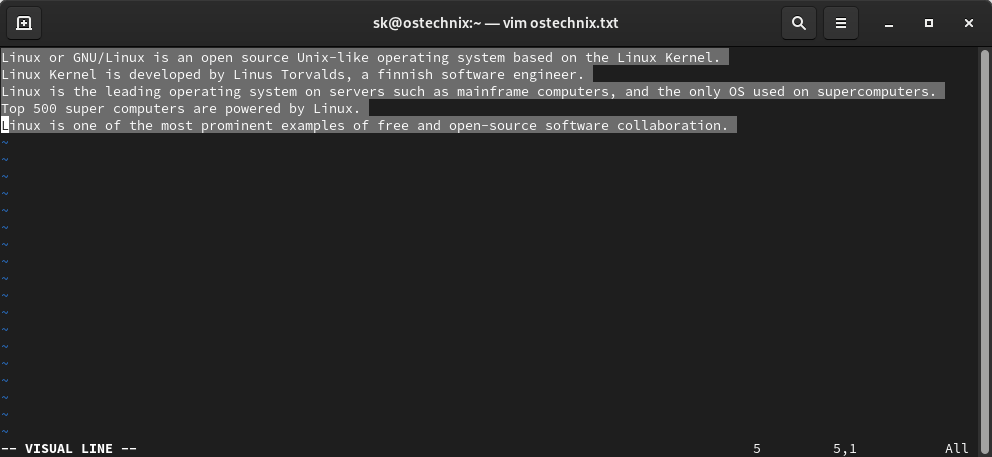
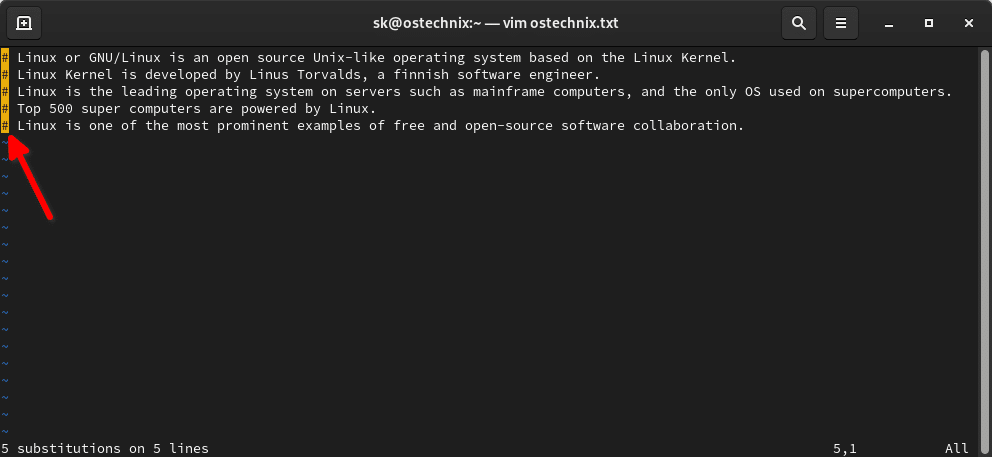
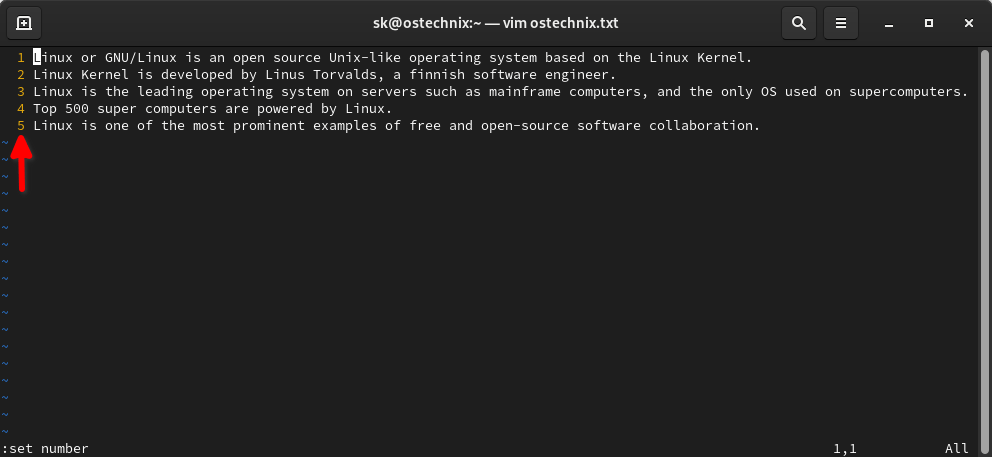
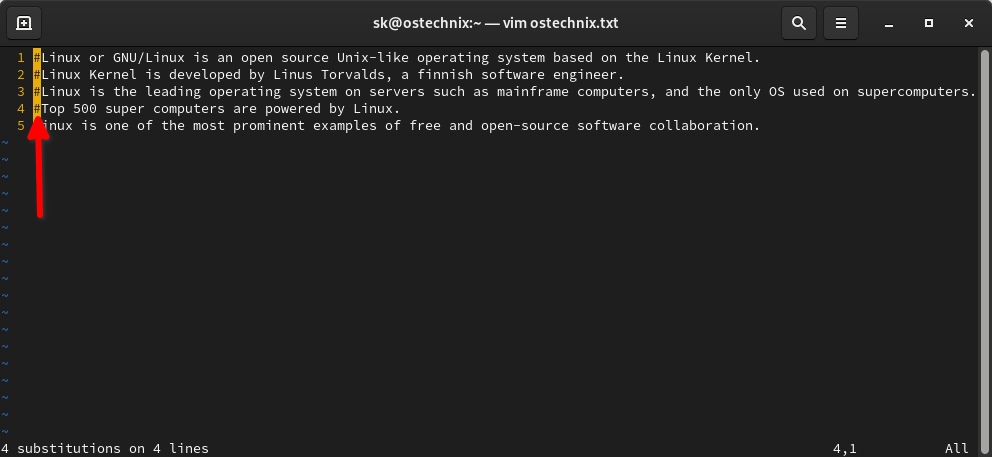
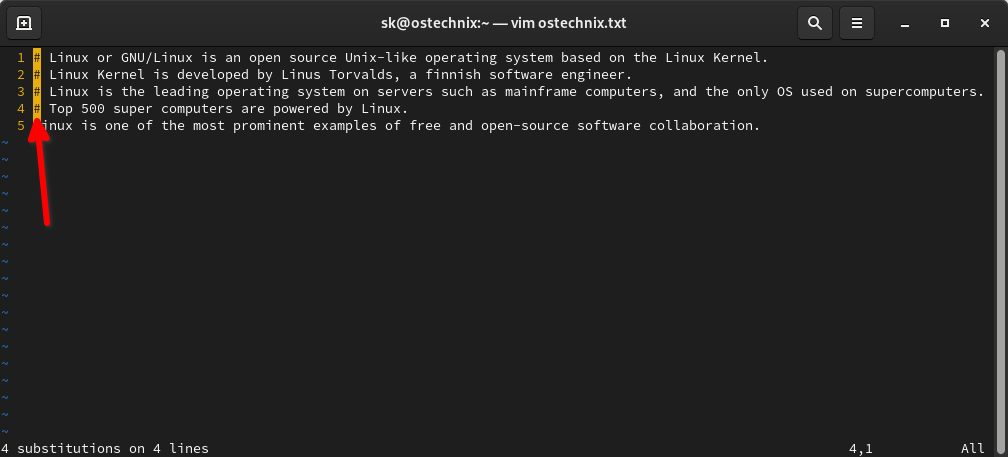
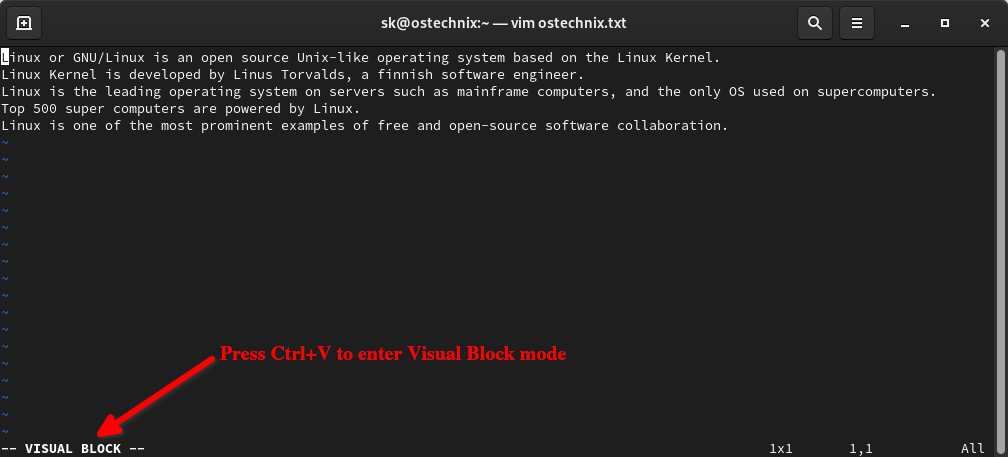
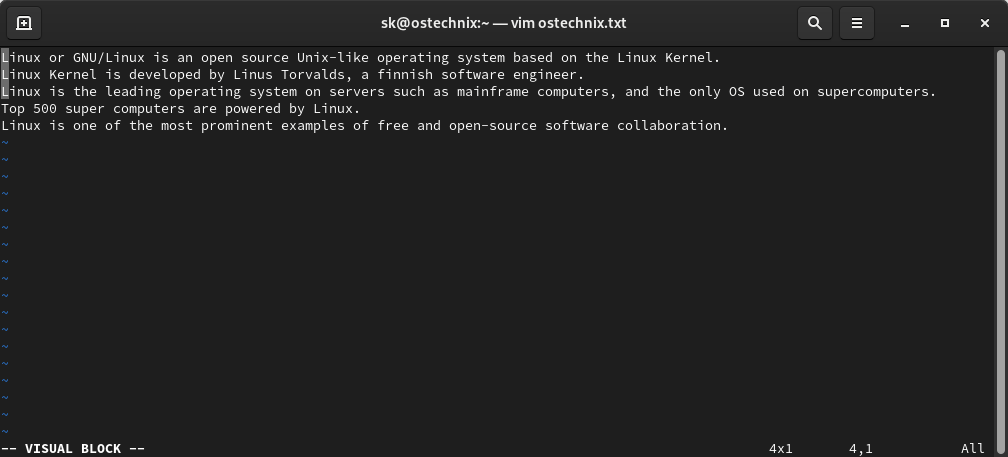
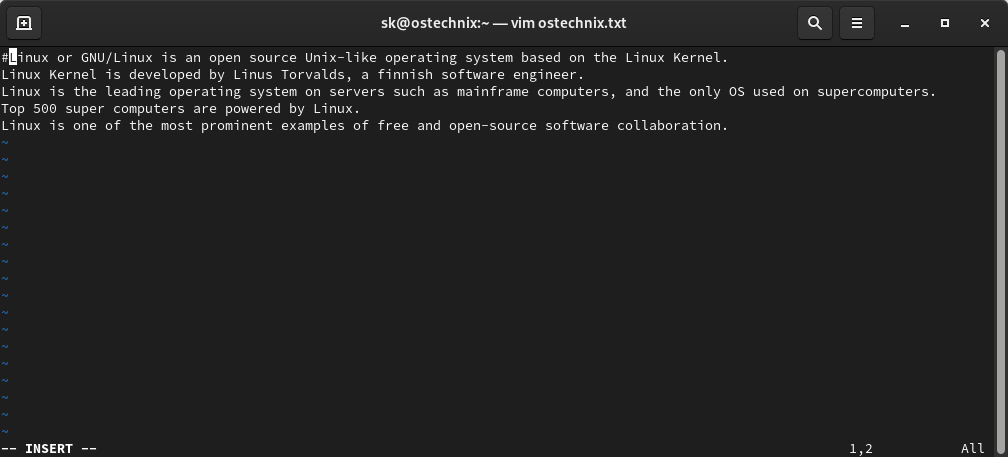
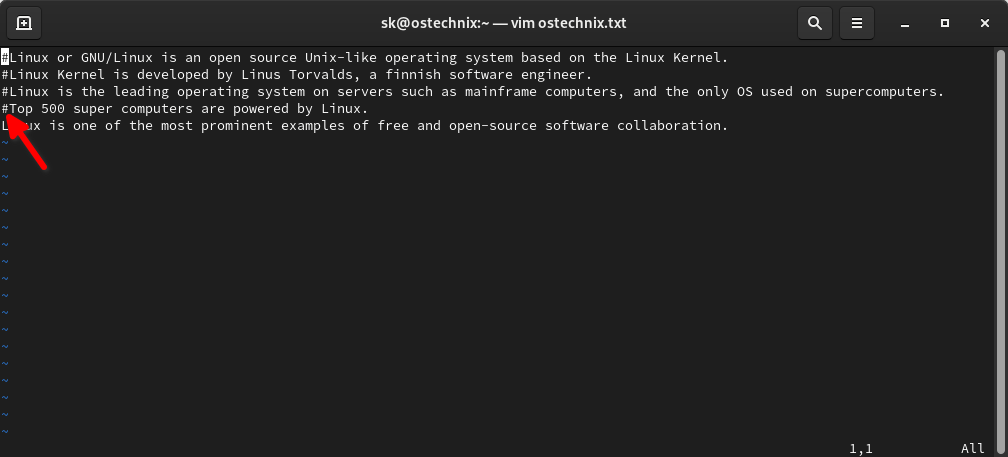
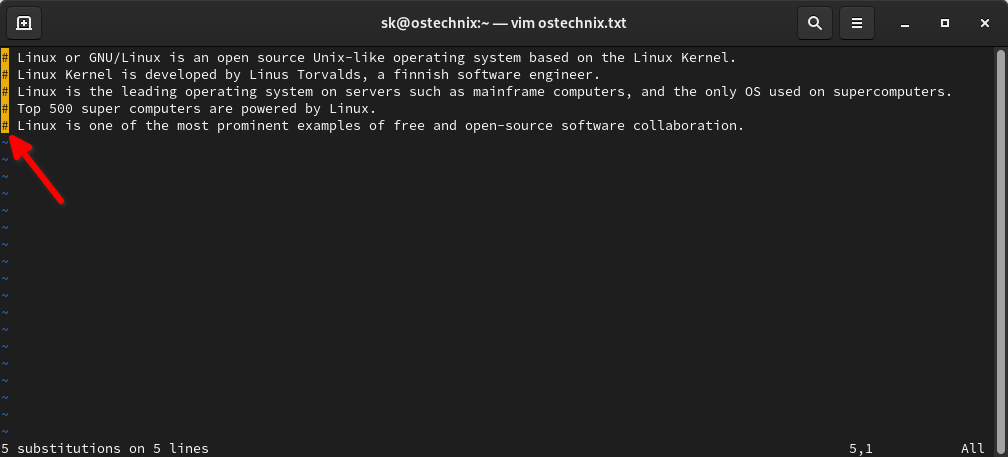
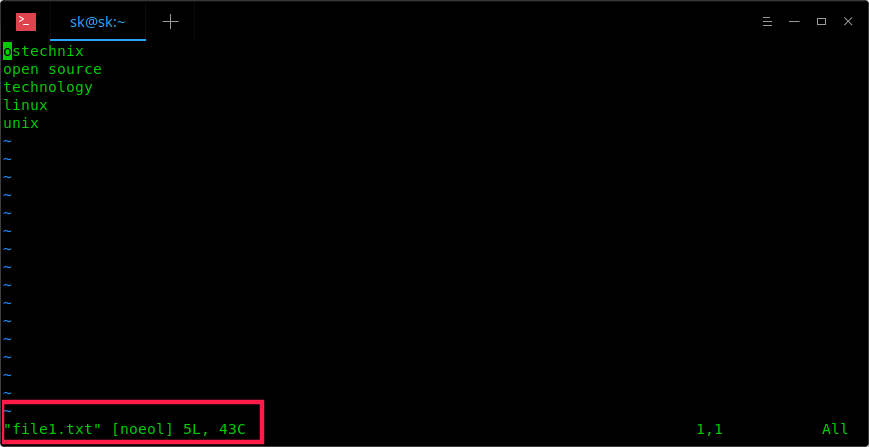
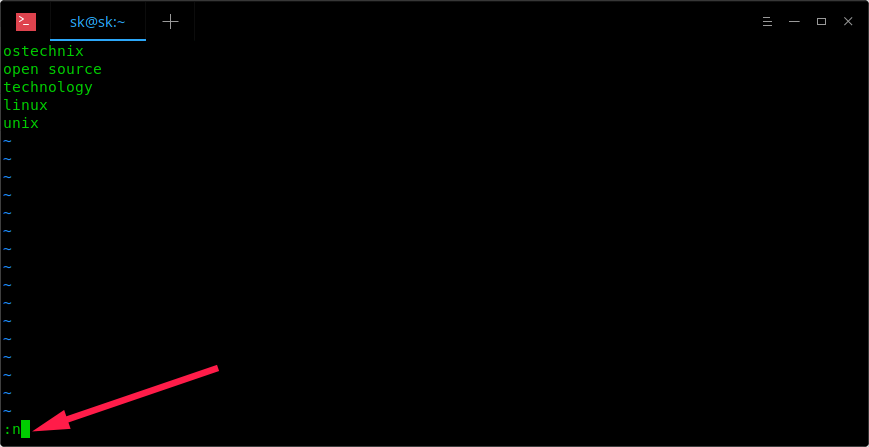
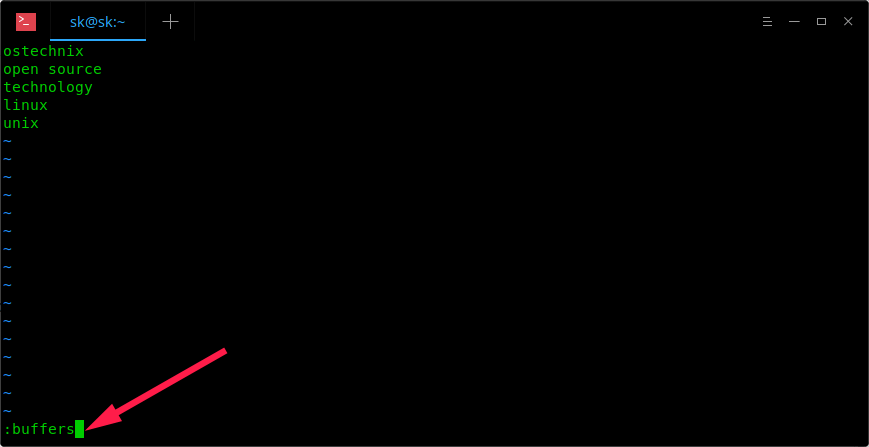

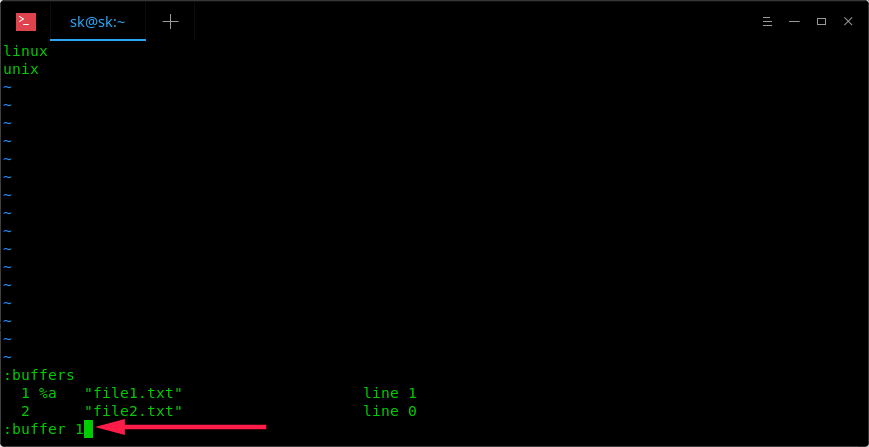
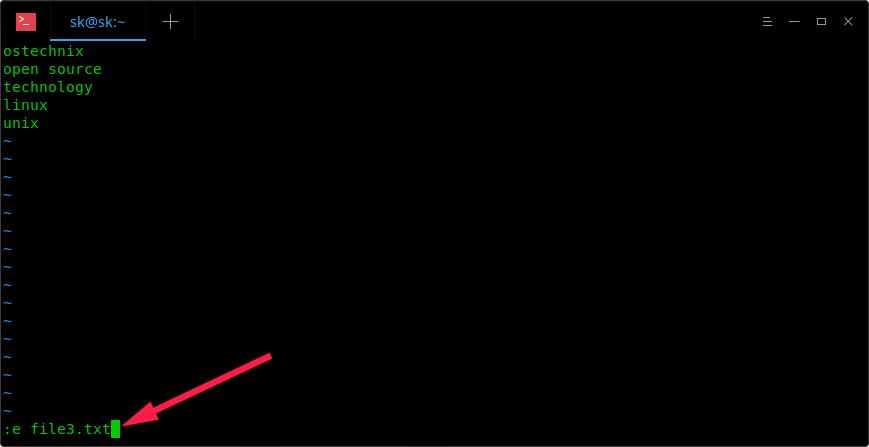
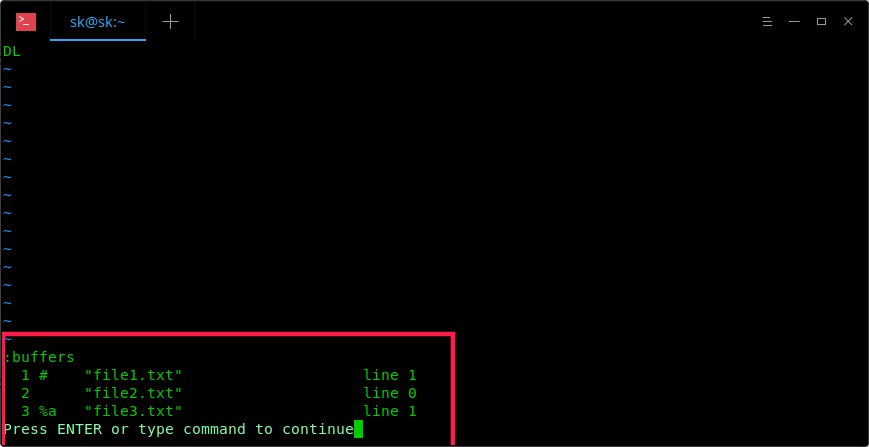
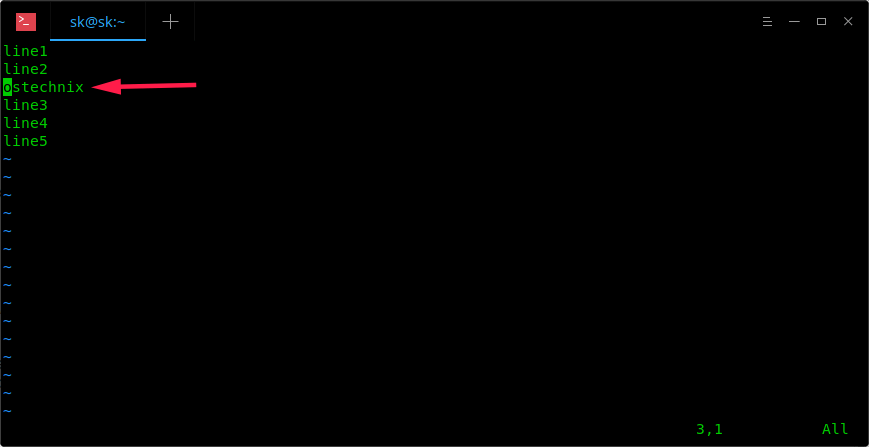
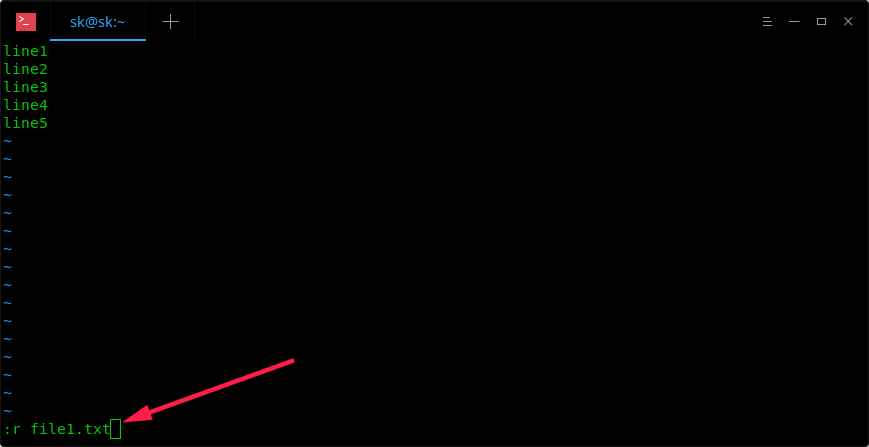
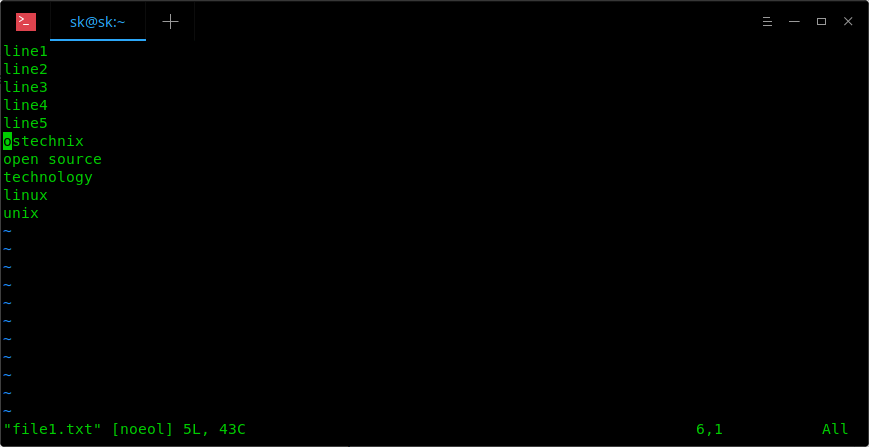
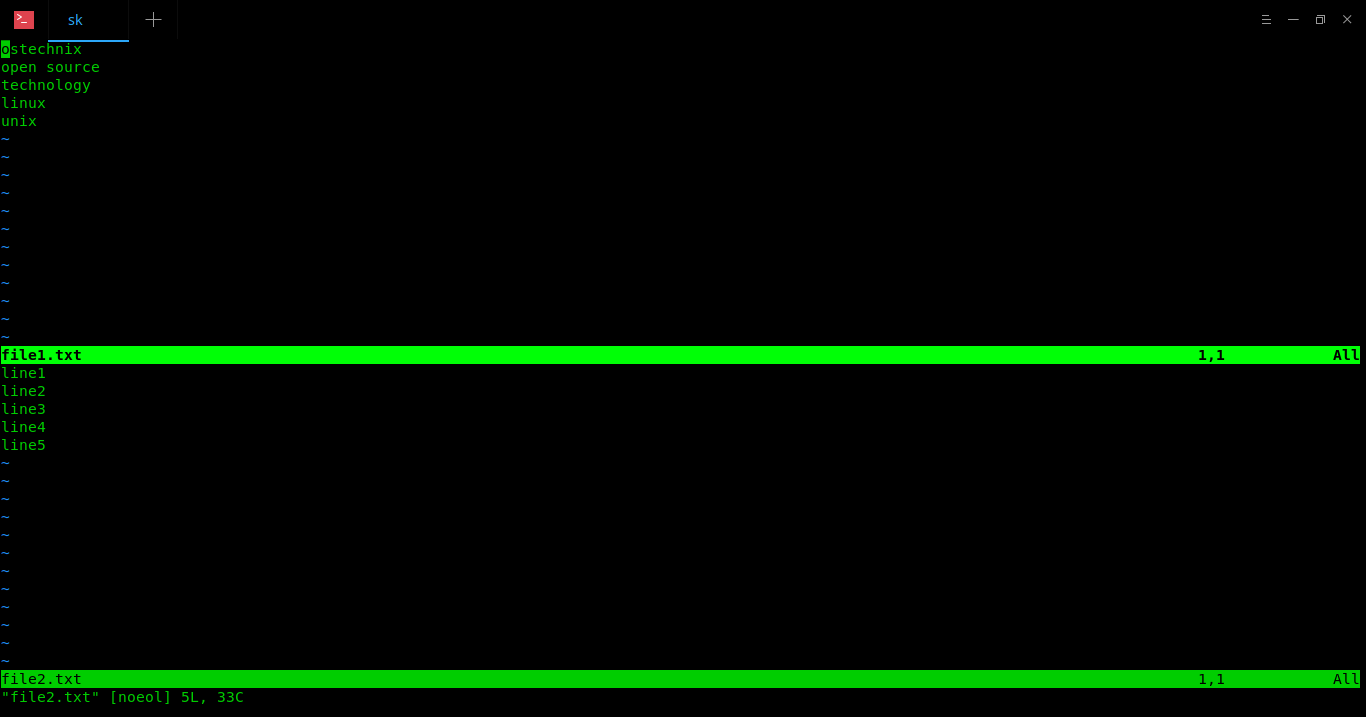
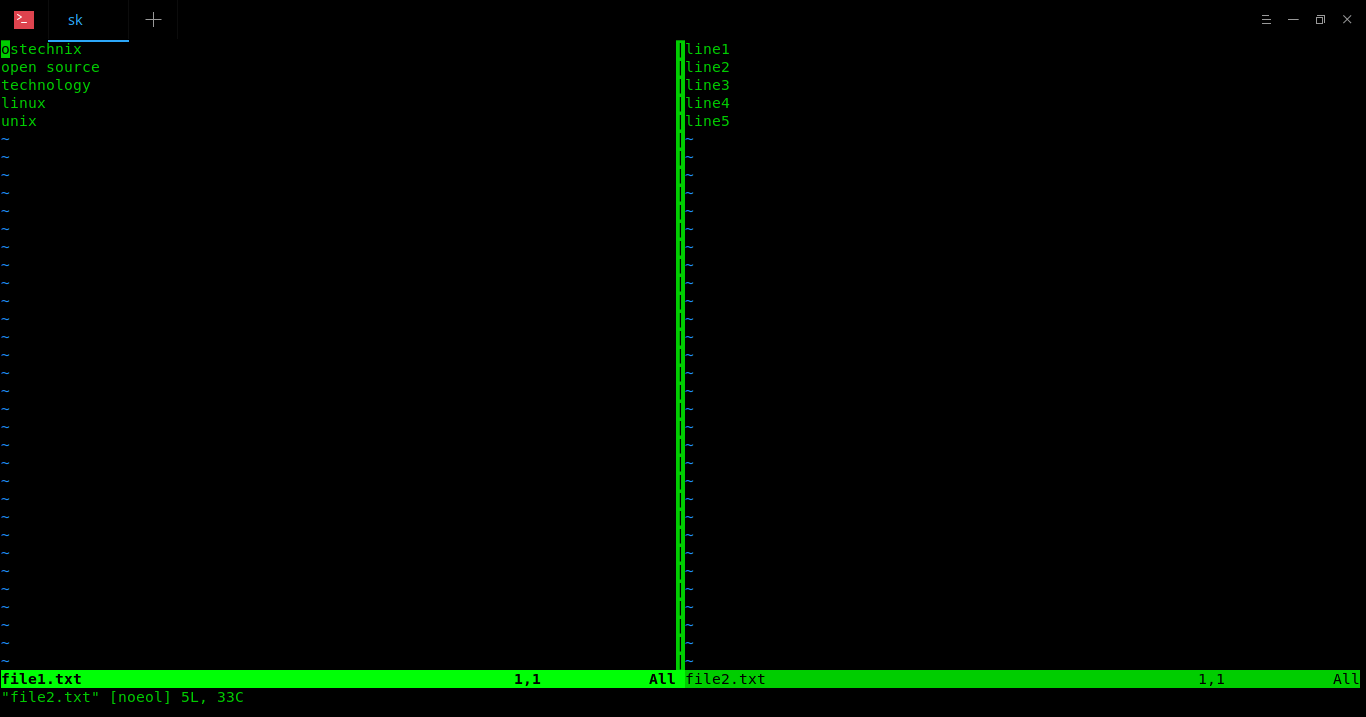
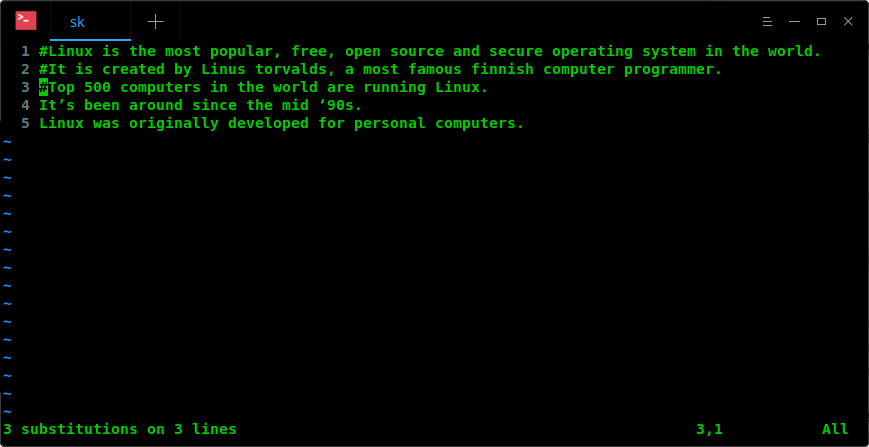
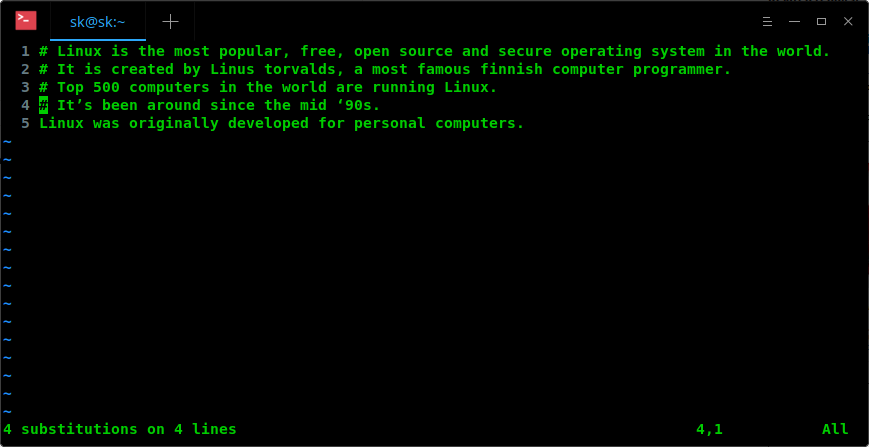
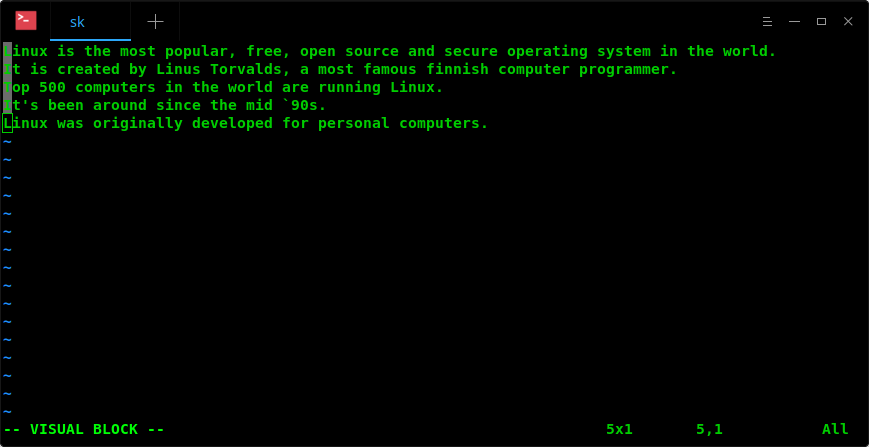
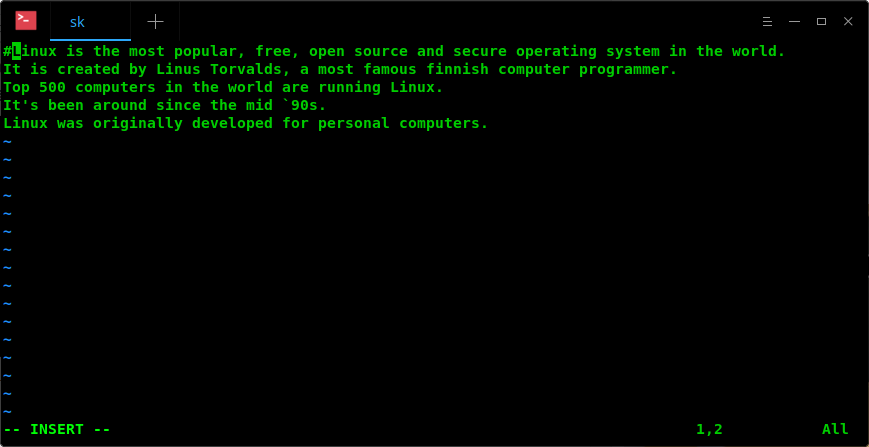
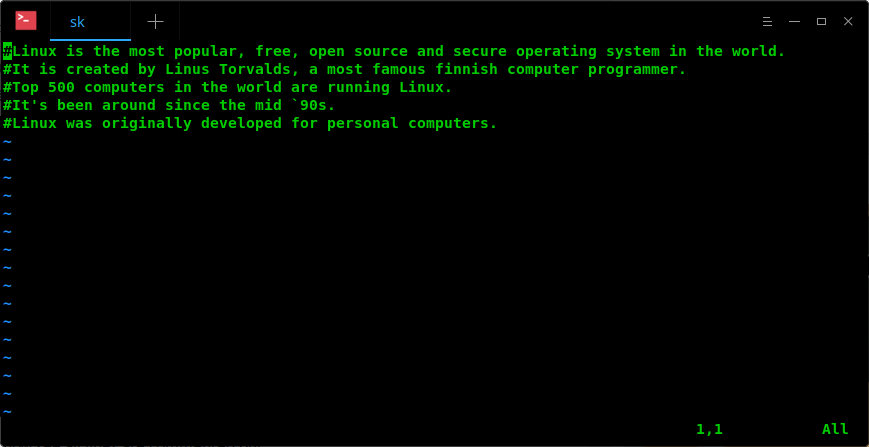
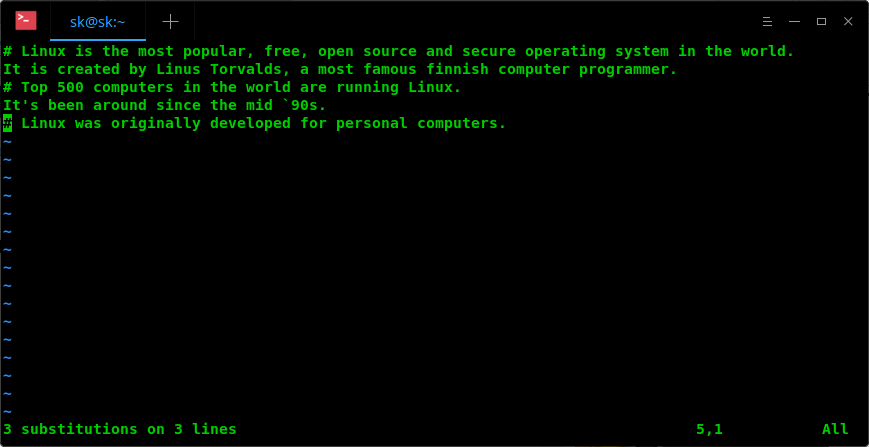

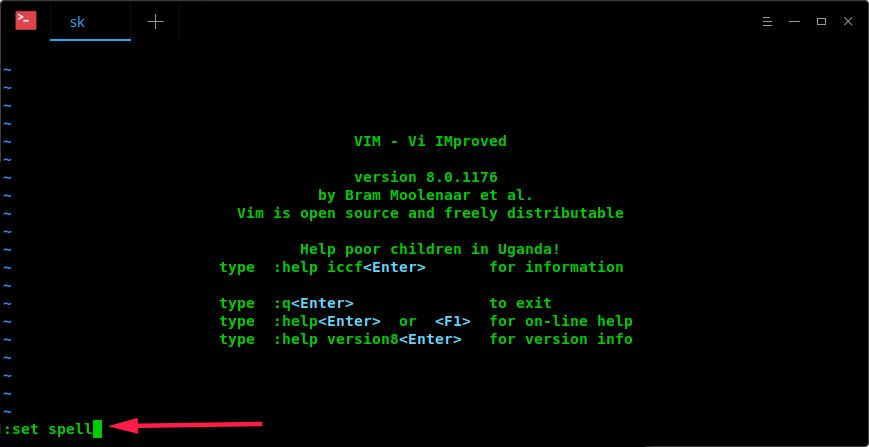
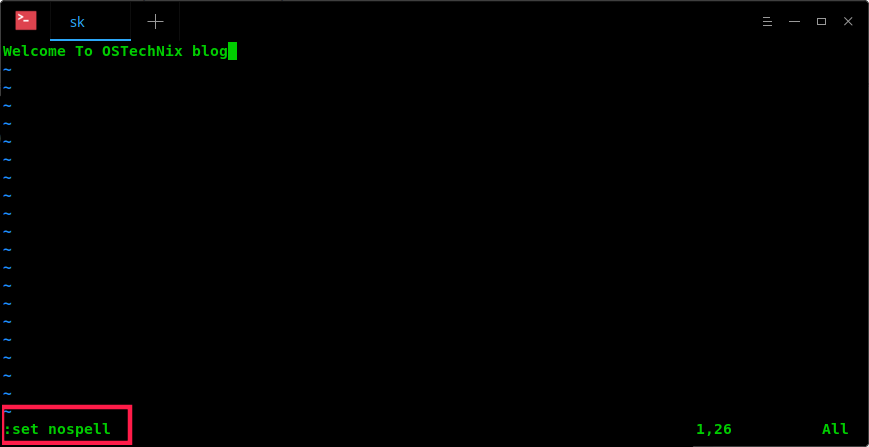
Note In the preceding example, you can also achieve the same result with :wa ( :h :wa ), which effectively allows you to write only the buffers that have been changed in some way.
Edit

Posted in Vim Tagged command line , option , splits , start , tabs