|
|
Home | Switchboard | Unix Administration | Red Hat | TCP/IP Networks | Neoliberalism | Toxic Managers |
| (slightly skeptical) Educational society promoting "Back to basics" movement against IT overcomplexity and bastardization of classic Unix | |||||||
|
|
Registry is a pretty complex and convoluted non-relational database. In essence it is an emulated very high speed filesystem, but Microsoft made several blunders in its design.
At the same time registry is powerful and flexible enough to provide some unique capabilities. In other words Microsoft registry is a malware heaven. And it really is.
|
Microsoft registry is a malware heaven |
Such a blowback for architecturally good, but badly executed and mismanaged idea. Like they say "Road to hell is paved with good intentions"
That means that it is very important to have tools that help to navigate it, search in it and backup/restore it.
Those functions in best Unix (or DOS) traditions should be available both as command line utilities and GUI tools. That means that you should have a set of registry tools.
|
|
As Annoyances.org introduction to the Registry stated:
How the Registry is stored
- In Windows 2000 and Windows XP, the Registry is stored in several Hives, located in the \windows\system32\config and \Documents and Settings\{username} folders.
- In Windows 95, 98, and Me, the Registry is contained in two hidden files in your Windows directory, called USER.DAT and SYSTEM.DAT.
Structure of the Registry
The Registry has a hierarchal structure, like the directories on your hard disk. Each branch (denoted by a folder icon in the Registry Editor, see below) is called a Key. Each key can contain other keys, as well as Values. Each value contains the actual information stored in the Registry. There are three types of values; String, Binary, and DWORD - the use of these depends upon the context.
There are six main branches (five in Windows 2000 and Windows XP), each containing a specific portion of the information stored in the Registry. They are as follows:
- HKEY_CLASSES_ROOT - this branch contains all of your file types as well as OLE information for all your OLE-aware applications. It contains SIDs (security identifiers) and
CLSID Keysthat contain GUIDs (16-byte hexdecimal numbers called Globally Unique Identifiers). In the Microsoft component object model (COM), GUIDs are used to uniquely distinguish different software component interfaces. This means that two (possibly incompatible) versions of a component can have exactly the same name but still be distinguishable by their GUIDs.
- HKEY_CURRENT_USER - this branch points to the part of HKEY_USERS appropriate for the current user. It basically represents the old "win.ini" file from earlier times. It contains individual user settings for the user who is currently logged on, e.g. the desktop background and other basic settings relating to the current user account. This information is also simply referred to as the user "Profile".
- HKEY_LOCAL_MACHINE - this branch contains information about all of the hardware and software installed on your computer. Since you can specify multiple hardware configurations, the current hardware configuration is specified in HKEY_CURRENT_CONFIG. It is similar to the original system.ini. In contrast to the profile settings explained in the previous paragraph, this key applies equally to all users of the computer, since it contains all the specific hardware and software settings. The hardware information stored here can be viewed in a more comfortable, and definitely less cryptic, manner in the Windows Device Manager.
- HKEY_USERS - this branch contains certain preferences (such as colors and control panel settings) for each of the users of the computer. In Windows 95/98/Me, the default branch here contains the currently-logged in user. In Windows 2000/XP, the default branch here contains a template to be used for newly-added users. When first installed, this always contains a pre-defined standard profile with the appropriate name of "default". If several users are configured in a system (e.g. "Christian", "Andreas" and "Susi"), then these are each stored under Windows/Profiles/Username. In the course of development of Windows, and to avoid the user name being stored in the Registry in plain text (as in Windows 95/98/ME), under Windows 2000/XP each user is stored under a Security ID ("SID number") composed of the letter "S" and a numeric suffix.
- HKEY_CURRENT_CONFIG - this branch points to the part of HKEY_LOCAL_MACHINE appropriate for the current hardware configuration. It refers to the subkey HKEY_LOCAL_MACHINE\System\CurrentControlSet\Hardware Profiles\Current (Software/System) for Windows 2000/XP. This key contains the settings for connected peripheral devices, i.e. printers, scanners, hard drives etc., and reflects the well-known control panel.
There are three major reasons to learn registry tools
HKEY_LOCAL_MACHINE\SOFTWARE\Microsoft\Windows\CurrentVersion\Run
In this case the removal of the installed by spyware registry key
disinfects the PC. Of course this is true only in simple cases, often
spyware tried to install in the computer in several ways and other component
will check the presence of the registry key and recover it. If this
proved to be the case, please Google for the description of the spyware
and you can find which additional components need to be deleted.
See Fighting
Adware/Spyware Paranoia for details. One of useful browsing and
editing tools for this purpose e a-squared HiJackFree program, available
for free from www.hijackfree.com.
they also sell professional version of the same tool. Other similar
program is HijackThis viable from
Merijn.org
I was a die-hard Windows 2000 user and disliked XP for many reasons. The new user interface, new services-running by default, hidden application settings, and generally, decisions Microsoft made based on marketing data for users who wanted someone else to make decisions for them.I never wanted anything to do with XP, but when I needed two new computers earlier this year, I had no choice. I bought Jerry's book because I hoped to learn some basics about where Microsoft had hidden certain settings; I didn't know it would make me a Windows XP lover.
Not only were the basics like data types and key locations discussed, but also complex registry manipulation and deployment through scripting, Answer files, and Windows Installer.
The Windows XP Registry Guide takes a systematic approach to learning and using registry tools to get the most out or your XP system. Novice users will learn enough to make the book worthwhile by reading just the first section (five chapters), but once you get that far you will want to read it all. Jerry is careful to warn about careless hacking and thoroughly covers backing up and restoring the registry using tools already included in Windows XP and several third party tools. I was surprised to learn how useful Microsoft's Word application is in managing changes made to the registry.
If you already use TweakUI to manage your XP system, a complete mapping of every change is included in Chapter 5.
Are you an IT professional? This book will show you how to work around IT problems in Chapter 15. Also for the professional is detailed information about disk "cloning" using Sysprep. Using Group Policy settings, and deploying User Profiles.
Registry based security and security templates information in Chapter 7 will show you how to manage and control access in computers from "Simple File Sharing" in your home network or the control needed in a computer available to the public.
Another chapter I found particularly useful is the Office XP registry-based user settings covered in Chapter 15.
There are several typical operations that you need to be able to perform on registry using command line tools
Besides providing search capability, Regfind.exe also enables you to replace values in the registry. This capability can be particularly useful for replacing multiple instances of a value located in different subkeys. It is a good idea to perform a search in the registry first, without using the replace argument to identify what Regfind.exe will change. Also, it is recommended that you back up the pertinent parts of the registry by exporting the key or subkey to a registry script file.
Other Microsoft Resource kit tools also provide searching capability. They are far from being orthogonal.
You can also use Cygwin: Try `ls -l
/proc/registry'
Process Monitor is an advanced monitoring tool for Windows that shows real-time file system, Registry and process/thread activity. It combines the features of two legacy Sysinternals utilities, Filemon and Regmon, and adds an extensive list of enhancements including rich and non-destructive filtering, comprehensive event properties such session IDs and user names, reliable process information, full thread stacks with integrated symbol support for each operation, simultaneous logging to a file, and much more. Its uniquely powerful features will make Process Monitor a core utility in your system troubleshooting and malware hunting toolkit.
Process Monitor runs on Windows 2000 SP4 with Update Rollup 1, Windows XP SP2, Windows Server 2003 SP1, and Windows Vista as well as x64 versions of Windows XP, Windows Server 2003 SP1 and Windows Vista.
InstallWatch. version 2.5 is provided as a
free download.
You can also work with the registry from Unix emulation packages like Cygwin and Uwin (the latter converts registry into a regular filesystem mounted as /reg).
Complexity of registry means that you need to study it. There is a lot of useful material on the web, but you can probably benefit from at least one good registry book. IMHO Microsoft Windows XP Registry Guide is worth its price.
I was a long time Windows 98 (at home) and Windows 2000 (at work) user and I initially disliked XP due to a new user interface. But I discovered that tweaking the registry can emulate Windows 2000 in XP (and Windows 2003) almost perfectly. It is still heavier OS and if you want to use virtual machine Windows 2000 is a better way to go on small PCs (with current 2G of RAM laptops this is less a problem).
Anyway, no matter what version of Windows you personally prefer, a systematic approach to learning and using registry tools can help you to get the most out or your Windows system.
If you already use TweakUI to manage your system, read Chapter 5 of Microsoft Windows XP Registry Guide (second edition) It also provides detailed information about disk "cloning" using Sysprep. Chapter 6 is also available on the Net Microsoft Windows XP Registry Guide Chapter 6, Managing Registry-Based Policy. The book is available electronically from.
Several chapters from O'Reilly books are available electronically:
Please note that Microsoft Resource Kit contains several useful command line utilities for working with registry. Among them:
See Microsoft Registry Tools for more information.
Below I provided the links to some relevant whitepapers and documentation available at Microsoft's Web site, Microsoft Knowledge Base, as well as from third parties.
Note: It is always a good idea to create a backup copy of your registry before making significant changes just in case you need to restore previous settings.
Dr. Nikolai Bezroukov
|
|
Switchboard | ||||
| Latest | |||||
| Past week | |||||
| Past month | |||||
| 2007 | 2006 | 2005 | 2004 | 2003 |
 |
 |
 |
On Mon, 7 Jul 2003, Brian Dessent wrote:
> Corinna Vinschen wrote:
> >
> > On Mon, Jul 07, 2003 at 09:19:57AM +0100, William S Fulton wrote:
> > > Is it possible to mount the registry into the filesystem?
> >
> > It is already. Try `ls -l /proc/registry'
>
> Neat. Is there any way to tell the type of the key's value using this
> interface? For example if I wanted to modify a key's value through
> "echo foo > /prog/registry/.../Key", how do I tell Cygwin that I want
> the type to be REG_EXPAND_SZ, REG_DWORD, REG_MULTI_SZ, REG_SZ, etc?You don't. /proc/registry is read-only. If you want to modify the registry, use regtool.
> Conversely is there a way to determine the type when reading? It
> appears that Cygwin does what you expect (e.g. returning a \0 delimited
> list for REG_MULTI_SZ) but is there any way to ask it directly?Not that I know of. Look at fhandler_registry.cc for implementation
details.> This is yet another really cool Cygwin feature that I had no idea about
> until now... :-)
> BrianIt pays to read the release notes... ;-)
Igor
|
|
|
May 17, 2006
... In this article, I will continue the discussion where I left off in Part 1 by exploring the remaining Windows Update related registry keys.
www.windowsnetworking.com/.../Registry-Keys-Tweaking-Windows-Update
-Part2.html - Cached -
|
|
|
In 2k and XP go into Administartor Tools/Services and disable Auto update.
If your organization needs to block their users from using Windows Update to update Windows components, you can use the following
registry hack for Windows NT / Windows 2000 / Windows XP :Hive: HKEY_CURRENT_USER
Key: Software\Microsoft\Windows\CurrentVersion\Policies\WindowsUpdate
Name: DisableWindowsUpdateAccess
Type: REG_DWORD
Value: 1
Equivalent is HKEY_LOCAL_MACHINE\Software\Microsoft\Windows\CurrentVersion\Policies\Explorer DWORD value NoWindowsUpdate = 1
Another area to lockdown Internet Explorer is with the IEAK.
|
|
|
Mar 2, 2009 Lifehacker
Windows only: If you like to keep a close eye on what changes new software installations make to your system, SpyMe Tools provides step-by-step snapshots of your registry and shows you what's changed.
The in-depth review of your system registry that SpyMe Tools provides may be overkill for some people, but if you need to track changes or troubleshoot problems after certain installations, it can be invaluable. It's simple to use: after you install the program, you run a system sweep with SpyMe Tools and save the results. After installing new applications or making system changes, you can compare the previous system state to the current one, and SpyMe Tools will show you all the changes. In addition to doing a before and after comparison of system snapshots, you can even run it in real time while installing software to see the changes as they happen.
If you're interested in a more automated solution, check out previously reviewed Revo Uninstaller, a thorough application remover that our commenters frequently compare just about every system tool to (and that's why we love you).
SpyMe Tools is freeware, Windows only.
SpyMe Tools [via gHacks]
|
|
|
Catarsis
Since I'm involved in Live CD projects like Metadistros, I've been thinking about making easier to setup systems after they come up.
Many LiveCD systems are used on Windows installed machines, so why not to "steal" all this information from Windows registry to setup our Linux system? The idea is straight forward: e.g. take network configuration from Windows and boot a Live system which can connect directly to the Internet, without prompting users about IP confs.
Today I've been collecting base tools to do it:
- dumphive: a tool written in Pascal to get a Windows registry binary hive file and dump it to a text file
Win32::Registry::File, a Perl library to access a text .reg fileTo dump the hardware hive from my Thinkpad Windows XP partition:
$ dumphive /mnt/winxp/WINDOWS/system32/config/SYSTEM /tmp/system.reg
And to read
SYSTEM\ControlSet001\Control(I don't know what the hell is this) usingWin32::Registry::File:
	use Win32::Registry::File;

	$reg = new Win32::Registry::File();

	$reg->open('/tmp/system.reg');

	use Data::Dumper;

	print Dumper($reg->get(['SYSTEM\ControlSet001\Control']));
Now, the only thing left is to find the information we're looking for among all those nightmare registry entries, and make it work on every Windows host.
Ho, ho, ho
|
|
|
Editing registry is often called by the name of Black Magic as you can edit all the settings from here. Not only those which can be changed through program interface but also those that are not available in the program interface by default. However playing with registry can render your computer unusable or severely malfunction, ending up with the need of a fresh installation of OS. You surely don't want to waste time in installing the OS again. So here is the procedure by which you can take a backup of windows registry
.
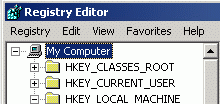
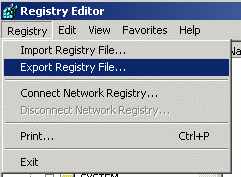
How to backup the whole registry?# 1 Hit Ctrl + R and type in regedit and hit return key.
# 2 Select My Computer and select Registry from the menu and then select Export registry file.
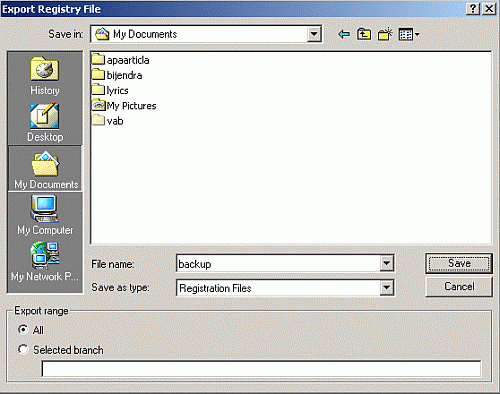
# 3 Give a name such as backup and select save.
There you have your registry backup
Keep it in a safe position. I recommend keeping a copy of backup on a different computer too.Bonus Tip : To take the backup of a particular key, select that key and repeat the above steps.
|
|
|
Posted by admin (Graham Ellis), 28 September 2003 A sample piece of code that scans through all the entries in the registry and then steps through them (20 at a time) on STDOUT.Code:
use Win32::Registry; $giTotal = 0;
### Scan through all registry entries
%Roots = (
HKEY_LOCAL_MACHINE => $HKEY_LOCAL_MACHINE,
HKEY_CURRENT_USER => $HKEY_CURRENT_USER,
HKEY_USERS => $HKEY_USERS,
HKEY_CLASSES_ROOT => $HKEY_CLASSES_ROOT,
HKEY_CURRENT_CONFIG => $HKEY_CURRENT_CONFIG
);select STDERR;
$|=1;
select STDOUT;
my %tab;foreach $starter (keys %Roots) {
print STDERR "\nScanning $starter\n";
ProcessKey ( $Roots{$starter}, "" );
}
print ("\n");@order = sort (keys (%tab));
foreach (@order) {
$t = $tab{$_}[0];
$v = "-";
$t == 1 and $v = $tab{$_}[1]; # String
if ($t == 2){ @v = split("\0",$tab{$_}[1]); # Multiple Strings
$v = "<".join ("> <",@v).">"; }
$t == 3 and ($v) = unpack("l",$tab{$_}[1]); # Binary Data
print "$_ $t $v\n";
++$np%20 or <STDIN>;
}
sub ProcessKey
{
$levels++;
my( $Root, $Path ) = @_;
my $Key;
(++$giTotal%500) or inform_user();
if( $Root->Open( $Path, $Key ) )
{
my @KeyList;
my %Values;
$Key->GetKeys( \@KeyList );
if( $Key->GetValues( \%Values ) )
{
foreach my $ValueName ( keys( %Values ) )
{
my $Type = $Values{$ValueName}->[1];
my $Data = $Values{$ValueName}->[2];
$ValueName = "<Default Class>" if( "" eq $ValueName );
$tab{$starter."\\".$Path."\\".$ValueName} = [$Type,$Data] ;
}
}
else
{
print STDERR "Unable to get values for key: '$Path'\n";
}
$Key->Close();
$Path .= "\\" unless ( "" eq $Path );
foreach my $SubKey ( @KeyList )
{
ProcessKey( $Root, $Path . $SubKey );
}
}
else
{
print STDERR "Unable to open the key: '$Path'\n";
}
$levels--;
$levels or inform_user();
}sub inform_user {
print STDERR ("Scanned $giTotal keys\r");
}
Note the use of a function calling itself (recursion) to step down into the registry structure, and the use of STDERR and $| to provide user feedback
Posted by admin (Graham Ellis), 29 September 2003
I guess you would like to see what the output looks like:Code:
Scanning HKEY_CURRENT_CONFIG
Scanned 62 keys
Scanning HKEY_LOCAL_MACHINE
Scanned 53993 keys
Scanning HKEY_CLASSES_ROOT
Scanned 90734 keys
Scanning HKEY_USERS
Scanned 94740 keys
Scanning HKEY_CURRENT_USER
Scanned 96315 keysHKEY_CLASSES_ROOT\*\AlwaysShowExt 1
HKEY_CLASSES_ROOT\*\InfoTip 1 prop:Type;DocAuthor;DocTitle;DocSubject;DocComments;Write;Size
HKEY_CLASSES_ROOT\*\OpenWithList\Excel.exe\<Default Class> 1
HKEY_CLASSES_ROOT\*\OpenWithList\IExplore.exe\<Default Class> 1
HKEY_CLASSES_ROOT\*\OpenWithList\MSPaint.exe\<Default Class> 1
HKEY_CLASSES_ROOT\*\OpenWithList\Winword.exe\<Default Class> 1
HKEY_CLASSES_ROOT\*\OpenWithList\WordPad.exe\<Default Class> 1
HKEY_CLASSES_ROOT\*\QuickTip 1 prop:Type;Size
HKEY_CLASSES_ROOT\*\TileInfo 1 prop:Type;Size
HKEY_CLASSES_ROOT\*\shellex\ContextMenuHandlers\Offline Files\<Default Class> 1
{750fdf0e-2a26-11d1-a3ea-080036587f03}
HKEY_CLASSES_ROOT\*\shellex\ContextMenuHandlers\Open With EncryptionMenu\<Default Class> 1 {A470F8CF-A1E8-4f65-8335-227475AA5C46}
HKEY_CLASSES_ROOT\*\shellex\ContextMenuHandlers\Open With\<Default Class> 1 {09799AFB-AD67-11d1-ABCD-00C04FC30936}
HKEY_CLASSES_ROOT\*\shellex\ContextMenuHandlers\{a2a9545d-a0c2-42b4-9708-a0b2badd77c8}\<Default Class> 1 Start Menu Pin
HKEY_CLASSES_ROOT\*\shellex\PropertySheetHandlers\CryptoSignMenu\<Default Class> 1 {7444C719-39BF-11D1-8CD9-00C04FC29D45}
HKEY_CLASSES_ROOT\*\shellex\PropertySheetHandlers\{883373C3-BF89-11D1-BE35-080036B11A03}\<Default Class> 1 Summary Properties Page
HKEY_CLASSES_ROOT\.323\<Default Class> 1 h323file
HKEY_CLASSES_ROOT\.323\Content Type 1 text/h323
HKEY_CLASSES_ROOT\.386\<Default Class> 1 vxdfile
HKEY_CLASSES_ROOT\.386\PerceivedType 1 system
HKEY_CLASSES_ROOT\.386\PersistentHandler\<Default Class> 1 {098f2470-bae0-11cd-b579-08002b30bfeb}
|
|
|
RegReloc is free command line utility that allows to copy, move or delete a single key or key hierarchy in Windows Registry. These functions can be required during registry cleanup or special types of software upgrades. For example, certain software product ownership moves from one company to another, new owner will most likely want to update the registry key name for the product but retain the values of sub-keys that store user specific settings. In this case RegReloc can become part of application installer.
|
|
|
Usage: regtool [OPTION] (add|check|get|list|remove|unset|load|unload|save) KEY
View or edit the Win32 registry

Actions:
 add KEY\SUBKEY             add new SUBKEY
 check KEY                  exit 0 if KEY exists, 1 if not
 get KEY\VALUE              prints VALUE to stdout
 list KEY                   list SUBKEYs and VALUEs
 remove KEY                 remove KEY
 set KEY\VALUE [data ...]   set VALUE
 unset KEY\VALUE            removes VALUE from KEY
 load KEY\SUBKEY PATH       load hive from PATH into new SUBKEY
 unload KEY\SUBKEY          unload hive and remove SUBKEY
 save KEY\SUBKEY PATH       save SUBKEY into new hive PATH

Options for 'list' Action:
 -k, --keys           print only KEYs
 -l, --list           print only VALUEs
 -p, --postfix        like ls -p, appends '\' postfix to KEY names

Options for 'get' Action:
 -b, --binary         print REG_BINARY data as hex bytes

Options for 'set' Action:
 -b, --binary         set type to REG_BINARY (hex args or '-')
 -e, --expand-string  set type to REG_EXPAND_SZ
 -i, --integer        set type to REG_DWORD
 -m, --multi-string   set type to REG_MULTI_SZ
 -s, --string         set type to REG_SZ

Options for 'set' and 'unset' Actions:
 -K<c>, --key-separator[=]<c>  set key separator to <c> instead of '\'

Other Options:
 -h, --help     output usage information and exit
 -q, --quiet    no error output, just nonzero return if KEY/VALUE missing
 -v, --verbose  verbose output, including VALUE contents when applicable
 -w, --wow64    access 64 bit registry view (ignored on 32 bit Windows)
 -W, --wow32    access 32 bit registry view (ignored on 32 bit Windows)
 -V, --version  output version information and exit

KEY is in the format [host]\prefix\KEY\KEY\VALUE, where host is optional
remote host in either \\hostname or hostname: format and prefix is any of:
  root     HKCR  HKEY_CLASSES_ROOT (local only)
  config   HKCC  HKEY_CURRENT_CONFIG (local only)
  user     HKCU  HKEY_CURRENT_USER (local only)
  machine  HKLM  HKEY_LOCAL_MACHINE
  users    HKU   HKEY_USERS

You can use forward slash ('/') as a separator instead of backslash, in
that case backslash is treated as escape character
Example: regtool.exe get '\user\software\Microsoft\Clock\iFormat'
The regtool program allows shell scripts to access and modify the Windows registry. Note that modifying the Windows registry is dangerous, and carelessness here can result in an unusable system. Be careful.
The
-voption means "verbose". For most commands, this causes additional or lengthier messages to be printed. Conversely, the-qoption supresses error messages, so you can use the exit status of the program to detect if a key exists or not (for example).The
-woption allows to access the 64 bit view on the registry. Several subkeys exist in a 32 bit and a 64 bit version when running on Windows 64. Since Cygwin is running in 32 bit mode, it has only access to the 32 bit view of these registry keys. When using the-wthe 64 bit view is used and regtool can access the entire registry. This option is simply ignored when running on 32 bit Windows versions.The
-Woption allows to access the 32 bit view on the registry. The purpose of this option is mainly symmetry. It allows to create OS agnostic scripts which would also work in a hypothetic 64 bit version of Cygwin.You must provide regtool with an action following options (if any). Currently, the action must be
add,set,check,get,list,remove,set, orunset.The
addaction adds a new key. Thecheckaction checks to see if a key exists (the exit code of the program is zero if it does, nonzero if it does not). Thegetaction gets the value of a value of a key, and prints it (and nothing else) to stdout. Note: if the value doesn't exist, an error message is printed and the program returns a non-zero exit code. If you give-q, it doesn't print the message but does return the non-zero exit code.The
listaction lists the subkeys and values belonging to the given key. Withlist, the-koption instructs regtool to print only KEYs, and the-loption to print only VALUEs. The-poption postfixes a'/'to each KEY, but leave VALUEs with no postfix. Theremoveaction removes a key. Note that you may need to remove everything in the key before you may remove it, but don't rely on this stopping you from accidentally removing too much.The
setaction sets a value within a key.-bmeans it's binary data (REG_BINARY). The binary values are specified as hex bytes in the argument list. If the argument is'-', binary data is read from stdin instead.-emeans it's an expanding string (REG_EXPAND_SZ) that contains embedded environment variables.-imeans the value is an integer (REG_DWORD).-mmeans it's a multi-string (REG_MULTI_SZ).-smeans the value is a string (REG_SZ). If you don't specify one of these, regtool tries to guess the type based on the value you give. If it looks like a number, it's a DWORD. If it starts with a percent, it's an expanding string. If you give multiple values, it's a multi-string. Else, it's a regular string. Theunsetaction removes a value from a key.The
loadaction adds a new subkey and loads the contents of a registry hive into it. The parent key must be HKEY_LOCAL_MACHINE or HKEY_USERS. Theunloadaction unloads the file and removes the subkey.The
saveaction saves a subkey into a registry hive.By default, the last "\" or "/" is assumed to be the separator between the key and the value. You can use the
-Koption to provide an alternate key/value separator character.
|
|
|
09/22/2008
Registry Cleanup
The older your PC is, the more junked-up its Registry becomes. Badly written programs (and plenty of those are around) don't bother to clean the Registry when you uninstall them, and some applications add unnecessary junk. The messier the Registry is, the more likely it is to crash your PC or slow down its operations. Though the benefits of using a Registry cleaner are often debated, these utilities might be worth a try.
Wise Registry Cleaner
This freebie scans the Registry, flags orphaned or bad entries, and identifies entries that are either dangerous or safe to delete. Like most Registry cleaners, the utility will back up your Registry so that you can restore it if need be.
Download Wise Registry Cleaner | Price: Free
Glary Registry Repair
Here's another very good, free Registry cleaner. It lets you choose which changes to accept and to ignore, and creates an Undo file so that you can revert to the previous version of the Registry if problems occur.
Download Glary Registry Repair | Price: Free
Registry First Aid
If you're willing to pay for a Registry cleaner, this is a great choice. Longtime PC World contributor Steve Bass rates it as the best Registry cleaner, with good reason: It does an excellent, thorough job. It also searches the Internet for details about Registry keys, so you can have background information before deciding whether to delete or change them.
Download Registry First Aid | Price: $28 (Trial)
Auslogics Registry Defrag
Cleaning your Registry may help keep your system in tip-top shape, but you can do something else for it as well: Defragment it. This program shows how fragmented your Registry is, defragments it, and restarts your PC. The program also creates a restore point so you can restore the Registry if necessary.
Download Auslogics Registry Defrag | Price: Free
|
|
|
RegAlyzer is a tool to browse and change the registry. It was created because of a few features we missed in the original regedit tool, from support for exotic value types over background and regular expression search to better bookmarks, displaying .reg files in the accustomed style and a history view.
- 1.5.8.10 (April 27th, 2008) 64 bit support, delete on search results, manual hive loading, undo and save on change logs.
- 1.5.5 (June 8th, 2007) Works with Windows Vista (logo program), Undo and Redo logs, some bugfixes, more languages.
|
|
|
The purpose of this program is to remove the Ole garbage left in the registry after installing and deinstalling several Ole (Com) dlls. This program can be especially useful to those who build dlls in Visual Basic. They know what I mean.
|
|
|
Important This article contains information about how to modify the registry. Make sure to back up the registry before you modify it. Make sure that you know how to restore the registry if a problem occurs.
Guided Help to export registry keys and to back up the registry Requirements to install and to use this Guided Help Manual steps to back up the registry Manual steps to export registry subkeys Manual steps to back up the whole registryManual steps to edit the registry
Use the Windows user interface Manual steps to use Registry Editor Locating a subtree, key, subkey, or value Adding a keyManual steps to rename a key or value
Use a Registration Entries (.reg) file Use Windows Scripting Host Use Console Registry Tool for Windows Restore the registry Restore the whole registry
|
|
|
|
|
|
Process Monitor is an advanced monitoring tool for Windows that shows real-time file system, Registry and process/thread activity. It combines the features of two legacy Sysinternals utilities, Filemon and Regmon, and adds an extensive list of enhancements including rich and non-destructive filtering, comprehensive event properties such session IDs and user names, reliable process information, full thread stacks with integrated symbol support for each operation, simultaneous logging to a file, and much more. Its uniquely powerful features will make Process Monitor a core utility in your system troubleshooting and malware hunting toolkit.
Process Monitor runs on Windows 2000 SP4 with Update Rollup 1, Windows XP SP2, Windows Server 2003 SP1, and Windows Vista as well as x64 versions of Windows XP, Windows Server 2003 SP1 and Windows Vista.
|
|
|
Current version: 2.0
DOWNLOAD ON SOURCEFORGEDoes this sound familiar:
- You've never used the CAPS LOCK key on purpose, you've never needed it.
- You've accidently pushed the key at least a thousand times.
- YOU CONTINUE TYPING FOR ABOUT 10-30 SECONDS BEFORE YOU REALIZE IT'S ON.
- You have to retype the whole sentence (You don't have a convert-to-lowercase macro).
- You have to hit the CAPSLOCK and SHIFT key about 5 times to figure out how to turn it off on this particular keyboard.
For you, I've created waNOCAPS, the CAPSLOCK Terminator. It's not really a 'program', it's actually a registry adjustment ('hack'). Inspiration came from: www.nthelp.com/50/remapctl.htm
DISABLE YOUR CAPSLOCK:
- double-click
disable_caps.reg- reboot
- Your CAPSLOCK has become a 3rd CTRL-key
RE-ENABLE YOUR CAPSLOCK:
- double-click
enable_caps.reg- reboot
- your CAPS-LOCK key again has its annoying standard behaviour
UPDATE: waNOCAPS was dugg on Sept 11 2006, probably due to attention from the CAPSOFF project.
HISTORY
2003-11-03 - v1.0 - first public release
2004-06-15 - v2.0 - fixed occasional freeze on reboot after enable_caps
|
|
|
Description: Here is a system of program files that will permit you to safely experiment with new software without fear of corrupting the windows Registry. The Registry is a data base of essential information for applications and the Operating System. Some programs that you trial may import values into the Registry that overwrite the original settings. Even if the programs are uninstalled, it can still be impossible to get the Registry back to original.
|
|
|
I began computing in the days of DOS, and I still can't give up the command prompt. When it comes to doing down-and-dirty tasks like mass deleting or renaming of files, nothing beats it. I find myself frequently switching back and forth between Windows Explorer and the command prompt.
Often, when using Windows Explorer, I want to open the command prompt at the folder that's my current location. That takes too many steps: opening a command prompt and then navigating to my current folder. However, there's a quicker way: add an option to the right-click context menu that will open a command prompt at your current folder. For example, if you were to right-click on the C:\My Stuff folder, you could then choose to open a command prompt at C:\My Stuff.
To add the option, run the Registry Editor [Hack #68], then go to HKEY_LOCAL_MACHINE/Software/Classes/Folder/Shell. Create a new key called
Command Prompt. For the default value, enter whatever text you want to appear when you right-click on a folder-for example,Open Command Prompt. Create a new key beneath theCommand Promptkey calledCommand. Set the default value toCmd.exe /k pushd %L. That value will launch Cmd.exe, which is the XP command prompt. The/kswitch puts the prompt into interactive mode. That is, it lets you issue commands from the command prompt; the command prompt isn't being used to issue only a single command and then exit. Thepushdcommand stores the name of the current directory, and%Luses that name to start the command prompt at it. Exit the Registry. The new menu option will show up immediately. Note that it won't appear when you right-click on a file; it shows up only when you right-click on a folder.TIP: While many of us like fussing around with the Registry rather than doing things the easy way, there's also a way to add this option to your right-click context menu without editing the Registry. Download and install a free copy of Microsoft's "Open Command Window Here" PowerToy from http://www.microsoft.com/windowsxp/pro/downloads/powertoys.asp. There are many other PowerToys on that page as well, and we cover them in other places in the book.
|
|
|
One of the most common causes of Windows shut down problems is a bug in RoxioТs Easy CD Creator (particularly version 5). Roxio does have a patch available at http://www.roxio.com/en/support/ecdc/software_updatesv5_2.jhtml Keep in mind though that the patch has been known to disable RoxioТs Take Two backup software that came with Easy CD Creator 5 Platinum. You should also keep in mind that version 5 is an old version that Roxio no longer supports. The current version is Easy Media Creator 7. If you suspect that Easy CD Creator may be causing your problem, then I recommend upgrading to a newer version rather than patching an old version.
|
|
|
Try a clean-boot troubleshooting. Clean-boot troubleshooting is designed to isolate a performance problem. To perform clean-boot troubleshooting, you must take a number of actions, and then restart the computer after each action (to test whether the action resolved the problem). These two articles will help you isolate the problem.
- How to perform a clean boot in Windows XP
- How to perform advanced clean-boot troubleshooting in Windows XP
- How to manage Windows Startup?
Fig: Disabling the third-party Services using MSCONFIG
Check the Event Logs for any errors and track-down the software/driver causing the problem. View the error messages registered in Event Log
You may be having profile unload problems if you experience slow logoff (with Saving Settings for most of the time while logging off). UPHClean is a service that once and for all gets rid of problems with user profile not unloading. See User Profile Hive Cleanup tool's Readme.txt before installing it.
For more troubleshooting on shutdown issues, I recommend you visit MS-MVP James Eshelman's Shutdown troubleshooter page here: SHUTDOWN WORKS, BUT IT'S REAL SLOW.
|
|
|
The Registry is a heart and soul of any Windows system. It contains information that controls how your Windows appears and how it behaves. Most applications today use registry to store configuration and other important data. When you install an application, a new registry entries will be created. These entries will automatically be deleted when you uninstall the application. Unfortunately, it does not always work that way. Sometimes, you will find that some applications fail to remove their own registry entries. These entries will become obsolete.After a long period, after installing and uninstalling a lot number of applications, your Windows registry will contain a large number of obsolete entries. These will significantly increase the registry size and thus will slowdown your computer, because Windows will need more time to load, search, and read data from registry.
To keep your computer in top performance, it is recommended to periodically clean your Windows registry.
|
|
|
Why might a Windows professional want a more capable registry editor than Regedit? To answer this question, you must first look at several common reasons for editing the Windows registry.
Reasons to use RegHance over Regedit
The following sections list several reasons why you might need a faster, more efficient registry editing tool.
Registry editing is just part of Windows support
Those who support or troubleshoot Windows systems will find that a certain amount of registry editing comes with the job. Although Windows consoles and utilities offer what might be called "mediated editing" of the registry (which goes on behind the scenes under the control of such tools), sometimes direct registry snooping and editing speeds problem solving. This is particularly true when software without uninstall utilities must be removed from systems, or when uninstall programs leave unwanted detritus behind.
More quickly create Windows images
Those who create Windows images for automated installation via Microsoft's Remote Installation Service (RIS) or by using various ghosting techniques often find that editing the registry on a master image is the fastest way to fine-tune a configuration en route to finalizing the desktop, group policy, logon, or other settings. Once a working master is tweaked, tuned, and tested, it can then be distributed in bulk around a network (or an entire enterprise).
Backing up and restoring the registry are important skillsThose who seek to back up or checkpoint Windows systems will benefit from a working knowledge of registry backup and restore techniques (or ways to roll back to earlier registry versions), because the registry basically represents the "configuration database" that describes Windows' (and related applications) presence, behavior, preferences, settings, history, etc.
Learn more about Windows' inner-workings
Those who are curious about Window's internals and inner workings can learn a lot by looking around inside the registries. "Before" and "after" snapshots of the registry when compared to one another-for example, using the Windiff.exe utility included in the Windows 2000 Resource Kit or in the Windows XP Support Tools-can reveal exactly what happens when software is installed or when Control Panel tools or Windows consoles operate on the registry.
Definitely a step up from Regedit
Windows professionals and other interested parties will find it necessary to interact with the registry regularly, and that a good editing tool for such interaction can be helpful and worthwhile. Though RegHance doesn't support some highly advanced registry handling functions (more on this topic later), it is definitely a step up from Regedit.exe.
Also, RegHance is tightly integrated with Ad-aware. This is likely to make it appealing for those who depend on Ad-aware (and Ad-watch, the companion event tracker that watches the registry closely, among other points of Windows focus) to tell them what spyware, cookies, pop-ups, and other external influences may be doing or have done to their systems. Simply put, installing RegHance along with these tools makes it easy to observe and investigate registry changes that spyware can attempt to make or succeed in making.
|
|
|
|
|
|
This article was previously published under Q256986 SUMMARY This article describes the registry. This article also includes information about how to edit the registry, and lists references for additional information.
|
|
|
| RegAlyzer | Regmon | Regshot | RegHance | TestRun |
Google matched content |
Registry Links Links to articles and other resources related to the Windows registry, from Resplendence Software Projects.
Monitoring and Troubleshooting the Registry
Registry software for Windows 95,98,ME,NT,2000 and XP
Freeware downloads System Utilities - Registry Tools - WebAttack.com, we download it before you do!
click here to download directly from the author
Vilma Registry Explorer is an enhanced version of the Windows Regedit program. It offers all of the standard features as well as several additional tools like bookmarks and an undo history, that allows you to undo any changes you made to the registry. It offers a comfortable interface and quick access to advanced functions from the toolbar. Vilma Registry Explorer also provides a better search function, that allows you to view all search results in the lower pane of the window.
DiamondCS WormGuard - Advanced Anti-Worm protection
Recent outbreaks of super-propagating worms have proven that traditional anti-virus scanning techniques (scanning for known worms) are useless against worms that spread around the globe faster than you can update your anti-virus software.
This is where WormGuard comes in, it uses generic, heusteric detection of worms which means it finds out what the worm actually does and gives you an alert if it is something harmful.
Windows Registry help Forums, self-help
RegAlyzer is a tool to browse and change the registry. It was created because of a few features we missed in the original regedit tool, from support for exotic value types over background and regular expression search to better bookmarks, displaying .reg files in the accustomed style and a history view.
Regmon (Sysinternals Freeware)
A Registry monitoring utility that will show you which applications are accessing your Registry, which keys they are accessing, and the Registry data that they are reading and writing - all in real-time. This advanced utility takes you one step beyond what static Registry tools can do, to let you see and understand exactly how programs use the Registry. With static tools you might be able to see what Registry values and keys changed. With Regmon you'll see how the values and keys changed..Regmon works on Windows NT/2000/XP, .NET Server 2003 (RC2 and higher), Windows 95/98/Me and Windows 64-bit/Itanium.
RegShot Home page is a small utility that will take a snapshot of your registry and then compare it with a second one - after doing system changes or installing a new software. The changes report can be produced in text or HTML format and contains a list of all modifications that have taken place between snapshot1 and snapshot2. In addition, you can also specify a folder (with sub folders) to be scanned for changes as well
Then RegHance is THE tool you can't afford to be without! RegHance is designed to give you better overview capabilities and greater control, from building multiple lists of important keys to easier navigation. You can comment and save large numbers of keys to disk with just a few clicks of your mouse. RegHance is compatible with Windows 9x/ME/NT4.0, Windows 2000 and Windows XP. Not only does RegHance include a powerful hexadecimal editor that allows the user to read and write binary data to and from disk, it also includes advanced search and book marking capabilities.RegHance supports:
- Multiple-result searching
- Deleting and manipulation of registry keys
- Switching between horizontal and vertical views
- Native keyboard shortcuts to enhance productivity
Search results can be:
- Converted to bookmarks
- Commented and saved to disk
- Exported as a text file
You can use the quick-address bar to quickly jump to a particular key or you can save and restore your working desktop at any time.
In addition RegHance was also designed to work in conjunction with Ad-Aware to provide the user with the ability to quickly and easily investigate ANY suspicious registry key with a simple mouse click.
Description: Here is a system of program files that will permit you to safely experiment with new software without fear of corrupting the windows Registry. The Registry is a data base of essential information for applications and the Operating System. Some programs that you trial may import values into the Registry that overwrite the original settings. Even if the programs are uninstalled, it can still be impossible to get the Registry back to original.
Version: 2.12 | File size: 144 kb | OS: Windows 95/98 Home page
RegCln
Description: This program will display the incorrect keys from Win95 (98) Registry. If you - advanced user - are sure that these keys are really incorrect, you can delete them. Supported languages: English , Russian, French, Italian, Japanese, Spanish, Dutch, German, Finland, Czech, Hungaria, Greek, Swedish, Chinese, Portugues, Bulgarien.
Version: 2.0.1.6 | File size: 670 kb | OS: Windows[all] Home page
RegSeeker
Description: RegSeeker is a perfect companion for your Windows registry ! RegSeeker includes a powerful registry cleaner and can display various information like your startup entries, several histories (even index.dat files), installed applications and much more ! With RegSeeker you can search for any item inside your registry, export/delete the results, open them in the registry. RegSeeker also includes a tweaks panel to optimize your OS !
Version: 1.06 | File size: 247 kb | OS: Windows[all] Home page
RegScrubXP
Description: Cleans the system registry of clutter and junk. Makes your computer run faster! Includes registry tweaks to customize your computing experience! Cleans junk out of the Windows XP/2000 system registry. All changes made to the registry are fully restorable to it's original condition. You can make an exclusion list of registry entries that RegScrubXP will not display as problems. You can sift through a list of file extensions, company names, "run upon startup" programs, Internet Explorer history, and uninstall programs to delete what you think is junk. Tweak the registry with the easy to use tweaker!
Version: 3.25 | File size: 581 kb | OS: Windows 2000/XP Home page
Vilma Registry Explorer
Description: Vilma Registry Explorer is a powerful tool that will give to you the easiest way to rule all aspects of your system. You can create new keys and values, add them to the registry, or delete the existing ones. You don't have to make a backup of all your actions as Registry Explorer does it in the background. If you decide that an action is not useful, or is wrong, just open the "Backup" window and restore the item by clicking over the record. Importing and exporting data files is very easy.
Version: 1.3.4 | File size: 494 kb | OS: Windows[all] Home page
Registry Commander
Description: Use this application as an alternative for the registry editor that comes with windows (REGEDIT.EXE). - Registry Commander can do what all other registry editors can't such as cut/copy/paste, advanced search, change value type (string => binary), bookmark of keys and values, support of other types than just strings, dword and binary values. - A thing I never understood is why no registration database editors showed the size of the value data, this is properly one of the things that made me create this application!
Version: 1.02 | File size: 550 kb | OS: Windows[all] Home page
RegEditX - was not updated from 2004.
Description: RegEditX (Registry Editor Extensions) is freeware that enhances the Windows Registry Editor. If you edit the same keys repeatedly, this is for you! New buttons activate frequently used commands, and a combo box stores a history of visited keys and allows quick navigation back to them. The keys are saved across sessions and available the next time you use the Registry Editor.
Version: 1.31 | File size: 329 kb | OS: Windows[all] Home page
Registrar Lite
Description: Registrar Lite is a powerful and flexible freeware registry editor. It offers an explorer style interface which supports the clipboard and allows you to drag and drop registry keys and values. It offers background search and replace, a bookmark editor which allows you to add descriptions to registry keys as well as advanced registry value data editors which support all existing registry data types. An addressbar allows you to access registry keys and values quicly. Registrar Lite offers registry key import and export functionality which supports all native registry file types. When running on Windows XP,2000 or NT, all security features are supported by offering editors which allow you to set registry key, permissions, auditing and ownership.
Version: 2.00 | File size: 2036 kb | OS: Windows[all] Home page
RegistryReplacer
Description: The RegistryReplacer is useful for search and replace operations within the Windows Registry. It is limited to string manipulations only. Binary and numerical data cannot be processed. The involved Registry hives as well as entry types (key, values, value names) are easily selected. After so called 'replacement pairs' have been collected you may easily review changes before applying them.
Version: 1.2 OS: Windows 2000/NT/XP Home page
Society
Groupthink : Two Party System as Polyarchy : Corruption of Regulators : Bureaucracies : Understanding Micromanagers and Control Freaks : Toxic Managers : Harvard Mafia : Diplomatic Communication : Surviving a Bad Performance Review : Insufficient Retirement Funds as Immanent Problem of Neoliberal Regime : PseudoScience : Who Rules America : Neoliberalism : The Iron Law of Oligarchy : Libertarian Philosophy
Quotes
War and Peace : Skeptical Finance : John Kenneth Galbraith :Talleyrand : Oscar Wilde : Otto Von Bismarck : Keynes : George Carlin : Skeptics : Propaganda : SE quotes : Language Design and Programming Quotes : Random IT-related quotes : Somerset Maugham : Marcus Aurelius : Kurt Vonnegut : Eric Hoffer : Winston Churchill : Napoleon Bonaparte : Ambrose Bierce : Bernard Shaw : Mark Twain Quotes
Bulletin:
Vol 25, No.12 (December, 2013) Rational Fools vs. Efficient Crooks The efficient markets hypothesis : Political Skeptic Bulletin, 2013 : Unemployment Bulletin, 2010 : Vol 23, No.10 (October, 2011) An observation about corporate security departments : Slightly Skeptical Euromaydan Chronicles, June 2014 : Greenspan legacy bulletin, 2008 : Vol 25, No.10 (October, 2013) Cryptolocker Trojan (Win32/Crilock.A) : Vol 25, No.08 (August, 2013) Cloud providers as intelligence collection hubs : Financial Humor Bulletin, 2010 : Inequality Bulletin, 2009 : Financial Humor Bulletin, 2008 : Copyleft Problems Bulletin, 2004 : Financial Humor Bulletin, 2011 : Energy Bulletin, 2010 : Malware Protection Bulletin, 2010 : Vol 26, No.1 (January, 2013) Object-Oriented Cult : Political Skeptic Bulletin, 2011 : Vol 23, No.11 (November, 2011) Softpanorama classification of sysadmin horror stories : Vol 25, No.05 (May, 2013) Corporate bullshit as a communication method : Vol 25, No.06 (June, 2013) A Note on the Relationship of Brooks Law and Conway Law
History:
Fifty glorious years (1950-2000): the triumph of the US computer engineering : Donald Knuth : TAoCP and its Influence of Computer Science : Richard Stallman : Linus Torvalds : Larry Wall : John K. Ousterhout : CTSS : Multix OS Unix History : Unix shell history : VI editor : History of pipes concept : Solaris : MS DOS : Programming Languages History : PL/1 : Simula 67 : C : History of GCC development : Scripting Languages : Perl history : OS History : Mail : DNS : SSH : CPU Instruction Sets : SPARC systems 1987-2006 : Norton Commander : Norton Utilities : Norton Ghost : Frontpage history : Malware Defense History : GNU Screen : OSS early history
Classic books:
The Peter Principle : Parkinson Law : 1984 : The Mythical Man-Month : How to Solve It by George Polya : The Art of Computer Programming : The Elements of Programming Style : The Unix Hater’s Handbook : The Jargon file : The True Believer : Programming Pearls : The Good Soldier Svejk : The Power Elite
Most popular humor pages:
Manifest of the Softpanorama IT Slacker Society : Ten Commandments of the IT Slackers Society : Computer Humor Collection : BSD Logo Story : The Cuckoo's Egg : IT Slang : C++ Humor : ARE YOU A BBS ADDICT? : The Perl Purity Test : Object oriented programmers of all nations : Financial Humor : Financial Humor Bulletin, 2008 : Financial Humor Bulletin, 2010 : The Most Comprehensive Collection of Editor-related Humor : Programming Language Humor : Goldman Sachs related humor : Greenspan humor : C Humor : Scripting Humor : Real Programmers Humor : Web Humor : GPL-related Humor : OFM Humor : Politically Incorrect Humor : IDS Humor : "Linux Sucks" Humor : Russian Musical Humor : Best Russian Programmer Humor : Microsoft plans to buy Catholic Church : Richard Stallman Related Humor : Admin Humor : Perl-related Humor : Linus Torvalds Related humor : PseudoScience Related Humor : Networking Humor : Shell Humor : Financial Humor Bulletin, 2011 : Financial Humor Bulletin, 2012 : Financial Humor Bulletin, 2013 : Java Humor : Software Engineering Humor : Sun Solaris Related Humor : Education Humor : IBM Humor : Assembler-related Humor : VIM Humor : Computer Viruses Humor : Bright tomorrow is rescheduled to a day after tomorrow : Classic Computer Humor
The Last but not Least Technology is dominated by two types of people: those who understand what they do not manage and those who manage what they do not understand ~Archibald Putt. Ph.D
Copyright © 1996-2021 by Softpanorama Society. www.softpanorama.org was initially created as a service to the (now defunct) UN Sustainable Development Networking Programme (SDNP) without any remuneration. This document is an industrial compilation designed and created exclusively for educational use and is distributed under the Softpanorama Content License. Original materials copyright belong to respective owners. Quotes are made for educational purposes only in compliance with the fair use doctrine.
FAIR USE NOTICE This site contains copyrighted material the use of which has not always been specifically authorized by the copyright owner. We are making such material available to advance understanding of computer science, IT technology, economic, scientific, and social issues. We believe this constitutes a 'fair use' of any such copyrighted material as provided by section 107 of the US Copyright Law according to which such material can be distributed without profit exclusively for research and educational purposes.
This is a Spartan WHYFF (We Help You For Free) site written by people for whom English is not a native language. Grammar and spelling errors should be expected. The site contain some broken links as it develops like a living tree...
|
|
You can use PayPal to to buy a cup of coffee for authors of this site |
Disclaimer:
The statements, views and opinions presented on this web page are those of the author (or referenced source) and are not endorsed by, nor do they necessarily reflect, the opinions of the Softpanorama society. We do not warrant the correctness of the information provided or its fitness for any purpose. The site uses AdSense so you need to be aware of Google privacy policy. You you do not want to be tracked by Google please disable Javascript for this site. This site is perfectly usable without Javascript.
Last modified: March 12, 2019