|
|
Home | Switchboard | Unix Administration | Red Hat | TCP/IP Networks | Neoliberalism | Toxic Managers |
| (slightly skeptical) Educational society promoting "Back to basics" movement against IT overcomplexity and bastardization of classic Unix | |||||||
|
|
|
|
Screen was initially called BSD screen. It was written by Oliver Laumann (Technical University of Berlin) and published in 1987 in net.sources user group. The version posted was dated Mar 20 18:16:31 1987. All versions numbered 2.x were copyrighted by Oliver Laumann
The current version is GNU Screen v.4.2.0. Vertical split is now provided.
After six years since the last release and 27 years of existence of the project, a new release of GNU screen was presented by Amadeusz Sławiński, the new maintainer of the project, who was selected at the beginning of April.
He was previously was responsible for the support of a branch of screen on GitHub, which, compared to the official line contained 300 patches and enhancements.
Now all these changes are transferred back to to the main project and will be available in screen 5.
Release 4.2 was chosen as the 4.1 branch has already been created at the time of the merger. By its composition, the branch 4.2 similar 4.1. Packages with a new release is already available for users of Arch Linux and Debian Unstable (coming soon in Debian Testing).
the new version introduces support for layouts, added Association of funts installed the Windows, improved mouse support. Vertical split is now also provided. It also supports 256-color terminal, the ability to have multiple stories input, auto-completion of commands by pressing the tab key, initial support connection scripts-handlers, new commands (layout, group, unbindall, rendition, mousetrack).
As some of the changes affect compatibility with previous version (for example interaction with the back-end process rather than named pipes now uses sockets), soall sessions should be closed before performing the update.
Version 5, which is in words will contain substantial clean up of the code base. Some innovations developed prepared outside the official branch might be included too, such as 256-color status bar, support of full-color palettes, and placement of banner at the top line and the possibility of moving status bar in the upper part.
Screen allows sharing terminal with other users. See Sharing terminal with the other users via screen -x
Another important (or may be the most important) feature of screen is that like VNC it provides the ability to detach the terminal emulator from the running programs and then reattach the same or new terminal to them.
Autodetach setting might not be enabled by default so it make sense to put a corresponding directive in your .screenrc
autodetach on
This means screen will keep shells and programs running in all windows that you opened even if you accidentally disconnected from the remote server or closed the terminal emulator.
It is very important is you use connection that is flake. Latly this often happens with secure VPN connections even on very reliable networks. One known "offender" is Optimum Online.
You can start a job at the office and check for it completion at home. Also if you have complex setup you can do it once and reuse during the next connection, saving you time on recreating the environment you need for productive work.
Screen also frees administrator from waiting until a particular task ends. He/she can be connected to any number of servers, start a task, detach from the task, and the task keeps running. Then reattach later, check the status and intervene of needed.
Like VNC screen also permits to share a terminal (in read-only mode) with someone else in real time. This permits to collaborate on a project by several remote users located in different places.
| An important feature of screen is that like VNC it provides
the ability to detach the terminal emulator from the running programs and then reattach the
same or new terminal to them. Then you can reattach to the session using screen -R preserving
your environment, history and other session attributes. For sysadmin who administer multiple
machines (especially if there multiple cooks in the kitchen) this is a big time saver.
Another important feature that screen it can be used for watching actions of others by connecting to somebody else screen session screen -x |
Screen can be used in two ways (you can use both local and remote screen instances simultaneously by changing control character in local to say Ctrl-\ via .screenrc, see below):
A nested master-slave invocation of screen is also possible, but it is unclear how practical it is. See Jason White page and my screenrc and my slave screenrc by Tim Chambers. Here is how he explained this method in Slashdot post:
You run an "outer" screen session (the "slave" session) that in turn runs an "inner" (or "master") session. You use the regular escape sequence (Ctrl-A d) to detach from the master, and you map Ctrl-^ to be the control key for the slave session. If you press Ctrl-^ while using screen this way, you'll see one process in the slave session. It's running ssh-agent. That's the key to using ssh with screen. The slave's only purpose is to run ssh-agent. The master runs as a child of that. Consequently, all shells in the master session are running under the ssh-agent. Just run ssh-add from any master shell, and then all shells have your ssh identity.
Minimal set of commands necessary to use screen productively includes just five commands:
- Ctrl-a c to create a new window (Ctrl-a N -- lists the number of the active windows)
- Ctrl-a <number> to switch between them (Ctrl-a n, Ctrl-a p or Ctrl-a Ctrl-a will work too providing previous and next windows, but are less convenient and there are two of them instead of one)
- Ctrl-a " (windows) Show a list of active windows. You can navigate this list with the arrow keys (or vi-style, with j and k), and pick a window to activate by pressing Enter when it's highlighted. As this is one of the most often used commands you will be better off redefining this command as Ctrl-a space (see .screenrc examples on how to do that).
- Ctrl-a d. detach from current session. You can also detach just by closing the terminal emulator that contains the session. Neither of these actually end your session. All they do is unbind your session from the current terminal. All of the programs you started running within screen are still running. To reattach type screen -r from the command prompt
- Ctrl-a \ (quit) Kill all windows and terminate screen. You can close individual window by exiting shell with command exit.
You can detach just by closing the terminal emulator that contains the session. Neither of these actually end your session. All they do is unbind your session from the current terminal. All of the programs you started running within screen are still running.
To detach a session, use Ctrl-a d. If that's the only session running (which is typical for novices) you can reattach with Ctrl-a r.
To reattach outside the screen type
screen -r
You can also use the command:
screen -x
If more than one session is detached, you'll need to provide session PID that you can obtain by listing sessions with the command screen -ls
List available screen sessions
screen -ls
Reconnect to specific session
screen -D -R main
Connect to specific session in "watching/spy mode"
screen -x screen_session_name
If there is a single session only screen -x will suffice.
Reattaching to session within the screen
If you have more than one session running, you will need to know the PID to attach or reattach to an existing session. To detach a session, use Ctrl-a d. If that's the only session running, you can reattach with Ctrl-a r If more than one session is detached, you'll need to run Ctrl-a r XXXXX where XXXXX is the PID.
I can’t just scroll back using Ctrl+PageUp in screen. Use C-a [ to enter Copy Mode. A status line will indicate that you have entered copy mode. You can also use activate copy mode of GNU Screen using Ctrl + Esc
Then scroll up/down using vi-style command. For example:
g moves to the beginning of the buffer.
+ and - positions one line up and down.
G moves to the specified absolute line (default: end of buffer).
% jumps to the specified percentage of the buffer.
C-u -  Scrolls a half page up.
C-b -  Scrolls a full page up.
C-d -  Scrolls a half page down.
Screen allows you to search the scrollback buffer using the following commands.
Searching:
/ Vi-like search forward? Vi-like search backwardC-a s Emacs style incremental search forwardC-r Emacs style reverse i-searchscreen with the -h option:$ screen -h 2000It can be set in the .screenrc file too, by adding the following line:
defscrollback 5000 # default: 100
You can also increase the scrollback buffer in a running screen session. The man page explains that you can enter command line mode in a running session by typing C-a : , then issuing the command:
scrollback 5000
Another tip: Ctrl-a i shows your current buffer setting.
Marking:
space to set the first or second mark respectively.Y and y used to mark one whole
line or to mark from start of line.W marks exactly one word.Once the text is marked, move to the screen window where the text is going to be copied
and type C-a ]
To exit scrollback mode, hit the esc (escape) button.
See also Integrating GNU Screen copy-scrollback mode with the local system clipboard HanHuy Journal
|
|
Switchboard | ||||
| Latest | |||||
| Past week | |||||
| Past month | |||||
 |
 |
 |
October 6th, 2009
Screen is awesome. Once you become comfortable navigating around it, you start using it ALL the time. No more dropped sessions, no having 10 Putty windows open at the same time, no more nohup.
However, with default screen settings I've always felt a bit lost and out of place, mostly because there was no "taskbar" with a bird's eye view of all windows. Pressing ctrl-a, " really does get annoying fast (that's the command that brings up the window selector – screenshot below).
image
So instead I modded my screen to have a "taskbar" which sits at the bottom of screen and adds:
- the name of each window
- a clear marking of window states, such as ◦the currently active window (* and different background)
- last used window (-)
- if you're sharing the current window with someone else (&)
- the current incoming/outgoing bandwidth in bytes/sec, updating every 5 seconds
- the current time
... ... ...
hardstatus alwayslastline "%{bw}[%H] [%?%-Lw%?%{wb}%n*%f %t%{bw}%?%+Lw%?]%=%{bw} [%1`] [%c:%s] [%l]" # modified from http://lists.gnu.org/archive/html/screen-users/2007-08/msg00008.html
# Set the scrollback length:
defscrollback 10000# Select whether you want to see the copyright notice during startup:
startup_message off
|
|
|
start a new screen session with session name screen -S <name>list running sessions/screens screen -lsattach to a running session screen -x… to session with name screen -r <name>the "ultimate attach" screen -dRR(Attaches to a screen session. If the session is attached elsewhere, detaches that other display. If no session exists, creates one. If multiple sessions exist, uses the first one.)
detach a running session screen -d <name>All screen commands are prefixed by an escape key, by default
C-a(that's Control-a, sometimes written^a). To send a literalC-ato the programs in screen, useC-a a. This is useful when when working with screen within screen. For exampleC-a a nwill move screen to a new window on the screen within screen.
detach C-a ddetach and logout (quick exit) C-a D Dexit screen C-a \Exit all of the programs in screen.force-exit screen C-a C-\(not recommended)
See help C-a ?(lists keybindings)The man page is the complete reference, but it's very long.
create new window C-a cchange to last-visited active window C-a C-a(commonly used to flip-flop between two windows)change to window by number C-a <number>(only for windows 0 to 9)change to window by number or name C-a ' <number or title>change to next window in list C-a norC-a <space>change to previous window in list C-a porC-a <backspace>see window list C-a "(allows you to select a window to change to)show window bar C-a w(if you don't have window bar)close current window Close all applications in the current window (including shell) kill current window C-a k(not recommended)kill all windows C-a \(not recommended)rename current window C-a A
split display horizontally C-a Ssplit display vertically C-a | or C-a V (for the vanilla vertical screen patch)jump to next display region C-a tabremove current region C-a Xremove all regions but the current one C-a Q
send a command to a named session screen -S <name> -X <command>create a new window and run ping example.com screen -S <name> -X screen ping example.comstuff characters into the input buffer
using bash to expand a newline character
(from here)a full example
redraw window C-a C-lenter copy mode C-a [orC-a <esc>(also used for viewing scrollback buffer)paste C-a ]monitor window for activity C-a Mmonitor window for silence C-a _enter digraph (for producing non-ASCII characters) C-a C-vlock (password protect) display C-a xenter screen command C-a :enable logging in the screen session C-a H
|
|
|
Mar 10, 2004 | kuro5hin.org
I agree with you. And their documentation is just as user hostile as their interfaces are.
However, screen is very useful. And its about time someone wrote an article like this because the docs that come with screen try to tell you everything except how to actually get the damn program to be useful.
Just remember 3 commands:
Ctrl-a C to create a new console.
Ctrl-a N and Ctrl-a P to switch between them.Trying to figure out these essential commands using screen's stupid help screen and the docs is close to hopeless.
screen -x (3.00 / 2) (#100)
by Phil Gregory on Thu Mar 11, 2004 at 01:00:09 AM EST
Not sure if this would be of interest to you, but you can attach multiple times to the same screen session. Just usescreen -xinstead ofscreen -r. I work with several xterms visible, but all running screen -x to the same session. That gives me all the benefits of screen combined with the ability to see more things at once.screen displays can themselves be split to show more than one window at once, but they can only be split horizontally and the splits aren't persistent without some hackery. I just run my xterms tiled inside of ion.
355/113 -- Not the famous irrational number PI, but an incredible simulation!Screen makes it less confusing (none / 1) (#78)
by interiot on Wed Mar 10, 2004 at 08:15:14 PM EST
1) you waste screen space by doing that2) that only works with so many windows, after a while you have to start overlapping them. At which point Screen is much less confusing because you just remember things like "screen #1 is my main email box, screen #9 is the mbox for mailing list X, screen #8 is ircii, screen #7 is the build that's taking forever, screen #2 is for the main source file editing, etc....". Changing between numbered terminals is much faster than trying to find the right window to alt-tab to (once you go beyond 3 main windows you're working with).
A real life practical example (3.00 / 9) (#73)
by esrever on Wed Mar 10, 2004 at 07:48:45 PM ESTI need to run an interactive, 36 hour process on a server. The server is headless, so I can only interact with it over a terminal session. I need to be able to take my laptop home with me at night for remote support purposes, so how do I satisfy both the need to detach my laptop, and the need to be able to keep the interactive session running? The answer, of course, is 'screen'. It works beautifully. Why not? (2.75 / 4) (#92)
by John Thompson on Wed Mar 10, 2004 at 10:05:45 PM EST
Phillip Asheo wrote:Why not just run a couple of hundred Xterms and 9wm.
A couple reasons: screen is stateless, meaning you can disconnect from your screen session without disturbing the processes running with screen. In contrast, if you disconnect from an X session, the processes running in that session will die.
Second, if you're connecting through a non-graphical terminal (serial terminal or text console, for example) you can't run X. One of my machines is an old 5x86/133 with 32M running NetBSD. It acts as a DHCP server and samba authentication server for my home network and not much else and it's stable as a rock. The only time I've had to shut it down in the last few months was when I had to replace the UPS. It's possible to run X on that machine, but I'd rather save the limited resources for other things, so I use ssh and screen to access and administer the machine.
X would be pointless in such a case.
An awesome tool (3.00 / 13) (#93)
by Shibboleth on Wed Mar 10, 2004 at 10:24:59 PM EST'Back in the day', when we used to be on dumb vt100 terminals in any one of a dozen labs at uni, screen was the Best Program Ever.
Its ability to switch and detach was beyond useful. For instance, we could be signed in on one server, coding, with one screen in Jove, another in a mail program, and another at a command prompt. We'd then have an ftp session going on a whole different server, and a MUD client or nethack game on yet another screen (on another server).
If some Authority Figure would walk in, a control-a, control-a would be enough to hide our nethack game from view. Best of all, if someone comes in, says 'everybody out, class about to start', you can just do a control-a-d, 'exit', and pick up your bag and leave, go to another lab, and resume precisely where you left off (except for the MUD, you were dead. :))
I still find it useful for my gentoo laptop. I have a root login, start screen, then start compiling some large program. Then I just detach the session, log out, and have a secure laptop sitting there compiling. If someone comes up to it, they can't just alt-function through the terminals and get a nice, open root session on screen.
splitting windows (none / 2) (#27)
by martingale on Tue Mar 09, 2004 at 08:45:18 PM EST
You can also split windows kind of like emacs. That's sometimes more useful than tabbed xterms. Of course, with a big desktop you can just open a couple more xterms and move them around. long-term screen use (3.00 / 9) (#21)
by Baldrson Neutralizer on Tue Mar 09, 2004 at 06:54:15 PM EST
I have used screen for about 10 years, and there was a period where the constant ctrl-a contortions my left hand had to make caused some serious pain in my wrist. I finally clued in a remapped my control key back to the caps lock position (on a standard pc keyboard anyways) like a sun keyboard and the problem diminished greatly.Also, I logged in to a linux machine a while back (I think it might have been red hat, not sure) and I noticed that the screen status bar was appearing in the title bar of my putty session. It was pretty cool. I never spent the time figuring out how to configure that setting on my own machines, but if anybody else knows how, it was a handy feature at the time.
Modern life, in EVERY ASPECT, is a cult of mediocrity.-trhurler
use ctrl-\ instead of ctrl-a, and remap caps lock (none / 2) (#172)
by Shikari on Sun Mar 14, 2004 at 12:57:09 PM ESTI've been a screen user for about 14 years (cs. 1990) and when I started using emacs regularly, I switched my control key from ctrl-a to ctrl-\. I think this works better for the wrists as well as allows be to use ctrl-a normally on the command-line and in emacs. Plus I swap caps lock and right control so that I can use a PC keyboard like a Sun keyboard. Much better for the wrists also.
Another use (2.55 / 9) (#35)
by dn on Wed Mar 10, 2004 at 01:53:05 AM ESTScreen is also nice when, for whatever reason, your terminal keeps getting blown away. You don't have to keep putting all the editors, mail readers, and such back in order from scratch.
screen + bittorrent (3.00 / 5) (#113)
by davros4269 on Thu Mar 11, 2004 at 08:16:40 AM EST
Is a great combination.I use btdownloadcurses and run it in a screen session. At this house, others use this machine, so if they log in, my downloads continue - when I log back in, I open a shell and: screen -r and I can see my progress.
This old crate really feels the bog when I have several downloads going, so I often use an even older crate with lots of ram and no hard drive - it runs Knoppix without X (knoppix 2). I SSH in and use screen so I can watch my downloads in their full ascii glory...
I also keep screen running on my firewall machine, an even older box, also without X running...
Screen is so much nicer than using, say, nohup or similar on a time-intensive command line job. I can't live without it.
Will you squirm when you are pecked? Quack.
How I use it (3.00 / 6) (#115)
by Piquan on Thu Mar 11, 2004 at 08:51:43 AM ESTTwo tips from how I use screen.
First, if you use Emacs, or the Emacs bindings for bash, then you'll probably want to add escape ^Za to your .screenrc. This lets you use ^Z instead of ^A, so you can use Emacs more naturally. Who needs ^Z in screen anyway, and if you need it, ^Za will do the trick.
Second, I find screen great for multiuser collaboration. I'm helping a friend in his programming studies, usually over the phone. We'll often use a shared screen session, so we can watch each other work on code. The sequence is: he creates a screen session, hits (assuming ^Z is your escape char) ^Z:multiuser on[RET]^Z:acladd piquan[RET] (where my username is piquan); then I run (from a normal, non-screen terminal) screen -x jrh/ (where his username is jrh).
making it go away (none / 2) (#118)
- Better choice for command key: Backquote by Xenophon Fenderson, the Carbon(d)ated, 03/11/2004 09:03:09 AM EST (none / 3)
- I used to use backquote all the time by grouse, 03/11/2004 04:42:27 PM EST (none / 1)
by mikpos on Thu Mar 11, 2004 at 10:19:55 AM EST
Ctrl-a \ or Ctrl-a Ctrl-\ by default will kill screen and all its windows. However, in the default config file (this isn't nearly confusing enough), I believe these are rebound to do nothing, with a comment saying that they are "dangerous".More .screenrc fun (3.00 / 7) (#121)
by fn0rd on Thu Mar 11, 2004 at 11:03:58 AM EST
#kill startup message
startup_message off# define a bigger scrollback, default is 100 lines
defscrollback 1024# on Debian backspace should send char `177':
bindkey -k kb stuff "177"# An alternative hardstatus to display a bar at the bottom listing the
# windownames and highlighting the current windowname in blue. (This is only
# enabled if there is no hardstatus setting for your terminal)
hardstatus on
hardstatus alwayslastline
hardstatus string "%{.bW}%-w%{.rW}%n %t%{-}%+w %=%{..G} %H %{..Y} %m/%d %C%a "# --------------------------------------------------------------------------
# STARTUP SCREENS
# --------------------------------------------------------------------------# Example of automatically running some programs in windows on screen startup.
# Use the form: screen [-flag] [window name] [window number] [program to run in window]
# The -t flag means that the window in which that program is running
# closes when you exit that program, so if you quit pine
# window 2 closes.screen bash
screen -t emacs 1 emacs
screen -t mail 2 pine
screen -t slashdot 3 lynx http://www.slashdot.org/
screen -t k5 4 lynx http://www.kuro5hin.org/
screen -t bar 5 ssh foo@bar# I cribbed most of this from /etc/screenrc
# Check it out on your own to learn more about keybindings and whatnot.
This fatwa brought to you by the Agnostic Jihad
Yet more screen tricks. (3.00 / 7) (#148)
by static on Thu Mar 11, 2004 at 09:53:29 PM EST
First of all, a lot of readers don't realize that using screen to multiplex an xterm is actually a subtly different solution than starting a dozen xterms. The difference is that in screen you can select the screen you want directly. Doing that with all your xterms requires assistance from your window manager. Or a term program (like Konsole) that has tabbing et al.Second: if you find yourself opening more and more screens, you might like the following commands in your .screen.rc.:
bind ) select 10
bind ! select 11
bind @ select 12
bind \# select 13
bind \$ select 14
bind % select 15
bind \^ select 16
bind & select 17
bind * select 18
bind ) select 19The default commands include Ctrl+a 5 to select screen 5; this makes Ctrl+a Shift+5 select screen 15. :-)
Last; although mention was made of the scrollback (Ctrl+A Esc), you can use this to copy-n-paste between screens. Look in the screens manpage for details but if you use vim you might like this instead of the default:
# Prepend/append register [/] to the paste if ^a^] is pressed.
# This lets me have autoindent modes in vi(m).
register [ "\033:se paste\015a"
register ] "\033:se nopaste\015a"
bind ^] paste [.]The defaults toggle autoindent mode but that's not always sufficient. And vim's paste mode is actually designed for this.
Wade.
* unlike so much other GNU software, the man page is really quite good and doesn't point you to an info page.
How to map Ctrl-Tab? (none / 1) (#171)
by BranchingLichen on Sun Mar 14, 2004 at 12:06:16 AM EST
Rather than using Ctrl-A N and Ctrl-A P, I'd like to use Ctrl-Tab and Ctrl-Shift-Tab to switch to the next / previous screen.Does anybody know how to do this?
Ctrl-Tab would be nicely consistent with many other applications, e.g. switching the active tab in Mozilla. A general standard in Microsoft Windows and many other environments is: Alt-Tab changes the application, Ctrl-Tab changes within an application.
keyboard magic (3.00 / 2) (#175)
by benley on Sun Mar 14, 2004 at 10:06:10 PM EST
Well, I don't know about ctrl-tab, but here's what I have in my screenrc to enable ctrl-left and ctrl-right selection of previous and next screen windows:#aterm bindings
bindkey "^[[c" next
bindkey "^[[d" prev
bindkey "^[Oc" next
bindkey "^[Od" prev#putty bindings
bindkey "^[OC" nextbindkey "^[OD" prev
#some other term, don't remember which
bindkey "^[[5C" next
bindkey "^[[5D" prevYou should be able to map ctrl-tab in a similar manner.
Oh, and check out this screenrc magic:
termcapinfo xterm "ks=E[?1lE
:kuE[A:kd=E[B:kl=E[D:kr=E[C:kh=E[5~:kH=E[F"
hardstatus alwayslastline "%{-b gk}%-w%{+b kg}%50>%n %t%{-b gk}%+w%<"(that is three lines in case it wraps - one starting with termcapinfo, second starting with "ks=, third starting with hardstatus.)
Try it out, you'll probably not be able to live without it. It displays a status line at the bottom of the terminal which shows what window you're in and a list of the other windows. You'll probably want to start giving your windows names at that point. Do that via ctrl-a A, and then typing the name.
Trick for transfering files using only terminal. (3.00 / 5) (#173)
by Tezcatlipoca on Sun Mar 14, 2004 at 07:39:35 PM EST
That is right, you have two machines, you only have access to the terminal servers through serial lines (not uncommon in modern datacenters) and you need to transfer medium sized files (don't try this with your 100GB MP3 collection).
Using screen define a new buffer file, then use uuencode in the first machine:
uuencode file file
and go to sleep.
Next day (or week :-) ) go to the next machine and try:
cat - <<EOF >> file.uu
at this point type Ctrl-a ] which pastes screen's buffer, once finished type EOF and CTRL-D
now you can
uudecode file.uu
and you get your file in all its glory.
This trick saved me one week of internal bureaucracy....
Might is right
You can also do a similar trick with 'script'.
- ReTrick for transfering files using only terminal. by akuzi, 04/01/2004 07:10:12 PM EST (none / 0)
[ Parent ] screen is essential for heavy irc use (none / 0) (#189)
by akuzi on Thu Apr 01, 2004 at 06:45:32 PM ESTIt lets you sit on an irc channel forever and yet connect in from anywhere on the net, scroll back to set what has been happening on the channel etc.
Run bitchX or irc2 under a screen session on a stable server that you can ssh to. Then detach and reattach whenever you need to.
Detaching sessions (none / 0) (#191)
by tim on Fri Apr 16, 2004 at 04:31:31 PM ESTI absolutely loved screen back in my university days. I would be hacking at the lab at school until it was late enough that I wanted to go home. Then I would just detach my screen, go home, login and reattach the screen and I would be right back in the same place. Sadly I don't find much use for it these days.
|
|
|
Red Hat Magazine
The same way tabbed browsing revolutionized the web experience, GNU Screen can do the same for your experience in the command line. GNU Screen allows you to manage several interactive shell instances within the same "window." By using different keyboard shortcuts, you are able to shuffle through the shell instances, access any of them directly, create new ones, kill old ones, attach and detach existing ones.
Instead of opening up several terminal instances on your desktop or using those ugly GNOME/KDE-based tabs, Screen can do it better and simpler.
Not only that, with GNU Screen, you can share sessions with others and detach/attach terminal sessions. It is a great tool for people who have to share working environments between work and home.
By adding a status bar to your screen environment, you are able to name your shell instances on the fly or via a configuration file called .screenrc that can be created on the user's home directory.
Installing
Installing Screen on a Fedora or Red Hat® Enterprise Linux® 5 system is quite easy with yum, assuming you have sudo access.
- Login as root:
su # enter root password- Use yum to install it:
yum install screenEnter your password. After a few minutes (depending on your network connection), Screen will be installed. But before you start playing around with it, let's look at how to do some basic configuration.
Customizing the configuration file
Screen keeps its configuration file in the same vein that many applications do: in a dot file in your user's home directory. This file is aptly named .screenrc. In my experience, most people use ~/.screenrc to do two things:
- Make a hardstatus line. This is basically a line at the bottom of the screen that lists your current terminal and all opened ones. It can also display the system clock and the hostname.
- Default screens on startup. It's quite nice to have your IRC connection, mail client, and default SSH connections auto-start for you!
The lines below are numbered for reference. Your config file should not have numbered lines.
1 hardstatus alwayslastline
2 hardstatus string '%{= kG}[ %{G}%H %{g}][%= %{=kw}%?%-Lw%?%{r}(%{W}%n*%f%t%?(%u)%?%{r})%{w}%?%+Lw%?%?%= %{g}][%{B}%Y-%m-%d %{W}%c %{g}]'
3
4 # Default screens
5 screen -t shell1	0
6 screen -t shell2	1
7 screen -t server	2	ssh me@myserver
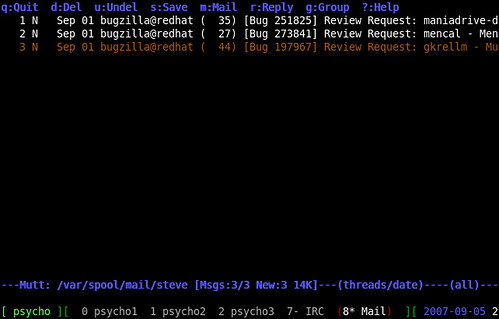
On lines 1 and 2, you are setting the hardstatus. Line 1 makes the hardstatus always show up as the last line. Line 2 is about what will be shown in the hardstatus line. In this case you will see something like so at the bottom:
As you change screens, you will see the parentheses move around the active screen.
Line 4 is a comment, as it starts with #. Lines 5-7 are all screen statements in the following format:
screen -t NameOfScreen ScreenNumber ShellCommandShortcuts
The following are some of the most used shortcuts that lets you navigate through your screen environment. Note that unless modified by your .screenrc, by default every screen shortcut is preceded by Ctrl+a. Note that these shortcuts are case-sensitive.
- 0 through 9 – Switches between windows
- Ctrl+n – Switches to the next available window
- Backspace – Switches to the previous available
- Ctrl+a – Switches back to the last window you were on
- A – Changes window session name
- K – Kills a window session
- c – Creates a new window
- [ – Then use arrows to scroll up and down terminal
Find out about more shortcuts in Screen's man pages. In your terminal, run:
man screen.Sharing a session with others
Another great application of Screen is to allow other people to login to your station and to watch the work you are doing. It is a great way to teach someone how to do things on the shell.
Setup to allow screen to be shared
- As root:
chmod u+s /usr/bin/screen(Screen has to be SUID if you want to share a term between two users.)
Note: SUID allows an executable to be run by the owner of that file, instead of with the user's own permission. There are some security concerns when doing this, so use this tip at your own discretion.chmod 755 /var/run/screen- Log out of root, and run Screen as the user who is going to share the session:
screen
- Press Ctrl+a, then type :multiuser on and press Enter.
- Press Ctrl+a, then type :acladd steve ("steve" is the username of the person who will connect to your screen session).
Connecting to the shared screen:
- SSH into the workstation that you are going to watch the screen session on.
- On your terminal type: screen -x anderson/ ("anderson" is the username of the person who is sharing the screen session. You need the / at the end.).
And now both users (from the host and guest) will be sharing a screen session and can run commands on the terminal.
Working from multiple locations
Let's say you have a screen session open at work with X number of windows on it. Within those screens you may be running an IRC client, an SSH connection to the web server, and your favorite text-based email client. It's 5 p.m. and you have to go home, but you still have work left to do.
Without Screen you would probably go home, VPN into your company's network, and fire up all the shells you need to keep working from home. With Screen, life gets a little easier.
You can simply SSH into your workstation at work and list your available screen sessions with the command:
screen -lsAnd connect to the sessions you were running at work with the command:
screen -x screen_session_nameThis way screen will let you pick things up exactly from where you left off.
Applications to make Screen your window manager
Now that you have seen what Screen can do for you, you probably are wondering how to make it your main interaction point, like a terminal window manager.
Let's start with IRC, a very common and popular chat system. Instead of using a graphical client like Pidgin, install Irssi. Irssi sports a slick console interface, tons of add-ons and scripts, and can be enhanced with Perl. It's even theme-able!
Another important part of any user's setup is email. Today most people use graphical clients such as Thunderbird, Evolution, or Sylpheed. My favorite client happens to run in a terminal: Mutt. While Mutt isn't the easiest client in the world to set up, it sure is a joy to use. You can even use your favorite console text editor for doing emails.
Speaking of favorite text editors, there is a good chance that you work on some code projects or configurations. Instead of using gedit/kedit or powering up a heavy IDE such as Eclipse, you can pick up on Vim. Vim is a powerful text editor which, as is stated on the Vim website, could be considered an entire IDE in itself and sports syntax coloring in over 200 programming languages. If Vim doesn't fit your style, there is always emacs, nano, or JOE.
Now all you need you need to do is edit your ~/.screenrc to meet your needs.
My ~/.screenrc looks like the following:
	1 hardstatus alwayslastline
	2 hardstatus string '%{= kG}[ %{G}%H %{g}][%= %{=
kw}%?%-Lw%?%{r}(%{W}%n*%f %t%?(%u)%?%{r})%{w}%?%+Lw%?%?%= %{g}][%{B}
%Y-%m-%d %{W}%c %{g}]'
	3
	4 # Default screens
	5 screen -t shell1	0
	6 screen -t shell2	1
	7 screen -t server	2 	sh me@myserver
	8 screen -t IRC	7	irssi
	9 screen -t Mail	8	mutt
Once you get used to the shortcuts in GNU screen, not only will your desktop become more organized (due to the lower number of open windows), but your efficiency as a developer or system administrator will increase not only at work but at your home office as well.
This entry was posted by The editorial team on Thursday, September 27th, 2007 at 8:14 am and is filed under Red Hat Enterprise Linux, technical. You can follow any responses to this entry through the RSS 2.0 feed. Both comments and pings are currently closed.
54 responses to "A guide to GNU Screen"
- Dmitriy Kropivnitskiy says:
September 27th, 2007 at 11:37 amYeah, I gave screen a try several times. The problem is, I use CTRL-A for "go to beginning of the line" a lot and all the screen shortcuts seem to utilize CTRL-A.
- Al Tobey says:
September 27th, 2007 at 12:48 pmDmitriy, you can use Ctrl-a by hitting Ctrl-a-a.
I also use "set -o vi" which works in bash, ksh, and pretty much any shell with POSIX mode. vi mode lets you operate your shell using keyboard commands similar to the vi editor. To get back to the default emacs-style, use "set -o emacs".
- Anderson Silva says:
September 27th, 2007 at 12:59 pmDmitriy Kropivnitskiy,
Add the following line to your .screenrc
escape ^gg
Now, you can use Ctrl+g instead of Ctrl+a, Steve uses ~
You can customize it to whatever key you want.
I hope this helps.
AS
- Bryn says:
October 1st, 2007 at 3:22 am> I have customized my bash shell fairly heavily – changed
> prompt, vi style keystrokes, bash completion etc etc etc.
> How do I get screen to pick up on all those settings?You don't need to – screen doesn't replace your shell so any changes you make to the shell environment via e.g. bashrc or bash_profile will still be applied inside screen.
- Brian says:
October 1st, 2007 at 10:17 am> You don't need to – screen doesn't replace your shell so
> any changes you make to the shell environment via e.g.
> bashrc or bash_profile will still be applied inside screen.Unfortunately that doesn't hold true here… On my OSX box it doesn't pick up anything, on my typical linux boxes it brings forward the bash prompt but not the vi style keybindings.
- abeowitz says:
October 1st, 2007 at 3:50 pmAny way to send one command to all screens at once?
In other words, open sessions to a bunch of separate machines and instead of C-a,n "ps", C-a,n "ps", … Issue the command once, and C-a,n to view the output in each?
- Mohammad Bahathir Hashim says:
October 1st, 2007 at 7:02 pmBeside dettach and reattach feature, I also love the "split" feature. Even better, latest development version, can do vertical split too. With the feature, I can monitor several items at the same time, example, irssi at the top pane, top at the middle and mutt at bottom. Oh, wait, nethack is hiding behind :)
- Jim C says:
October 3rd, 2007 at 1:27 amI was introduced to screen about 4 years ago, and haven't looked back. It's brilliant, and has more features than I could imagine using, but am gradually finding new ways to use them.
I don't think BigFill 'gets it'. Sure, you could open up multiple windows in X11 (or in PuTTY if you're a Windows user) to do your job. But consider this: What do you do if your network connection between your laptop/workstation and the machines you're working on gets interrupted (eg, working from home over VPN)? Basically you have to set everything up again.
But with screen, you ssh to a remote host, set up screen with as many virtual windows as you need, and if the connection between you and the screen session gets interrupted, no problem, just get your VPN going again, ssh to the remote host, then "screen -rd" (or "screen -rd ") and you're back where you were moments earlier. This may not make complete sense until you've actually tried it.
This approach is also handy if you want to disconnect at 5pm and head home to continue from there. Or simply to reconnect and resume the next morning without having to do session setup situps.
If you prefer the GUI approach, there's always VNC, but quite often the command line is where all the goodness happens.
Earlier tonight I realized that I'd like to write a couple scripts, each one which will fire up a new screen session (completely separate from any other I might be running), but from the context of the script in question, there will be multiple commands where each command connects to a different screen windows. I think I've figured out a way to do this from reading the man page earlier tonight, although it's not explicitly called out as such.
Anyway, happy screening all!
- tj says:
October 3rd, 2007 at 9:42 amI have RH3 and screen install fine from RH rpm. Screen works except multiuser mode. The instructions require that for multiuser mode we must do "chmod 755 /var/run/screen" however this file/directory does not exist on my system.
Next I activate multiuser mode and acladd the desired user. When this user tries to connect to my screen they get the error to the effect that "/tmp/screen-[my user name]" does not exist, which is correct, this file/directory does not exist. Creating it as a file simply results in the error "here is no screen to be attached matching [my user name]"
Any assistance appreciated
- Sitaram Chamarty says:
October 5th, 2007 at 5:08 amScreen is great, but please don't use it for sharing sessions.
Use "kibitz" from the "expect" package instead. None of the one-time (SUID, etc) or every-time (multiuser, acladd, screen -x) complexities described above.
When userA types "kibitz userB", userB will see:
Message from [email protected] on pts/1 at 15:59 …
Can we talk? Run: kibitz -28996All he has to do is type the command and they are sharing userA's session. Either of them hits a Ctrl-D to end the shared session.
Can't get simpler than that…
- Richard says:
October 5th, 2007 at 9:32 amJust like abeowitz, I'm wondering whether it is possible
to use screen to send commands to multiple screens.According the documentation this should be possible with
the "at" command, but I don't get it to work.So the command sequence:
C-a :at # date
Should result in a date executed on all windows (to my
understanding, but the result I get is:
": at: at least two arguments required")OTOH according the TODO file at:
ftp://ftp.uni-erlangen.de/pub/utilities/screen/screen-4.0.3.tar.gz
states: "- type into several windows at once (for cluster admins)"
That file has been changed in august 2003 for the last time… :(Hopefully someone reading this article knows how to use the
at command???- Hey Richard! says:
October 8th, 2007 at 4:07 amWith the 'at' command, you can send commands to other windows that have to be typed when you press C-a :
This changes the title of a window in a certain screen session:
screen -X at 1 title blublublu- tj says:
October 11th, 2007 at 11:03 amkibitz is great for sharing a screen and work session. Tks to Sitaram Chamarty. Much simpler to implement than screen if your interest is primarily sharing sessions.
- torbiak says:
October 14th, 2007 at 1:03 amBrian: If bash isn't starting up how you expect it to when invoked by screen, it's likely because bash reads different initialization files depending on how it's started. Setting up a link from .bashrc to your favorite rc file [.bash_login, .bash_profile, .profile] might make it behave how you like.
Maybe something like this: ln -s .bash_login .bashrc
bash's manpage has the details.- Richard says:
October 20th, 2007 at 4:18 pmA way to broadcast commands to all windows is the following:
^a:at \# stuff "ls12″Thanks goes to Michael, (one of the screen devs) who provided this information to me.
- Richard says:
October 20th, 2007 at 4:20 pmThe command above should read: double quote ls backslash zero twelve double quote. Somehow the parser removes the blackslash zero. One more try:
^a:at \# stuff "ls\\12″- airtonix says:
November 9th, 2007 at 3:42 ami use screent to run rtorrent on our homeserver.
i also would like to provide a read only display of rtorrents screen output.
i dont want press buttons to make a hardcopy, can i automate this on a timer?
i want hardcopy to run every 5min.
- realthor says:
November 13th, 2007 at 8:30 amHi, I am very interested in the "chat to all tabs" function from secureCRT if it would be possible to do with screen it would be wonderfull but the command above doesn't work. I am using screen under solaris I don't know if it is any different but I have 50 sessions opened to 50 machines and sometimes I need to change a word in a file on all machines and it is very time consuming without this option.
Can anyone help?
- Peter K says:
January 18th, 2008 at 2:05 pmHi, all!
If I understand it correctly what Jim C said: You can use screen to 'recover' sessions even if there are on a remote computer?
Is the following scenario possible:
1. ssh to a remote computer
2. start screen (or should I start it on my local machine?)
3. run a big task
4. detach from this session
5. ## shutdown the local computer ## e.g. go sleeping :-)
6. restart the local computer
7. re-attach to the remote computer to see the progress of the taskIs this possbible? I tried it but I always get:
XIO: fatal IO error 104 (Connection reset by peer) on X server "localhost:10.0
after 0 requests (0 known processed) with 0 events remainingif I shut down the local machine. If not – all is fine.
Any suggestions?- Peter K says:
January 19th, 2008 at 11:29 amOkay I got it: it was the specific big task which was the problem.
PS: it is imortant to start screen on the remote machine, of course!
- Rob Nichols says:
December 7th, 2008 at 11:08 pmThis is a great intro. I've used screen for many years. (Just stopped to count. I think it's been a decade!) However, I'd never bothered with learning about the hardstatus line until this article. It's a nice addition. Thanks!
P.S. I think there are two mistakes in the example given. Again, this is my first foray in screen's string escapes, so I might be way off. I think "%{=kw}" should have a space, as "%{= kw}". Without this change on my system windows before the current are green instead of white. I also think there is an extra "%?" before the the closing "]" on the window list. This made no difference on my system. Here's a version with these changes.
hardstatus string '%{= kG}[ %{G}%H %{g}][%= %{= kw}%?%-Lw%?%{r}(%{W}%n*%f%t%?(%u)%?%{r})%{w}%?%+Lw%?%= %{g}][%{B}%Y-%m-%d %{W}%c %{g}]'
- John says:
January 8th, 2009 at 1:32 pmI've used Screen for more than a decade. For years now I've used it to keep open ssh sessions to various systems, doing things like tailing logs and such, and disconnecting then reconnecting when necessary. My latest session has been running upwards of 2 years, only ever bringing it down for critical patching. Sometimes I connect to the same session from multiple windows, displaying different screen "windows" for multiple views. I also use an always on statis as well.
The few modifications I've made are to increase the MAXWIN param to allow for more windows, and change the command key to ^w so I don't have to unlearn my emacs ^a habits.
- John Stoseel says:
January 8th, 2009 at 2:13 pmWow dude, I think you might just be onto something here!
- Paul Prescod says:
January 8th, 2009 at 5:09 pmI used screen heavily in the mid-nineties. When I got back into remote Unix server stuff I was happy to see it was still around but a bit surprised that the state of the art had not evolved much.
Yes, it's true that screen allows you to rebuild your sessions despite a long gap in network connectivity…but why shouldn't this be built into the network protocol rather than into a userland app? GMail ll SSHD that I want to keep an SSH session alive indefinitely? Or detach it one place and reattach it somewhere else? I think it is more correct to do it at that level because:
a) SSH is more general than just interactive usages
b) Screen interferes with command keys, beeps, client-sie scrollback and other stuff.
Or another way to think about it is that perhaps screen should be the default interactive shell and client-side terminals and server-side apps should take seriously the requirement to work seamlessly with screen.
Currently it is invasive and gives you some good features at the same time that it breaks other stuff that were not written with it in mind (like apps that use Ctrl-A and nice terminal scrollback).
According to the docs for my iphone terminal emulator:
"Please note that due to incompatibilities between GNU screen and the VT100 standard used by TouchTerm, there may be some terminal emulation problems when using screen-based applications such as emacs and vi. We also recommend that you set the 'Allow Scrollback' Option to Off when using any screen-based application with Persistent Connections enabled, as this tends to reduce errors caused by the emulation incompatibility. However, if you make frequent use of such programs, we recommend that you leave this Option disabled."
Unfortunately, screen is not "standard" enough that all client and server apps have figued out how to work totally seamlessly with it and it has not become standard enough in 20 years.
It's a wonderful thing: but a hack around deeper flaws in the whole terminal emulation mechanism.
- Rhys Ulerich says:
January 8th, 2009 at 8:24 pmThere's a fairly easy way to have GNU screen started every time you open a gnome-terminal. Equivalently, this lets multiple gnome-terminals share a single screen session. Very handy: http://agentzlerich.blogspot.com/2008/07/using-gnu-screen-with-gnome-terminals.html
- Marc Andre Tanner says:
January 9th, 2009 at 5:44 amThose of you who prefere a lightweight and hackable solution might find my dvtm project in conjunction with dtach interesting. A new version will be published soon.
http://www.brain-dump.org/projects/dvtm/
/end of advertising campaign
- John Pye says:
January 9th, 2009 at 10:42 pmOne good use of Screen is when performing remote updates of systems using apt-get or yum. You can start the update going, then disconnect, then come back later and check that it finished OK. If your remote connection goes down, it doesn't mess everything up. Also, using the screen 'logging' function, you can keep a full history of the update, and check it for error messages that you might have missed.
- Ravi says:
January 11th, 2009 at 6:38 amA very nice introduction to the screen command. Loved reading it.
- Doug Bell says:
February 12th, 2009 at 1:13 amIn screens 1-16 I can, from commandline, 'export box=STB_n' where n is the screen number essentially.
Is there a way to write some bash script to run in screen 0 to do this programatically?The usage is that later I can:
C-a : at \# stuff "echo box is 44box 12″ to get output like
box is STB_7
in screen 7, etc.I'd like to eventually be able to ( with a script ) echo commands out to all screens simultaneously but have the commands interpreted differently based on local environment variables. ( like ssh $box )
- jeffatrackaid says:
March 5th, 2009 at 5:21 amI've been using screen for a long time and think it is a highly underutilized program.
I use it for training purposes sometimes using the dual attachment mode. screen -X
I also can have staff log actions for review later.
|
|
|
Split Screen:
If you are really geeky (or you want to show that you are geeky :) ), then screen split is something you must be using. With that you can have move than one screens in just one display.
You can split your terminal windows horizontally and vertically (for vertical split, you need to patch your screen).
To Split the screen horizontally: Ctrl+a & S
To split the screen vertically: Ctrl+a & |
To switch between windows: Ctrl+a & Tab
To kill your current window: Ctrl+a & X
|
|
|
UrFix's Blog
Screen or as I like to refer to it "Admin's little helper"
Screen is a window manager that multiplexes a physical terminal between several processeshere are a couple quick reasons you'd might use screen
Lets say you have a unreliable internet connection you can use screen and if you get knocked out from your current session you can always connect back to your session.
Or let's say you need more terminals, instead of opening a new terminal or a new tab just create a new terminal inside of screen
Here are the screen shortcuts to help you on your way Screen shortcuts
and here are some of the Top 10 Awesome Linux Screen tips urfix.com uses all the time if not daily.
1) Attach screen over ssh
ssh -t remote_host screen -rDirectly attach a remote screen session (saves a useless parent bash process)
2) Share a terminal screen with others
screen -r someuser/3) Triple monitoring in screentmpfile=$(mktemp) && echo -e 'startup_message off\nscreen -t top htop\nsplit\nfocus\nscreen -t nethogs nethogs wlan0\nsplit\nfocus\nscreen -t iotop iotop' > $tmpfile && sudo screen -c $tmpfileThis command starts screen with 'htop', 'nethogs' and 'iotop' in split-screen. You have to have these three commands (of course) and specify the interface for nethogs – mine is wlan0, I could have acquired the interface from the default route extending the command but this way is simpler.
htop is a wonderful top replacement with many interactive commands and configuration options. nethogs is a program which tells which processes are using the most bandwidth. iotop tells which processes are using the most I/O.
The command creates a temporary "screenrc" file which it uses for doing the triple-monitoring. You can see several examples of screenrc files here: http://www.softpanorama.org/Utilities/Screen/screenrc_examples.shtml
4) Share a 'screen'-sessionscreen -xAfter person A starts his screen-session with `screen`, person B can attach to the screen of person A with `screen -x`. Good to know, if you need or give support from/to others.
5) Start screen in detached modescreen -d -m [<command>]Start screen in detached mode, i.e., already running on background. The command is optional, but what is the purpose on start a blank screen process that way?
6) Resume a detached screen session, resizing to fit the current terminal
It's useful when invoking from a script (I manage to run many wget downloads in parallel, for example).screen -raAd.By default, screen tries to restore its old window sizes when attaching to resizable terminals. This command is the command-line equivalent to typing ^A F to fit an open screen session to the window
7) use screen as a terminal emulator to connect to serial consolesscreen /dev/tty<device> 96008) ssh and attach to a screen in one line.Use GNU/screen as a terminal emulator for anything serial console related.
screen /dev/tty
eg.
screen /dev/ttyS0 9600
ssh -t user@host screen -x <screen name>If you know the benefits of screen, then this might come in handy for you. Instead of ssh'ing into a machine and then running a screen command, this can all be done on one line instead. Just have the person on the machine your ssh'ing into run something like
9) connect to all screen instances running
screen -S debug
Then you would run
ssh -t user@host screen -x debug
and be attached to the same screen session.screen -ls | grep pts | gawk '{ split($1, x, "."); print x[1] }' | while read i; do gnome-terminal -e screen\ -dx\ $i; doneconnects to all the screen instances running.
10) Quick enter into a single screen sessionalias screenr='screen -r $(screen -ls | egrep -o -e '[0-9]+' | head -n 1)'There you have 'em folks the top 10 screen commands. enjoy!
|
|
|
alexandru
0. Build screen from source to fix the slowdown when scrolling in a vertical split.
1. This is my .screenrc with keyboard shortcuts and a nifty status bar. –help?
Control + Up: previous split screenControl + Down: next split screenControl + Left: previous screen windowControl + Right: next screen windowF1: kill current tabF2: write paste buffer to fileF3: split horizontallyF4: split verticallyF5: remove single splitF6: remove all splitsF7: urlview pulls URL's from your current output, very usefulF8: new tabF9: resize split +1 lineF10: resize split -1 line2. on. To have the title revert after closing your shell follow this.
3. color = readability. Install color wrapper to colorize your terminal output. Alias man to use most as its pager. Use the following for a colorful prompt with $? in $2:
00:43:18 0 user@hostname:~/$
\[\033[1;36m\]\t\[\033[0m\] `LastExitValue=$?; if [ $LastExitValue = 0 ]; then echo \[\033[1\;32m\]$LastExitValue\[\033[0m\]; else echo \[\033[1\;31m\]$LastExitValue\[\033[0m\]; fi` \[\033[1;34m\]\u@\h\[\033[0m\]:\[\033[1;33m\]\w\[\033[0m\]\[\033[1;32m\]\$\[\033[0m\]
To remove color use: s/\x1B\[([0-9]{1,2}(;[0-9]{1,2})?)?[m|K]//g
4. Yakuake is the best terminal emulator. Configure these shortcuts:
Shift + Left: previous shellShift + Right: next shellF11: full screenF12: drop down
|
|
|
Basic hotkeys
Ctrl+a Ctrl+a = Return to your last terminal
Ctrl+a p and Ctrl+a n will move you to the previous and next terminals, respectively.
Ctrl+a d = Detach from your current session
From any command prompt, type screen -ls to list your open screen sessions.
[531][charlie] ~ $ screen -ls

There are screens on:
        29333.pts-2.champion    (03/20/2010 07:04:40 PM)        (Detached)
        26943.pts-3.champion    (03/20/2010 06:16:20 PM)        (Detached)

2 Sockets in /var/run/screen/S-charlie.
If you only have one session open, just type screen -r to rejoin.
If you have multiple sessions, type screen -r 123 where 123 is the socket number from the list command.
Tip: You only need to type enough characters to make the number unique.
So in the example above, you could type screen -r 26 to rejoin the second session.
Writing to multiple screens
Another great time saver is writing to multiple screens at once.
Here is how I use it with my Dynamips lab.
First, I want to make sure I'm no longer in configuration mode.
At the screen command prompt (Ctrl+a : ) enterat \# stuff end\015which will send "end" to all your terminals. Now you can "write mem" to all your devices simultaneously. Again, at the screen command prompt enter
at \# stuff wr\015At this point I will quickly rotate through the devices to make sure things are saved, return to dynamips and issue a save /all or export /all.
Tada, all my configs are now saved. Of course, you could use one line but I prefer to use two to ensure there is no lag between the two commands.
|
|
|
Nov 11, 2008 | mail-archive.com
Micah Cowan
Tue, 11 Nov 2008 09:30:26 -0800-----BEGIN PGP SIGNED MESSAGE----- Hash: SHA1 Richard Elliot wrote: > Thanks for the help. > > Would this be correct? > > while true; do screen -S 19268 -X stuff "signon"\012; sleep 1m; doneAh; actually, I don't believe octals are interpreted from the commandline (a shortcoming, IMO). Anyway, to get them to screen you'd need to put them in single quotes. You'll have to send the literal character; the following adaptation should work: while true; do screen -S 19268 -X stuff $'signon\n'; sleep 60; done If you don't have a shell that supports the non-standard $'...' syntax, then use: while true; do screen -S 19268 -X stuff \ "$(printf '%b' 'signon\015')"; sleep 60; done Note that I used carriage return instead of newline; the shell automatically removes trailing newlines from command substitutions. Terminals are typically set up to treat carriage returns and newlines the same (actually, I believe they accomplish this by transforming newlines into carriage returns). - -- Micah J. Cowan Programmer, musician, typesetting enthusiast, gamer. GNU Maintainer: wget, screen, teseq http://micah.cowan.name/
|
|
|
2004-10-12 | LinuxQuestions.org
Useful tips
If you're like me, a program you have to remember to start before it becomes useful is not much good. Remembering you should have run screen two hours after starting your lengthy process is about as helpful as Clippy. Fortunately, there are a few ways to avoid this.
If you decide you like screen so much you want it running all the time, you can actually set it as your shell in /etc/passwd. This turns out to be less useful than it sounds, as each new login will attach to the original session, and logging out of one will log you out of all of them! A better way to force this setup is to add
Code:
exec screento the appropriate startup file for your shell (~/.bash_profile for example). You can then useCode:
screen -lsto view active sessions, andCode:
screen -r <name>to attach to one. If the session you want is still attached to a terminal, useCode:
screen -d -r <name>instead. In this way, you can connect via SSH and check on the progress of a task you were running on tty1.For myself, I prefer to use screen only when logging in via SSH. This way, my SSH session is automatically resumed if I am disconnected for any reason. I do this by adding these lines to my ~/.bashrc:
Code:
if [ "$SSH_CONNECTION" ]; then
    if [ -z "$STY" ]; then
        # Screen is not currently running, but we are in SSH, so start a session
        exec screen -d -R
    fi
fi
The check for STY stops bash from creating a new screen process every time I create a new screen window, and the -d -R parameters tell screen to reattach an existing session, or create a new one if necessary.
|
|
|
From: Matt Dunford Subject: screen patch Date: Tue, 27 Feb 2007 00:02:28 -0500 User-agent: Mutt/1.5.13 (2006-08-11) Hi All, I just came across this list yesterday and am glad to see that screen is still alive and kicking. It's one of those programs I can't imagine living without. Anyway, here's a patch I updated recently for version 4.0.2: it adds two features I use alot. The first I call "toggle" (^aT). Oftentimes I do many screen commands in a row like creating five or six new windows. I do ^aT, then c c c c c (to create five more windows). When I want to cycle through them, I hit the space bar. Or if I want to go back n forth between windows, then n and p. All this to avoid hitting ^a every time I want to do a command. When I'm done and want to return to normal mode, I hit T to turn it off. The second jumps to the last window in the list (^a$) - like vi's 0 to go to the front of the line, $ to go to the end. It also adds an extra check for the -h option - makes sure you can't pass a non-digit as an argument. If anyone's interested in the patch, I'll clean it up. -- Sincerely, Matt Dunfordscreen-4.0.2.diff
Description: Text Data
|
|
|
From: Igor Moroz Subject: Re: how to send commands to running screen sessions Date: Fri, 16 Feb 2007 12:23:41 +0300
В Чтв, 15/02/2007 в 19:00 -0300, Henrique Niwa пишет:

> Sometime ago i saw an email from the list explaining
> how to send commands to matching windows.
> like, for windows named sh send command xyz
> i accomplished some results using the stuff command,
> but i could not replicate the enter key, nor send it
> to multiple windows matching some pattern.
> Does anybody knows the correct syntax of the command?

Is it what you want?

http://www.math.utah.edu/docs/info/screen_19.html#SEC110

At

Command: at [identifier][#|*|%] command [args]

Execute a command at other displays or windows as if it had been entered
there. At changes the context (the `current window' or `current display'
setting) of the command. If the first parameter describes a non-unique
context, the command will be executed multiple times. If the first
parameter is of the form `identifier*' then identifier is matched
against user names. The command is executed once for each display of the
selected user(s). If the first parameter is of the form `identifier%'
identifier is matched against displays. Displays are named after the
ttys they attach. The prefix `/dev/' or `/dev/tty' may be omitted from
the identifier. If identifier has a # or nothing appended it is matched
against window numbers and titles. Omitting an identifier in front of
the #, * or % character selects all users, displays or windows because a
prefix-match is performed. Note that on the affected display(s) a short
message will describe what happened. Caution: Permission is checked for
the owners or the affected display(s), not for the initiator of the `at'
command.

--
Cul8r,
        Igor ,)
|
|
|
From: Andy Harrison Subject: Re: how to send commands to running screen sessions Date: Fri, 16 Feb 2007 15:51:06 -0500
... ... ...You can also use the -X param. So if I had two different instances of screen running, one of them had sessionname set to FooScreen, I would send a command like:
screen -S FooScreen -X select 1This would cause screen 1 to be selected within the FooScreen instance.
--
Andy Harrison
|
|
|
Screenwm is an extension to GNU Screen that adds (1) multiple region layouts within a single session, (2) vi-like movement within complex layouts, (3) window associations by region, and (4) control of remote/embedded sessions using standard key bindings.
|
|
|
The lines below are numbered for reference. Your config file should not have numbered lines.1 hardstatus alwayslastline 2 hardstatus string '%{= kG}[ %{G}%H %{g}][%= %{=kw}%?%-Lw%?%{r}(%{W}%n*%f%t%?(%u)%?%{r})%{w}%?%+Lw%?%?%= %{g}][%{B}%Y-%m-%d %{W}%c %{g}]' 3 4 # Default screens 5 screen -t shell1 0 6 screen -t shell2 1 7 screen -t server 2Speaking of favorite text editors, there is a good chance that you work on some code projects or configurations. Instead of using gedit/kedit or powering up a heavy IDE such as Eclipse, you can pick up on Vim.... My ~/.screenrc looks like the following:
	1 hardstatus alwayslastline
	2 hardstatus string '%{= kG}[ %{G}%H %{g}][%= %{=
kw}%?%-Lw%?%{r}(%{W}%n*%f %t%?(%u)%?%{r})%{w}%?%+Lw%?%?%= %{g}][%{B}
%Y-%m-%d %{W}%c %{g}]'
	3
	4 # Default screens
	5 screen -t shell1	0
	6 screen -t shell2	1
	7 screen -t server	2 	sh me@myserver
	8 screen -t IRC	7	irssi
	9 screen -t Mail	8	mutt
|
|
|
lists.gnu.org
Hi Screen Users,
From: Michael Schroeder Subject: New screen features available Date: Tue, 6 Feb 2007 23:34:31 +0100 User-agent: Mutt/1.4.2.1i you probably wonder why the new version of screen is not already available. Well, it got delayed a bit because of a couple of new features I've added. The development version is available from GNU savanna:
cvs -z3 -d:pserver:address@hidden:/sources/screen co screenHere are the new features:- vertical split, complete with resizing
  ^A |   split vertically

  resize [-l] [-h] [-v] <amount>

    -l : resize is local to slice
    -h : resize horizontally
    -v : resize vertically

  amount: 10       resize to size 10
  amount: +10      make 10 bigger
  amount: -10      make 10 smaller
  amount: 10%      make it 10% of all
  amount: =        make all windows equal
- better resize code using weights.the layout will stay in shape even after heavy resizing
- window groups
currently a bit ugly to create:
screen -t <name> //groupcreates a group named <name>a group is a subset of windows, ^Aw will only display the current group and next/prev will not leave the group. Use ^A" to list all windows of the current group (this also leaves to group, so that next/prev or a second ^A" will show the other windows.
- layouts
A layout stores the current setup of the display, i.e. all the slices and the window assignments.
layout save Desktop1will save the current setup under the name "Desktop1". If you detach and reattach later on, the layout will automatically be restored. "Desktop1" will become the current layout.layout autosave offThis turns the autosafe feature off. Layouts are automatically saved if autosave is on and the user detachs or switches to another layout.layout new Desktop2Create a new empty layout named "Desktop2".layout name "foo"Rename the current layout to "foo".layout next layout prev layout load "name"Load the next/prev layout / the layout named "name".layout attach :last layout attach "name"Set the layout used when somebody is attaching. Default is ":last", this is the layout that was current when the last detach was done.Besides the restoring of the screen on re-attach, layouts can be used to implement a kind of "virtual desktop" in screen. Say you put "layout save Desktop1" in your ~/.screenrc. If you need a new Desktop, do "^A:layout new Desktop2". You can then use "layout next" to switch between both layouts.
So, feedback welcome. You probably have a lot of suggestions and enhancement requests. Sorry that development is a bit slow at the moment due to not enough spare time...
Cheers,
Michael.
--
Michael Schroeder           address@hidden
main(_){while(_=~getchar())putchar(~_-1/(~(_|32)/13*2-11)*13);}
|
|
|
From: Mag Gam Subject: New screen features -- groups Date: Mon, 19 Feb 2007 23:03:26 -0500 I have downloaded the latest-greatest-screen, and it has a new feature called 'group creation' which is a superset of 'windows'. I have a scenario like this:
2 production servers (prod1, prod2)
2 development servers (dev1,dev2)
4 Q/A servers (qa1,qa2,qa3,qa4)How can I create 3 groups (prod, dev,qa), and have these servers included in them respectively?
|
|
|
Gentoo Linux Wiki
I love to keep an eye on #gentoo using my favourite IRC client irssi and read emails/Usenet posts/do whatever without clobbering my monitor.Similar to vim, which not all of us reportedly prefer, we can use a single terminal window for more than one visible task.
Screen can horizontally split into regions, each holding a different terminal. To open a new region one types Ctrl-a S (capital s, please!). To enter that newly created region we have to tab into it: Ctrl-a <Tab> Still nothing can be seen, but we can now cycle through our open terminals with Ctrl-a n or Ctrl-a p. To close a region type Ctrl-a X.
A region with focus can be resized with Ctrl-a + or Ctrl-a - By default this changes the height by 3 lines. Alternatively, you can specify the height to an absolute number by going into Screens command mode. Ctrl-a X removes the current region.
|
|
|
From: Giulio Bottazzi Subject: Re: binding ctrl-arrow Date: Thu, 5 Apr 2007 10:29:32 +0200
Hi Jonathan,to use cat to probe for keys is a fantastic trick! Thank you very much! I really enjoy this mailing list.! Actually, using xterm and your trick I'm able to do exactly what I want withbindkey ^[[1;5A copyJust to let you know: the same trick does also work in aterm usingbindkey ^[Oa copyBest, Giulio.
|
|
|
13 July 2007, | polishlinux.org
2. Running programs in the backgroundSometimes it would be useful to make screen automatically open a program in its session, give it a name and detach returning to a normal shell, in one command. Use the "-md" options to do this. Combining this with the "-S" option gives some interesting effects:
screen -S ekg_session -md /usr/local/bin/ekg &Screen will create one session, name it "ekg_session", start the ekg program running inside it and then detach it. Using this method, checking your account on a unix server, you can have either online or "away from the computer" status all the time by one command, while doing other things on the server. Naturally, you can combine many commands into a single command, which makes returning to your work environment easier:
screen -S ekg -md /usr/local/bin/ekg & screen -S mc -md /usr/bin/mc & // screen -S rtorrent -md /usr/bin/rtorrent &This makes screen create three differently named sessions in the background with my favourite terminal programs - ekg, mc and rTorrent.
3. Regions and tabs.Even though running multiple screen sessions is catered to, its creators give you another choice of how to work. You can run multiple shells within one session! What's more, you can even display these shells in one terminal window.
But so as not to get lost in these windows, I suggest you create tabs similar to those found in web browsers. You can do this by writing to your configuration file ~/.screenrc one of the following codes:
hardstatus alwayslastline hardstatus string '%{= mK}%-Lw%{= KW}%50>%n%f* %t%{= mK} %+Lw%< %{= kG}%-=%D %d %M %Y %c:%s%{-}'or
hardstatus alwayslastline hardstatus string '%{= kG}[ %{G}%H %{g}][%= %{= kw}%?%-Lw%?%{r} (%{W}%n*%f%t%?(%u)%?%{r})%{w}%?%+Lw%?%?%= %{g}][%{B} %d/%m %{W}%c %{g}]'or
hardstatus alwayslastline hardstatus string '%{gk}[ %{G}%H %{g}][%= %{wk}%?%-Lw%?%{=b kR} (%{W}%n*%f %t%?(%u)%?%{=b kR})%{= kw}%?%+Lw%?%?%= %{g}][%{Y}%l%{g}] %{=b C}[ %m/%d %c ]%{W}'With the first code each tab will have a number, a name plus time and date. The second one will give you tabs that will be created in the center and the active tab will be highlighted in red and also have the hostname displayed. The last code will additionally display the processor usage. You can create your own codes but it is a rather specialized task - I refer you to the system manuals for more information.
You already have tabs, now it's time to create new terminals.
Open a screen session then press C-a c. A new tab is created. But both tabs have the same title. To change the title of the active tab, press C-a A and enter a new name. Creating tabs without a shell but with a program running automatically is a useful feature. The new tab will inherit the name of the program. To use this option press C-a : and enter the following command screen [program name] (this is the way you enter all commands during the screen session). To go to the next tab press C-a n and to return to the previous one press C-a p. To switch between the tabs use C-a ". This will show you a list of all the tabs.
Regions
Regions are a very useful feature. They enable opening many programs and shells in one window of screen. To do it just press C-a S. The window will split into two separate areas. There will be your actual shell at the top part of the window and the bottom part will be empty. To switch to the bottom part press C-a [Tab]. You have to create a new shell in the new window, so press C-a c. You can create more regions by pressing C-a S more than once and creating new shells in them. Tabs display the active region shellname in its titlebar. You can also switch between tabs being in a region, so e.g: you have 4 tabs and 2 regions. Each region can display one of these tabs. A nice trick is that many regions can display the same tab and they will react simultaneously. It is difficult to describe but is very helpful when you work in multiuser mod and you want to see what another person is doing. You can change the size of each region by entering resize [size], where size is the number of lines.
4. Configuration file
Img. 1 Two windows filling whole the display with screen split into two regionsPreviously I mentioned about the configuration file. I wrote that it is in a subdirectory in the home directory named ~/.screenrc. But you can have tens of such files, and when you want to use any of them run screen with the option -c [filename]. What these files can be? Simply it can contain any of the commands that you usually enter after pressing C-a :. Below I include one of configuration files which causes splitting a window into two regions and running ekg in the top one.
- screen ekg - runs ekg
- title ekg - gives title to the window
- split - splites window into two regions moving ekg to the top one
- focus - switches to the bottom region
- screen - runs default shell, in my case it is bash
- title bash - sets title to the bottom region
- focus - switches back to the top one
As you can see, you can automate a lot of actions which you would do after connecting to a server or running a terminal. A full list of commands can be found in the manual.
5. Logging to file.To log all the data displayed in a screen session or tab into a file, enter the following command:
6. The password to screen session.
- logfile [filename] where filename is the name of the file where all the data will be logged. The default name is screenlog.0 (or 1,2,3… if there are more screen shells).
- flush [seconds] is used to set delay between each write to the logfile, by default it's 10 seconds.
- To start logging enter log on, to stop log off.
If there is an important program running in a session you can protect it by using a password. To do this enter password. Then you will be prompted to type your password twice.
After that the hashed password will be displayed. Next you have to copy it to the configuration file after the word "password" in the same line. To cancel the password associated with the session just enter password none in the session or delete the line from the configuration file to cancel the password permanently.
7. Screen running right after connecting to a remote host.In fact this tip has not much in common with screen but still I think it is very useful. If you want to run screen right after connecting to a remote host just enter ssh [username]@[remote host name] -t screen -RD. Unfortunately this command will work only if there is only one screen session running on the remote host. If there is more than one session you have to know its PID or name and use this: ssh [username]@[remote host name] -t screen -R [sessionname/PID]. When you shut down the screen, SSH will automatically log out.
8. Locking the display.To lock the display use the following command lockscreen or the shortcut C-a x. It doesn't block the session (like it was in point no. 2), but only "freezes" the display. So detaching and attaching again will cause that you grant the access to session. It can be useful when you are connected to a remote server using the previous tip and you have to go away from the computer. You can't change the password, because your own user password will be used.
9. CommentsI think these tips will be useful for you. I have been using screen for a long time without knowing about such things as regions, tabs and all features I described here.
|
|
|
...I could start a screen session called "radiostation" in this way:
tmancill@ghostrider:~$ screen -S radiostation
(screen blanks)tmancill@ghostrider:~$ mp3blaster
(load my playlist and hit play to start transmitting)
(hit 'Control-a' followed by 'd' to detach)At this point, I can exit my shell, and mp3blaster keeps on running, happily updating the (now non-existent) terminal window with current track information and elapsed time. Let's say that my wife calls me at work and says, "Hey, make this thing play something other than your music." Then, I ssh into ghostrider and resume my session with:
tmancill@ghostrider:~$ screen -r radiostation
If I happen to forget the name of the screen sessions I have running, I can use the "-ls" switch to see what's available:
tmancill@ghostrider:~$ screen –ls
There are screens on:
10238.frm (Detached)
25400.radiostation (Attached)
2 Sockets in /var/run/screen/S-tmancill.If I leave the office without logging out of that "radiostation" screen, I can still resume it by instructing screen to detach (-d) any running session before resuming (-r) the session I'm requesting. In my window at the office, I'll see:
tmancill@ghostrider:~$ screen -r radiostation
[remote detached]Of course, you don't have to be running a radio station to get some use out of screen. It's very useful in a production environment where you don't know from what location you might be needed to access a session. At my office, we needed to run a piece of vendor software underneath GDB in order to be able to produce backtrace information when it segfaulted. When the segfault occurred, our monitoring software would alert us and the on-call member of our support team would produce the backtrace and restart the software. Since any of a number of folks may need to access the session, running the GDB shell on any of our individual workstations was out of the question. One option would have been to run the software directly from the system console, but this meant that the on-call tech had to be onsite and go physically into the data center to perform the reset. So, screen was a natural fit.
Find other admin tips on SearchEnterpriseLinux.com Be cautious about one thing: Screen is sensitive to user permissions, and to users in general. In the GDB example, the vendor software ran under a specific user account, so if you used "su" or "sudo" became another user, you could expect permissions problems. Part of this is that screen needs to be able to open your tty. For example, let's say that I want to run something as the user "asterisk" under screen on my system. If I login in the user "tony" and then become the user "asterisk," I'll run into the following:
asterisk@bach:~$ screen -S pbx
Cannot open your terminal '/dev/pts/146' - please check.asterisk@bach:~$ ls -al /dev/pts/146
crw------- 1 tony tty 136, 146 May 31 18:16 /dev/pts/146
As you can see, for the sake of security, my tty is owned by the user who opened the shell, not the effective user ID after I became asterisk. One way around this is to log in directly as the user asterisk before invoking screen. This problem can present itself on the other side as well. That is, if I start the job as asterisk, and log in to a box under another username, and then become asterisk, "screen -r" will still be unable to open the terminal. Also note that before I become the user asterisk, "screen -ls" won't even show me that "pbx" session; appropriately, screen creates a directory for each screen user, and only lists that user's sessions.
How do you get around the permissions problem? If the user account has a password, you can always ssh into the system (probably localhost) directly as that user. Or, if you're in a huge hurry and feel confident that there isn't a local security threat, you can change the permissions on the tty. If you do this, be sure to log out of your terminal as soon as you're done. In effect, you're giving every local system user access to that login shell. Another option is to become root and invoke screen, and then become the system account needed to run the job within the screen session. This will work because the superuser is able to open any user's tty, and (ostensibly) your support staff has sufficient rights to become the root user.
So screen can help you use a large family of terminal software that may not be suited for "unattended" use and yet must be accessible to more than just your initial login session. It's so quick and easy to use that you might prefer it over multiple logins into a remote system, or even over setting up additional virtual consoles on your Linux console. And that's it -- the cereal box guide on a tool that will let you be there when you're not, and still get there when you need to.
|
|
|
One of screen's best features for those who have to remotely adminster machines is its detach function.
You have to log into a remote machine. After logging in, you have to tar and bzip an enormous directory, an operation which will take 45 minutes. Your connection is not the best, and you worry about being disconnected before the operation is complete. However, the remote machine has screen installed.
After logging into the remote machine, your first command is
Begin the tarring and bzipping.
Now detach the screen
you back in the screen where you have been tarring and bzipping the large directory. if it is done, you can type exit, and you will see a message that screen is terminating.If you have several things to do on the remote machine, you might lose track of which screen is doing what. When you log back in you can get a list of your screens with
screen -lsThis returns a list of screens. You might see something like
There are screens on:
	6795.ttyp1 (Detached)
	26270.ttyp3.server (Detached)
	26315.ttyp5.server (Detached)
3 Sockets in /tmp/screens/S-username
The trouble with this is remembering which screen is doing what. The first number is the PID. So, if you remember that you used the first screen to tar and bzip a large directory, the second screen to copy some large files and the third screen to do something else, then it's easy. You can type
screen -r 6795and be back at the screen that is tarring and bzipping a file.
If you are going to run several screens, a better way to do this is to start each session with a descriptive name. Say one session will be used for the tar and bzip, another to copy a directory of data and the third session is to copy a large directory of images. Start each session with the -S (as in session name) option and give it a descriptive name. In this case, we'll call them tarbzip, cpdata and cpimage.
screen -S tarbzipBegin the operation, and then detach the screen with C-a d. Now, do the same thing for the other two screens, starting one with screen -S cpdata and the other with screen -S cpimage. Now, if you log back in and want to check your list of screens, doing screen -ls will show something like
	6795.tarbzip(Detached)
	26270.cpdata (Detached)
	26315.cpimage(Detached)
3 Sockets in /tmp/screens/S-username
So, as the cpdata screen is probably done already, you first check that one with screen -r cpdata. It makes it much easier to keep track of your screens.
There are plenty of other uses for the detach and reattach feature whether or not you do remote administration.
If you're like me, frequently switching between X and the console, it's handy for starting anything that might take a bit of time, whether it be compiling a large program or chatting on irc with irssi or another client that can be used in console. You can begin a screen session while in console, detach it, start X, open an xterm and reattach the session. Suppose, after logging in, I decided to fetch a large file using ncftp, wget or some other program. Now, I decide I want to do some web browsing with firefox. I can detach the screen session where I've begun the download, fire up X and do my browsing. If I want to check on the download's progress, I can open an xterm, type screen -r and see how it's doing.
This is the sort of handy little thing that makes screen such a convenient program. Are there other ways to do that? Of course. In Unix (and by inference, Linux, the BSDs and any other Unixlike system) there's always more than one way to do something. (The corollary is that someone is sure to think your way is completely wrong.) I could start the download in console, then hit Alt+F2 to open another console. In that console, I could start X
Then, I could hit Ctl+Alt+F1 to return to console. It would bring me to the screen where I started X. I would hit Alt+F1 to bring me back to the console where I was doing the download, check on it, then hit Ctl+Alt+F7 (F9 in FreeBSD) to go back to X. I think using screen is easier.
Screen can also open multiple windows in one console. The usefulness of this is obvious. I'll sometimes use it when installing a system where I haven't yet installed X, or don't plan to install X. Sometimes, I forget syntax and want to check the man page, or perhaps, I have a text based browser installed and want to check a particular web page to remind myself how to do something. With screen, this becomes simple. Rather than having to switch back and forth between consoles, hoping I don't forget what was in the second console, I can split the console window. Then, I can work in the top window and in the bottom one, I can open up w3m (my text based web browser of choice) and go to the web page I need, or perhaps ssh into another machine with a configuration file I want to examine. To do this, open a screen session. Then
C-a
Shift+S
The console window will now be split into a top and bottom window. (The S stands for "split".) Your cursor will be in the top window. To move to the bottom window, use C-a and then hit the Tab key. The cursor will now be in the bottom window. Then, C-a and c for command, and you can type in that second window. To move back and forth between the two windows, use C-a and Tab.
You can actually use more than two windows if you wish. While in either of the two windows once again do C-a Shift+S and you will now have three windows. Do it again, and you'll have four windows, but of course, even with a large monitor none of the windows will have more than a few rows. In practice, I seldom use more than two windows in console.
Sometimes, while trying to tab between windows, you'll accidentally hit C-a n or C-a p and suddenly find that the two windows are identical. If this happens, just hit C-a p or C-a n again and you'll find yourself back where you wanted to be. Obvious though this may seem, it can get the newcomer--suddenly, they find themselves with two identical windows on their split screen and not realizing why it happened, they don't know how to get out of it.
To end a split window screen session, simply close them one at a time by typing exit. When you've typed exit in the last window, you'll get the usual message that screen is terminating.
For a program that doesn't seem to do very much, screen is an extremely handy utility. This article only gives the most basic uses of screen. Take a look at the screen man page. You'll see some of the other things it can do.
|
|
|
polishlinux.org
2. Running programs in the background
Sometimes it would be useful to make screen automatically open a program in its session, give it a name and detach returning to a normal shell, in one command. Use the "-md" options to do this. Combining this with the "-S" option gives some interesting effects:
screen -S ekg_session -md /usr/local/bin/ekg &Screen will create one session, name it "ekg_session", start the ekg program running inside it and then detach it. Using this method, checking your account on a unix server, you can have either online or "away from the computer" status all the time by one command, while doing other things on the server. Naturally, you can combine many commands into a single command, which makes returning to your work environment easier:
screen -S ekg -md /usr/local/bin/ekg & screen -S mc -md /usr/bin/mc & // screen -S rtorrent -md /usr/bin/rtorrent &This makes screen create three differently named sessions in the background with my favourite terminal programs - ekg, mc and rTorrent.
3. Regions and tabs.
Even though running multiple screen sessions is catered to, its creators give you another choice of how to work. You can run multiple shells within one session! What's more, you can even display these shells in one terminal window.
But so as not to get lost in these windows, I suggest you create tabs similar to those found in web browsers. You can do this by writing to your configuration file ~/.screenrc one of the following codes:
hardstatus alwayslastline hardstatus string '%{= mK}%-Lw%{= KW}%50>%n%f* %t%{= mK} %+Lw%< %{= kG}%-=%D %d %M %Y %c:%s%{-}'or
hardstatus alwayslastline hardstatus string '%{= kG}[ %{G}%H %{g}][%= %{= kw}%?%-Lw%?%{r} (%{W}%n*%f%t%?(%u)%?%{r})%{w}%?%+Lw%?%?%= %{g}][%{B} %d/%m %{W}%c %{g}]'or
hardstatus alwayslastline hardstatus string '%{gk}[ %{G}%H %{g}][%= %{wk}%?%-Lw%?%{=b kR} (%{W}%n*%f %t%?(%u)%?%{=b kR})%{= kw}%?%+Lw%?%?%= %{g}][%{Y}%l%{g}] %{=b C}[ %m/%d %c ]%{W}'With the first code each tab will have a number, a name plus time and date. The second one will give you tabs that will be created in the center and the active tab will be highlighted in red and also have the hostname displayed. The last code will additionally display the processor usage. You can create your own codes but it is a rather speciali fer you to the system manuals for more information.
You already have tabs, now it's time to create new terminals.
Open a screen session then press C-a c. A new tab is created. But both tabs have the same title. To change the title of the active tab, press C-a A and enter a new name. Creating tabs without a shell but with a program running automatically is a useful feature. The new tab will inherit the name of the program. To use this option press C-a : and enter the following command screen [program name] (this is the way you enter all commands during the screen session). To go to the next tab press C-a n and to return to the previous one press C-a p. To switch between the tabs use C-a ". This will show you a list of all the tabs.
Regions
Regions are a very useful feature. They enable opening many programs and shells in one window of screen. To do it just press C-a S. The window will split into two separate areas. There will be your actual shell at the top part of the window and the bottom part will be empty. To switch to the bottom part press C-a [Tab]. You have to create a new shell in the new window, so press C-a c. You can create more regions by pressing C-a S more than once and creating new shells in them. Tabs display the active region shellname in its titlebar. You can also switch between tabs being in a region, so e.g: you have 4 tabs and 2 regions. Each region can display one of these tabs. A nice trick is that many regions can display the same tab and they will react simultaneously. It is difficult to describe but is very helpful when you work in multiuser mod and you want to see what another person is doing. You can change the size of each region by entering resize [size], where size is the number of lines.
|
|
|
From: Stephane Chazelas Subject: Re: Screen and Linux box characters Date: Tue, 24 Apr 2007 12:46:21 +0100 User-agent: Mutt/1.5.6i
On Tue, Apr 24, 2007 at 11:45:49AM +0100, Richard Cryer wrote:
> Hi.
> I use screen 4.0.2 on various Linux versions ranging from Redhat 7 up to
> Redhat Enterprise 4.
> However, it seem that Redhat 8 and onwards has a problem in that it
> won't let me display box characters, something that the application we
> run relys on to display the screen layouts correctly.
[...]

I'd suspect your terminfo entry for "linux" (or whatever $TERM
is before you start screen) is incorrect.

$ infocmp -L1 | grep -e charset -e acs -e Recon

should give you something like:

#       Reconstructed via infocmp from file: /lib/terminfo/l/linux

acs_chars=+\020\054\021-\030.^Y0\333`\004a\261f\370g\361h\260i\316j\331k\277l\332m\300n\305o~p\304q\304r\304s_t\303u\264v\301w\302x\263y\363z\362{\343|\330}\234~\376,
        enter_alt_charset_mode=\E[11m,
        enter_pc_charset_mode=\E[11m,
        exit_alt_charset_mode=\E[10m,
        exit_pc_charset_mode=\E[10m,

Those tell scany application using the terminfo database
to find out about terminal capabilities how to display the
graphic characters.

You may also want to check that screen has been built to use the
terminfo database.

A strace -fe open -o /tmp/strace.out screen
Should tell you whether screen opens /lib/terminfo/l/linux or
some termcap file instead.

If it uses termcap, I would recompile screen so that it links
against ncurses or at least a ncurses version of libtermcap, as
those seem to  be the the ones giving the best results.

Cheers,
Stéphane
|
|
|
From: Pieter Luteijn Subject: Re: sorting screens Date: Tue, 24 Apr 2007 20:03:41 +0200 (CEST) User-agent: SquirrelMail/1.4.8
>
>> Hi. When I have multiple named screen windows, is there a way to sort
>> them
>> alphabetically?
>
> This is a longtime wish of mine as well ..
>
> --
> jean                                              . .. .... //\\\oo///\\
>

This is probably why people have been looking for a nice way to dump the
windowlist to STDOUT (search archives..)

Then you can do something useful with it, like filtering it through

sort -k 2 | sed -e "s/^[ 0-9]\+ //" -e "s/ \+[^ ]\+$//" | sed -e
"s/^/screen -p \"/" -e "s/$/\" -X number /"

and then feeding that to
win=0
while read almost_finished_command
do
  eval $almost_finished_command $win
  win=`expr $win + 1`
done

(sort on the window titles, replace the irrelevant information around the
titles (current window number, flags; this could be different for a
different windowlist string...) with re-numbering commands, then add the
actual numbers in a second pass and execute the commands)

You can still use this (or something slightly better looking) to sort the
windows if you have some way to capture the output of windowlist (e.g. cut
and paste it with the mouse if your terminal emulator can do this)

Pieter
|
|
|
SCREEN allows you to switch between programs and yet use just one "terminal". So you can write texts, look at emails and newsgroups, read webpages, download files, all at the same time - but with a window for each program. SCREEN shows one window at a time - all other windows are hidden.
SCREEN can permanently show a list of window numbers and their titles in the last line of the terminal. This line can also include other information, eg the hostname, the date or current time.
SCREEN allows to create screendumps so you can easily send bug reports about programs.
SCREEN can also keep a logfile for each window so you can monitor an program and its output.
SCREEN gives you digraph input so you can enter special characters by a combination of two normal characters even when you do not have a suitable keyboard. this makes it transparent for all programs running inside SCREEN.
SCREEN keeps on running even when you log off; programs inside also keep on running. when you log in again you can reattach to your SCREEN session and continue where you left off.
SCREEN also has a builtin lock so you can quickly lock your terminal while you get some more pizza and coke.
SCREEN has a copy mode which allows to copy text from one windows and paste it into another windows - think of "clipboard". the contents of the clipboard can also be written to a file and read from it, too. you can exchange data between your own session and another user's session on the same host that way. Each window has a backlog for scrolled off lines which can be accessed for copying, too.
SCREEN can monitor the invisible windows for action or silence and inform you about it. Very useful with chatting or compile sessions.
SCREEN let you set (read/write) permissions for other users so other people can watch your session or can even write to your processes and thus you can use SCREEN for collaboration on some work. Admins can see what their users are typing and therefore help them out much better.
SCREEN runs on almost all kinds of Unix (and FreeBSD and Linux, of course).
There is no GUI required - you simply have to have a connection to a machine which has SCREEN installed.
SCREEN works on a simple "telnet" session - but we recommend using terminal emulators which make use of encrypted data transmission, using the ssh protocol.
SCREEN has free key binding and is Free Software! :-)
(see eg my page on terminal emulators for Windows).Summary: Start SCREEN before starting any other commands. It'll be well worth it.
- Window Multiplexing
- SCREEN allows you to switch between several windows, each running its own program. This allows you to use several programs at the same time, such as a mailer, a newsreader, a webbrowser, an editor, and a shell. All of this on the same terminal - no more required.
- Using only one terminal is also nice as you can share the console windows on the same FreeBSD or Linux machine with others. One console window for each user - that's all you need. And there is no need to remember which consoles are taken and which ones you still need to log out from. ;-) Furthermore, you only need to lock your console once to lock your whole SCREEN session. (see below)
- Window Backlog, Hardcopy and Logging
- SCREEN allows you to make a hardcopy of a window (aka "screen shot"), and it automatically saves everything that "scrolls off" your windows into a "backlog" (the length is configurable in the setup file). SCREEN also allows keep a "logfile" for a window which is very useful for programs that do not have a logfile feature.
- Copy&Paste
- SCREEN gives you "copy&paste", ie commands to copy text from a window and its backlog; the copied text can then be pasted into another window or into a temporary file for exchange with programs and user of SCREEN.
- Key Binding
- SCREEN lets you "bind" keys to commands to abbreviate tasks.
- Session Detaching and Reattaching
- SCREEN lets you "detach" a session, ie ite keeps running without a terminal.
- Usually programs that send their output to a terminal will die as soon as the (connection to the) terminal is gone. But when SCREEN is detached the started programs will keep on running. This allows you to keep programs running while you are away (ie you log out, abandoning your terminal). No need to start all the programs again - just reattach to your (running) SCREEN session! So whether you lose your connection to the host running your SCREEN session by accident or whether you detach your session and log off - as soon as you reattach to your session you can continue your work.
- Session Locking
- You can "lock" your session so that others cannot use it. You can either use the built-in lock program or select your own one. For the built-in lock program you can either have the lock unlocked with your current password on that machine or you can set a separate password for SCREEN sessions only by adding a (crypted) one to your setup file. (see below)
- Useful if you just leave the computer console for a short time, eg when you leave the room to get a printout or when get yourself something a drink, or when you need to get rid of just those. ;-)
But for a more complete text on SCREEN's features please have a look at the Intro. just try the commands and get a hands-on experience.
|
|
|
SessionsNow that you're creating new windows and bouncing around between them, you can get many things going in parallel. You could potentially have some editors, an IRC client and a few other things all running in their own windows. But occasionally disaster strikes, and your network connection dies (those of you still playing along at home can kill your SSH client). It looks like it's time to pick up the pieces and relaunch all of your applications on the remote machine, right? Not with screen.
Each time you start up screen without arguments, it creates a new session. This spawns two processes: a terminal management process and a client process. The client process automatically is ``attached'' to the terminal management process. When you type, the characters you enter go to the client, which sends them to the terminal management process, which then sends them to your application.
When your network connection dies, the client catches the signal and detaches from the terminal management process. The terminal management process continues along managing your terminals as if nothing happened. When you log back in, you can list running sessions by issuing screen -ls at the prompt. It should show something similar to the following:
There are screens on: 24319.pts-9.hostname (Detached) 1 Sockets in /var/run/screen/S-youruserid.This shows that your session automatically detached when your connection dropped.
You can re-attach to the session in a few ways. You can give a session name explicitly with screen -r sessionname. You can tell it to re-attach if possible, otherwise start a new session by running screen -R. Or you can go the ``do whatever is needed to get a screen session'' route and run screen -D -RR. This last option will detach already-attached clients and attach to the first session listed.
When you run one of these commands, you should be right where you left off before your network connection went down. When you're re-attached, you can continue working as if nothing ever happened.
It is also possible to attach to a session multiple times. This is useful if you haven't closed your screen session from another machine, or if you simply want to display windows from the same session side by side. You can multi-attach by adding an -x in the command-line options to screen when attaching.
Finally, when the end of the day rolls around and it's time to go home, you can detach from your session using Ctrl-A D. When you return the next day, you can re-attach, and you will be back where you left off.
Copy and Paste/Scrollback ModeOne of the key features listed in the beginning of the article was screen's searchable scrollback. This is a feature I could not live without. It's not immediately obvious to the new screen user, but screen's scrollback is accessed via the copy command. (You can enter copy mode with Ctrl-A [ or via the copy command.) Navigation works as expected with either the Arrow keys and Page Up/Down or the vi motion equivalents. Searching is accessed via either / and ? for vi-style search or Ctrl-S and Ctrl-R for incremental search. Case-insensitive search can be turned on with the screen command ignorecase yes. If you are using copy mode for scrollback only, it can be exited at any time with the Esc key.
To copy text, maneuver the cursor to the beginning of the desired text, and press the spacebar to mark it. Then position the cursor over the end of the text you'd like and press the spacebar again to mark it. When you mark the end, the text is copied into screen's internal copy buffer, and copy mode is exited. You can paste the text in your copy buffer into the active window with Ctrl-A ].
The final thing you should know about the copy and paste mode is the scrollback buffer is limited to 100 lines by default. This is, in my opinion, not enough. You can tweak this to a higher value (1,024 for example) by adding the command defscrollback 1024 to your .screenrc.
Opening Windows with screenrcI have already mentioned that you can add a command to your .screenrc to change the behavior of screen. It's not immediately obvious, but you can put any screen command in a screenrc. This is very useful and can be used to spawn windows automatically with the screen command.
A typical application of this tidbit of knowledge is to launch a predefined set of windows at screen startup. Below is a sample screenrc that will do so:
# read in your normal screenrc # before anything else source $HOME/.screenrc # now start opening windows screen top # it's possible to set the window title with # the -t option screen -t irc epic # you can also specify the window number # to launch in screen -t mail 8 mutt screen -t daemon 9 tail -f /var/log/daemon.logIf you save this to $HOME/.screenrc.multiwin you can tell screen to use it instead of your normal .screenrc by running screen -c $HOME/.screenrc.multiwin.
You also can launch more systems-oriented screen sessions from a startup script. A common application of a system screen session is a serial console server. Screen is well suited for this task because it has built-in support for serial terminals and logging. A commented example of a screenrc for this purpose is:
# This assumes that serialuser has proper # permissions to access the serial ports and to # write to the log files specified in the screenrc. # turn logging on for all windows deflog on # tell screen to log to /var/log/serial.$WINDOW logfile /var/log/serial.%n # open windows on the serial ports screen /dev/ttyS0 38400 screen /dev/ttyS1 19200If you saved this file in /etc/screenrc.serial, you could launch it at startup with a script that runs:
su serialuser -c \ 'screen -dmS serial -c /etc/screenrc.serial'The -dmS serial options tell screen to launch the session in detached mode and name the session ``serial''. User serialuser can log in and attach to this session exactly like any other normal screen session. Launching a detached screen also can be used to start screen from a cron job if this is preferred.It is possible to set up a single system-wide screenrc that allows multiple users to connect to it. Screen supports multi-user mode with per-window ACLs that define what each user can and cannot do. Multi-user screen sessions, however, require that screen be setuid root. Because of this requirement, I am not going to include examples for multi-user screen sessions in an introductory article. If you would like to set up a multi-user screen session, read the screen docs, put on your ``adding setuid root permissions to a complex piece of code'' paranoia hat and be prepared to lock things down as tightly as possible.
As a third application, you could merge the two previous examples and launch system-wide interactive programs via screenrc. A good use of this would be launching mutella, a curses-based gnutella client, at startup. With screen, you can launch this program and connect to it on occasion to see the status, run queries, etc.
|
|
|
["] Fix for backspace problem on some systems
by devel at hastek - Sep 25th 2003 23:49:59I am only posting this because I didn't find the answer readily in the archives or elsewhere.
The key bindings have always been fine under Linux, under Freebsd 4.x using bash, the backspace key is not mapped to "erase". I ended up with
bindkey -d -k kb stuff "\010"
in my .screenrc and it seems to work fine.
This didn't work until I put the quotes around the character code. Perhaps this would be a useful example in the manpage?-Harold
|
|
|
emadI agree. Screen is great.
I have even found it useful for when I'm staying next to the screen (not just going away to dinner or something). Depending on where I am, sometimes my ssh connection will drop due to bad wireless (or other) connections or due to ssh timeouts while I wait. If I was using screen, I didn't have to dettach the screen...if the connection was lost, the screen is available to reattach when I log back in.
Posted by: emad | February 8, 2006 9:56 AM
Posted on: February 8, 2006 09:56
Uzair:Screen's awesome...it solves the biggest problem I had with Putty, namely that any more than 4 Putty windows and life becomes a hodge-podge of small windows that need to be precisely positioned for optimal use. Doesn't help that Putty can't store positioning info, so I have to spend 5 minutes every time I reboot to arrange my windows pixel-perfectly :)
As for your logging problem, have you tried ctrl+a, ctrl + H? That'll create a log file that all screen output is sent to, typically $HOME/screenlog.${VIRTUAL_SCREEN_INDEX}.
|
|
|
Thanks for the comments, they're appreciated. :)
Another nice (and sometimes overlooked) feature of Screen that I neglected to mention is copying and pasting...
When you have text you want to copy to Screen's "clipboard" buffer, simply press
CTRL-A [
And you will go into Copy Mode. From here you can use standard vi cursor movement keys (left, down, up, right arrow keys, and h, j, k and l respectively) to move the cursor around to the beginning of what you want to copy. Press RETURN at your starting point, move the cursor to the end of what you want to copy, and press RETURN again.
Then, to paste your newly copied text, press
CTRL-A ]
And screen pastes your text for you. No mouse necessary.
Cheers,
SamPosted by Sam Foster @ 04/22/2004 05:02 PM CST
Ah ha! This page got me moving in the right direction, but I want to clarify Sanjay's points about sharing screen between multiple users.
First of all, in screen you have to hit C^a and then the colon (":") key to enter commands (much like vi). when you do that, you'll see a highlighted colon prompt at the bottom of the screen. Then turn on multiuser and grant permissions like Sanjay said.
Second, you may have to do some other things. I installed screen with the Debian package, and multiuser mode didn't work out of the box. You could add people to the acl list, but when you did:
screen -ls otheruser/
you'd get the error:
Must run suid root for multiuser support.To make screen run as suid root, as the root user do:
chmod +s /usr/bin/screen
(or whatever the path to your screen executable is)There is also a command called aclgrp, whereby you can assigna group of users similar access to screen. Note that this doesn't mean you can automatically give everyone in a particular Unix group access to a screen session, though. I might work on a little script to do that. If I figure it out, I'll post it here.
Thanks Sam and Sanjay!
Posted by Ben @ 03/03/2004 11:40 PM CST
good intro and show up high in google SERPs
Posted by Sam Lowry @ 02/05/2004 03:32 AM CST
Thanks !.
You may also want to include acladd and aclchg commands which will tell you how to share a session between different users.e.g. if user1 is running screen and you want to share it with user2.
Here are few things which you will do:
in user1 screen
C^a multiuser on
C^a acladd user2Now from user2 session :
To list available screens :-
screen -ls user1/
to attach :-
screen -r user1/pid
Note you can also use aclchg command to control permissions for screen session
Posted by Sanjay @ 01/14/2004 02:22 PM CST
|
|
|
In general, screen commands are accessed by typing "CTRL-a" followed by a keystroke. The following gives a summary of screen commands for basic navigation.
CTRL-a c Create a new window CTRL-a spacebar Go to next window CTRL-a backspace or del Go to previous window CTRL-a 2 Go to window 2 CTRL-a w list windows To exit a window, just exit from the shell in that window, and the window is killed.
It is possible to "detatch" a session. In this case, the session is running independent of your login window, and when you exit your login window, the session contiues to run. When you relogin later, you "re-attatch" the session to your new login window. The following commands are relevant.
screen -d -r reattach a session, and if neccessary, detatch it first screen -d detatch session from terminal screen -list show status Sometimes your screen may appear to freeze. You know the connection is still good, but key strokes do nothing. The problem is that you accidently pressed Ctrl-S, which causes the terminal window to stop. To exit the stopped state, you need to press Ctrl-Q.
|
|
|
Common Screen Tasks
Starting and Selecting Windows
Once screen is installed, it can be used without any further configuration. First run /usr/local/bin/screen to start a session. As mentioned previously, this starts one virtual shell window. Generally, additional shell windows are desirable and can be started with the prefix key followed by Ctrl-c, Ctrl-a Ctrl-c. This runs the screen command screen. Additional windows can also be run by entering screen's command mode and entering the command there. The command mode is entered by the key sequence Ctrl-a :. Once in command mode, type in screen and hit return. Every command that can be run by entering a key sequence can also be run by name from screen's command mode.
In addition to shell windows, screen can also attach directly to serial devices. This is quite useful when installed on a machine acting as a console server to a number of other machines or on a machine directly attached to a modem. To attach directly to /dev/ttyb, for example, enter command mode and give the screen command port as an argument: Ctrl-a : screen /dev/ttyb. This is shorthand for Ctrl-a : screen cu -l /dev/ttyb.
Once a screen session has multiple virtual windows, the user needs to easily switch between them. Like a TV remote, screen can access windows by using a wraparound previous/next mechanism or by specifying the window directly. Each window has an associated number, which gives it its place in the ring. To obtain information about all windows, enter the key sequence Ctrl-a . To obtain information about the current window, Ctrl-a i.
To switch to the next window in sequence, enter the key sequence Ctrl-a Ctrl-n, and to switch to the previous numbered window, Ctrl-a Ctrl-p. To hop directly to a window, enter the key sequence Ctrl-a # where # is the number of the window. For example, if there were a shell running in window 2, switch to it using Ctrl-a 2. To see a listing of all virtual windows and select one to switch to, enter Ctrl-a ". To hop back to the window last displayed, enter Ctrl-a Ctrl-a.
History, Cut and Paste, Logging, and MonitoringWhen the user is working on a terminal that has no mouse, screen offers the capability to cut and paste by using a virtual clipboard. The key sequence Ctrl-a Ctrl-[ enters copy/history scrollback mode and allows the use of (mostly) vi-style syntax to navigate through the scrollback buffer. The motion options available in copy/history scrollback mode are covered in detail in the man page. The copy range is specified by setting two marks. The text between these marks will be highlighted and stored into the paste buffer. Press the space bar to set the first and second marks, respectively. To paste the text just saved to the buffer, go to the appropriate location in the desired window and enter the key sequence Ctrl-a Ctrl-].
Activity in a screen virtual window can be logged to a file, much like the UNIX script command does for an interactive session. To toggle logging of activity in the window to the file screenlog.#, where # is a number starting at 0, enter the key sequence Ctrl-a H. Along the same lines, a window can be watched for any activity. If the user is in window 3 and activity occurs in window 2, a message will be displayed at the bottom of the screen session if window 2 is being monitored. To toggle monitoring of the current window on the fly, use the key sequence Ctrl-a M.
Locking and Detaching, and Reattaching
Perhaps the two most useful features of screen are the ability to lock the terminal and the ability to disconnect the session and later reconnect. To lock the terminal (or xterm, if called from one), enter the key sequence Ctrl-a Ctrl-x. This runs /usr/bin/lock or an internal function and does not pass any input to the screen session from that terminal until the user's password is entered correctly. Processes in each window continue to run just as if the screen session were detached.
There are two ways to detach a screen session, power detach and a regular detach. In a regular detach (Ctrl-a Ctrl-d), the screen session is detached and the user is returned to the shell from which screen was invoked. In a power detach (Ctrl-a D D), the screen session is detached and the user is logged out of the calling shell. The user can also kill all windows and terminate screen instead of detaching by entering the key sequence Ctrl-a Ctrl-\.
Screen sessions can also be detached from outside the screen session, which is useful for stealing a session after changing physical locations. Again, sessions can be detached regularly or power detached, but if a user runs more than one screen session, the correct session to detach must first be determined. This is done by issuing screen -ls from the command line. On a machine called hostname where the user username is attached to two sessions, the output of the aforementioned command will look like:
% screen -ls
There are screens on:
        651.pts-5.hostname  (Attached)
        16405.pts-12.hostname       (Attached)
2 Sockets in /tmp/screens/S-username.
To detach the session 651.pts-5.hostname run one of the following commands, the first being a regular detach and the second being a power detach:
screen -d 651.pts-5.hostname
screen -D 651.pts-5.hostname
If there was only one active session, screen could be called without the session name:
screen -d
screen -D
There are a variety of ways to reattach to a detached session, some of which will even detach the session first if needed. Each of the following is a command-line option to the screen program:
- -r [pid.tty.host]: Reattach a detached session, optionally specifying which session.
- -r sessionowner/[pid.tty.host]: Attach to another user's session running in multiuser mode. This argument requires that screen be installed SUID root and indicates that screen should look for sessions in another user's screen directory.
- -R: Reattach to the first detached screen session found. If no detached session exists, this starts a new session using any additionally specified options. If a reattach is instead successful, all other command-line options are ignored.
- -d -r: Reattach a session and if necessary detach it first.
- -d -R: Reattach a session and if necessary detach or create it first.
- -d -RR: Reattach a session and if necessary detach or create it first. Use the first session if more than one session is available.
- -D -r: Reattach a session. If necessary power detach first.
- -D -R: If a session is running, then reattach, power detaching first if necessary. If a session was not already running, create one and notify the user.
- -D -RR: If the first session found is running, then reattach, power detaching the first if necessary. If a session was not already running, create one and notify the user.
- -x: Attach to an already attached screen session. (Multi-display mode).
When a screen session dies, either because the machine rebooted or the process got killed or corrupted, the dead socket file can be left in the screen directory. A dead screen session cannot be reattached, and the sockets should be cleaned up. These dead screens are visible with the screen -ls command and can be cleaned out with the screen -wipe command.
Customizing Screen
Screen can be effectively run without any configuration at all, but most sysadmins will want to change some default behaviors and create shortcuts with key bindings. Most customization occurs via the screen resource files, though sessions can also be customized from the invoking command line or on the fly. Directives in the resource files set options, bind functions to keys, and automatically start virtual windows at the beginning of the session. Each directive is listed one per line with the arguments separated by tabs or spaces. The pound sign (#) acts as the comment delimiter, and any text appearing on a line after one is ignored. Any blank lines in the file are ignored. The arguments section of each directive can contain references to environment variables as well as plain text.
Here's a short example $HOME/.screenrc file containing comments for each directive:
# set some options
activity "activity: window ~%"  # Message when activity occurs in a window
vbell_msg "bell: window ~%"     # Message for visual bell
vbellwait 2                     # Seconds to pause the screen for visual bell
allpartial off                  # Refresh entire screen on window change
autodetach on                   # Autodetach session on hangup instead of
                                # terminating screen completely
bufferfile /tmp/screen-buffer   # Filename for the paste buffer
chdir                           # Change to the home directory
escape "``"                     # Redefine the prefix key to ` and define a
                                # literal ` as ``
shelltitle $HOST                # Set the title of all shell windows
defflow off                     # Set the default flow control mode
defmode 0620                    # Set the default mode of each pseudo tty
defscrollback 200               # Set the default number of scrollback lines
deflogin off                    # Do not register the window in utmp
startup_message off             # Disable startup messages


# virtual windows to start when screen starts
screen -t emacs@$HOST -h 0 1 /usr/local/bin/emacs -nw
                                # Start emacs in window 1 with a scrollback
                                # buffer of 0
screen -t tcsh@$HOST -ln -h 100 2
                                # Start a shell with the title of
                                # tcsh@.  turn off login mode
                                # (remove the window from utmp).  Use a
                                # scrollback of 100 lines and start the shell
                                # in window 2 (or the next available window)
monitor on                      # Monitor the above shell window

# keymap for use with the prefix key (backquote)
bind ' ' windows                # Show listing of all windows
bind 'a' prev                   # Previous window
bind 'c' copy                   # Copy paste buffer
bind 'e' screen -t emacs@$HOST -h 0 1 /usr/local/bin/emacs -nw
                                # Create new emacs window
bind 'i' info                   # Show info about the current window
bind 'n' next                   # Next window
bind 's' screen -t tcsh@$HOST -ln -h 100  # Create new shell window
As shown above, one very common modification is changing the prefix key from Ctrl-a (used in emacs to go to the beginning of the line) to something less frequently used. Picking an alternate prefix key can be difficult if the user makes full use of all of the keys; the alternate is usually a seldom-used combination involving the escape or control key. This makes for extra typing, of course, so one-key prefixes are optimal if the prefix key sees a lot of use.
Resources
The screen(1) man page contains a wealth of information for the power-user as well as the novice. It lists the defaults for the large number of customizable options, key bindings, and command-line arguments, as well as providing a few examples. Other resources include:
- The screen home page
- GNU mirror sites
- The screen mailing list archive
|
|
|
Many of us use the excellent OpenSSH as a secure, encrypted replacement for the venerable telnet and rsh commands. One of OpenSSH's (and the commercial SSH2's) intriguing features is its ability to authenticate users using the RSA and DSA authentication protocols, which are based upon a pair of complementary numerical "keys". And one of the main appeals of RSA and DSA authentication is the promise of being able to establish connections to remote systems without supplying a password. The keychain script makes handling RSA and DSA keys both convenient and secure. It acts as a front-end to ssh-agent, allowing you to easily have one long-running ssh-agent process per system, rather than per login session. This dramatically reduces the number of times you need to enter your passphrase from once per new login session to once every time your local machine is rebooted.
Keychain was first introduced in a series of IBM developerWorks articles.
- The first article introduces the concepts behind RSA/DSA key authentication and shows you how to set up primitive (with passphrase) RSA/DSA authentication.
- The second article shows you how to use keychain to set up secure, passwordless ssh access in an extremely convenient way. keychain also provides a clean, secure way for cron jobs to take advantage of RSA/DSA keys without having to use insecure unencrypted private keys.
- The third article shows you how to use ssh-agent's authentication forwarding mechanism.
Current versions of keychain are known to run on Linux, BSD, Cygwin, Tru64 UNIX, HP-UX, Mac OS X, and Solaris using whatever variant of Bourne shell you have available.
|
|
|
A: The way I do this (in tcsh) is that I set my prompt string to modify screen's hardstatus line (this will be mapped to xterm's title bar). Here are the corresponding lines from my .cshrc:
if ($TERM == screen) then
set prompt="%{ESC_#$WINDOW %m:%c3ESC\\%}%h (%m:%.)%# "
else
set prompt="%h (%m:%.)%# "
endif
(Note that ESC means a real ESC (octal 033) chars).
|
|
|
GNU Screen has a copy/paste facility without using a mouse. It has screen dump facility, history mechanism and so on. This comes as a great boon to command line junkies like me.
It can be locked easily and detached and re attached at will. Either as a multi display mode or single display.
And it displays what you want it to show in the status line on the bottom of the screen. For instance, my ~/.screenrc has
shell -${SHELL}
caption always "%n(%t) : %C"
This displays the screen number, the title in brackets and the current time. I find this adequate for my needs. You can write one to suit your taste.
|
|
|
GNU Screen and OpenSSH are two incredibly useful tools. In this tutorial, I hope to help users to work around a small, but annoying, problem that can arise when using SSH-Agent forwarding and Screen. This tutorial assumes you have knowledge of SSH, SSH-Agent, SSH-Agent-forwarding and GNU Screen. I also assume you're using a shell that can handle Bourne shell variable syntax.
The Problem
SSH-Agent forwarding breaks when screen is re-attached on a different host.
Details
The problem involves three hosts
* , A, B, and S. All of these hosts have Agent-Forwarding enabled in their SSH configuration.I log into host A and run ssh-agent, authenticating to my key. I connect from machine A to machine S using my agent/key to authenticate. On machine S, I start screen. I open several screen windows, all running shells. These shells inherit the ssh-agent variables from the parent shell that spawned the screen. (This is where the problem starts.)
I notice that it's time for work, so I drive to work and log into machine B, starting ssh-agent and authenticate to my key. I connect from machine B to machine S using my agent/key to authenticate. I resume the running screen that I started when logged in from machine A. Naturally, all of the ssh environment variables are still set the way they were prior to the screen de/re-attach. So now, despite having ssh-agent forwarding turned on and having an active agent, I can't connect to remote hosts via host S without some kind of magic.
* This problem could also involve two connections from the same host (which will be on different client ports,) to a second host. I think the above example is clearer.SSH Environment Variables
When you connect, using ssh-agent for authentication, to a host that has ssh-agent forwarding enabled, the following shell variables will be set:
SSH_CLIENT=192.168.25.198 4671 22
SSH_TTY=/dev/pts/11
SSH_AUTH_SOCK=/tmp/ssh-zIn16635/agent.16635
SSH_CONNECTION=192.168.25.198 4671 192.168.25.3 22
The SSH_CLIENT variable contains three space-separated pieces of information. The IP address of the client making the connection, the client's port number, and the server's port number.
The SSH_TTY variable is set to the path to the tty device used for the shell opened when the SSH connection was created.
The SSH_AUTH_SOCK variable identifies the path of a unix-domain socket used to communicate with the agent. In other words, this variable sets up a "path" back to the host that is actually running the agent, so that future ssh connections can talk to/use that agent.
The SSH_CONNECTION variable contains four space-separated pieces of information. The IP address of the client, the port number of the client, the IP address of the server and the port number of the server. This variable is necessary to prevent agent hijacking.
So, now that I've reiterated the ssh(1) man page, we can see why, when we connect from A to S, and then from B to S, ssh-agent forwarding fails. In the initial connection, S defines the SSH environment variables to point to host A. When screen starts its shells, they inherit those variables. When host B connects and grabs that instance of screen, the sub-shells have no idea that anything has changed, so the variables now point to the "wrong" machine.
The Solution
The environment variables listed above are set correctly when host B connects to host S, so we need a way to get them propagated to the shells running inside screen. I wrote a small script to cull them out and stick them in a file. The script also re-formats them so that they will be easily integrated into the shell's environment. I called this script "grabssh."
#!/bin/sh
SSHVARS="SSH_CLIENT SSH_TTY SSH_AUTH_SOCK SSH_CONNECTION DISPLAY"

for x in ${SSHVARS} ; do
    (eval echo $x=\$$x) | sed  's/=/="/
                                s/$/"/
                                s/^/export /'
done 1>$HOME/bin/fixssh
The output of this script looks something like this:
export SSH_CLIENT="192.168.25.198 4685 22"
export SSH_TTY="/dev/pts/22"
export SSH_AUTH_SOCK="/tmp/ssh-jtF17289/agent.17289"
export SSH_CONNECTION="192.168.25.198 4685 192.168.25.3 22"
Rather than having to type in "grabssh" before resuming any screen, I created an alias:
alias Attach='grabssh ; screen -d -R'So now every time I resume my screen, the correct ssh-agent variables will be written to ${HOME}/bin/fixssh. I wrote another alias to source that file:
alias fixssh='source $HOME/bin/fixssh'Now, when I'm in a screen-spawned shell and I want to take advantage of ssh-agent forwarding, I run "fixssh" and everything just works. You might even go so far as to create an alias for ssh like this:
alias ssh='fixssh; ssh'However, that alias might someday drive you insane if you're troubleshooting some ssh problem and you forget that it is there.
Send comments to Sam Rowe, deadman at deadman dot org
This article first appeared when I wrote it for Kuro5hin. If you want to read the original version of the article with comments containing some useful Screen tips and tricks, here is the original, archived article at Kuro5hin.
Most modern Unix-based operating systems (e.g. Linux, MacOS X, and BSD) come with a little console-mode utility called GNU Screen. It's a powerful tool in the hands of the console warrior, a veritable Swiss Army knife of text-mode human-computer interaction.
This utility, despite its considerable usefulness, goes unused by a great many people. Why is this? Few people even know it's there, and those that do rarely understand the problem it solves. In this article, I will explain what screen does for you, and provide a simple set of instructions for accomplishing basic tasks using screen. My audience is those that are skilled with the command line but who have little or no experience with screen itself.
- What screen does. Screen is best described as a terminal multiplexer. Using it, you can run any number of console-based applications--interactive command shells, curses-based applications, text editors, etc.--within a single terminal. The desire to do this is what gets most people hooked on screen. I used to start a half-dozen terminal emulators when I logged into my machine: I wanted one to read my email, one to edit my code, one to compile my code, one for my newsreader, one for a shell into my web host, and so on. Now I start one terminal emulator, and run screen in it. Problem solved.
The other main cool feature of screen is its ability to decouple the terminal emulator from the running programs. This means that you can use screen to keep programs running after you accidentally close the terminal emulator, or even after you log out, and later resume right where you were. It means that the idea of a "session" in which you are running a number of console programs is a free-floating entity that you can bind to any terminal anywhere, or no terminal at all if you want.
- Getting started with screen: launching and switching between programs. Start screen just by typing screen at your favorite command shell prompt. You'll probably be greeted by a welcome message. Dismiss this and you'll have an empty terminal containing a shell prompt, which is pretty much what you had before you started screen. What happened?
Every program running under screen runs in a window, and every window is identified by a unique number. Screen made a new window, numbered it 0, and started a command shell inside it. Type something in your new window so you'll be able to recognize it when you switch to it later.
Now make another window; this will be window 1. To do this, type Ctrl-a c; that is, type Ctrl-a and then type c (mnemonic: create window).
Now that you have two windows, try switching between them. To do this, type Ctrl-a Ctrl-a, which will switch you to whichever window you were using before the current one. Some other useful window switching methods, which you'll need if you plan to run more than two programs:
Use Ctrl-a n and Ctrl-a p to switch to the next or previous window in the list, by number.Use Ctrl-a N, where N is a number from 0 to 9, to switch to the corresponding window.
Use Ctrl-a " to get a full-screen list of windows. You can navigate this list with the arrow keys (or vi-style, with j and k), and pick a window to activate by pressing Enter when it's highlighted. Ctrl-a w will give you a small, non-interactive list of windows.
- Detaching and reattaching: the magic of terminal decoupling
If you did the exercise above, you have successfully created a screen session. You can detach from this session by pressing Ctrl-a d. You can also detach just by closing the terminal emulator that contains the session. However, keep in mind that neither of these actually end your session. All they do is unbind your session from the current terminal. All of the programs you started running within screen are still running.
To reattach type screen -r (the R, obviously, stands for "reattach"). You'll be right back where you were when you detached.
You can probably imagine a lot of good uses for this. You can start all your favorite console programs once and just leave them running in a persistent screen session. Some people have "screen uptimes" of several months.
One other good use for the detach and reattach is as a console-mode "remote desktop" feature. You can detach from a screen session at work, shell into the machine from home, and reattach. Very, very handy. With a bit of extra work, you can even have a number of terminals all attached to the same session--great for collaborative efforts and meetings.
- Copying, pasting, and the scrollback buffer
Screen remembers a configurable number of scrollback lines, and you'll need them because you won't be able to use your terminal emulator's scroll features while running screen. You can access the scrollback buffer by entering "copy mode", which is accomplished by typing Ctrl-a [. You can mark text anywhere in the scrollback buffer and paste it with Ctrl-a ]. Screen is also capable of logging to files, but that's beyond the scope of this tutorial.
- Monitoring for silence and activity
One of the disadvantages of running a bunch of programs within screen is that you can't keep an eye on all of them at the same time, since in general you can only see one at once. (Actually, you can split the screen and look at more than one at a time, but that's an advanced topic beyond the scope of this tutorial.) To help mitigate this problem, Screen has features that allow you to monitor a window for silence--useful for knowing when a compile has finished, for example--or activity--useful for knowing when someone is finally talking on your favorite IRC channel, for example.
To start or stop monitoring the current window for 30 seconds of silence, type Ctrl-a _; to start or stop monitoring a window for activity, type Ctrl-a M.
- Making it go away
As you've seen from the section on detaching and reattaching, screen is not easy to kill. You can't just close its containing terminal. (Actually, you can, but then all those processes are still running on your system, ready to be reattached.)
To my knowledge, the only way to do this nicely (i.e. without sending nasty signals to processes that don't deserve it) is to close each of your screen windows. Exit whatever programs or shells each is running, and they will go away. When the last program running inside screen is exited, screen itself will go away. You can forcefully quit screen with Ctrl-a Ctrl-\, but I wouldn't recommend it.
- Other stuff
Screen does much, much more than I've described above, but it's enough to get you started. You can type Ctrl-a ? for a terse list of commands available while you're in screen. The screen man page has a wealth of info, too. And here are some web resources, if you have questions.
Most people who do lots of work in a Linux terminal use GNU screen (tabbed terminals are for chumps.) If you're not familiar, it works like this: type screen. Type ctrl-a, c to create a new window. Type ctrl-a, p to go to the previous window, and ctrl-a, n to go to the next. Voila.Not only does it give you the ability to multiplex many windows inside of one terminal, you can "detach" and "reattach" the screen session. So, you ssh to your server somewhere, and open up a bunch of windows doing various things. Then, you decide to go drink beer at the pub, who just happens to have wireless, so you ssh from your laptop to the server, and reattach. Voila again. You're back working where you were, and you didn't have to quit everything you were doing and set it back up again later. A lot of people use this for irc, to avoid quitting and rejoining the network frequently. But it's useful for any interactive shells you'd like to pick back up later, possibly from a new location.
Whether you're already familiar with screen or just learning about it, here's a cool tip. Put the following in your ~/.screenrc:
hardstatus alwayslastline "%-Lw%{= BW}%50>%n%f* %t%{-}%+Lw%< %=%D %M %d %c"
hardstatus string '%{= kK}%-Lw%{= KW}%50>%n%f %t%{= kK}%+Lw%< %{=kG}%-= %d%M %c:%s%{-}'
You can fiddle around with the control codes to change the colors, if you'd like. See the screen man-page for info on that.This will give you a screen status line at the bottom of your terminal, showing the names of all your virtual windows, which one was previously active (for ctrl-a, ctrl-a flipping), and will show the currently active window name. This is really handy, especially if you're like me and have anywhere from 5 to 30 windows open in various screen sessions.
Here's my full screenrc:
# eater's elite .screenrc

shelltitle ''
vbell on
autodetach on
startup_message off
defscrollback 2048

hardstatus alwayslastline "%-Lw%{= BW}%50>%n%f* %t%{-}%+Lw%< %=%D %M %d %c"
hardstatus string '%{= kK}%-Lw%{= KW}%50>%n%f %t%{= kK}%+Lw%< %{=kG}%-= %d%M %c:%s%{-}'
The shelltitle is important. Otherwise all new windows will display a default title of "bash" (usually) and clutter up your elite new status bar. You can rename a window using ctrl-a, A.
With these additions, my status bar looks something like this:
0$ efnet 1$ svn 2$ foo.pl 3-$ blog.txt
"efnet" is the current because it's hilighted. "blog.txt" was the previous window because it's marked with the "-", so I can type ctrl-a, ctrl-a to flip back to it easily. If I want to change to "foo.pl", I can type ctrl-a, 2.
This makes it very easy to transition between many different windows, without the overhead of alternative approaches like tabbed-terminals or multiple instances of your terminal emulator.
Eater. Saturday, June 10, 2006
Updated 13 Sep 04. Nevermind. phil_g's comment says it well. keychain is the way to go. I'll rewrite this when I have more time.Some co-workers turned me on to GNU screen last year. It's a handy addition to my toolbox. It became most useful after I learned how to use it with SSH. The original URL that gave me the solution appears to be gone (a message in the now-defunct gnu-screen Yahoo group). So I thought I'd write this up and see how it fares when people google gnu screen ssh.
The solution I settled on is a nested invocation I learned from Jason White. I recommend you read my screenrc and my slave screenrc in another window and read along here for commentary. You run an "outer" screen session (the "slave" session) that in turn runs an "inner" (or "master") session. You use the regular escape sequence (Ctrl-A d) to detatch from the master, and you map Ctrl-^ to be the control key for the slave session. If you press Ctrl-^ while using screen this way, you'll see one process in the slave session. It's running ssh-agent. That's the key to using ssh with screen. The slave's only purpose is to run ssh-agent. The master runs as a child of that. Consequently, all shells in the master session are running under the ssh-agent. Just run ssh-add from any master shell, and then all shells have your ssh identity.
For more information about GNU screen, see GNU Screen: an introduction and beginner's tutorial or Power Sessions with Screen. For more information about SSH, see openssh.com.
Nested Screens Not Necessary
phil_g
2004-07-06 08:57 am UTC (link)You don't need to use nested screens to get this effect. I achieve it by the use of a simple wrapper script for screen. To attach to a screen session, I have a single script that I run; it loads the agent before starting screen. (I use keychain to ensure that only one agent instance is running, regardless of how many times I attach to screen.) See my attach-screen script for specific details.
Splitvt... (none / 3) (#112)
by mikelist on Thu Mar 11, 2004 at 07:20:17 AM EST
is a similar idea, but both/all screens are visible simultaneously. I use that one more, screen is like having several vts logged in at the same time.
Screen as poor guy's VNC (3.00 / 5) (#111)
- Screen can do that, too -nt- by emagius, 03/12/2004 07:20:46 AM EST (3.00 / 2)
by mikeymckay on Thu Mar 11, 2004 at 06:05:17 AM ESTMy favorite feature of screen is being able to share a terminal with someone else in real time. It is a great way to collaborate on a project together, or to teach someone how to do various command line magic.
The great thing is that the command line is only text, so two users could be on a slow dialup connection, but fully able to work together. It is like sharing a vnc connection, but needing just a fraction of the bandwidth.
To set this up you do something like this:
user1 runs screen
runs command "ctrl-A: multiuser on"
then "ctrl-A: acladd user2"user 2 then runs
screen -x user1(I think the above process may have changed slightly in recent versions due to some security issues)
Mike
www.vdomck.org
codeboy on Wed Mar 10, 2004 at 04:16:27 AM EST
I agree with you. And their documentation is just as user hostile as their interfaces are.
However, screen is very useful. And its about time someone wrote an article like this because the docs that come with screen try to tell you everything except how to actually get the damn program to be useful.
Just remember 3 commands:
Ctrl-a C to create a new console.
Ctrl-a N and Ctrl-a P to switch between them.Trying to figure out these essential commands using screen's stupid help screen and the docs is close to hopeless.
screen -x (3.00 / 2) (#100)
by Phil Gregory on Thu Mar 11, 2004 at 01:00:09 AM EST
Not sure if this would be of interest to you, but you can attach multiple times to the same screen session. Just use screen -x instead of screen -r. I work with several xterms visible, but all running screen -x to the same session. That gives me all the benefits of screen combined with the ability to see more things at once.screen displays can themselves be split to show more than one window at once, but they can only be split horizontally and the splits aren't persistent without some hackery. I just run my xterms tiled inside of ion.
355/113 -- Not the famous irrational number PI, but an incredible simulation!Screen makes it less confusing (none / 1) (#78)
by interiot on Wed Mar 10, 2004 at 08:15:14 PM EST
1) you waste screen space by doing that2) that only works with so many windows, after a while you have to start overlapping them. At which point Screen is much less confusing because you just remember things like "screen #1 is my main email box, screen #9 is the mbox for mailing list X, screen #8 is ircii, screen #7 is the build that's taking forever, screen #2 is for the main source file editing, etc....". Changing between numbered terminals is much faster than trying to find the right window to alt-tab to (once you go beyond 3 main windows you're working with).
A real life practical example (3.00 / 9) (#73)
by esrever on Wed Mar 10, 2004 at 07:48:45 PM ESTI need to run an interactive, 36 hour process on a server. The server is headless, so I can only interact with it over a terminal session. I need to be able to take my laptop home with me at night for remote support purposes, so how do I satisfy both the need to detach my laptop, and the need to be able to keep the interactive session running? The answer, of course, is 'screen'. It works beautifully. Why not? (2.75 / 4) (#92)
by John Thompson on Wed Mar 10, 2004 at 10:05:45 PM EST
Phillip Asheo wrote:Why not just run a couple of hundred Xterms and 9wm.
A couple reasons: screen is stateless, meaning you can disconnect from your screen session without disturbing the processes running with screen. In contrast, if you disconnect from an X session, the processes running in that session will die.
Second, if you're connecting through a non-graphical terminal (serial terminal or text console, for example) you can't run X. One of my machines is an old 5x86/133 with 32M running NetBSD. It acts as a DHCP server and samba authentication server for my home network and not much else and it's stable as a rock. The only time I've had to shut it down in the last few months was when I had to replace the UPS. It's possible to run X on that machine, but I'd rather save the limited resources for other things, so I use ssh and screen to access and administer the machine.
X would be pointless in such a case.
An awesome tool (3.00 / 13) (#93)
by Shibboleth on Wed Mar 10, 2004 at 10:24:59 PM EST'Back in the day', when we used to be on dumb vt100 terminals in any one of a dozen labs at uni, screen was the Best Program Ever.
Its ability to switch and detach was beyond useful. For instance, we could be signed in on one server, coding, with one screen in Jove, another in a mail program, and another at a command prompt. We'd then have an ftp session going on a whole different server, and a MUD client or nethack game on yet another screen (on another server).
If some Authority Figure would walk in, a control-a, control-a would be enough to hide our nethack game from view. Best of all, if someone comes in, says 'everybody out, class about to start', you can just do a control-a-d, 'exit', and pick up your bag and leave, go to another lab, and resume precisely where you left off (except for the MUD, you were dead. :))
I still find it useful for my gentoo laptop. I have a root login, start screen, then start compiling some large program. Then I just detach the session, log out, and have a secure laptop sitting there compiling. If someone comes up to it, they can't just alt-function through the terminals and get a nice, open root session on screen.
splitting windows (none / 2) (#27)
by martingale on Tue Mar 09, 2004 at 08:45:18 PM EST
You can also split windows kind of like emacs. That's sometimes more useful than tabbed xterms. Of course, with a big desktop you can just open a couple more xterms and move them around. long-term screen use (3.00 / 9) (#21)
by Baldrson Neutralizer on Tue Mar 09, 2004 at 06:54:15 PM EST
I have used screen for about 10 years, and there was a period where the constant ctrl-a contortions my left hand had to make caused some serious pain in my wrist. I finally clued in a remapped my control key back to the caps lock position (on a standard pc keyboard anyways) like a sun keyboard and the problem diminished greatly.Also, I logged in to a linux machine a while back (I think it might have been red hat, not sure) and I noticed that the screen status bar was appearing in the title bar of my putty session. It was pretty cool. I never spent the time figuring out how to configure that setting on my own machines, but if anybody else knows how, it was a handy feature at the time.
Modern life, in EVERY ASPECT, is a cult of mediocrity.-trhurler
use ctrl-\ instead of ctrl-a, and remap caps lock (none / 2) (#172)
by Shikari on Sun Mar 14, 2004 at 12:57:09 PM ESTI've been a screen user for about 14 years (cs. 1990) and when I started using emacs regularly, I switched my control key from ctrl-a to ctrl-\. I think this works better for the wrists as well as allows be to use ctrl-a normally on the command-line and in emacs. Plus I swap caps lock and right control so that I can use a PC keyboard like a Sun keyboard. Much better for the wrists also.
Another use (2.55 / 9) (#35)
by dn on Wed Mar 10, 2004 at 01:53:05 AM ESTScreen is also nice when, for whatever reason, your terminal keeps getting blown away. You don't have to keep putting all the editors, mail readers, and such back in order from scratch.
screen + bittorrent (3.00 / 5) (#113)
by davros4269 on Thu Mar 11, 2004 at 08:16:40 AM EST
Is a great combination.I use btdownloadcurses and run it in a screen session. At this house, others use this machine, so if they log in, my downloads continue - when I log back in, I open a shell and: screen -r and I can see my progress.
This old crate really feels the bog when I have several downloads going, so I often use an even older crate with lots of ram and no hard drive - it runs Knoppix without X (knoppix 2). I SSH in and use screen so I can watch my downloads in their full ascii glory...
I also keep screen running on my firewall machine, an even older box, also without X running...
Screen is so much nicer than using, say, nohup or similar on a time-intensive command line job. I can't live without it.
Will you squirm when you are pecked? Quack.
How I use it (3.00 / 6) (#115)
by Piquan on Thu Mar 11, 2004 at 08:51:43 AM ESTTwo tips from how I use screen.
First, if you use Emacs, or the Emacs bindings for bash, then you'll probably want to add escape ^Za to your .screenrc. This lets you use ^Z instead of ^A, so you can use Emacs more naturally. Who needs ^Z in screen anyway, and if you need it, ^Za will do the trick.
Second, I find screen great for multiuser collaboration. I'm helping a friend in his programming studies, usually over the phone. We'll often use a shared screen session, so we can watch each other work on code. The sequence is: he creates a screen session, hits (assuming ^Z is your escape char) ^Z:multiuser on[RET]^Z:acladd piquan[RET] (where my username is piquan); then I run (from a normal, non-screen terminal) screen -x jrh/ (where his username is jrh).
- Better choice for command key: Backquote by Xenophon Fenderson, the Carbon(d)ated, 03/11/2004 09:03:09 AM EST (none / 3)
- I used to use backquote all the time by grouse, 03/11/2004 04:42:27 PM EST (none / 1)
by mikpos on Thu Mar 11, 2004 at 10:19:55 AM EST
Ctrl-a \ or Ctrl-a Ctrl-\ by default will kill screen and all its windows. However, in the default config file (this isn't nearly confusing enough), I believe these are rebound to do nothing, with a comment saying that they are "dangerous".
by fn0rd on Thu Mar 11, 2004 at 11:03:58 AM EST
#kill startup message
startup_message off# define a bigger scrollback, default is 100 lines
defscrollback 1024# on Debian backspace should send char `177':
bindkey -k kb stuff "177"# An alternative hardstatus to display a bar at the bottom listing the
# windownames and highlighting the current windowname in blue. (This is only
# enabled if there is no hardstatus setting for your terminal)
hardstatus on
hardstatus alwayslastline
hardstatus string "%{.bW}%-w%{.rW}%n %t%{-}%+w %=%{..G} %H %{..Y} %m/%d %C%a "# --------------------------------------------------------------------------
# STARTUP SCREENS
# --------------------------------------------------------------------------# Example of automatically running some programs in windows on screen startup.
# Use the form: screen [-flag] [window name] [window number] [program to run in window]
# The -t flag means that the window in which that program is running
# closes when you exit that program, so if you quit pine
# window 2 closes.screen bash
screen -t emacs 1 emacs
screen -t mail 2 pine
screen -t slashdot 3 lynx http://www.slashdot.org/
screen -t k5 4 lynx http://www.kuro5hin.org/
screen -t bar 5 ssh foo@bar# I cribbed most of this from /etc/screenrc
# Check it out on your own to learn more about keybindings and whatnot.
This fatwa brought to you by the Agnostic Jihad
by static on Thu Mar 11, 2004 at 09:53:29 PM EST
First of all, a lot of readers don't realize that using screen to multiplex an xterm is actually a subtly different solution than starting a dozen xterms. The difference is that in screen you can select the screen you want directly. Doing that with all your xterms requires assistance from your window manager. Or a term program (like Konsole) that has tabbing et al.Second: if you find yourself opening more and more screens, you might like the following commands in your .screen.rc.:
bind ) select 10
bind ! select 11
bind @ select 12
bind \# select 13
bind \$ select 14
bind % select 15
bind \^ select 16
bind & select 17
bind * select 18
bind ) select 19The default commands include Ctrl+a 5 to select screen 5; this makes Ctrl+a Shift+5 select screen 15. :-)
Last; although mention was made of the scrollback (Ctrl+A Esc), you can use this to copy-n-paste between screens. Look in the screens manpage for details but if you use vim you might like this instead of the default:
# Prepend/append register [/] to the paste if ^a^] is pressed.
# This lets me have autoindent modes in vi(m).
register [ "\033:se paste\015a"
register ] "\033:se nopaste\015a"
bind ^] paste [.]The defaults toggle autoindent mode but that's not always sufficient. And vim's paste mode is actually designed for this.
Wade.
* unlike so much other GNU software, the man page is really quite good and doesn't point you to an info page.
by BranchingLichen on Sun Mar 14, 2004 at 12:06:16 AM EST
Rather than using Ctrl-A N and Ctrl-A P, I'd like to use Ctrl-Tab and Ctrl-Shift-Tab to switch to the next / previous screen.
Does anybody know how to do this?
Ctrl-Tab would be nicely consistent with many other applications, e.g. switching the active tab in Mozilla. A general standard in Microsoft Windows and many other environments is: Alt-Tab changes the application, Ctrl-Tab changes within an application.
by benley on Sun Mar 14, 2004 at 10:06:10 PM EST
Well, I don't know about ctrl-tab, but here's what I have in my screenrc to enable ctrl-left and ctrl-right selection of previous and next screen windows:#aterm bindings
bindkey "^[[c" next
bindkey "^[[d" prev
bindkey "^[Oc" next
bindkey "^[Od" prev#putty bindings
bindkey "^[OC" nextbindkey "^[OD" prev
#some other term, don't remember which
bindkey "^[[5C" next
bindkey "^[[5D" prevYou should be able to map ctrl-tab in a similar manner.
Oh, and check out this screenrc magic:
termcapinfo xterm "ks=E[?1lE:kuE[A:kd=E[B:kl=E[D:kr=E[C:kh=E[5~:kH=E[F"
hardstatus alwayslastline "%{-b gk}%-w%{+b kg}%50>%n %t%{-b gk}%+w%<"(that is three lines in case it wraps - one starting with termcapinfo, second starting with "ks=, third starting with hardstatus.)
Try it out, you'll probably not be able to live without it. It displays a status line at the bottom of the terminal which shows what window you're in and a list of the other windows. You'll probably want to start giving your windows names at that point. Do that via ctrl-a A, and then typing the name.
by Tezcatlipoca on Sun Mar 14, 2004 at 07:39:35 PM EST
That is right, you have two machines, you only have access to the terminal servers through serial lines (not uncommon in modern datacenters) and you need to transfer medium sized files (don't try this with your 100GB MP3 collection).
Using screen define a new buffer file, then use uuencode in the first machine:
uuencode file file
and go to sleep.
Next day (or week :-) ) go to the next machine and try:
cat - <<EOF >> file.uu
at this point type Ctrl-a ] which pastes screen's buffer, once finished type EOF and CTRL-D
now you can
uudecode file.uu
and you get your file in all its glory.
This trick saved me one week of internal bureaucracy....
Might is right
You can also do a similar trick with 'script'.
- ReTrick for transfering files using only terminal. by akuzi, 04/01/2004 07:10:12 PM EST (none / 0)
by akuzi on Thu Apr 01, 2004 at 06:45:32 PM EST
It lets you sit on an irc channel forever and yet connect in from anywhere on the net, scroll back to set what has been happening on the channel etc.
Run bitchX or irc2 under a screen session on a stable server that you can ssh to. Then detach and reattach whenever you need to.
by tim on Fri Apr 16, 2004 at 04:31:31 PM EST
I absolutely loved screen back in my university days. I would be hacking at the lab at school until it was late enough that I wanted to go home. Then I would just detach my screen, go home, login and reattach the screen and I would be right back in the same place...
Updated 13 Sep 04. Nevermind. phil_g's comment says it well. keychain is the way to go. I'll rewrite this when I have more time.Some co-workers turned me on to GNU screen last year. It's a handy addition to my toolbox. It became most useful after I learned how to use it with SSH. The original URL that gave me the solution appears to be gone (a message in the now-defunct gnu-screen Yahoo group). So I thought I'd write this up and see how it fares when people google gnu screen ssh.
The solution I settled on is a nested invocation I learned from Jason White. I recommend you read my screenrc and my slave screenrc in another window and read along here for commentary. You run an "outer" screen session (the "slave" session) that in turn runs an "inner" (or "master") session. You use the regular escape sequence (Ctrl-A d) to detach from the master, and you map Ctrl-^ to be the control key for the slave session. If you press Ctrl-^ while using screen this way, you'll see one process in the slave session. It's running ssh-agent. That's the key to using ssh with screen. The slave's only purpose is to run ssh-agent. The master runs as a child of that. Consequently, all shells in the master session are running under the ssh-agent. Just run ssh-add from any master shell, and then all shells have your ssh identity.
For more information about GNU screen, see GNU Screen: an introduction and beginner's tutorial or Power Sessions with Screen. For more information about SSH, see openssh.com.
Nested Screens Not Necessary
phil_g
2004-07-06 08:57 am UTC (link)You don't need to use nested screens to get this effect. I achieve it by the use of a simple wrapper script for screen. To attach to a screen session, I have a single script that I run; it loads the agent before starting screen. (I use keychain to ensure that only one agent instance is running, regardless of how many times I attach to screen.) See my attach-screen script for specific details.
Google matched content |
Society
Groupthink : Two Party System as Polyarchy : Corruption of Regulators : Bureaucracies : Understanding Micromanagers and Control Freaks : Toxic Managers : Harvard Mafia : Diplomatic Communication : Surviving a Bad Performance Review : Insufficient Retirement Funds as Immanent Problem of Neoliberal Regime : PseudoScience : Who Rules America : Neoliberalism : The Iron Law of Oligarchy : Libertarian Philosophy
Quotes
War and Peace : Skeptical Finance : John Kenneth Galbraith :Talleyrand : Oscar Wilde : Otto Von Bismarck : Keynes : George Carlin : Skeptics : Propaganda : SE quotes : Language Design and Programming Quotes : Random IT-related quotes : Somerset Maugham : Marcus Aurelius : Kurt Vonnegut : Eric Hoffer : Winston Churchill : Napoleon Bonaparte : Ambrose Bierce : Bernard Shaw : Mark Twain Quotes
Bulletin:
Vol 25, No.12 (December, 2013) Rational Fools vs. Efficient Crooks The efficient markets hypothesis : Political Skeptic Bulletin, 2013 : Unemployment Bulletin, 2010 : Vol 23, No.10 (October, 2011) An observation about corporate security departments : Slightly Skeptical Euromaydan Chronicles, June 2014 : Greenspan legacy bulletin, 2008 : Vol 25, No.10 (October, 2013) Cryptolocker Trojan (Win32/Crilock.A) : Vol 25, No.08 (August, 2013) Cloud providers as intelligence collection hubs : Financial Humor Bulletin, 2010 : Inequality Bulletin, 2009 : Financial Humor Bulletin, 2008 : Copyleft Problems Bulletin, 2004 : Financial Humor Bulletin, 2011 : Energy Bulletin, 2010 : Malware Protection Bulletin, 2010 : Vol 26, No.1 (January, 2013) Object-Oriented Cult : Political Skeptic Bulletin, 2011 : Vol 23, No.11 (November, 2011) Softpanorama classification of sysadmin horror stories : Vol 25, No.05 (May, 2013) Corporate bullshit as a communication method : Vol 25, No.06 (June, 2013) A Note on the Relationship of Brooks Law and Conway Law
History:
Fifty glorious years (1950-2000): the triumph of the US computer engineering : Donald Knuth : TAoCP and its Influence of Computer Science : Richard Stallman : Linus Torvalds : Larry Wall : John K. Ousterhout : CTSS : Multix OS Unix History : Unix shell history : VI editor : History of pipes concept : Solaris : MS DOS : Programming Languages History : PL/1 : Simula 67 : C : History of GCC development : Scripting Languages : Perl history : OS History : Mail : DNS : SSH : CPU Instruction Sets : SPARC systems 1987-2006 : Norton Commander : Norton Utilities : Norton Ghost : Frontpage history : Malware Defense History : GNU Screen : OSS early history
Classic books:
The Peter Principle : Parkinson Law : 1984 : The Mythical Man-Month : How to Solve It by George Polya : The Art of Computer Programming : The Elements of Programming Style : The Unix Hater’s Handbook : The Jargon file : The True Believer : Programming Pearls : The Good Soldier Svejk : The Power Elite
Most popular humor pages:
Manifest of the Softpanorama IT Slacker Society : Ten Commandments of the IT Slackers Society : Computer Humor Collection : BSD Logo Story : The Cuckoo's Egg : IT Slang : C++ Humor : ARE YOU A BBS ADDICT? : The Perl Purity Test : Object oriented programmers of all nations : Financial Humor : Financial Humor Bulletin, 2008 : Financial Humor Bulletin, 2010 : The Most Comprehensive Collection of Editor-related Humor : Programming Language Humor : Goldman Sachs related humor : Greenspan humor : C Humor : Scripting Humor : Real Programmers Humor : Web Humor : GPL-related Humor : OFM Humor : Politically Incorrect Humor : IDS Humor : "Linux Sucks" Humor : Russian Musical Humor : Best Russian Programmer Humor : Microsoft plans to buy Catholic Church : Richard Stallman Related Humor : Admin Humor : Perl-related Humor : Linus Torvalds Related humor : PseudoScience Related Humor : Networking Humor : Shell Humor : Financial Humor Bulletin, 2011 : Financial Humor Bulletin, 2012 : Financial Humor Bulletin, 2013 : Java Humor : Software Engineering Humor : Sun Solaris Related Humor : Education Humor : IBM Humor : Assembler-related Humor : VIM Humor : Computer Viruses Humor : Bright tomorrow is rescheduled to a day after tomorrow : Classic Computer Humor
The Last but not Least Technology is dominated by two types of people: those who understand what they do not manage and those who manage what they do not understand ~Archibald Putt. Ph.D
Copyright © 1996-2021 by Softpanorama Society. www.softpanorama.org was initially created as a service to the (now defunct) UN Sustainable Development Networking Programme (SDNP) without any remuneration. This document is an industrial compilation designed and created exclusively for educational use and is distributed under the Softpanorama Content License. Original materials copyright belong to respective owners. Quotes are made for educational purposes only in compliance with the fair use doctrine.
FAIR USE NOTICE This site contains copyrighted material the use of which has not always been specifically authorized by the copyright owner. We are making such material available to advance understanding of computer science, IT technology, economic, scientific, and social issues. We believe this constitutes a 'fair use' of any such copyrighted material as provided by section 107 of the US Copyright Law according to which such material can be distributed without profit exclusively for research and educational purposes.
This is a Spartan WHYFF (We Help You For Free) site written by people for whom English is not a native language. Grammar and spelling errors should be expected. The site contain some broken links as it develops like a living tree...
|
|
You can use PayPal to to buy a cup of coffee for authors of this site |
Disclaimer:
The statements, views and opinions presented on this web page are those of the author (or referenced source) and are not endorsed by, nor do they necessarily reflect, the opinions of the Softpanorama society. We do not warrant the correctness of the information provided or its fitness for any purpose. The site uses AdSense so you need to be aware of Google privacy policy. You you do not want to be tracked by Google please disable Javascript for this site. This site is perfectly usable without Javascript.
Last modified: March 12, 2019