Midnight Commander (mc) is one of the most popular Unix command line Orthodox
File Managers (OFMs) and in various version it is available in compiled form for all major UNIX
flavors as well as in Windows with Cygwin installed. This is a pretty old implementation, with development
started in 1994 and major features implemented around 1998 (in version 4.1.35). It was little changed
since them.
I would cvall it the best kept secret for increasing Unix/Linux system administrators productivity. As it provides visual
feedback it also decrease the probability of some common SNAFU, which are the most unleast part of sysadmin life.
The most popular version is version 4.6.2.pre1 created around 2006 which available from the installation
DVD for SLES 10 and 11 as well as RHEL 5 and 6. As you understand that means there was not much development
since this version. Some progress was achieved when in late 2009 Slava Zanko became a maintainer
and moved the development to a new site www.midnight-commander.org
This team created a better, newer version 4.8.x series (the latest stable version is 4.8.24) has improved internal editor
and viewer and better implementation of Ctrl-O (switch to terminal window) command.
RHEL7 includes binary RPM for mc 5.8.7 in the ISO. The same is true for Debian.
There is also a "cutting edge" development version with night build
available for download and testing. It is interesting mainly for those who want to in some way to participate
in mc development (and project does need additional human resources) as well as "beta-addicts".
In well trained hands, mc like other OFMs is extremely efficient, enabling the sysadmins and advanced users to shuffle huge
number of files with a minimum of keystrokes. Switch from Windows OFM like FAR or Total Commander is
not without problems as mc has a lot of idiosyncrasies but basic compatibility is present.
For a sysadmin the main attraction is that mc allows
to perform pretty complex operations with files, eliminating errors from misspelling (and several other types of errors) as well as simplifying and speeding up such operation in comparison
with usage of Unix command line tools. Built-in editor is adequted for small editing of configuration files -- the operation that
sysadmin perfom most of the time and is very convininet as it can be invoked by just pointing to the file in the panel and pressing
F4. External editor as vim is also supported.
What is important is presence of panels it provides visual feedback (size of file, date of modification, etc) which is very helpful too.
Ctrl-O allow stich tot he shell windows which is hidden behind the panels. Unfortunately mc does not implement
"half-screen" mode from original Norton commander which allows terminal window and panels coexist. But as you can open
multiple terminal session those day this is a minor nuisance.
For Unix sysadmins who never used OFMs before, tapping into mc power has a price. There is no free lunch
and mc does has a rather steep initial learning curve (probably the first two days or so; one day for expsilly gifted and determined
;-). The close analogy is with vi for Windows users, which looks completely
foreign to people who get used to Windows-style editors. But which is extremely powerful and flexible editor. BTW vi can be called a representative
of Orthodox file editors as it provides command line and the system of command for editing, which is the essence of what is
called "Orthodox Interface" -- and unique bland of GUI and
the command line interfaces power. BTW there are Orthodox-style file managers which imitate vi keyboard bindings.
Actually, those two utilities (mc and vi) have many things in common, including the use of the keyboard
for most operations, availability of command line and related command set as well as the use of regular
expressions.
Like any OFM, mc should be better viewed as an extension of the command line capabilities of
the shell -- a new generation of the shell interface for the Unix environment. Kind of visual shell. But initial developers
did not have this understanding and architecture of Midnight Commander does not allow full implementation
of this idea. It remains crippled although in version 4.8 it is less crippled then in previous versions.
If and when command windows capability becomes "first class citizen" in
GNU screen manner (and actually there is great, completely
untapped synergy between those two projects), mc might became a really revolutionary tool for system
administrators, or for anyone who need to work with shell scripts and manipulate the large number of
files. Currently it is still mostly file manager, and only partcially a sysadmin IDE (via user menu and externtion menu). Still
even with its limitation it is extremly powerful and flexible tool. See also my
ebook discussion for more details.
It has been said that the secret of success and longevity of Unix is connected not so much with the
operating system itself,but with the philosophy. The key ideas and the whole the way of thinking (Unix paradigm,
or "Unix way") behind it. Here is the review of Peter Salus book on history of Unix that outlines this idea:
This is an expensive short book with mainly trivial chronological information,
90% of which are freely available on the Internet. As for the history of the first
25 year of Unix it is both incomplete and superficial. Peter Salus is reasonably good
as a facts collector (although for a person with his level of access to the Unix
pioneers he looks extremely lazy and he essentially missed an opportunity to write
a real history, setting for a glossy superficial chronology instead). He probably
just felt the market need for such a book and decided to fill the niche.
In my humble opinion Salus lucks real understanding of the technical and social
dynamics of Unix development, understanding that can be found, say, in chapter "Twenty
Years of Berkeley Unix from AT&T-Owned to Freely Redistributable" in the book "Open
Sources: Voices from the Open Source Revolution (O'Reilly, 1999)" (available online).
The extended version of this chapter will be published in the second edition of
"The Design and Implementation of the 4.4BSD Operating System (Unix and Open Systems
Series)" which I highly recommend (I read a preprint at Usenix.)
In any case Kirk McKusick is a real insider, not a former Usenix bureaucrat like
Salus. Salus was definitely close to the center of the events; but it is unclear
to what extent he understood the events he was close to.
Unix history is a very interesting example how interests of military (DAPRA)
shape modern technical projects (not always to the detriment of technical quality,
quite opposite in case of Unix) and how DAPRA investment in Unix created completely
unforeseen side effect: BSD Unix that later became the first free/open Unix ever
(Net2 tape and then Free/Open/NetBSD distributions). Another interesting side of
Unix history is that AT&T brass never understood what a jewel they have in hands.
Salus's Usenix position prevented him from touching many bitter conflicts that
litter the first 25 years of Unix, including personal conflicts. The reader should
be advised that the book represents "official" version of history, and that Salus
is, in essence, a court historian, a person whose main task is to put gloss on the
events, he is writing about. As far as I understand, Salus never strays from this
very safe position.
Actually Unix created a new style of computing, a new way of thinking of how
to attack a problem with a computer. This style was essentially the first successful
component model in programming. As Frederick P. Brooks Jr (another computer pioneer
who early recognized the importance of pipes) noted, the creators of Unix "...attacked
the accidental difficulties that result from using individual programs together,
by providing integrated libraries, unified file formats, and pipes and filters.".
As a non-programmer, in no way Salus is in the position to touch this important
side of Unix. The book contains standard and trivial praise for pipes, without understanding
of full scope and limitations of this component programming model...
I can also attest that as a historian, Peter Salus can be extremely boring: this
July I was unfortunate enough to sit on one of his talks, when he essentially stole
from Kirk McKusick more then an hour (out of two scheduled for BSD history section
at this year Usenix Technical Conference ) with some paternalistic trivia insulting
the intelligence of the Usenix audience, instead of a short 10 min introduction
he was expected to give; only after he eventually managed to finish, Kirk McKusick
made a really interesting, but necessarily short (he had only 50 minutes left :-)
presentation about history of BSD project, which was what this session was about.
In this, once popular, book
The Unix Programming Environment (1983), Kernighan and Pike noted that
the essence of Unix philosophy "is the idea that the power of a system comes more from the relationships
among programs than from the programs themselves."
One such capability to combine power many small scripts is present in mc in the form of user
menu and extension menu. For some reason the key capability of OFMs: the ability to create your
own custom user menu and extension menu is deemphasized in mc documentation. But mc does provide rich
and up-to-date set of default user menu entries and extension menu that can serve as template for your
own development efforts. You just need to put a mdest effort to adapting them to your needs. Any self-respecting sysadim should put
some effort into adapting bash scripts in the user menu and integrating their own "quick-fixes" for common problems.
MC user menu has a minimal interface but allows small script and programs to be strung together in pipelines
to do jobs that no single program could do alone.
Most operating systems -- including modern Unix and Linux systems -- have graphical interfaces that
are powerful and a pleasure to use. But none of them provide power and flexibility of classic Unix pipes
and filters glued by the programming power of the shell.
Usually Unix administrators quickly learn how to use basic shell functionality and stop their. They seldom acquire skills we can do without. OFM like mc, on the other hand, teaches shell programming in
a very deep and subtle way as a slow but steady extension of the work you do simply by codifying operation you perform in Mc into
entries in mc user menu and extension menu entries. Faced with a choice between an hour spent on a boring,
repetitive task and an hour putting together a script that will do the task, many eventually will choose
the latter.
Another mc strength is that it permits quickly solve a typical file manipulation tasks that constitute
a large percentage of a typical load for system administrators and power users. If has favorites menu (Ctrl-\) which make assessable
various system directories including deeply nested with two to three keystrokes.
As I already mentioned several times, but would like to repeat it again, it provides much better
visibility of those operations that command line it also prevent many painful mistakes and blunders.
Thus MC should be viewed as a natural SNAFU avoidance tool for sysadmins. extension of the Unix shell and
Starting from version 4.8 Midnight commander more correctly
(but still with flaws) implements the second fundamental property of OFMs --
"first class citizen" implementation of command windows which make if more attractive for UNIX system
administrators. Here is a relevant quote from the main page:
One "terminal style" windows that initially is minimized to a single line at the bottom
but can be expanded to full screen, half-screen or any number of lines (classic Norton Commander
provided two preselected sizes: half screen and full screen, FAR introduced the ability to expand
command line windows by any number of lines necessary/optimal). At least the ability hide
panel and work with full screen command windows should be present. Unfortunately this feature
is very poorly understood and as such is very poorly implemented (paradoxically it is implemented
especially bad in Unix OFMs). At the same time this is what makes OFM close to visual shell
-- as you can use environment variables and shortcuts related to panels in command line. This
is a really unique feature of OFM. Unfortunately implementation is completely screwed
in Midnight Commander -- the leading Unix OFM and capability to extend the third windows is
completely absent from Total Commander -- probably the best GUI-based OFM for Windows. So again
the key feature of orthodox file managers is very badly implemented with the exception of the
original Norton Commander and FAR. This ability to paste elements (current file, path
to left and right panel, list of selected files, etc) from panel from it using keyboard shortcuts
simplifies many operations in comparison with both die hard command line Unix users on one hand
and GUI-addicted CDD (click-drag-drop) type of Windows users on the other.
This "visual shell" memo is one of the most powerful ideas within OFM paradigm, but unfortunately
"the religion became corrupted" as it often happens. Only FAR and Midnight commander (starting
from version 4.8 produced by Slava Zanko team; in versions up to 4.6 it was a dirty hack, not
a real implementation) implement this idea correctly, but with different strong point of the
implementation:
Midnight Commander 4.8 implements it better than FAR in a sense that shell Windows
is a real based shell window in Linux and you can load you own profile and work with
it as with regular shell window. It would be great if Midnight Commander implemented the
possibility of shrinking of the screen to "half-screen" mode but may be I am asking
too much.
FAR shell windows has different properties then Windows command line (which is extremely
primitive anyway), but it implements an important possibility of shrinking panels to half
size of more providing visual clues of executed commands on the file system along with
output of those commends in the bottom part of the screen.
At the same time such a popular implementation as Total Commander is completely defective
in this respect: the third command line allow only a single command to be executed and output
is not visible other that (if this is command affects file in the panel) in changes in listed
in panels files.
Midnight Commander implementation of user menu concept invludes the ability to hide non-relvant entries from the view:
Additional way of integration with the underling OS shell via so called User menu and extension
menu using the same set of macro variables that are available for command line. This way "user
menu" provide a user with he capability to write his own simple extensions some of which can be
quite useful. Here is an example taken from Midnight Commander User menu (which has a unique feature
that it is dynamic and only those items of the menu that are applicable to the current file type
and presence/absence of selected files are shown to the user):
= t r
+ ! t
y       Gzip or unzip current file
        unset DECOMP
	case %f in
	    *.gz) DECOMP=-d;;
	    *.[zZ]) DECOMP=-d;;
	esac
        gzip $DECOMP -v %f

+ t t
Y       Gzip or gunzip tagged files
        for i in %t
        do
          unset DECOMP
	  case "$i" in
	    *.gz) DECOMP=-d;;
	    *.[zZ]) DECOMP=-d;;
	  esac
          gzip $DECOMP -v "$i"
        done


+ f \.tar.gz$ | f \.tgz$ | f \.tpz$ | f \.tar.Z$ | f \.tar.z$ | f \.tar.bz2$ | f \.tar.F$ & t r & ! t t
z       Extract compressed tar file to subdirectory
	unset D
	set gzip -cd
	case %f in
	  *.tar.gz) D="`basename %f .tar.gz`";;
	  *.tgz)    D="`basename %f .tgz`";;
	  *.tpz)    D="`basename %f .tpz`";;
	  *.tar.Z)  D="`basename %f .tar.Z`";;
	  *.tar.z)  D="`basename %f .tar.z`";;
	  *.tar.bz2) D="`basename %f .tar.bz2`"; set bunzip2 -c ;;
	  *.tar.F) D="`basename %f .tar.F`"; set freeze -dc;
	esac
	mkdir "$D"; cd "$D" && ("$1" "$2" ../%f | tar xvf -)

+ t t
Z       Extract compressed tar files to subdirectories
	for i in %t
        do
	  set gzip -dc
          unset D
	  case "$i" in
	    *.tar.gz)  D="`basename $i .tar.gz`";;
	    *.tgz)     D="`basename $i .tgz`";;
	    *.tpz)     D="`basename $i .tpz`";;
	    *.tar.Z)   D="`basename $i .tar.Z`";;
	    *.tar.z)   D="`basename $i .tar.z`";;
	    *.tar.F)   D="`basename $i .tar.F`"; set freeze -dc;;
	    *.tar.bz2) D="`basename $i .tar.bz2`"; set bunzip2 -c;;
          esac
	  mkdir "$D"; (cd "$D" && "$1" "$2" "../$i" | tar xvf -)
        done
This idea of user menu was extended to the mc internal editor which has an additional macro variable
%b to which you can direct the output of shell command for insertion into editor buffer and vise versa.
This is a valuable innovation. Generally in version 4.8.1 editor looks more promising and more modern
then in previous version although it still is lack in quality and capabilities from
FTE, which I strongly recommend as an external
editor for Midnight Commander.
From version 4.8.24 mc implements the file edit and view history. Default shortcut is Alt-Shift-E Also subshell in
available standalone mceditor, mcviewer, and mcdiffviewer
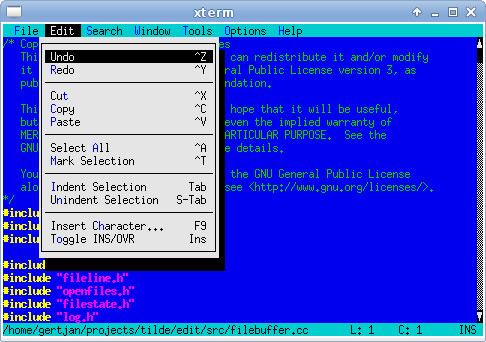
Tilde is a text editor for the console/terminal, which provides an intuitive interface for
people accustomed to GUI environments such as Gnome, KDE and Windows. For example, the
short-cut to copy the current selection is Control-C, and to paste the previously copied text
the short-cut Control-V can be used. As another example, the File menu can be accessed by
pressing Meta-F.
However, being a terminal-based program there are limitations. Not all terminals provide
sufficient information to the client programs to make Tilde behave in the most intuitive way.
When this is the case, Tilde provides work-arounds which should be easy to work with.
The main audience for Tilde is users who normally work in GUI environments, but sometimes
require an editor for a console/terminal environment. This may be because the computer in
question is a server which does not provide a GUI, or is accessed remotely over SSH. Tilde
allows these users to edit files without having to learn a completely new interface, such as vi
or Emacs do. A result of this choice is that Tilde will not provide all the fancy features that
Vim or Emacs provide, but only the most used features.
NewsTilde version
1.1.2 released
This release fixes a bug where Tilde would discard read lines before an invalid character,
while requested to continue reading.
23-May-2020
Tilde version 1.1.1 released
This release fixes a build failure on C++14 and later compilers
Alt + , - switch mc 's layout from left-right to top-bottom.
Mind = blown. Useful for operating on files with long names.
Alt + t - switch the panel's listing mode in a loop: default, brief, long,
user-defined. "long" is especially useful, because it maximises one panel so that it takes
full width of the window and longer filenames fit on screen.
Alt + i - synchronize the active panel with the other panel. That is, show
the current directory in the other panel.
Ctrl + u - swap panels.
Alt + o - if the currently selected file is a directory, load that directory
on the other panel and move the selection to the next file. If the currently selected file is
not a directory, load the parent directory on the other panel and moves the selection to the
next file. This is useful for quick checking the contents of a list of directories.
Ctrl + PgUp (or just left arrow, if you've enabled Lynx-like
motion , see later) - move to the parent directory.
Alt + Shift + h - show the directory history. Might be easier to navigate
than going back one entry at a time.
Alt + y - move to the previous directory in history.
Alt + u - move to the next directory in history.
Common actions
Ctrl + Space - calculate the size of the selected directories. Press this
shortcut when the selection is on .. to calculate the size of all the
directories in the current directory.
Ctrl + x s (that is press Ctrl + x , let it go and then press s ) -
create a symbolic link (change s to l for a hardlink). I find it
very useful and intuitive - the link will, of course, be created in the other panel. You can
change it's destination and name, like with any other file operation.
Ctrl + x c - open the chmod dialog.
Ctrl + x o - open the chown dialog.
Panel options
Show backup files and Show hidden files - I keep both
enabled, as I often work with configuration files, etc.
Lynx-like motion - mentioned above, makes left arrow go to parent
directory, while the right arrow enters the directory under selection. Faster than
Home , Enter , Home , Enter , etc.
This options is quite smart, that is if the shell command line is not empty, the arrows
work as usual and allow moving the cursor in the command line.
Bonus assignments
Define your own listing mode ( Right/Left -> Listing mode...
-> User defined ). Hit F1 to see available columns and
options.
Play around in tree mode: Right/Left -> Tree or
Command -> Directory tree .
the Midnight Commander's built-in editor turned out to be. Below is one of the features of
mc 4.7, namely the use of the ctags / etags utilities together with mcedit to navigate through
the code.
Code Navigation Training
Support for this functionality appeared in mcedit from version 4.7.0-pre1.
To use it, you need to index the directory with the project using the ctags or etags utility,
for this you need to run the following commands:
$ cd /home/user/projects/myproj

    $ find . -type f -name "*.[ch]" | etags -lc --declarations -
or $ find . -type f -name "*.[ch]" | ctags --c-kinds=+p --fields=+iaS --extra=+q -e
-L-
After the utility completes, a TAGS file will appear in the root directory of our project,
which mcedit will use.
Well, practically all that needs to be done in order for mcedit to find the definition of the
functions of variables or properties of the object under study.
Using
Imagine that we need to determine the place where the definition of the locked property
of an edit object is located in some source code of a rather large project.
    /* Succesful, so unlock both files */

    if (different_filename) {

    if (save_lock)

    edit_unlock_file (exp);

    if (edit->locked)

    edit->locked = edit_unlock_file (edit->filename);

    } else {

    if (edit->locked || save_lock)

    edit->locked = edit_unlock_file (edit->filename);

    }
Using ubuntu 10.10 the editor in mc (midnight commander) is nano. How can i switch to the
internal mc editor (mcedit)?
Isaiah ,
Press the following keys in order, one at a time:
F9 Activates the top menu.
o Selects the Option menu.
c Opens the configuration dialog.
i Toggles the use internal edit option.
s Saves your preferences.
Hurnst , 2014-06-21 02:34:51
Run MC as usual. On the command line right above the bottom row of menu selections type
select-editor . This should open a menu with a list of all of your installed
editors. This is working for me on all my current linux machines.
, 2010-12-09 18:07:18
You can also change the standard editor. Open a terminal and type this command:
sudo update-alternatives --config editor
You will get an list of the installed editors on your system, and you can chose your
favorite.
AntonioK , 2015-01-27 07:06:33
If you want to leave mc and system settings as it is now, you may just run it like
$ EDITOR=mcedit
> ,
Open Midnight Commander, go to Options -> Configuration and check "use internal editor"
Hit save and you are done.
I want to insert some items into mc menu (which is opened by F2) grouped together. Is it
possible to insert some sort of separator before them or put them into some submenu?
Probably, not.
The format of the menu file is very simple. Lines that start with anything but
space or tab are considered entries for the menu (in order to be able to use
it like a hot key, the first character should be a letter). All the lines that
start with a space or a tab are the commands that will be executed when the
entry is selected.
But MC allows you to make multiple menu entries with same shortcut and title, so you can
make a menu entry that looks like separator and does nothing, like:
a hello
  echo world
- --------
b world
  echo hello
- --------
c superuser
  ls /
Skip to content
April 24, 2011
by
Admin
Important
This is an edited version of a post that originally appeared on a blog called The Michigan
Telephone Blog, which was written by a friend before he decided to stop blogging. It is
reposted with his permission. Comments dated before the year 2013 were originally posted
to his blog.
If you've installed
Midnight
Commander
and haven't changed the default colors, when you try to access a dropdown menu you
may see this:
Midnight
Commander -- Original Colors
REALLY hard to read that menu, isn't it? Wouldn't you rather see this?
Midnight
Commander -- Changed Colors
To fix the unreadable menus, just make sure Midnight Commander is
not
open,
then use any text editor (such as nano) to open ~/.mc/ini:
nano ~/.mc/ini
Assuming that there is no existing [Colors] section in the file, just add this at the bottom
of the file (if the second line exceeds the blog column width, just use copy and paste to get it
all):
If there is an existing [Colors] section, you can try tweaking it using the parameters shown
above. If you have a very recent version of Midnight Commander (which you probably will have if
you are running Ubuntu), then instead of
menu=
you'll need to use
menunormal=
, as shown here:
Note that for some reason the base_color parameter must appear, or the other items are
ignored. Save the change, exit the editor, and open Midnight Commander. If you then close
Midnight Commander, you may find that the position of the [Colors] section has moved within the
ini file -- apparently Midnight Commander rewrites the file when you close it -- but if you don't
like the changes you can remove the [Colors] section to reverse the change.
The above would compress the current directory (%d) to a file also in the current directory. If you want to compress the directory
pointed to by the cursor rather than the current directory, use %f instead:
tar -czf %f_$(date '+%%Y%%m%%d').tar.gz %f
mc handles escaping of special characters so there is no need to put %f in quotes.
By the way, midnight commander's special treatment of percent signs occurs not just in the user menu file but also at the command
line. This is an issue when using shell commands with constructs like ${var%.c} . At the command line, the same as
in the user menu file, percent signs can be escaped by doubling them.
It is documented in the help, the node is "Edit Menu File" under "Command Menu"; if you
scroll down you should find "Addition Conditions":
If the condition begins with '+' (or '+?') instead of '=' (or '=?') it is an addition
condition. If the condition is true the menu entry will be included in the menu. If the
condition is false the menu entry will not be included in the menu.
This is preceded by "Default conditions" (the = condition), which determine
which entry will be highlighted as the default choice when the menu appears. Anyway, by way
of example:
+ t r & ! t t
t r means if this is a regular file ("t(ype) r"), and ! t t
means if the file has not been tagged in the interface.
I need to know how to check the current colour for mc and how to change it.
I google it and they talk about changeing some initial file /.mc/ini which i have no idea
(no one ever gives full filename.)and i cant find it at all. Wasted an hour of my life. I
just need the simplest way to change it, not another 10+ steps to change a stupid
colour.
gengisdave
12-22-2014 03:22 AM
in some distros (mine, e.g.) it is located in ~/.local/mc/ini
sycamorex
12-22-2014 03:24 AM
This is the full filename. Mind you on my distro it's in ~/.config/mc/ini
Find / Create this file and add the following (obviously change the colour values):
The syntax is: variable=foreground_colour,background_colour
Code:
[Colors]

          base_color=lightgray,green:normal=green,default:selected=white,gray:marked=yellow,default:markselect=yellow,gray:directory=blue,default:executable=brightgreen,default:link=cyan,default:device=brightmagenta,default:special=lightgray,default:errors=red,default:reverse=green,default:gauge=green,default:input=white,gray:dnormal=green,gray:dfocus=brightgreen,gray:dhotnormal=cyan,gray:dhotfocus=brightcyan,gray:menu=green,default:menuhot=cyan,default:menusel=green,gray:menuhotsel=cyan,default:helpnormal=cyan,default:editnormal=green,default:editbold=blue,default:editmarked=gray,blue:stalelink=red,default
Also, have a look at this: http://blog.mybox.ro/2010/05/10/skin...ght-commander/
Editing
Midnight Commander's color scheme In a previous
post I was sort of laying out a "formula" on how to transform your Midnight Commander
default color scheme into a trasnparent skin, without talking too much about how you can change
the other colors.
To my great shame, I didn't pay too much attention to this blog or to the comments asking
for further advice. I found Mateus' comment rather late (just now!) and decided to dig further,
in order to find out how exactly to deal with more refined color changes, while still keeping
the transparent background (in both in Midnight Commander and its editor).
So the first thing to know is which are the colors that Midnight Commander supports; the
available colors are:
black
gray
lightgray
white
red
brightred
green
brightgreen
blue
brightblue
magenta
brightmagenta
cyan
brightcyan
brown
yellow
default
The " default " color is the one giving out the nice transparency.
Now, there are certain "components" in Midnight Commander's display that can have their
colors altered. Here they are:
Each and every one of these "components" can have its own colors set accordingly to the
user's wish. Each component is assigned a color pair and must be followed by a colon (':') in
order to separate it from the color pair of the next component. Here's how this basic syntax
must look like:
component=foreground_color,background_color:
When you start modifying the color scheme in your Midnight Commander configuration file
(located at ~/.mc/ini ), you just have to add a section called " [Colors] " and proceed with
enumerating the color pairs. So you'd have something like this:
For increased readability, I will "truncate" that long line, adding a backslash ('\') to
indicate that in fact what follows on the next line should be adjacent to the text on the
previous line. This being said, the [Colors] section could look like this:
Now that you've gotten the hang of this, let's see how the [Colors] section looks like in
the default Midnight Commander color scheme (you know, the "ugly" one, with blue and dull
cyan):
IMPORTANT NOTE: For visual impact's sake and due to Blogspot breaking long lines, I wrote
each color pair on a single row, followed by a backslash ('\'). Please note that this does NOT
work in the ~/.mc/ini file, so the final [Colors] section in your Midnight Commander
configuration file MUST be a SINGLE line with no spaces and with each color pair separated from
the next one by a colon (':').
Now let's see. What you want to change first of all is most of the background of these
"components", such that the display will be one with a neat looking transparent background. So
first of all you might want to make a few changes to these color pairs by replacing the
background color "blue" with "default". After doing these changes, your [Colors] section will
look a bit like this:
Now you've got the basic "Midnight Commander transparent scheme" that was the result of
this
post .
Proceeding to Mateus' question, regarding how to change the rest of the colors now, it's
about the same as before. What he didn't like there (and as a matter of fact I don't quite like
it, either) is the dull cyan that's still seen in the following places:
the bottom line (the one displaying the F1...F10 function keys);
the line that signifies the current selection, the "prompt" which shows you on which
file/directory you're "on" at a given moment;
the uppermost line (the "menu" line);
the menus themselves, once you open them.
To "fix" issues 1, 2, and 3 it is sufficient to alter the value of the " selected "
parameter. Notice how it is initially
selected=black,cyan:\
My personal choice is to replace the background cyan, which I don't really like, with green.
To do this, I'll change this color pair to
selected=black,green:\
You can, of course, change the foreground color as well. For me, it's alright to keep the
foreground (the text) "black". You can change it to whatever suits your taste.
To "fix" issue number 4 in the list above, you need to change the " menu " parameter. To get
it transparent, just change the "cyan" background to "default". Make other adjustments as you
see fit. In other words, change
menu=white,cyan:\
into, for instance,
menu=ligthgray,default:\
However, there are a few "leftovers" from the default color scheme.
One of them is the parameter regarding the hotkeys in the menus (the "underlined" character
on most of the menu options, showing you what key you can press in order to access that option
faster than by moving to it with the arrow keys). This color pair is called " menuhot ". I
changed it from
menuhot=yellow,cyan:\
into
menuhot=yellow,default:\
Another thing which might bother you is the color of the line in the panel you're in when
you've "selected all" files (when you've pressed the "*" key). This parameter is called "
markselect ". I changed it from
markselect=yellow,cyan:\
into
markselect=white,green:\
The color pair of the selected buttons in dialogs is called " dfocus ". I changed mine
from
dfocus=black,cyan:\
into
dfocus=black,green:\
In the "focused" buttons or options, the underlined character is called " dhotfocus ". I
changed mine from
dhotfocus=blue,cyan:\
into
dhotfocus=brightgreen,green:\
since the background color was already green, after I modified the " dfocus " color
pair.
The other buttons or options in the dialogs which have hotkeys assigned to them, but which
are not "focused" (the buttons/options that you're not located on at a given moment) are still
displayed in blue on a light gray background. This color pair is referred to as " dhotnormal ".
Since the blue looks a bit odd there, I changed
dhotnormal=blue,lightgray:\
into
dhotnormal=brightgreen,default:\
Well, this is nice, in window titles and on normal (unfocused) hotkeys I get the transparent
background. The problem now is that the rest of the dialog window is still light gray. To
change this (to make the window transparent as well), you only need to alter the " dnormal "
color pair, such as changing it from
dnormal=black,lightgray:\
into
dnormal=white,default:\
You may notice that the input fields stay cyan, as well; you find these fields in quite a
lot of dialog boxes. To alter this, I changed
input=black,cyan:\
into
input=black,green:\
One thing which I consider useful is to have symbolic links displayed in bright cyan (as in
the colored listings in the terminal). So I just changed
link=lightgray,default:\
into
link=brightcyan,default:\
Now, regarding the rest of the color pairs, I don't really know what they do. However, if at
some point after using Midnight Commander more with this new, neat, transparent/green color
scheme you'll notice unwanted leftovers, you can try out other changes in the color pairs
values, one at a time, until you determine the troublesome one.
After operating the changes above, my [Colors] section in ~/.mc/ini now looks like this:
I need to direct you to the " IMPORTANT NOTE " above. The final [Colors] section above is
written like this - one pair on each row, followed by a backslash - for clarity's sake. The
actual final [Colors] section in your ~/.mc/ini file will have to be a one-liner, with no
blanks and no backslashes. So it will probably look similar to this:
Note #1: In the above 'code' block, there is only one line below [Colors] . I truncated the
line with the backslash because of blogspot rendering issues. You just write all that on one
single line, without the "\" (backslash-es).
Note #2: At the end of this line, the " editnormal,=default: " option means that mcedit will
have transparent background in your console, as well.
To my great shame, I didn't pay too much attention to this blog or to the comments asking
for further advice. I found Mateus' comment rather late (just now!) and decided to dig further,
in order to find out how exactly to deal with more refined color changes, while still keeping
the transparent background (in both in Midnight Commander and its editor).
So the first thing to know is which are the colors that Midnight Commander supports; the
available colors are:
black
gray
lightgray
white
red
brightred
green
brightgreen
blue
brightblue
magenta
brightmagenta
cyan
brightcyan
brown
yellow
default
The " default " color is the one giving out the nice transparency.
Now, there are certain "components" in Midnight Commander's display that can have their
colors altered. Here they are:
Each and every one of these "components" can have its own colors set accordingly to the
user's wish. Each component is assigned a color pair and must be followed by a colon (':') in
order to separate it from the color pair of the next component. Here's how this basic syntax
must look like:
component=foreground_color,background_color:
When you start modifying the color scheme in your Midnight Commander configuration file
(located at ~/.mc/ini ), you just have to add a section called " [Colors] " and proceed with
enumerating the color pairs. So you'd have something like this:
For increased readability, I will "truncate" that long line, adding a backslash ('\') to
indicate that in fact what follows on the next line should be adjacent to the text on the
previous line. This being said, the [Colors] section could look like this:
Now that you've gotten the hang of this, let's see how the [Colors] section looks like in
the default Midnight Commander color scheme (you know, the "ugly" one, with blue and dull
cyan):
IMPORTANT NOTE: For visual impact's sake and due to Blogspot breaking long lines, I wrote
each color pair on a single row, followed by a backslash ('\'). Please note that this does NOT
work in the ~/.mc/ini file, so the final [Colors] section in your Midnight Commander
configuration file MUST be a SINGLE line with no spaces and with each color pair separated from
the next one by a colon (':').
Now let's see. What you want to change first of all is most of the background of these
"components", such that the display will be one with a neat looking transparent background. So
first of all you might want to make a few changes to these color pairs by replacing the
background color "blue" with "default". After doing these changes, your [Colors] section will
look a bit like this:
Now you've got the basic "Midnight Commander transparent scheme" that was the result of
this
post .
Proceeding to Mateus' question, regarding how to change the rest of the colors now, it's
about the same as before. What he didn't like there (and as a matter of fact I don't quite like
it, either) is the dull cyan that's still seen in the following places:
the bottom line (the one displaying the F1...F10 function keys);
the line that signifies the current selection, the "prompt" which shows you on which
file/directory you're "on" at a given moment;
the uppermost line (the "menu" line);
the menus themselves, once you open them.
To "fix" issues 1, 2, and 3 it is sufficient to alter the value of the " selected "
parameter. Notice how it is initially
selected=black,cyan:\
My personal choice is to replace the background cyan, which I don't really like, with green.
To do this, I'll change this color pair to
selected=black,green:\
You can, of course, change the foreground color as well. For me, it's alright to keep the
foreground (the text) "black". You can change it to whatever suits your taste.
To "fix" issue number 4 in the list above, you need to change the " menu " parameter. To get
it transparent, just change the "cyan" background to "default". Make other adjustments as you
see fit. In other words, change
menu=white,cyan:\
into, for instance,
menu=ligthgray,default:\
However, there are a few "leftovers" from the default color scheme.
One of them is the parameter regarding the hotkeys in the menus (the "underlined" character
on most of the menu options, showing you what key you can press in order to access that option
faster than by moving to it with the arrow keys). This color pair is called " menuhot ". I
changed it from
menuhot=yellow,cyan:\
into
menuhot=yellow,default:\
Another thing which might bother you is the color of the line in the panel you're in when
you've "selected all" files (when you've pressed the "*" key). This parameter is called "
markselect ". I changed it from
markselect=yellow,cyan:\
into
markselect=white,green:\
The color pair of the selected buttons in dialogs is called " dfocus ". I changed mine
from
dfocus=black,cyan:\
into
dfocus=black,green:\
In the "focused" buttons or options, the underlined character is called " dhotfocus ". I
changed mine from
dhotfocus=blue,cyan:\
into
dhotfocus=brightgreen,green:\
since the background color was already green, after I modified the " dfocus " color
pair.
The other buttons or options in the dialogs which have hotkeys assigned to them, but which
are not "focused" (the buttons/options that you're not located on at a given moment) are still
displayed in blue on a light gray background. This color pair is referred to as " dhotnormal ".
Since the blue looks a bit odd there, I changed
dhotnormal=blue,lightgray:\
into
dhotnormal=brightgreen,default:\
Well, this is nice, in window titles and on normal (unfocused) hotkeys I get the transparent
background. The problem now is that the rest of the dialog window is still light gray. To
change this (to make the window transparent as well), you only need to alter the " dnormal "
color pair, such as changing it from
dnormal=black,lightgray:\
into
dnormal=white,default:\
You may notice that the input fields stay cyan, as well; you find these fields in quite a
lot of dialog boxes. To alter this, I changed
input=black,cyan:\
into
input=black,green:\
One thing which I consider useful is to have symbolic links displayed in bright cyan (as in
the colored listings in the terminal). So I just changed
link=lightgray,default:\
into
link=brightcyan,default:\
Now, regarding the rest of the color pairs, I don't really know what they do. However, if at
some point after using Midnight Commander more with this new, neat, transparent/green color
scheme you'll notice unwanted leftovers, you can try out other changes in the color pairs
values, one at a time, until you determine the troublesome one.
After operating the changes above, my [Colors] section in ~/.mc/ini now looks like this:
I need to direct you to the " IMPORTANT NOTE " above. The final [Colors] section above is
written like this - one pair on each row, followed by a backslash - for clarity's sake. The
actual final [Colors] section in your ~/.mc/ini file will have to be a one-liner, with no
blanks and no backslashes. So it will probably look similar to this:
Koszti Lajos Midnight Commander is the most pupular file manager on
unix like systems. It's fast and it has all features what you need. But it's only blue and we
know, that everyone loves the eyecandy, everyone likes customizing his/her own desktop. But is
there any way to custimize the mc ?
Yes, and I try to show you, how can you create your theme .
You can change the Midnight Commander colors if you edit the ~/.mc/ini file, where you have
to add a new section, named [Colors] . You should define the new colors in this section, for
example:
Help colors: helpnormal, helpitalic, helpbold, helplink, helpslink
Viewer color: viewunderline
Special highlighting colors: executable, directory, link, stalelink, device, special,
core
Editor colors: editnormal, editbold, editmarked
And which are the colors? I don't know all, but here are some of them: white, gray, blue, green, yellow, magenta, cyan, red, brown, birghtgreen, brightblue,
brightmagenta, brightcyan, brightred, default
On the screenshot you can see, that the directory color is blue, the files are green, the
executable files are birghtgreen and the selected line is white on a gray background.
And here is a small shell script, which will help for you to test your new theme:
#!/bin/sh mc --colors
normal=green,default:selected=brightmagenta,gray:marked=yellow,default:markselect=yellow,gray:directory=blue,default:executable=brightgreen,default:link=cyan,default:device=brightmagenta,default:special=lightgray,default:errors=red,default:reverse=green,default:gauge=green,default:input=white,gray:dnormal=green,gray:dfocus=brightgreen,gray:dhotnormal=cyan,gray:dhotfocus=brightcyan,gray:menu=green,default:menuhot=cyan,default:menusel=green,gray:menuhotsel=cyan,default:helpnormal=cyan,default:editnormal=green,default:editbold=blue,default:editmarked=gray,blue:stalelink=red,default
Save it as mccolortest.sh, make it executable with the chmod +x mccolortest.sh
command, and run it with the ./mccolortest.sh command. If you want to change a color,
just edit this file. When you done, copy the colors and paste it below the [Colors]
section in the ~/.mc/ini . If it doesn't exists, make it yourself.
For more information of the mc redesigning check its manual page .
Also, in 4.8.3 here, I copied the first example scheme line and my colors are different. I
can't even set the background of the select bar to gray (or "grey"): it gets replaced with
black. Also, the panel headings remain blue here, unlike the (first) screenshot, and I can
see no corresponding tag in the line anyway.
Good intro, regardless. Someone should post a pointer to a more up-to-date one, though, as
Google seems to find this old thread within the top few hits. Király! ;)
The colors are depends on the color settings of your terminal. I don't have those settings
anymore which was when I posted this article, but here is my current. If I'm right, it's
similar to that. Put it into your .Xdefaults
Midnight Commander supports skins starting from 4.7.0-pre3 version. You can download a
skin with black as a main color from here:
http://zool.in.ua/software/bluemoon/
I am using MC on my router ASUS WL-500GP and I am developing php scripts on it. but as I
see MC in openwrt (kmaikaze 8.09) does not use syntax-highlighting and it is very
unconfortable.
Do you know how could I turn it on? I have already downloaded php.syntax file and put it into
/usr/share/syntax dir but it does not seem to work. is it possible that some support is not
compiled into my version or the syntax file must be compiled to another format?
Br Zé.
hei ajnasz, your color theme so very nice, keep my eye on my pc longer than usual. Well, i
don't have much time to do more explore with this tricks. I think your taste so cool. If you
have any kind of theme, i should be try it. :-)
I didn't find anything about it. By the way, since the extension doesn't determinate the
file type in UNIX like systems, it wouldn't make any sense to do it.
Don't be silly. Mp3 is just music, txt is text, doc is document. The only thing, which is
not exactly determinable is the executables, but whatever, it has +x flag.
Also, you should know that most modern terminal applications allow you to redefine the
exact shade of those 16 colors.
Some of them (such as the Gnome or KDE terminals) may have a place under their preferences
where you can redefine the colors.
Older terminals, such as aterm, use ~/.Xdefaults for this. You can edit that file and add
lines like this: "aterm*color1: OrangeRed" (without the quotes). What I've done with that is
tell aterm that the "color1" (which was red) should now be "OrangeRed". See
/usr/share/X11/rgb.txt for valid color names. You can use *color0 through *color15. So when
you'll say "red" in MC's ini file, and if you use aterm, it will get replaced by color1 in
~/.Xdefaults and changed to OrangeRed. (Sorry, I don't remember the mappings between the
names used by MC and 0-15 in Xdefaults by heart.)
"... You can create hard links and symbolic links using C-x l and C-x s keyboard shortcuts. However, these two shortcuts invoke two completely different dialogs. ..."
"... he had also uploaded a sample mc user menu script ( local copy ), which works wonderfully! ..."
You can create hard links and symbolic links using C-x l and C-x s keyboard shortcuts.
However, these two shortcuts invoke two completely different dialogs.
While for C-x s you get 2 pre-populated fields (path to the existing file, and path to the
link – which is pre-populated with your opposite file panel path plus the name of the
file under cursor; simply try it to see what I mean), for C-x l you only get 1 empty field:
path of the hard link to create for a file under cursor. Symlink's behaviour would be much more
convenient
Fortunately, a good man called Wiseman1024 created a feature request in the MC's bug tracker 6
years ago. Not only had he done so, but he had also uploaded a sample mc user
menu script ( local copy ), which
works wonderfully! You can select multiple files, then F2 l (lower-case L), and hard-links to
your selected files (or a file under cursor) will be created in the opposite file panel. Great,
thank you Wiseman1024 !
Word of warning: you must know what hard links are and what their limitations are
before using this menu script. You also must check and understand the user menu code before
adding it to your mc (by F9 C m u , and then pasting the script from the file).
Word of hope: 4 years ago Wiseman's feature request was assigned to Future Releases
version, so a more convenient C-x l will (sooner or later) become the part of mc. Hopefully
With tar.gz to extract a file archiver first creates an intermediary tarball x.tar file from
x.tar.gz by uncompressing the whole archive then unpack requested files from this intermediary
tarball. In tar.gz archive is large unpacking can take several hours or even days.
@ChristopheDeTroyer Tarballs are compressed in such a way that you have to decompress
them in full, then take out the file you want. I think that .zip folders are different, so if
you want to be able to take out individual files fast, try them. – GKFX
Jun 3 '16 at 13:04
Yes, just give the full stored path of the file after the tarball name.
Example: suppose you want file etc/apt/sources.list from etc.tar
:
tar -xf etc.tar etc/apt/sources.list
Will extract sources.list and create directories etc/apt under
the current directory.
You can use the -t listing option instead of -x , maybe along
with grep , to find the path of the file you want
You can also extract a single directory
tar has other options like --wildcards , etc. for more advanced
partial extraction scenarios; see man tar
2. Extract it with the Archive Manager
Open the tar in Archive Manager from Nautilus, go down into the folder hierarchy to find
the file you need, and extract it.
On a server or command-line system, use a text-based file manager such as Midnight
Commander ( mc ) to accomplish the same.
3. Using Nautilus/Archive-Mounter
Right-click the tar in Nautilus, and select Open with ArchiveMounter.
The tar will now appear similar to a removable drive on the left, and you can
explore/navigate it like a normal drive and drag/copy/paste any file(s) you need to any
destination.
Midnight Commander uses virtual filesystem ( VFS ) for displying
files, such as contents of a .tar.gz archive, or of .iso image.
This is configured in mc.ext with rules such as this one ( Open is
Enter , View is F3 ):
If you've used an *nix system, at some point you've stumbled
upon Midnight Commander , a
file manager based on the venerable Norton Commander. You're probably familiar with the basic
operations ( F5 for copying, F6 for moving, F8 for
deleting, etc.) and how to switch panels (ummm, the Tab key). But mc
offers so much more than that. This article aims to show all the useful (YMMV) shortcuts and
functionalities that are often overlooked. Most of them can be accessed using the menu (
F9 ), but who has the time to do that?
Before we get started, let's establish some facts. This article was written and tested on
the following software:
Midnight Commander 4.8.13
GNU bash 4.2.53
Oh, and make sure you're running a modern and UTF-8 friendly terminal - for example,
rxvt-unicode.
Hold your horses
There's actually one thing I'd recommend doing before you run mc .
mc has the ability to exit to its current directory. Meaning, you can navigate the
filesystem using mc (sometimes it's easier than cd ing into that one
directory buried deep down somewhere ) and when you quit mc (
F10 ), your shell will automagically cd to that directory. This is
done thanks to the mc-wrapper script that should be bundled with your installation
of mc . The exact location is dependent on your distribution - in mine (Gentoo)
it's /usr/libexec/mc/ , in Ubuntu supposedly it's in
/usr/share/mc/bin/ . Once found, modify your ~/.bashrc :
alias mc='. /usr/libexec/mc/mc-wrapper.sh'
Restart your shell, launch mc , change to another directory, exit and your
shell should be set to that new directory.
Selecting files
Insert ( Ctrl + t alternatively) - select files (for example,
for copying, moving or deleting).
+ - select files based on a pattern.
\ - un select files based on a pattern.
* - reverse selection. If nothing was selected, all files will get
selected.
Accessing the shell
There's a shell awaiting your command at the bottom of the screen - just start typing
(when no other command dialog is open, of course).
Since Tab is bound to switching panels (or moving the focus in dialogs), you
have to use Esc Tab to use autocompletion. Hit it twice to get all the possible
completions (just like in a shell). This works in dialogs too.
If you want inspect the output of the command, do some input or just prefer a bigger
console, no need to quit mc . Just hit Ctrl + o - the effect will
be similar to putting mc in the background but with a nice perk. Your current
working directory from mc will be passed on to the shell and vice versa! Hit
Ctrl + o again to return to mc .
Ctrl + Enter or Alt + Enter - copy the currently selected
file's name to the shell.
Ctrl + Shift + Enter - same as above, but the full path is copied.
Internal viewer ( F3 ) and editor ( F4 )
The internal viewer has many built in modes for "previewing" the content of the file. Try
"viewing" a binary, an archive, a DOC document or an image. In some cases, external programs
are needed in order for this "previewing" to work.
If you want to preview the "raw" contents of the file, hit Shift + F3 .
While the internal viewer and editor are powerful, sometimes you want to use your
preferred software ( cough vim cough ). You can do so by setting the
PAGER (for viewer) and EDITOR (for editor) variables (for example,
in your ~/.bashrc file). Then toggle the Options -> Configuration ->
Use interal edit/view option (access the top menu by pressing F9 ).
Panels
Alt + , - switch mc 's layout from left-right to top-bottom.
Mind = blown. Useful for operating on files with long names.
Alt + t - switch the panel's listing mode in a loop: default, brief, long,
user-defined. "long" is especially useful, because it maximises one panel so that it takes
full width of the window and longer filenames fit on screen.
Alt + i - synchronize the active panel with the other panel. That is, show
the current directory in the other panel.
Ctrl + u - swap panels.
Alt + o - if the currently selected file is a directory, load that directory
on the other panel and move the selection to the next file. If the currently selected file is
not a directory, load the parent directory on the other panel and moves the selection to the
next file. This is useful for quick checking the contents of a list of directories.
Ctrl + PgUp (or just left arrow, if you've enabled Lynx-like
motion , see later) - move to the parent directory.
Alt + Shift + h - show the directory history. Might be easier to navigate
than going back one entry at a time.
Alt + y - move to the previous directory in history.
Alt + u - move to the next directory in history.
Searching files
Alt + ? - shows the full Find dialog.
Alt + s or Ctrl + s - quick search mode. Start typing and the
selection will move to the first matching file. Press the shortcut again to jump to another
match. Use wildcards ( * , ? ) for easier matching.
Common actions
Ctrl + Space - calculate the size of the selected directories. Press this
shortcut when the selection is on .. to calculate the size of all the
directories in the current directory.
Ctrl + x s (that is press Ctrl + x , let it go and then press s ) -
create a symbolic link (change s to l for a hardlink). I find it
very useful and intuitive - the link will, of course, be created in the other panel. You can
change it's destination and name, like with any other file operation.
Ctrl + x c - open the chmod dialog.
Ctrl + x o - open the chown dialog.
Virtual File System (VFS)
mc has a concept known as Virtual File System. Try "entering" an archive (
*.tar.gz , *.rpm or even *.jar ) - you'll be able to
browse the contents of the archive like a normal folder, without unpacking it first. You
extract selected files from the archive by just copying them to the other panel. Bonus points:
try "entering" a *.patch file.
This concept is even more powerful when you realize that remote locations can be viewed the
same way. A quick way to browse an FTP location is to just cd to it: cd
ftp://mirrors.tera-byte.com/pub/gentoo (first Gentoo FTP mirror I found). You'll be able
to interact with files as you normally do. To exit this remote location, cd to a
local directory. Just typing cd will suffice as it will take you to your home
directory.
VFS works for SFTP and Samba shares too. Check the manpages for more information on how to
specify user/pass, etc.
Useful options
Configuration
Verbose operation and Compute totals - so that operations
like copy/move have a more detailed progress dialogs.
Layout
Equal split - uncheck to define your own ratio for panels. Maybe you
prefer one panel bigger than the other? Useful especially if you keep one of the panels
in tree mode (or maybe info/quick view, too).
Uncheck Hintbar visible - one more line available, one less line of
noise.
Panel options
Show backup files and Show hidden files - I keep both
enabled, as I often work with configuration files, etc.
Lynx-like motion - mentioned above, makes left arrow go to parent
directory, while the right arrow enters the directory under selection. Faster than
Home , Enter , Home , Enter , etc.
This options is quite smart, that is if the shell command line is not empty, the arrows
work as usual and allow moving the cursor in the command line.
File highlight -> File types is useful, as it uses a
different color for example for executable files. Permissions , for me, is
not that useful, but I can definitely see it's use, for example, for sysadmins.
Appearance
Only one option here, Skins . You can check out different skins shipped
with mc - just select one from the list. I prefer gotar ,
because it plays well with my solarized terminal colors.
Useful tip - set up a different skin when logged in as the root user.
It'll be easier to differentiate between root's and normal user's session, when you're
swapping between them (as is often the case).
Bonus assignments
Define your own listing mode ( Right/Left -> Listing mode...
-> User defined ). Hit F1 to see available columns and
options.
Play around in tree mode: Right/Left -> Tree or
Command -> Directory tree .
Compare directories ( Ctrl + x d )
Fill up the directory hotlist ( Ctrl + \ )
Well, that was a lot to take in. Of course, this list is not complete (that's what man
mc is there for), but I've selected the commands and functionalities that are the most
useful to me . Embrace the ones you find useful, forget the rest and learn about the
other ones I've missed!
Another tool that can save you time is Midnight Commander's user menu. Go back to
/tmp/test where you created nine files. Press F2 and bring up the user menu. Select
Compress the current subdirectory (tar.gz) . After you choose the name for the archive,
this will be created in /tmp (one level up from the directory being
compressed). If you highlight the .tar.gz file and press ENTER you'll notice it will open
like a regular directory. This allows you to browse archives and extract files by simply
copying them ( F5 ) to the opposite panel's working directory.
To find out the size of a directory (actually, the size of all the files it contains),
highlight the directory and then press CTRL+SPACE .
To search, go up in your directory tree until you reach the top level, / ,
called root directory. Now press F9 , then c , followed by f . After the Find File dialog
opens, type *.gz . This will find any accessible gzip archive on the system. In
the results dialog, press l (L) for Panelize . All the results will be fed to one of your
panels so you can easily browse, copy, view and so on. If you enter a directory from that
list, you lose the list of found files, but you can easily return to it with F9 , l (L) then
z (to select Panelize from the Left menu).
Managing files is not always done locally. Midnight Commander also supports accessing
remote filesystems through SSH's Secure File Transfer Protocol, SFTP . This way you
can easily transfer files between servers.
Press F9 , followed by l (L), then select the SFTP link menu entry. In the dialog box
titled SFTP to machine enter sftp://[email protected] . Replace
example with the username you have created on the remote machine and
203.0.113.1 with the IP address of your server. This will work only if the
server at the other end accepts password logins. If you're logging in with SSH keys, then
you'll first need to create and/or edit ~/.ssh/config . It could look
something like this:
~/.ssh/config
1
2
3
4
5
Host sftp_server
HostName 203.0.113.1
Port 22
User your_user
IdentityFile ~/.ssh/id_rsa
You can choose whatever you want as the Host value, it's only an identifier.
IdentityFile is the path to your private SSH key.
After the config file is setup, access your SFTP server by typing the identifier value
you set after Host in the SFTP to machine dialog. In this example, enter
sftp_server .
Midnight Commander how to compress a file/directory; Make a tar archive with midnight
commander
To compress a file in Midnight Commader (e.g. to make a tar.gz archive) navigate
to the directory you want to pack and press 'F2'. This will bring up the 'User menu'. Choose
the option 'Compress the current subdirectory'. This will compress the WHOLE directory you're
currently in - not the highlighted directory.
Last modified
2
years ago Integration mc with mc2(Lua)
Description I think that it is necessary that code base mc and mc2 correspond
each other. mooffie? can you check that patches from andrew_b easy merged with mc2 and if some
patch conflict with mc2 code hold this changes by writing about in corresponding ticket.
zaytsev can you help automate this( continues integration, travis and so on). Sorry, but some
words in Russian:
Ребята, я не
пытаюсь давать
ЦУ, Вы делаете
классную
работу. Просто
яхотел
обратить
внимание, что
Муфья пытается
поддерживать
свой код в
актуальном
состоянии, но
видя как у него
возникают
проблемы на
ровном месте
боюсь
энтузиазм у
него может
пропасть.
I have asked what plans does mooffie have for mc 2 sometime ago and never got an
answer. Note that I totally don't blame him for that. Everyone here is working at their own
pace. Sometimes I disappear for weeks or months, because I can't get a spare 5 minutes not even
speaking of several hours due to the non-mc related workload. I hope that one day we'll figure
out the way towards merging it, and eventually get it done.
In the mean time, he's working together with us by offering extremely important and
well-prepared contributions, which are a pleasure to deal with and we are integrating them as
fast as we can, so it's not like we are at war and not talking to each other.
Anyways, creating random noise in the ticket tracking system will not help to advance your
cause. The only way to influence the process is to invest serious amount of time in the
development.
Now, I assume most of you here aren't users of MC.
So I won't bore you with description of how Lua makes MC a better file-manager. Instead, I'll just list some details that may
interest
any developer who works on extending some application.
And, as you'll shortly see, you may find mc^2 useful even if you aren't a user of MC!
So, some interesting details:
* Programmer Goodies
- You can restart the Lua system from within MC.
- Since MC has a built-in editor, you can edit Lua code right there and restart Lua. So it's somewhat like a live IDE:
- It comes with programmer utilities: regular expressions; global scope protected by default; good pretty printer for Lua tables;
calculator where you can type Lua expressions; the editor can "lint" Lua code (and flag uses of global variables).
- It installs a /usr/bin/mcscript executable letting you use all the goodies from "outside" MC:
- You can program a UI (user interface) very easily. The API is fun
yet powerful. It has some DOM/JavaScript borrowings in it: you can
attach functions to events like on_click, on_change, etc. The API
uses "properties", so your code tends to be short and readable:
Hello,
Is it possible to customize the columns in the single panel view ?
For my default (two panel) view, I have customized it using:
-> Listing Mode
(*) User defined:
half type name | size:15 | mtime
however, when I switch to the single panel view, there are different
columns (obviously):
Permission Nl Owner Group Size Modify time Name
For instance, I need to change the width of "Size" to 15.
No, you can't change the format of the "Long" listing-mode.
(You can make the "User defined" listing-mode display in one panel (by
changing "half" to "full"), but this is not what you want.)
So, you have two options:
(1) Modify the source code (search panel.c for "full perm space" and
tweak it); or:
(2) Use mc^2. It allows you to do this. (It already comes with a
snippet that enlarges the "Size" field a bit so there'd be room for
the commas (or other locale-dependent formatting) it adds. This makes
reading long numbers much easier.)
Subject : Re: Help: meaning of the panelize command in left/right menus
Date : Fri, 17 Feb 2017 15:00:16 +0100
On Thu, Feb 16, 2017 at 01:25:22PM +1300, William Kimber wrote:
Briefly, if you do a search over several directories you can put all those
files into a single panel. Not withstanding that they are from different
directories.
I'm not sure I understand what you mean here; anyway I noticed that if you do a
search using the "Find file" (M-?) command, choose "Panelize" (at the bottom
of the "Find File" popup window), then change to some other directory (thus
exiting from panelized mode), if you now choose Left -> Panelize, you can recall
the panelized view of the last "Find file" results. Is this what you mean?
However this seems to work only with panelized results coming from the
"Find file" command, not with results from the "External panelize" command:
if I change directory, and then choose Left -> Panelize I get an empty panel.
Is this a bug?
Cri
Re: Help: meaning of the panelize command in left/right menus
From : Cristian Rigamonti <cri linux it>
To : mc gnome org
Subject : Re: Help: meaning of the panelize command in left/right menus
Date : Fri, 17 Feb 2017 15:00:16 +0100
On Thu, Feb 16, 2017 at 01:25:22PM +1300, William Kimber wrote:
Briefly, if you do a search over several directories you can put all those
files into a single panel. Not withstanding that they are from different
directories.
I'm not sure I understand what you mean here; anyway I noticed that if you do a
search using the "Find file" (M-?) command, choose "Panelize" (at the bottom
of the "Find File" popup window), then change to some other directory (thus
exiting from panelized mode), if you now choose Left -> Panelize, you can recall
the panelized view of the last "Find file" results. Is this what you mean?
However this seems to work only with panelized results coming from the
"Find file" command, not with results from the "External panelize" command:
if I change directory, and then choose Left -> Panelize I get an empty panel.
Is this a bug?
Cri
Hello,
Is it possible to customize the columns in the single panel view ?
For my default (two panel) view, I have customized it using:
-> Listing Mode
(*) User defined:
half type name | size:15 | mtime
however, when I switch to the single panel view, there are different
columns (obviously):
Permission Nl Owner Group Size Modify time Name
For instance, I need to change the width of "Size" to 15.
No, you can't change the format of the "Long" listing-mode.
(You can make the "User defined" listing-mode display in one panel (by
changing "half" to "full"), but this is not what you want.)
So, you have two options:
(1) Modify the source code (search panel.c for "full perm space" and
tweak it); or:
(2) Use mc^2. It allows you to do this. (It already comes with a
snippet that enlarges the "Size" field a bit so there'd be room for
the commas (or other locale-dependent formatting) it adds. This makes
reading long numbers much easier.)
Hi!
My mc version:
$ mc --version
GNU Midnight Commander 4.8.19
System: Fedora 24
I just want to tell you that %f macro in mcedit is not correct. It
contains the current file name that is selected in the panel but not
the actual file name that is opened in mcedit.
I created the mcedit item to run C++ program:
+= f \.cpp$
r Run
clear
app_path=/tmp/$(uuidgen)
if g++ -o $app_path "%f"; then
$app_path
rm $app_path
fi
echo 'Press any key to exit.'
read -s -n 1
Imagine that I opened the file a.cpp in mcedit.
Then I pressed alt+` and switched to panel.
Then I selected (or even opened in mcedit) the file b.cpp.
Then I pressed alt+` and switched to mcedit with a.cpp.
Then I executed the "Run" item from user menu.
And... The b.cpp will be compiled and run. This is wrong! Why b.cpp???
I executed "Run" from a.cpp!
I propose you to do the new macros for mcedit.
%opened_file
- the file name that is opened in current instance of mcedit.
%opened_file_full_path
- as %opened_file but full path to that file.
I think that %opened_file may be not safe because the current
directory may be changed in mc panel. So it is better to use
%opened_file_full_path.
%opened_file_dir
- full path to directory where %opened_file is.
%save
- save opened file before executing the menu commands. May be useful
in some cases. For example I don't want to press F2 every time before
run changed code.
Thanks for the mc.
Best regards, Sergiy Vovk.
I'd like mc to open /home/keith/Documents/ in the left panel as well whenever I start
mc up, so both panels are showing the /home/keith/Documents/ directory.
Is there some way to tell mc how to do this please?
I think you could use: `mc <path> <path>`, for instance:
`mc /home/keith/Documents/ /tmp`, but of course this requires you to know
the second path to open in addition to your ~/Documents. Not really
satisfying?
Regards,
Hi wwp,
Thanks for your suggestion and that seems to work OK - I just start mc with the following
command:
mc ~/Documents
and both panes are opened at the ~Documents directories now which is fine.
Description I think that it is necessary that code base mc and mc2 correspond
each other. mooffie? can you check that patches from andrew_b easy merged with mc2 and if some
patch conflict with mc2 code hold this changes by writing about in corresponding ticket.
zaytsev can you help automate this( continues integration, travis and so on). Sorry, but some
words in Russian:
Ребята, я не
пытаюсь давать
ЦУ, Вы делаете
классную
работу. Просто
яхотел
обратить
внимание, что
Муфья пытается
поддерживать
свой код в
актуальном
состоянии, но
видя как у него
возникают
проблемы на
ровном месте
боюсь
энтузиазм у
него может
пропасть. Change
Historycomment:1 Changed 2
years ago by zaytsev-work
I have asked what plans does mooffie have for mc 2 sometime ago and never got an
answer. Note that I totally don't blame him for that. Everyone here is working at their own
pace. Sometimes I disappear for weeks or months, because I can't get a spare 5 minutes not even
speaking of several hours due to the non-mc related workload. I hope that one day we'll figure
out the way towards merging it, and eventually get it done.
In the mean time, he's working together with us by offering extremely important and
well-prepared contributions, which are a pleasure to deal with and we are integrating them as
fast as we can, so it's not like we are at war and not talking to each other.
Anyways, creating random noise in the ticket tracking system will not help to advance your
cause. The only way to influence the process is to invest serious amount of time in the
development. comment:2
Changed 2
years ago by zaytsev
Now, I assume most of you here aren't users of MC.
So I won't bore you with description of how Lua makes MC a better
file-manager. Instead, I'll just list some details that may interest
any developer who works on extending some application.
And, as you'll shortly see, you may find mc^2 useful even if you
aren't a user of MC!
So, some interesting details:
* Programmer Goodies
- You can restart the Lua system from within MC.
- Since MC has a built-in editor, you can edit Lua code right there
and restart Lua. So it's somewhat like a live IDE:
- It comes with programmer utilities: regular expressions; global scope
protected by default; good pretty printer for Lua tables; calculator
where you can type Lua expressions; the editor can "lint" Lua code (and
flag uses of global variables).
- It installs a /usr/bin/mcscript executable letting you use all the
goodies from "outside" MC:
- You can program a UI (user interface) very easily. The API is fun
yet powerful. It has some DOM/JavaScript borrowings in it: you can
attach functions to events like on_click, on_change, etc. The API
uses "properties", so your code tends to be short and readable:
I defined my own listing mode and I'd like to make it permanent so that on the next mc
start my defined listing mode will be set. I found no configuration file for mc.
,
You have probably Auto save setup turned off in
Options->Configuration menu.
You can save the configuration manually by Options->Save setup .
Panels setup is saved to ~/.config/mc/panels.ini .
Now, I assume most of you here aren't users of MC.
So I won't bore you with description of how Lua makes MC a better
file-manager. Instead, I'll just list some details that may interest
any developer who works on extending some application.
And, as you'll shortly see, you may find mc^2 useful even if you
aren't a user of MC!
So, some interesting details:
* Programmer Goodies
- You can restart the Lua system from within MC.
- Since MC has a built-in editor, you can edit Lua code right there
and restart Lua. So it's somewhat like a live IDE:
- It comes with programmer utilities: regular expressions; global scope
protected by default; good pretty printer for Lua tables; calculator
where you can type Lua expressions; the editor can "lint" Lua code (and
flag uses of global variables).
- It installs a /usr/bin/mcscript executable letting you use all the
goodies from "outside" MC:
- You can program a UI (user interface) very easily. The API is fun
yet powerful. It has some DOM/JavaScript borrowings in it: you can
attach functions to events like on_click, on_change, etc. The API
uses "properties", so your code tends to be short and readable:
On Fri, 27 Jul 2018 17:01:17 +0300 Sergey Naumov via mc-devel wrote:
I'm curious whether there is a way to change default configuration that is
generated when user invokes mc for the first time?
For example, I want "use_internal_edit" to be true by default instead of
false for any new user.
In vanilla mc the initial value of use_internal_edit is true. Some distros
(Debian and some others) change this to false.
If there is a way to do it, then is it possible to just use lines that I
want to change, not the whole configuration, say
[Midnight-Commander]
use_internal_edit=true
Before first run, ~/.config/mc/ini doesn't exist.
If ~/.config/mc/ini doesn't exist, /etc/mc/mc.ini is used.
If /etc/mc/mc.ini doesn't exist, /usr/share/mc/mc.ini is used.
You can create one of these files with required default settings set.
Unfortunately, there is no info about /etc/mc/mc.ini in the man page.
I'll fix that at this weekend.
Yes, it does, if it has been compiled accordingly.
http://www.linux-databook.info/wp-content/uploads/2015/04/MC-02.jpeg
On Thu, 15 Nov 2018, Fourhundred Thecat wrote:
Hello,
I need to connect to server where I don't have shell access (no ssh)
the server only allows sftp. I can connect with winscp, for instance.
does mc support sftp as well ?
thanks,
_______________________________________________
mc mailing list
https://mail.gnome.org/mailman/listinfo/mc
Hi, I'm wondering why following happens:
In Ubuntu and FreeBSD, when I am pressing Ctrl+J in MC, it puts name
of file on which file cursor is currently on. But this doesn't work in
CentOS and RHEL.
How to fix that in CentOS and RHEL?
Ivan.
Never heard about Ctrl+j, I always used Alt+Enter for that purpose.
Alt+a does the same thing for the path, BTW (just in case you didn't
know). :-)
HTH,
Thomas
_______________________________________________
mc-devel mailing list
https://mail.gnome.org/mailman/listinfo/mc-devel
"... Sometimes, though, a tool is just too fun to pass up; such is the case for Midnight Commander! Of course, we also had numerous requests for it, and that helped, too! Today, let's explore this useful utility. ..."
Quite often, I'm asked how open source deliveries are prioritized at IBM. The answer isn't
simple. Even after we estimate the cost of a project, there are many factors to consider. For
instance, does it enable a specific solution to run? Does it expand a programming language's
abilities? Is it highly-requested by the community or vendors?
Sometimes, though, a tool is just too fun to pass up; such is the case for Midnight
Commander! Of course, we also had numerous requests for it, and that helped, too! Today, let's
explore this useful utility.
... ... ...
Getting Started
Installing Midnight Commander is easy. Once you have the yum package manager , use it to install the 'mc'
package.
In order for the interface to display properly, you'll want to set the LC_ALL environment
variable to a UTF-8 locale. For instance, "EN_US.UTF-8" would work just fine. You can have this
done automatically by putting the following lines in your $HOME/.profile file (or
$HOME/.bash_profile):
Once that's done, you can run 'mc -c' from your SSH
terminal . (You didn't expect this to work from QSH, did you?) If you didn't set up your
environment variables, you can just run 'LC_ALL=EN_US.UTF-8 /QOpenSys/pkgs/bin/mc -c' instead.
I recommend the '-c' option because it enables colors.
A Community Effort
As with many things open source, IBM was not the only contributor. In this particular case, a
"tip of the hat" goes to Jack Woehr. You may remember Jack as the creator of Ublu ,
an open source programming language for IBM i. He also hosts his own RPM repository with lynx,
a terminal-based web browser (perhaps a future topic?). The initial port of Midnight Commander
was collaboratively done with work from both parties. Jack also helped with quality assurance
and worked with project owners to upstream all code changes. In fact, the main code stream for
Midnight Commander can now be built for IBM i with no modifications.
Now that we've delivered hundreds of open source packages, it seems like there's something
for everybody. This seems like one of those tools that is useful for just about anyone. And
with a name like "Midnight Commander," how can you go wrong? Try it today!
"... IF you're using putty in either Xorg or Windows (i.e terminal within a gui) , it's possible to use the "conventional" right-click copy/paste behavior while in mc. Hold the shift key while you mark/copy. ..."
"... Putty has ability to copy-paste. In mcedit, hold Shift and select by mouse ..."
open the other file in the editor, and navigate to the target location
press Shift+F5 to open Insert file dialog
press Enter to paste from the default file location (which is same as the
one in Save block dialog)
NOTE: There are other environment related methods, that could be more conventional
nowadays, but the above one does not depend on any desktop environment related clipboard,
(terminal emulator features, putty, Xorg, etc.). This is a pure mcedit feature which works
everywhere.
If you get unwanted indents in what was pasted then while editing file in Midnight Commander
press F9 to show top menu and in Options/Generals menu uncheck Return does
autoindent option. Yes, I was happy when I found it too :) – Piotr Dobrogost
Mar 30 '17 at 17:32
IF you're using putty in either Xorg or Windows (i.e terminal within a gui) , it's possible
to use the "conventional" right-click copy/paste behavior while in mc. Hold the shift key
while you mark/copy.
LOL - did you actually read the other answers? And your answer is incomplete, you should
include what to do with the mouse in order to "select by mouse".
According to help in MC:
Ctrl + Insert copies to the mcedit.clip, and Shift +
Insert pastes from mcedit.clip.
It doesn't work for me, by some reason, but by pressing F9 you get a menu,
Edit > Copy to clipfile - worked fine.
"... "what did I just press and what did it do?" ..."
"... Underneath it's got lots of powerful features like syntax highlighting, bracket matching, regular expression search and replace, and spell checking. ..."
"... I use Mcedit for most of my day-to-day text editing, although I do switch to heavier weight GUI-based editors when I need to edit lots of files at once. ..."
I've always hated the Vi vs Emacs holy war that many Unix users like to wage and I
find that both editors have serious shortcomings and definitely aren't something I'd recommend
a beginner use. Pico and Nano are certainly easier to use, but they always a feel a bit lacking
in features and clunky to me.
Mcedit runs from the command line but has a colourful GUI-like interface, you can use the
mouse if you want, but I generally don't.
If you're old enough to have used DOS, then it's very reminiscent of the "edit" text editor
that was built into MS-DOS 5 and 6, except it's full of powerful features that still make it a
good choice in 2018. It has a nice intuitive interface based around the F keys on
the keyboard and a pull-down menu which can be accessed by pressing F9 .
It's really easy to use and you're told about all the most important key combinations on
screen and the rest can all be discovered from the menus. I find this far nicer than Vi or
Emacs where I have to constantly look up key combinations or press a key by mistake and then
have the dreaded "what did I just press and what did it do?" thought.
Underneath it's got lots of powerful features like syntax highlighting, bracket
matching, regular expression search and replace, and spell checking.
I use Mcedit for most of my day-to-day text editing, although I do switch to heavier
weight GUI-based editors when I need to edit lots of files at once. I just wish more
people knew about it and then it might be installed by default on more of the shared systems
and HPCs that I have to use!
I haven't found anything on the topic in the Internet. The only line from
.mc/ini that looks related to the question is keymap=mc.keymap but I
have no idea what to do with it.
$ man-section mc | head -n20
mc (1)
--
Name
Usage
Description
Options
Overview
Mouse support
Keys
Redefine hotkey bindings
8th section... is that possible? Lets look
man mc (scroll,scroll,scroll)
Redefine hotkey bindings
    Hotkey bindings may be read from external file (keymap-file).  A keymap-
    file is searched on the following algorithm  (to the first one found):

     1) command line option -K <keymap> or --keymap=<keymap>
     2) Environment variable MC_KEYMAP
     3) Parameter keymap in section [Midnight-Commander] of config file.
     4) File ~/.config/mc/mc.keymap
     5) File /etc/mc/mc.keymap
     6) File /usr/share/mc/mc.keymap
Bingo!
cp /etc/mc/mc.keymap ~/.config/mc/
Now edit the key mappings as you like and save ~/.config/mc/mc.keymap when done
For more info, read the Keys ( man mc ) section and the three sections following that.
If the Find file dialog (accessible with Alt+? ) shows no results, check
the current directory for symbolic links. Find file does not follow symbolic links, so
use bind mounts (see mount(8) ) instead, or the External
panelize command.
Midnight Commander does not support a trash can by default. Using
libtrash
Install the libtrashAUR
package, and create an mc alias in the initialization file of your shell (e.g.,
~/.bashrc or ~/.zshrc ):
alias mc='LD_PRELOAD=/usr/lib/libtrash.so.3.3 mc'
To apply the changes, reopen your shell session or source the shell
initialization file.
Default settings are defined in /etc/libtrash.conf.sys . You can overwrite
these settings per-user in ~/.libtrash , for example:
TRASH_CAN = .Trash
INTERCEPT_RENAME = NO
IGNORE_EXTENSIONS= o;exe;com
UNCOVER_DIRS=/dev
Now files deleted by Midnight Commander (launched with mc ) will be moved to the
~/.Trash directory.
Warning:
Applications launched from mc inherit LD_PRELOAD , which may cause
problems with some applications. [1]
With GLOBAL_PROTECTION = YES set (default), files deleted outside the home
directory are moved to the trash, even if they are on a different partition. Depending on the
file, this may cause a significant delay.
Many people don't know that mc has a multi-window text-editor built-in (eerily disabled by
default) with macro capability and all sorts of goodies. run
If I do $EDITOR some_file then I get the file open in vim in another tmux
windows - exactly what I wanted.
Sadly, when I try to edit in MC it goes blank for a second and then returns to normal MC
window. MC doesn't seem to keep any logs and I don't get any error message.
The question(s)
Do you know what I'm doing wrong?
Do you have a usable workaround for what I want?
Should I create a feature request/bug for MC?
Tags :midnight-commanderAnswers 1
You are defining a shell function, which is unknown for mc when it is trying to
start the editor.
The correct way is to create a bash script, not a function. Then set EDITOR
value to it, for example:
In Midnight Commander, is it possible to exclude some directories/patterns/... when doing search? ( M-? ) I'm specifically
interested in skipping the .hg subdirectory.
Answers 1In the "[Misc]" section of your ~/.mc/ini file, you can specify the directories you wish to skip in the "find_ignore_dirs" setting.
To specify multiple directories, use a colon (":") as the delimiter.
You can get
tab-completion by pressing ESC then TAB . You can also get the currently
highlighted file/subdir name onto the command line with ESC-ENTER.
I recently installed openSUSE 13.1 and set up the mc in typical why by aliasing
mc with mc-wrapper.sh to have it exit into the last working directory in
mc instance. However this does not seem to be working. I tried to debug the
mc-wrapper.sh script - the echo commands.
MC_USER=`id | sed 's/[^(]*(//;s/).*//'`
MC_PWD_FILE="${TMPDIR-/tmp}/mc-$MC_USER/mc.pwd.$$"
/usr/bin/mc -P "$MC_PWD_FILE" "$@"

if test -r "$MC_PWD_FILE"; then
        MC_PWD="`cat "$MC_PWD_FILE"`"
        if test -n "$MC_PWD" && test -d "$MC_PWD"; then
                echo "will cd in : $MC_PWD"
                cd $MC_PWD
                echo $(pwd)
        fi
        unset MC_PWD
fi

rm -f "$MC_PWD_FILE"
unset MC_PWD_FILE
echo $(pwd)
To my surprise, mc-wrapper-sh does change the directory and is in the directory
before exiting but back in bash prompt the working directory is the one from which the script
was invoked.
Can it be that some bash settings is required for this to work?
If MC displays funny characters, make sure the terminal emulator uses UTF8 encoding.
Smooth scrolling
vi ~/.mc/ini (per user) or /etc/mc/mc.ini (system-wide):
panel_scroll_pages=0
Make both panels display the same directory
ALT+i. If NOK, try ESC+i
Navigate through history
ESC+y to go back to the previous directory, ESC+u to go the next
Options > Configuration > Lynx-like motion doesn't go through the navigation history
but rather jumps in/out of a directory so the user doesn't have to hit PageUp followed by
Enter
Loop through all items starting with the same letter
CTRL+s followed by the letter to jump to the first occurence, then keep hitting CTRL+s to
loop through the list
"... MC_HOME variable can be set to alternative path prior to starting mc. Man pages are not something you can find the answer right away =) ..."
"... A small drawback of this solution: if you set MC_HOME to a directory different from your usual HOME, mc will ignore the content of your usual ~/.bashrc so, for example, your custom aliases defined in that file won't work anymore. Workaround: add a symlink to your ~/.bashrc into the new MC_HOME directory ..."
That turned out to be simpler as one might think. MC_HOME variable can be set to alternative
path prior to starting mc. Man pages are not something you can find the answer right away =)
You have to share the same user name on remote server (access can be distinguished by rsa
keys) and want to use your favorite mc configuration w/o overwriting it. Concurrent sessions
do not interfere each other.
A small drawback of this solution: if you set MC_HOME to a directory different from your
usual HOME, mc will ignore the content of your usual ~/.bashrc so, for example, your custom
aliases defined in that file won't work anymore. Workaround: add a symlink to your ~/.bashrc
into the new MC_HOME directory – Cri
Sep 5 '16 at 10:26
If you mean, you want to be able to run two instances of mc as the same user at the same
time with different config directories, as far as I can tell you can't. The path is
hardcoded.
However, if you mean, you want to be able to switch which config directory is being used,
here's an idea (tested, works). You probably want to do it without mc running:
Create a directory $HOME/mc_conf , with a subdirectory, one
.
Move the contents of $HOME/.config/mc into the
$HOME/mc_conf/one subdirectory
Duplicate the one directory as $HOME/mc_conf/two .
Create a script, $HOME/bin/switch_mc :
#!/bin/bash

configBase=$HOME/mc_conf
linkPath=$HOME/.config/mc

if [ -z $1 ] || [ ! -e "$configBase/$1" ]; then
    echo "Valid subdirecory name required."
    exit 1
fi

killall mc
rm $linkPath
ln -sv $configBase/$1 $linkPath
Run this, switch_mc one . rm will bark about no such file,
that doesn't matter.
Hopefully it's clear what's happening there -- this sets a the config directory path as a
symlink. Whatever configuration changes you now make and save will be int the
one directory. You can then exit and switch_mc two , reverting to
the old config, then start mc again, make changes and save them, etc.
You could get away with removing the killall mc and playing around; the
configuration stuff is in the ini file, which is read at start-up (so you can't
switch on the fly this way). It's then not touched until exit unless you "Save setup", but at
exit it may be overwritten, so the danger here is that you erase something you did earlier or
outside of the running instance.
that works indeed, your idea is pretty clear, thank you for your time However my idea was to
be able run differently configured mc's under the same account not interfering each other. I
should have specified that in my question. The path to config dir is in fact hardcoded, but
it is hardcoded RELATIVELY to user's home dir, that is the value of $HOME, thus changing it before mc start DOES change the config dir location - I've checked that. the drawback is
$HOME stays changed as long as mc runs, which could be resolved if mc had a kind of startup
hook to put restore to original HOME into – Tagwint
Dec 18 '14 at 16:52
mc
/ mcedit has a config option called auto_save_setup which is enabled
by default. This option automatically saves your current setup upon exiting. The problem occurs
when you try to edit ~/.config/mc/ini using mcedit . It will
overwrite whatever changes you made upon exiting, so you must edit the
~/.config/mc/ini using a different editor such as nano .
at the bottom (top, if ineffective) of your ~/.bashrc file. Thus you can load skins as
in
mc -S sand256.ini
In
/home/you/.config/mc/ini
have the lines:
[Midnight-Commander]
skin=sand256
for preset skin. Newer mc version offer to choose a preset skin from within the menu and
save it in the above ini file, relieving you of the above manual step.
Many people don't know that mc has a multi-window text-editor built-in (eerily disabled by
default) with macro capability and all sorts of goodies. run
mc -e my.txt
to edit directly.
Be aware that many skins break the special characters for sorting filenames reverse up/down
unless one works hard with locale parameters and what not. Few people in the world know how to
do that properly. In below screenshot you see "arrowdown n" over the filename list to indicate
sort order. In many xterm, you will get ??? instead so you might resort to unskin and go to
"default skin" setting with ugly colours.
The below CTRL-O hotkey starts what mc calls a subshell. If you run mc a second time in a
"subshell", mc will not remind you of the CTRL-O hotkey (as if the world only knows 3 hotkeys)
but will start mc with no deeper "subshell" iteration possible, unless one modifies the
sources.
mcdiff: Internal diff viewer of GNU Midnight Commander.Index of
mcdiff man page
Read mcdiff man page on Linux: $ man 1 mcdiffNAME mcdiff - Internal diff
viewer of GNU Midnight Commander. USAGEmcdiff [-bcCdfhstVx?] file1 file2
DESCRIPTION
mcdiff is a link to mc , the main GNU Midnight Commander executable. Executing GNU
Midnight Commander under this name requests starting the internal diff viewer which compares
file1 and file2 specified on the command line.
OPTIONS
-b
Force black and white display.
-c
Force color mode on terminals where mcdiff defaults to black and white.
Specify a different color set. See the Colors section in mc
(1) for more information.
-d
Disable mouse support.
-f
Display the compiled-in search paths for Midnight Commander files.
-t
Used only if the code was compiled with S-Lang and terminfo: it makes the Midnight
Commander use the value of the TERMCAP variable for the terminal information instead
of the information on the system wide terminal database
-V
Displays the version of the program.
-x
Forces xterm mode. Used when running on xterm-capable terminals (two screen modes, and
able to send mouse escape sequences).
COLORS The default colors may be changed by appending to the MC_COLOR_TABLE
environment variable. Foreground and background colors pairs may be specified for example with:
Something I discovered which I REALLY appreciated was the hide/view of hidden files can be
toggled by pressing ALT-. (ALT-PERIOD). Be aware that often the RIGHT ALT key is NOT seen as an
ALT key by the system, so you usually need to use Left-ALT-. to toggle this. I forgot about the
Right-ALT weirdness and thought I'd broken mc one day. {sigh} Such a blonde...
Just checked (xev!), I guess the ALT-. toggle is mapped to ALT_L-., and the right ALT key
gives an ALT_R keycode... which doesn't match the mc mapping, causing it to not work... now I
know why! Hooray!
1) If the panels are active and I issue a command that has a lot of
output, it appears to be lost forever.
i.e., if the panels are visible and I cat something (i.e., cat /proc/cpuinfo), that info is
gone forever once the panels get redrawn.
If you use Cygwin's mintty
terminal, you can use its Flip Screen context menu command (or Alt+F12 shortcut) to
switch between the so-called alternate screen, where fullscreen applications like mc
normally run, and the primary screen where output from commands such as cat
appears.
You can create hard links and symbolic links using C-x l and C-x s keyboard shortcuts.
However, these two shortcuts invoke two completely different dialogs.
While for C-x s you get 2 pre-populated fields (path to the existing file, and path to the
link – which is pre-populated with your opposite file panel path plus the name of the
file under cursor; simply try it to see what I mean), for C-x l you only get 1 empty field:
path of the hard link to create for a file under cursor. Symlink's behaviour would be much more
convenient
Fortunately, a good man called Wiseman1024 created a feature request in the MC's bug tracker 6
years ago. Not only had he done so, but he had also uploaded a sample mc user
menu script ( local copy ), which
works wonderfully! You can select multiple files, then F2 l (lower-case L), and hard-links to
your selected files (or a file under cursor) will be created in the opposite file panel. Great,
thank you Wiseman1024 !
Word of warning: you must know what hard links are and what their limitations are
before using this menu script. You also must check and understand the user menu code before
adding it to your mc (by F9 C m u , and then pasting the script from the file).
Word of hope: 4 years ago Wiseman's feature request was assigned to Future Releases
version, so a more convenient C-x l will (sooner or later) become the part of mc.
Hopefully.
If you ever need to select lots (hundreds, thousands) of files by their
modification date, and your directory contains many more files (thousands, tens of thousands),
then angel_il has the answer for you:
touch -d "Jun 01 00:00 2011″ /tmp/.date1
enter into your BIG dir
press C-x ! (External panelize)
add new command like a "find . -type f \( -newer /tmp/.date1 \) -print"
I've used a slightly different approach, specifying desired date right in the command line
of External Panelize:
enter your directory with many files
press C-x ! (External Panelize)
add a command like find . -type f -newermt "2017-02-01 23:55:00" -print (
man find for more details)
In both cases, the created panel will only have files matching your search condition.
Although Midnight Commander is a text mode application it can make use of
mouse. The openSUSE delivered mc will make use of the mouse when used
with a GUI
console, without any further configuration needed.
The text mode terminal that we
get when booting in
runlevels 2 or 3 is a bit different story. You have to install the package
gpm ("general purpose mouse") which is also called
mouse server. The gpm is used in Linux to receive movements and clicks from mouse. Start
gpm and then start Midnight commander.
If you come to the text terminal using Ctrl + Alt + F1, then
gpm will not work as another driver that belongs to
GUI (X
Server) claims control over the mouse.
... ... ...
FTP browsing
This is file browsing on remote FTP server just as it is on your computer.
Press F9 to select drop down menus on the top of the screen.
Press Alt + L if you want to use left side panel, or Alt + R
for right panel.
Press Alt + P for input box where you have enter server name. Enter for instance
ftp.gwdg.de/pub
and press Enter.
Now mc will try anonymous connection to remote machine. If machine responds, you'll get
directory listing of /pub on remote server.
It is possible to do the same from mc command line by typing:
cd /#ftp:ftp.gwdg.de/pub
Archive browsing
Archive in classic meaning is compressed file. In Linux you can recognize them by suffix like:
tgz, tar.gz, tbz, tar.bz2
and many more, but above few are the most used
Highlight the file
Press Enter
That's it. Midnight Commander will decompress file for you and present it's internal structure
like any other directory. If you want to extract one or all files from archive mark what you want
toextract and use F5 to copy in another panel. Done.
RPM browsing
The package installation files for any SUSE are
RPM and
mc will let you browse them.
Highlight the file
Press Enter
You'll see few files:
/INFO
CONTENTS.cpio
HEADER
*INSTALL
*UPGRADE
Browse to see details of your RPM.
The CONTENTS.cpio is actual archive with files, and if you want to see within:
Highlight the file
Press Enter
(You know the drill)
The *INSTALL and *UPGRADE will do what the name tells, but if you want only to extract one or
more files from CONTENTS.cpio than use F5 to copy them in the directory in the
other panel.
PuTTY and line drawing
PuTTY is terminal application used to access remote computers running Linux via ssh (SSH
tunnels from Microsoft Windows see details). The line drawing in Midnight Commander, YaST and
another applications that draw lines using special characters can be displayed wrong as something
else. The solution is to change settings:
menu: Window > Translation:
Received data assumed to be in which character set: UTF-8
Handling of line drawing characters: Use Unicode for line drawing
If that doesn't help, you may set this too:
menu: Connection > Connection-type string: linux
menu: Terminal > Keyboard > The Function keys and keypad: Linux
+ t r & ! t t
d       Diff against file of same name in other directory
        if [ "%d" = "%D" ]; then
          echo "The two directores must be different"
          exit 1
        fi
        if [ -f %D/%f ]; then        # if two of them, then
          diff -up %f %D/%f | sed -e 's/\(^-.*\)/\x1b[1;31m\1\x1b[0m/g' \
                                  -e 's/\(^\+.*\)/\x1b[1;32m\1\x1b[0m/g' \
                                  -e 's/\(^@.*\)/\x1b[36m\1\x1b[0m/g' | less -R
        else
          echo %f: No copy in %D/%f
        fi

D       Diff current directory against other directory
        if [ "%d" = "%D" ]; then
          echo "The two directores must be different"
          exit 1
        fi
        diff -up %d %D | sed -e 's/\(^-.*\)/\x1b[1;31m\1\x1b[0m/g' \
                             -e 's/\(^\+.*\)/\x1b[1;32m\1\x1b[0m/g' \
                             -e 's/\(^@.*\)/\x1b[36m\1\x1b[0m/g' | less -R
fi
A new release of mc^2 is out. It's mainly a maintenance release,
so there aren't many exciting new features.

    http://www.typo.co.il/~mooffie/mc-lua/docs/html/

News:

The C side:

  - The branch is rebased against mc 4.8.17.

The Lua side:

  - A few minor bug fixes.

  - New module: "dynamic skin"

    It lets you change the skin automatically depending on
    the directory you're in.

    So, for example, when you're examining an old backup disk
    you've mounted, or when you're on a remote machine, or when
    you're browsing a panelized or filtered listing, or when
    you're in a read-only directory, you can get a very
    noticeable visual indication reminding you of this.

  - New module: "colon"

    It lets you type :commands :like :these on the
    command-line (or in the editor). Like in 'vi'.
    E.g., you can rename files by typing:

        :s/\.jpe?g/jpg/i

    (This launches Visual Rename, where you can inspect
    the changes before committing them.)

  - The snapshots module can now save/restore panelized listings.
_______________________________________________
mc-devel mailing list
https://mail.gnome.org/mailman/listinfo/mc-devel
"... Copy & move operations now use an adaptive buffer, just like the corresponding coreutils commands, which will significantly improve the performance (hopefully!) for many of our users. ..."
This is a maintenance release that includes bugfixes for a bunch of very annoying bugs that surfaced
in the previous version (FISH, patchfs, segfault and tcsh detection on FreeBSD) and brings several
new features.
Copy & move operations now use an adaptive buffer, just like the corresponding coreutils commands,
which will significantly improve the performance (hopefully!) for many of our users. Move to
the new high-level mouse API has not only simplified our code, but also resolved a number of long-standing
mouse bugs. Finally, the new panel centered scrolling mode is weird, but fun; try it out!
For a detailed list of changes since the last version, please refer to the release notes.
"...I want to use the release announcement to call for volunteers to join the team as maintainers
to contribute to bug triaging and code review. Hopefully, this helps attract the attention of
distro maintainers / packagers and downstream users that do not follow the mailing lists."
"Midnight Commander is not going away; even if commits completely cease, I'm still up to maintaining
the website and all thirds-party services, as we've been doing for the last 5-6 years for as long
as I can; if this changes, a proper public announcement will be made as early as possible.
"
From: "Yury V. Zaytsev" <yury shurup com>
To: mc-devel gnome org
Subject: Plans for Midnight Commander development
Date: Sun, 31 May 2015 20:30:49 +0200
Hi there,
It seems that I'm the only member of the current team left who still wants to go on with the project,
so here is my current plan.
Ilia's private post on a Russian blog site stating that Andrew decided to resign as a maintainer
caused a lot of drama, but in reality, not much has actually changed since the last half a year;
the situation that has been slowly deteriorating for quite awhile.
Midnight Commander is not going away; even if commits completely cease, I'm still up to maintaining
the website and all thirds-party services, as we've been doing for the last 5-6 years for as long
as I can; if this changes, a proper public announcement will be made as early as possible.
I want to make a new 4.8.15 release in the coming months (actually, as soon as possible) from
what has accumulated in the current master. It's stupid to let it rot, and besides, I can check
that all the knowledge required to make a release is documented, and someone other than Slava
can do it as well.
I want to use the release announcement to call for volunteers to join the team as maintainers
to contribute to bug triaging and code review. Hopefully, this helps attract the attention of
distro maintainers / packagers and downstream users that do not follow the mailing lists.
After 4.8.15 release, I want to go through the current tickets and try to commit as much of
trivial and/or uncontroversial patches as possible; this might form the basis for a new 4.8.16
release.
I'll be giving FTBFS bugs and fixes a priority, so as to at least keep mc build-able with
current kernels, libraries and compilers.
Regarding mc^2 fork, I would like to review the code and get it merged. After that, we
can make a major 5.0.0 release, which may take some time to stabilize. I would need help with
code review to make this happen in finite time though.
I'm doing important and long overdue firmware / os maintenance on the builders right now,
which will allow them to function for quite some time. After that, I want to migrate to Travis
and integrate it with Github as a priority.
Similarly, I want to service the Trac server; I hope that I can find out what's the problem
with ticket posting delays.
Whomever wants to help, or to join the team as a new maintainer, please familiarize yourself
with current state of the art by exploring the repository and documentation on wiki. The least
hand-holding you require, the more convincing you look.
You can pick tickets that need a review, rebase the patches, do a proper review, and after
you've done quite some of them, I'll be happy to commit it for you. After demonstrating sanity
and perseverance for some time, we can talk about the commit bit. I think these requirements are
reasonable, and not much different from any other project.
If you want to invest a large amount of work into something to prove yourself, but are unsure
about it, ask on the list. If you want to tell me (or anyone) what and how we should do, but aren't
ready to invest large amounts of work yourself, then please don't.
Regarding the infrastructure & the development process that we have set up and followed while
still being active: nothing is set in stone. I'd like to believe that I'm not crazy and can be
convinced by reasonable arguments. However, keep in mind that the best way to convince me is to
actually do the work, e.g. if someone has been triaging Trac for some time, and can explain why
it's been painful, and how a proper migration to service X that he is ready to prepare will solve
all the problems and make him über productive, I'm likely to fall for this argument. In the
same vein, I'm unlikely to fall for the argument that all hipsters are on Github, so if we ditch
Trac immediately and move to Github issues, then suddenly there will appear a bunch of dedicated
maintainers out of nowhere and start reviewing patches like crazy.
On the subject of arguments: replying to emails, while actually _thinking_ of what you are
writing takes a huge amount of time. I have very little time. This email took me more than an
hour to write. Think of how these three facts interact.
Regarding time, I can consistently make about 1 hour per week, up to 5 hours in bursts, but
that's quite a bit of stress. I'll see whether I can figure something out, but in any case expect
delays in communication.
I will try to answer as much other emails that need to be answered from the recent threads, but
I have now about 2 hours left. I hope that these points cover the most important issues though.
Subject: Re: "mc is over!?" - post by Ilia Maslakov on Russian-speaking IT site
Date: Sat, 30 May 2015 18:05:14 +0200
On Sat, May 30, 2015 at 02:47:02PM +0200, Yury V. Zaytsev wrote:
Under these circumstances, I can stick my own (very negative) opinion
of Github issue tracker somewhere deep down, and accept that the tools
are chosen by those people who do the real work. If they like Github
issues and they make them productive, so be it.
i'll use that as a launchpad for some general musings of
state-of-the-art hosting tools i'm aware of. this is an invitation to
discussion, and i find it interesting beyond the scope of mc.


it's obvious at first sight that the github issue tracker provides much
less formal structure than trac. and trac ain't that great to start with
(especially on the workflow side, at least as configured for mc (i
don't know what would be possible with a current version)).

in github, almost everything is done with labels. it's nice and
uncomplicated, but simply doesn't scale.

on the migration side, it seems that it's impossible to fake issue
reporters. incidentally, that's one of the two problems that i fixed
last year in mc's issue import to trac because i found it so annoying.
most advanced import tool i found:
https://github.com/trustmaster/trac2github

i find github's code review system terrible; it doesn't encourage the
workflow i want (every commit being polished), and it doesn't scale,
either.
luckily, there is gerrithub.io to alleviate the problem.


there is also an open-source clone of github: gitlab.
it is really a look-alike, so it has pretty much all downsides of
github, with the addition that no gerrit integration exists (yet).
on the upside, the issue import is probably better. tool:
https://gitlab.com/kevinlee/trac-issues-to-gitlab


there is also bitbucket, but the free version is limited to teams of
five, whatever that may mean in practice. anyone here has experience
with it?
yet another fully integrated solution (for own hosting) would be
phabricator. no personal experience with it, either.

_______________________________________________
Re: "mc is over!?" - post by Ilia Maslakov on Russian-speaking IT site
From: Slava Zanko <slavazanko gmail com>
To: mc-devel gnome org
Cc: mc gnome org
Subject: Re: "mc is over!?" - post by Ilia Maslakov on Russian-speaking IT site
Date: Wed, 27 May 2015 13:56:31 +0300
27.05.2015 13:37, Paul Sokolovsky wrote:
Hi all,
The current maintainers, namely Andrew Borodin, Slava Zanko, Ilia
Maslakov, Sergei Trofimovich - please provide full disclosure of
what happens within your team. Whatever it is, please show goodwill
by adding Egmont Koblinger to the maintainer team, if he agrees
(including discussions and commit access), to show that the project
wasn't usurped by Soviet Obkom.
Yes, I confirm that our team as fact has ended to develop mc. Ilia has
issues with access to internet from his work, at home he has much
stronger priorities with family, the same for Andrew. As for me, I
have heavy loading on work, after work I am very busy on building my
house. So there is no time for development mc.
And of course, we are opened for any of our wishes to develop mc. Just
let me know if someone wants to participate in development and I'll
give write access to repo/wiki/transifex and I'll do some knowledge
transfer about usual workflows (such as: preparing for release, code
styling, where our ContinuousIntegration is placed and so on).
I hope, mc will rise again with new blood.
And I agree with Andrew: "It weren't worst 5 years in my life"
Yeah, it was five happy years for me :)
I've
previously written about my love of
FAR, the File and
ARchive manager. One of its greatest strengths
is all the plugins written for it. However, some of the most popular plugins are no longer maintained
(because they just work), and were not ported to 64 bit. Luckily, this is becoming less and less
of an issue.
I have therefore compiled this short list of sites with 64-bit FarManager plugins. BTW these
days U run nightly builds of Far3. Some of these plugins might not work in Far2.
Evil Programmers is a google code project with 64 bit builds of plugins. Most of the downloads
only include
Andrew Grechkin's plugins. The only one I've actually used is the service manager plugin.
This site also has plugins for FarManager 3.
NexBox This is a fork of the WinSCP plugin for Far. Unlike the original version, there is
a 64-bit build of this.
FarPlug Google Code Project This has three plugins currently. The first is the arclight
plugin that allows far to manipulate zip, 7z, rar and other archive formats. The second allows
you to view the contents of movile device docked with ActiveSync, and the third lets you view
information about NTFS file systems.
UPDATES 2012-09-06:
Conemu.
Scott Hanselman
blogged about this replacement to
Console2 and converted me instantly. While ConEmu works fine with cmd.exe and powershell.exe.
it also includes plugins for FarManager and integrates very nicely. The conemu project also
hosts several plugins and a wrapper to run Far2 plugins in Far3.
FarPlugs Google Code Project. A similar name to the above project, but a completely different
set of plugins. There is an AutoUpdate plugin that will update Far Itself, Conemu, NetBox, and
all the plugins on this site. There is a nice PEImage viewer for those that do low level win32
programming. There is also a useful looking
SQLite editor.
Far is available on http://farmanager.com. There is a 1.7
and 2.0 version. The 2.0 version supports unicode asnd the 1.7 version us the legacy ascii version.
You can get 64 bit binaries for both versions. You can install far via an MSI, or a 7-zip archive.
After you install Far, you will want to install several plugins. I will highlight my favorite
ones here. ote that while binaries compiled against the far 1.7 SDK will work with Far 2.0, 32 bit
plugins will not work with 64 bit far. For this reason you probably want to install the 32 bit version
of Far, unless you are like me and like pain.
Except where mentioned, these plugins can either be found at the
plugring site, or for 64
bit binaries, the evil programmers google
code project. I will go through some of the plugins I like below.
As far as I know, there is no 64 bit version of this available yet. However, I probably just
haven't found it yet. If you install far without this plugin, you can browse the contents of most
archives in Far. However, you will not be able to copy files out of them. I've yet to try getting
the built-in archive support full working. However, with all the archives supported by 7-zip, I'm
in no hurry to.
This works like a text mode only version of eventvwr.exe. I've yet to find a truly compelling
case to use it over the standar gui version. However, its nice to have an alternative tool for any
job.
This is really convenient. It lists drivers and services temperately. It also allows you to edit
things you can't in the mmc snap-in, such as the path to the binary the service executes. Finally,
it lets you create a new service. You rarely need to do this, but when you do its hard to find a
good tool for the job.
This one is really useful, especially on XP Home edition. Functionality is similar to the "Local
Users and Groups" section of the Computer Management MMC snap-in on XP Pro. The thing I really love
about it is you can set the "User must change password at next logon" flag on a user in XP Home
Edition. I spent the good part of a train ride from Penn Station to Islip on Friday failing to achieve
this in other ways. I'm not saying its the only way this task can be done. I'm just saying that
this plugin will let me accomplish this task easily.
The arbitrariness of alphabetical order has put what is perhaps the most useful plugin last.
There is a GUI scp/sftp client for windows called WinSCP.
The author also made a Far plug-in based on the same code.
This plug-in, along with the 7-zip one, also take advantage of one of the most powerful intrinsic
features of Far. With Far, you can copy any file from one panel to another, regardless of whether
the panels contain a local folder, a unc path, the inside of an archive, or a sftp folder. Because
of this, Far is a great tool for moving files to and from remote servers.
Conclusion
Far is a great file manager, and I will spend more time getting to know it. I think all programmers
and sys-admins that work with Windows should get familiar with it as well.
What is funny is that the web page for Midnight Commander
does not have a link to a stable release. I am assuming that all releases are now unstable ;-). In reality
the last (more or less) stable version 4.8.1.7
Core:
Make copy/move progress dialog window wider up to 2/3 of screen width (#2076)
Ask file name before create new file in editor (#2585)
Support newer extended mouse protocol SGR-1006 instead of URXVT-1015 (#2956)
Allow skip directory scanning before file operation. Print directory count and size in addition
to directory name (#2101)
Add jump support to target line in some external editors and
viewers (#2206)
Windows XP+/32 bit native port of GNU Midnight Commander, based on the current 4.8.4 development
stream.
Midnight Commander (also known as mc) is a free cross-platform orthodox file manager and a clone
of Norton Commander.
Features include the ability work with common archive formats as if they were simply another
directory, and to function as an FTP client. Midnight Commander also includes an builtin editor/viewer,
features include syntax highlighting for many languages, macros, code snippets, simple integration
with external tools, automatic indentation, mouse support, clipboard and the ability to work in
both ASCII and hex modes.
Midnight Commander can also rename groups of files, move files to a different directory at the same
time as it renames them. It lets the user specify the original and resulting file names using wildcard
characters.
Multieditor: allow edit many files in one mcedit window (#2261,
#2839)
It would be nice if editor could open several files simultaneously in one window. Window
could be split up vertically or horizontally. And it would be perfect if one could use copy/move/paste
functions (F5/F6) between these files without using intermediate clipboard file ~/.mc/mcedit/cooledit.clip
Subject: Re: Creating Symlinks with defaul relative path
Date: Fri, 28 Sep 2012 20:10:47 +0200
Am Freitag, den 28.09.2012, 15:37 +0200 schrieb Carsten Richter:
> Hi there,
>
> When I am creating Symlinks in MC (using Ctrl-x s) i am spending quite
> some time for replacing the absolute by the relative one and I was
> wondering if it is possible to have the default path in the address line
> to be the relative one.
>
> Is there such an option or can it be implemented?

I think Ctrl-x v does the job

>
> Cheers,
>
> Carsten
From: Theodore Kilgore <kilgota banach math auburn edu>
To: chris glur <crglur gmail com>
Cc: mc gnome org
Subject: Re: mc Digest, Vol 101, Issue 10
Date: Fri, 28 Sep 2012 15:56:16 -0500 (CDT)
On Fri, 28 Sep 2012, chris glur wrote:
> }}Man, this rocks! Excellent job. Many problems and
solutions discussed plus a
> lot of tips. And I like the presentation. I am proud to see LaTeX still leads
> to beautiful products. {{
Yes, it does. I am a mathematician, had to learn to use LaTex years ago, and still use it routinely.
> I vote for apartheid between the art-students and the computer-scientists.
> Surely nc/mc's intention was NOT to be arty.
> Which differs from "to be NOT arty". English is real crap. It's too arty.
> mc is for utility. We don't want to PAY for art.
> How much energy is needed to eg. extract text from your *.pdf/latex and
> insert it in email or USEnet or fax?
That part ought to be easy. Open a PDF file, and you ought to be able to do a mouse-copy of any
part of the text and copy it into a text-based e-mail. Details of the procedure:
Open your mail program (I use apine these days) in an xterm. Fire up something like xpdf (file.pdf)
in another xterm. Find the text you want to copy. Then mouse over it while holding down the left
mouse button. If you start at the top left corner of whatever you want to copy and end at the bottom
right corner, you will end up with a highlighted rectangular block. Then go over to the other xterm,
where you are working on a mail to send to someone, and click the middle mouse button. The text
within the highlighted block will then appear in your mail, starting at whatever point the cursor
was in the mail program when you hit the middle button.
What is actually being used here, by the way, is basic functionality which is built into X. It
is perhaps unfortunate that lots of people do not know this can be done with any X-conformant program.
I myself did not know, for example, that it can be done for several years after I started to use
Linux and X. The propagation of knowledge about this feature seems to proceed by the transmission
of old folklore from those who know to those who apparently do not yet know, on an ad-hoc basis
as is happening right now.
A similar transmission of old folklore was what informed me about this years ago. There was one
of those sometimes-recurring discussions out there somewhere, started by someone moaning that X
on Linux "lacks" the ability to do cut and paste. Some old timer pointed out that cut and paste
is a fundamental feature of X. It just isn't done using Ctrl-C and Ctrl-V as it is in some other
operating system, but instead it is done by using the mouse. Several people did not want to believe
the old timer and said so in their responses. Me, I went and tried it, and it worked perfectly.
As far as the specific case of copying from a PDF into an e-mail is concerned, my most recent
use of that was yesterday evening. The piece I copied was a rectangle containing a block of
text from the right hand column of a two-column document, and I put it right into the e-mail. Thus,
I assume that the same procedure would work equally well for you.
You can also use the mouse to copy, of course, from one linux terminal to another. Unfortunately,
you can not copy out of X to a linux terminal by mouse-highlighting and then switching to the linux
terminal. Neither can you copy from a linux terminal into an X session. Also if you have opened
a file in a linux terminal with the mc viewer or editor you can mousecopy into it or from it to
another linux terminal. But when mc is running in the terminal you have to push a Shift key while
doing something with the mouse.
A recent feature (which is irritating because it is a new behavior) is that you still need to
press the Shift key even if mc is put into the background with Ctrl-O. Until the most recent version
of mc this used not to be the case. That is, if you put mc in the background and then started an
app (an editor, for example) and you wanted to copy into it from another linux terminal, then one
used not to need to remember that mc is running in the background. But now you have to remember
that and use the shift key. I am sorry for this change and consider it more or less of a recently
introduced bug. But I gu at I will simply have to adjust.
I am used to work with Debian Squeeze (mc 4.7.0.9) and now decided to try Ubuntu 12.04 (mc 4.8.1).
On debian ctrl+ins in mcedit deselects region to be copied (even when editor_persistent_selections=1),
but not on Ubuntu. Is there an option in mc 4.8 to enable old behavior?
By the way, there are numerous issues to make mc work correctly under screen/tmux, and one of
them is shift+fn.
I have managed to make them work by including following lines into mc.lib:
Internal editor and internal viewer are significantly improved in mc 4.8.1. mc 4.8.1 (and possibly
some earlier versions after 4.6.2, I did not check) implement command window by swapping to shell making
the implementation more correctly and this make mc more acceptable for Unix sysadmins in comparison
with old implementation. They did not correctly implemented the context switch
-- if you change directory in full command windows and press Ctrl-O to restore panel you will still
see the old active panel. This is a bug that needs to be fixed (active windows should always display
$PWD directory form the shell window).
Warning: portability of mc was and still is poor due to glib dependencies so if your distribution
uses mc-4.6.2.pre1-121.31.x86_64.rpm as RHEL 6 and Suse 11 do, you are stuck. Ubuntu and Debian users
are the only which are probably OK. Among RPM-based distributions OpenSuse 12.2 has 4.8.1.3.
Fedora now uses Systemd
and is problematic in so many ways that it does not really matter what version of mc it is using. Cygwin
has 4.8.1.6.
Congratulations to the development team !
Name
Nickname
Country
Additional info
Andrew Borodin
andrew_b
Russia
aborodin at vmail dot ru
Stan. S. Krupoderov
iNode
Russia
pashelper at gmail dot com
Ilia Maslakov
angel_il
Russia
(il.smind at gmail dot com)
Sergei Trofimovich
slyfox,sjøtroll,skogtroll
Belarus
Slava Zanko
slavaz, slavazanko
Belarus
(jabber+gmail: slavazanko at gmail dot com)
Yury V. Zaytsev
ZYV
Germany
[Sep 28, 2012] Midnight Commander Guide
Everything is nice but implementation of third (command line) window remains completely screwed
in Midnight Commander. This is the key OFM feature that Miguel de Icara never understood and we are
still paying for that.
It'll have a bunch of LaTeX formatting interspersed with the text, but much of it should
be readable.
-- Be careful about reading health books. You may die of a misprint. - Mark Twain
Guus Bonnema:
Man, this rocks! Excellent job. Many problems and solutions discussed plus a lot of
tips. And I like the presentation. I am proud to see LaTeX still leads to beautiful
products.
Natalie
...Maybe you could add that the copy and move dialogs (F5 and F6) have a very useful
history. With Alt-H you get a list of dirs that you have used earlier to copy or move to.
Clicking with the mouse on the [^] at the end of the input line has the same effect.
xxx
Carsten Richter wrote:
> Nice work, there are some key bindings which don't work here, maybe due to my
> terminal emulator (such as Alt-'). But for sure Ctrl-I doesn't redraw
> the display wenn it's messed up. I need to do the Ctrl-o twice.
It's Alt-` (backtick) and Ctrl-l (lowercase L). That should work.
there are some key bindings which don't work here, maybe due to my terminal emulator (such
as Alt-'). But for sure Ctrl-I doesn't redraw
As someone pointed out, it's a backtick and Ctrl-L. I'll see if I can conveniently change
the font where those key bindings are listed...
the display wenn it's messed up. I need to do the Ctrl-O twice.
Ctrl-L is somewhat common and good to remember. I think a bunch of other Linux
programs use it.
I also would like to know how to change the default keybindings. I was able to change the
autocompletion keybinding in an old mc using the "learn keys" option. But with never ones it's
not working apparently.
I'm pretty sure there's a way - you'll find it in the release notes for some release in the
last 2-3 years. I think I once found some places that describe how to change them, but it seemed
quite painful. I only really wanted it to be able to sort files rather than having to
go to the menu - but then they allowed sorting by clicking the headers, and that sufficed.
-- Heard the one about the dyslexic devil worshiper? He sold his soul to Santa.
Hallo, mailinglists:
there are some key bindings which don't work here, maybe due to my terminal emulator
(such as Alt-?). But for sure Ctrl-I doesn't redraw
As someone pointed out, it's a backtick and Ctrl-l. I'll see if I can conveniently change
the font where those key bindings are listed...
Helmut:
Just additional: sometimes (especially with some remote terminals) the function keys don't
work. But (p.e.) esc 3 instead of f3seems still to work.
Should be LANG=C; mc That tip helps if you are using teraterm as emulator
gnome.apps.mc.general
> Please, a small question - I made the new installation (FC3, KDE)
> and run MC (the great SW!!). Everything works, except that borders on
> the panels are drawn by 'a umlaut' instead of pseudo-graphic (lines)
This is a locale and termcap issue which I do not fully understand.
Fortunately I do know a workaround. :) Use this: LANG=C; mc
to start mc.
When using Midnight Commander with the default settings of PuTTY connected to my Ubuntu Linux
machine the line drawing characters are all messed up.
After some experimentation it turns out that to fix it all you have to do is change your character
set in PuTTY to UTF-8 and the problem is fixed. To do this open up the PuTTY settings and go to
Window->Translation->Received data assumed to be in which character set: and change it to UTF-8.
After making this change you might have to force a redraw of the mc screen to show the new line
drawing characters:
Also not that some fonts might not have the line drawing characters available. The fonts
I know work is Courier New and Lucida Console. To change your font go to Window->Appearance,
Font settings and click the Change button.
For reference, I was using using Midnight Commander 4.6.1 running on Ubuntu 7.10 and using PuTTY
0.59
We've found some critical bugs (editor, x86_64, ...) in the previous 4.7.0 release, so we rushed
out a minor bugfix 4.7.0.1 release now. Please upgrade if you happen to experience these.
Merry Christmas and Happy New Year 2010! On behalf of the Midnight Commander development team
This release incorporates many code refactoring changes, user interface improvements, numerous
bugfixes and new features.
Changelog
Major changes since 4.6.2:
Changes in the core
* Native UTF-8 support;
* Support for filename charset selection in panels;
* Reworked 'Find File' dialog;
* New unified search/replace engine with multiple search types: plain, wildcard,
regexp and hex; * Extended 'Learn Keys' capability;
* Locale-based codepage autodetection;
* Initial support for Doxygen generated docs;
* Build system updates (autoconf);
* Translation updates;
* Multiple x86_64 fixes.
Editor
* Various editor enhancements (mark/move/copy/paste vertical
blocks);
* Multiple syntax file updates;
* Source code navigation through ctags/etags TAGS files;
* New option: 'Persistent selection';
* Delete/Backspace deletes selected block if 'Persistent selection' is off;
* Ability to shift blocks to the right with Tab key and to the left with Complete
key if 'Persistent selection' is off;
* Show line numbers (optional);
* Highlighting of tabs and trailing spaces (optional);
* Added some hotkeys.
Miscellaneous
* Show free space on current file system;
* Show size of selected files in mini-status bar.
Bugfixes
* Editor undo fixes;
* Upstreamed many fixes from the distributions;
* Fixed segfaults on fish permission checks;
* Fixed fish symlinks handling and fancy names escaping;
* Various mc.ext fixes;
* Command line completion fixes (mainly escaping);
* Small fixes in history handling (locale independent .mc/history entries);
* Code cleanups, various memleaks fixed (many thanks to valgrind).
The Midnight Commander
file manager developers have restarted work on the, once quite popular, file manager for the Linux/Unix
console. Midnight Commander was inspired by the famous Norton Commander for DOS. In recent years,
there had been no development at all, but now a "Bugfix Release" 4.6.2 has been made available.
The new release, as the tag suggests, contains no new features.
[Sep 15, 2007] pre-release of GNU Midnight Commander 4.6.2 by Pavel Tsekov
...This is release is mostly a bugfix release and some new features.
Perhaps I could compile a list of changes if I get some free time...
[Sep 9, 2007] New MC maintainer
Pavel Tsekov becomes MC maintainer. He is probably the most active member of the current development
team.
Hello,

I am writing this message to inform you that Pavel Roskin,
the long time maintainer and developer of GNU Midnight Commander,
decided to step down as a maintainer. I hope that you'll join me
to wish Pavel luck in whatever he pursues next.

The FSF following a recommendation from Pavel Roskin appointed me
as the new project maintainer. I hope that I'll be able to justify
their trust and live up to the expectations of MC's users.

Pavel Tsekov
...Because MC is distributed with every known GNU/Linux system and as a port for BSD systems'
family, its installation is trivial and rely on making use of a favorite package manager. It suffices
to issue the following command in Debian/Ubuntu systems:
apt-get install mc
In Fedora/CentOS/Scientific Linux/Red Hat systems:
yum install mc
... There is a possibility to run MC editor alone. You have to issue a mcedit command
adding a file name with its path, e.g. mcedit /etc/fstab.
... ... ...
Apart from almost identical functionality, TC and MC enjoy different keyboard shortcuts. The
table below shows comparison of the two groups.
Functions
Midnight Commander
Total Commander
Open directory menu
CTRL + \
CTRL + D
Compare directories
CTRL-X + D
SHIFT + F2
Rescan (refresh panel contents)
CTRL + R
F2
Hide panels
CTRL + O
SHIFT + ESC
Reverse selection
M + *
NUM *
Find file
ALT + ?
ALT + F7
Quick view
CTRL-X + Q
CTRL+Q
Change file and directory rights - chmod
Ctrl-X + C
n. a.
Change file and directory owner - chown
Ctrl-X + O
n. a.
Make symlink
Ctrl-X + S
SHIFT+CTRL+F5
CTRL-X + D sequence must be issued by pressing together CTRL and X, and then D button - like
in Emacs editor. A shortcut which should be mentioned here is ESC+0,1,2…9 which replaces all function
keys F1 to F10. It is indispensable in terminals which do not support F1-F10 buttons.
... You can look into ISO images without prior mountings. All mentioned files are treated as
directories. To view ISO contents it is enough to select it with a mouse or cursor keys and press
Enter. MC offers additionally a quick-view option where contents of a selected file will be displayed
in adjoining panel. The option is available through left/right menu options and bound to CTRL-X
+ Q shortcut.
... ... ...
...If you want to list all packages installed in your system enter "cd #rpms" in command line.
After a while the list, grouped according to categories, will be shown in one of the MC's panel.
Similar ways can be applied to systems using DEB packages. It suffices to write in "cd #apt" or
"cd #dpkg" to be able to look through all installed programs.
F10 key in GNOME-terminal
There is a conflict between GNOME-terminal and MC shortcuts. It concerns mainly F10 which closes
MC, but is used to open upper menu in GNOME-terminal. In order to get rid of the nuisance the following
command should be run:
All orthodox file managers have similar user interfaces. Interface varies among operating systems
and graphic, text background. The orthodox file manager has two windows called panels where one
is active and the other inactive. The idea is to manipulate files from active to inactive panel
or within active panel. This gives user the ability to use only the keyboard, which makes the process
much faster. Each panel shows information about the path (disk, folder, remote address...) and files
with usually customizable columns that show relevant file information. Panels can be switched using
tab key. Main sections of user interface are:
path: shows the source/destination location of the directory in use
information about directory size, disk usage and disk name
panel with information about file name, extension, date and time of creation, last modification,
permissions (attributes) and other
info panel with number of files in directory, sum of size of selected files..
tabbed interface (usually GUI file managers)
function keys: F1–F10 have all the same functions under all OFM's: Example F5 always copies
file(s) from active to inactive panel, while F6 moves the file.
Most functions are always available through shortcut keys. The introduction of tabbed panels
to some managers made it possible to manipulate more than one action at the time. A frequently used
feature is synchronization where multiple destinations can be updated from the same source. The
ability to support many different archives, file systems and remote addresses made these file managers
popular among administrators. The consistent interfaces made it possible to switch to any platform
and be able to do the same work without much effort.
mc-light 4.1.40.p9_6*
A lightweight Midnight Commander clone
Reaction to MC 6.x overcomplexity.
Maintained by:[email protected] port added: 02 Sep 2004 12:26:58 Also listed in:misc
The goal of this project is creating a stable, well-working, usefull console-only version of
well-known Midnight Commander, without bugs and garbage, like tk, xv and gnome. I'm bored waiting
for bugfixes, and A'rpi's ESP team stops their work in this direction too, so I did it. I'm fixing
all (found) bugs, reported by my friends, and made some really pleasent new features, like real-time
clock, or filegroups colorizing.
Why is it an alternate version of mc, instead applying patches to main mc project?
The original mc is now about v4.6.x, with more and more bugs, "monster from the console" grows
more and more, and now it has some very bad structural changes, tons of garbage code, and finally
- there is no possibilities to compile it without some X parts, like Glib.
When I use linux - i want to use fast and powerfull console file manager, and I like mc
4.1.x series much better: it has well-designed structures, easy to add new features.
Btw. I back-ported some of new usefull things appeared in 4.5.x and 4.6.x, make some fixes, catch
some memory leaks, and so on... - README gave you more information about it.
version 4.5.55 was buggy (Andrew Samoilov patches helped a bit, but still...). This one
is seems to be much better. Macros from the command line does not work properly ( try "cd %D" it
should change to the directory of the unactive panel, but that it will not; Ctrl-x-p works).
Benedikt Meurer wrote:
> Piotr Chmura wrote:
>>> Dnia Tue, 23 Nov 2004 12:49:53 -0800, Brian J. Tarricone
>> <bjt23 at cornell.edu> napisał:
>>>>> On 11/23/04 20:13, Rakotomandimby (R12y) Mihamina wrote:
>>>>>>> Hello,
>>>> I mostly use mc as file manager for my remote server.
>>>> mc works with the function keys.
>>>> Unfortunately, for example i I want to quit mc, I have to press F10:
>>>> that makes tha terminal to pull down its menu.
>>>> How do you advice me to manage it ?
>>>> I want to keep the keys for mc.
>>>> I'm running the 4.2 version of XFCE (debian testing package from
>>>> os-cillation).>>>>>>>>>>>> that would depend on what terminal you're running. note that 'xfterm4'
>>> just runs xterm by default, or whatever your TERMCMD environment
>>> variable
>>> specifies. xfce doesn't come with its own terminal (yet).
>>>>>> so essentially, the answer you're looking for is: either reconfigure
>>> your terminal to not use that key for menus, or, if that isn't possible,
>>> use a different terminal that doesn't use that key.
>>>>>> -brian
>>>>>>>> In mc combination of pressing 'Esc' and then a number should work also...
>>>> for example:
>> F4 <=> 'Esc' '4'
>> F10 <=> 'Esc' '0'
>>> If you use Terminal (the debian package is named xterminal), you can
> disable F10 in Preferences -> Shortcuts.
If you use gnome-terminal (like I do) you can just switch off the menu.
Then F10 works fine for mc and you can still access the menu by
right-clicking on the term.
-- b
This utility contains four user menu entries for manipulating CD-Rs:
Make CD image (single session or first session)
Make CD image (multi)
Burn image to CD (single or last session)
Burn image to CD (multi)
They are quite handy for quickly moving stuff over to a CD-R.
Note that mkisofs and cdrecord are required. You may want to edit the entries to suit your
taste for the command line options for mkisofs, write speed and SCSI unit for cdrecord etc.
GNU Midnight Commander 4.5.55 has been released.

Development of the GNOME frontend will continue on the stable branch only:
"Branch_MC_4_5_x".  All GNOME support will be removed from the head branch
in the next few days.

NEWS:

- Mostly bugfixes and portability fixes.  Making things work as they
  were meant to work.

- Text edition improvements.
        - Ctrl-O supported in the viewer and editor.
        - Better terminal support.  Should not need "Learn Keys" on rxvt
          and xterm in most cases.

- GNOME edition improvements.
        - Find dialog rewritten.
        - Editor and viewer ask whether to save modified file when
          closed from window manager.

- Editor.
        - New syntax rules - S-Lang, PO files, Octave.
        - Alt-B goes to matching bracket.

- Portability improvements.
        - Should compile out-of-box on Cygwin and QNX Neutrino.
        - Can be compiled by BSD make.
        - Subshell and VFS code are safer and more portable.

- Experimental features (disabled by default).
        - Charset conversion support.
        - Large (64-bit) file support on 32-bit systems.


Homepage:

http://www.gnome.org/projects/mc/

The source tarball is currently available here:

http://www.gnome.org/projects/mc/mc-4.5.55.tar.gz

Note that the final location will be

ftp://ftp.gnome.org/pub/GNOME/stable/sources/mc/

Any help with moving the tarball to the final location (or giving me
access to do so) will be appreciated.

--
Regards,
Pavel Roskin
A long time ago, on another computing platform, Peter Norton Computing released Norton Commander.
This became my favorite file management program. As I wandered further and further into the UNIX
realm, I found it hard to believe that a program like this wasn't available on UNIX. Finally, I
came across Midnight Commander, as shown in Figure A. It offers more features than Norton Commander
and, unlike Norton Commander, it runs on a variety of different computing platforms.
Where is Midnight commander?

I managed to download some old tar files but now there is no documentation. The link called "documentation" on the MC
site brings you to a website where documentation of some software group is managed.

Why isn't MC kept simple like it used to be? Wasn't that one of the the succesfactors of this piece of software?

Why is there not a simple procedure on the MC site that explains where to get it and how to install it even though the
redirected links are there?

Last question. What simple filemanager for the HP UNIX 10.20 could I use, where to download and how to install?

Mac
On Mon, Sep 18, 2000 at 03:40:54PM +0200, Marc wrote:
>
> Where is Midnight commander?
>
[...]
> Why isn't MC kept simple like it used to be? Wasn't that one
> of the the succesfactors of this piece of software?

My personal point of view is that a few people have put too much
graphics tittle-tattle and too much feature tittle-tattle into mc,
would have been much better to stabilize mc's runtime solidity.

> Why is there not a simple procedure on the MC site that explains
> where to get it and how to install it even though the redirected
> links are there?

Don't know, perhaps certain persons do not like that for any reasons.
Sorry, but one may get this impression.

> Last question. What simple filemanager for the HP UNIX 10.20
> could I use, where to download and how to install?

The mc version I have compiled under HPUX-10.20 and which runs here
until today without known problems is mc-4.5.33.
Feel free to get the sources tarball from our site at:
ftp://ftp.fh-koblenz.de/pub/gnu/mc/

Have a nice day
Michael
This is a bugfixed and enhanced version of the Midnight Commander 4.1.35. FTP is nearly rewritten,
many small bugs are fixed, and some interesting features added, for example:
- Better syntax highlighting in editor
- Allow file/dirsize to be > 2GB
- FTP supports FXP (direct server-to-server connection)
- FTP transfers without copying to TEMP
- Fixed ZIPfs, added ESP support.
About:
The goal of this project is creating a stable, well-working, usefull version of well-known Midnight
Commander, without bugs. I'm bored waiting for bugfixes, so I did it. I'm fixing all bugs reported
by my friends, or by YOU!
Why is it an alternate version of mc, instead applying patches to
main mc project? The original mc is now about v4.5.49, with more and more bugs, and some very
bad structure changes. I like mc 4.1.x series much better, it has well-designed structures,
easy to add new features. Maybe I'll port these changes to 4.5.x series, when it gets stable.
Btw. I back-ported all new usefull things appeared in 4.5.x.
Hi MC developers,

I am long standing user of Norton Commander and its clones. I have started using Linux recently and must admit that MC
helps me a lot to feel comfortable in this new and scary environment ;-).

I think maybe you're interested in newbie's impressions. I know that you've done a great program and don't expect you
to rush and implement all my wildest dreams. It will be interesting to hear your comments/explanations.

*** ESC key ***
>From FAQ:
>2.4 Why does the ESC key behave funny?
>   Midnight Commander uses the ESC key as a prefix for simulating the
>   Meta and Alt keys (for terminals which don't have Meta or Alt, see the
>   three previous questions). For example, pressing ESC-a is the same as
>   pressing Meta-a. In addition most terminals use ESC for internal
>   representation of arrow keys, function keys and other enhanced keys.
>   If you want to use ESC to cancel things you have to press it twice
>   i.e. ESC-ESC. If you find this cumbersome you can generally use F10 to
>   cancel. Alternatively turn on the old_esc_mode setting in the
>   ~/.mc.ini file. The old_esc_mode setting makes ESC work as a prefix
>   only if another key is pressed within 0.5 seconds. After 0.5 seconds
>   the ESC key cancels. There is no way to make ESC cancel immediately.

I found this ESC-ESC the most annoying thing in MC.

I understand that on some terminals this is really necessary.
But lots of people use Linux mostly at 386 PC consoles. I know
there's a way to remap keys on Linux (loadkeys etc).
Maybe Commander could remap ESC key to ESC-ESC while user
is in Commander shell and restore normal mapping
whenever user starts new program or terminates MC.
However, I see that it can be problematic:
1. What if MC gets SIGKILLed?
2. If keymapping affect ALL consoles, this wouldn't work
   without kernel modifications.


*** Panels on/off - Ctrl-O ***
Norton Commander and its DOS/Win clones usually have only one
command line. In MC we have two: one when panels are on and
one when they are off. It's confusing. I'm starting to hate
"Shell is already running a command" error box.
What is the reason it is done this way?

Also NC and clones usually allow to show/hide left and
right panel with Ctrl-F1,F2. It's nice to see output of previous
command(s) and file panel at the same time. Can it be done in MC?


*** Renaming/copy ***
Imagine you wanted to create directory named "MEMBENCH" but
typed it as "MEMBRNCH".
In NC you can hide other panel, press F6 and you'll see:
  Rename or move "MEMBRNCH" to:
  [MEMBRNCH                                      ]
You can fix your typo easily.
In MC after F6 you'll see:
  Move directory "MEMBRNCH" with source mask:
  [*                                             ]
  to:
  [/usr/local/and_whatever_other_panel_is_in     ]
Not that easy, eh?


*** Character 0x9B ***
I need to work with Cyrillic. Now my box loads necessary fonts
and keyboard mappings at startup. Everything is OK except for
one Cyrillic letter with code 0x9B. Yes, it's CSI.

Since Linux console provides VT100 emulation, it
tries to emulate some VT100 quirks too, including
CSI escape sequence:
  0x9B == ESC [
This is not 8-bit clean. I patched console.c in kernel
source tree and now  printf("-> \x9B <-")  does display character
with code 0x9B. I think it won't break anything, because
any decent program will print ESC [ sequence instead of
0x9B. What do you think?

However, MC does not display that character, althought
other Cyrillic chars are displayed.
How can I tell MC that it is now safe to print 0x9B?
In /etc/termcap? In terminfo database? Or I should patch
ncurses/SLang?

Also my box does nothing under MC when I press key bound to
emit 0x9B. Maybe it thinks it's a Meta-Escape?
I haven't a faintest idea how to make it work.


*** File Search ***
When I invoke M-? file search and press F3/F4 to view/edit files
found, I'd like to have F7 preloaded with the same search string
as in the M-? dialog.


*** FAR's F12 ***
One of the NC clones, namely FAR Manager, have a very useful feature:
you can switch to panels from viewer/editor and do what you need,
even open another viewer/editor! F12 brings list of currently available
'screens' and you can switch to any of them:
  [0.Panels                                     ]
  [1.View: /etc/fstab                           ]
  [2.Edit: /etc/inittab                         ]
  [3.View: /usr/src/linux/REPORTING-BUGS        ]
I found this very useful. Turns FAR into _multi-file_ editor.


*** Hiding cursor ***
It would be nice if MC would show cursor only when it is expected
that user can type something or toggle [x] checkboxes
and (*) radio buttons. It is more intuitive and saves some (however
tiny) CPU load when MC runs on framebuffer console or in xterm.


******
I'm not subscribed to any MC-related mailing list.
Please CC me if you decided to reply.
Thank you for your attention!
Have fun,
--
Denis Vlasenko
Email: [email protected]
Re: Midnight thoughts about Midnight Commander
From: Vlad Harchev <[email protected]> Date: Thu, 10 Aug 2000 12:38:16 +0500 (SAMST)
On Thu, 10 Aug 2000, Denis Vlasenko wrote:
Hi, MC user :)
> Hi MC developers,
>
> I am long standing user of Norton Commander and its clones.
> I have started using Linux recently and must admit that MC
> helps me a lot to feel comfortable in this new and scary
> environment ;-).
>
> I think maybe you're interested in newbie's impressions.
> I know that you've done a great program and don't expect you
> to rush and implement all my wildest dreams. It will be
> interesting to hear your comments/explanations.
>
> *** ESC key ***
> >From FAQ:
> >2.4 Why does the ESC key behave funny?
> > Midnight Commander uses the ESC key as a prefix for simulating the
> > Meta and Alt keys (for terminals which don't have Meta or Alt, see the
> > three previous questions). For example, pressing ESC-a is the same as
> > pressing Meta-a. In addition most terminals use ESC for internal
> > representation of arrow keys, function keys and other enhanced keys.
> > If you want to use ESC to cancel things you have to press it twice
> > i.e. ESC-ESC. If you find this cumbersome you can generally use F10 to
> > cancel. Alternatively turn on the old_esc_mode setting in the
> > ~/.mc.ini file. The old_esc_mode setting makes ESC work as a prefix
> > only if another key is pressed within 0.5 seconds. After 0.5 seconds
> > the ESC key cancels. There is no way to make ESC cancel immediately.
>
> I found this ESC-ESC the most annoying thing in MC.
>
> I understand that on some terminals this is really necessary.
> But lots of people use Linux mostly at 386 PC consoles. I know
> there's a way to remap keys on Linux (loadkeys etc).
> Maybe Commander could remap ESC key to ESC-ESC while user
> is in Commander shell and restore normal mapping
> whenever user starts new program or terminates MC.
This would require root privileges.
> However, I see that it can be problematic:
> 1. What if MC gets SIGKILLed?
> 2. If keymapping affect ALL consoles, this wouldn't work
> without kernel modifications.
Also, mc runs on many unices, not only on linux.
>
> *** Panels on/off - Ctrl-O ***
> Norton Commander and its DOS/Win clones usually have only one
> command line. In MC we have two: one when panels are on and
> one when they are off. It's confusing. I'm starting to hate
> "Shell is already running a command" error box.
> What is the reason it is done this way?
Look at the way it's implemented: when subshell wishes to paint prompt, it
sends mc a signal (so it decides that shell completed running a command). If
you type one letter and then press backspace (i.e. completely clearing
commandline in subshell), shell won't redraw prompt, so mc will think that
it's running a command. So, just press enter in subshell when commandline is
empty but mc barks "Shell is already running a command".
> Also NC and clones usually allow to show/hide left and
> right panel with Ctrl-F1,F2. It's nice to see output of previous
> command(s) and file panel at the same time. Can it be done in MC?
No, it's nearly impossible to implement (terminal io is designed in a such
way).
>
> *** Renaming/copy ***
> Imagine you wanted to create directory named "MEMBENCH" but
> typed it as "MEMBRNCH".
> In NC you can hide other panel, press F6 and you'll see:
> Rename or move "MEMBRNCH" to:
> [MEMBRNCH
]
> You can fix your typo easily.
> In MC after F6 you'll see:
> Move directory "MEMBRNCH" with source mask:
> [*
]
> to:
> [/usr/local/and_whatever_other_panel_is_in ]
> Not that easy, eh?
I prefer to type 'mv ' and then "Ctrl-Enter" (or Escape-Enter) twice and
then edit the name in commandline in such cases.
>
> *** Character 0x9B ***
> I need to work with Cyrillic. Now my box loads necessary fonts
> and keyboard mappings at startup. Everything is OK except for
> one Cyrillic letter with code 0x9B. Yes, it's CSI.
> Since Linux console provides VT100 emulation, it
> tries to emulate some VT100 quirks too, including
> CSI escape sequence:
> 0x9B == ESC [
> This is not 8-bit clean. I patched console.c in kernel
> source tree and now printf("-> \x9B <-") does display character
> with code 0x9B. I think it won't break anything, because
> any decent program will print ESC [ sequence instead of
> 0x9B. What do you think?
>
> However, MC does not display that character, althought
> other Cyrillic chars are displayed.
> How can I tell MC that it is now safe to print 0x9B?
> In /etc/termcap? In terminfo database? Or I should patch
> ncurses/SLang?
>
> Also my box does nothing under MC when I press key bound to
> emit 0x9B. Maybe it thinks it's a Meta-Escape?
> I haven't a faintest idea how to make it work.
I don't know either.
>
> *** File Search ***
> When I invoke M-? file search and press F3/F4 to view/edit files
> found, I'd like to have F7 preloaded with the same search string
> as in the M-? dialog.
Yes, I would like to too. I hope somebody will hack this in.
>
> *** FAR's F12 ***
> One of the NC clones, namely FAR Manager, have a very useful feature:
> you can switch to panels from viewer/editor and do what you need,
> even open another viewer/editor! F12 brings list of currently available
> 'screens' and you can switch to any of them:
> [0.Panels
]
> [1.View: /etc/fstab
]
> [2.Edit: /etc/inittab
]
> [3.View: /usr/src/linux/REPORTING-BUGS ]
> I found this very useful. Turns FAR into _multi-file_ editor.
I think this will be difficult to implement in mc. Use 'screen' (window
manager for any terminal) or twin (nice window manager for linux
console or X terminal) to run several terminal sessions on one terminal.
>
> *** Hiding cursor ***
> It would be nice if MC would show cursor only when it is expected
> that user can type something or toggle [x] checkboxes
> and (*) radio buttons. It is more intuitive and saves some (however
> tiny) CPU load when MC runs on framebuffer console or in xterm.
Yes, I think it would be nice to implement this. But a lot of more important
things to do are waiting mc hackers. If you have time, welcome to hacking mc.
>
> ******
> I'm not subscribed to any MC-related mailing list.
> Please CC me if you decided to reply.
> Thank you for your attention!
> Have fun,
> --
> Denis Vlasenko
> Email: [email protected]
>
I just looked at the gnome cyrillization patch located at
ftp://ftp.comprice.ru/pub/linux/abiword.rus/gnomeoffcyr1.tar.bz2
It contains mc.hlp for mc-4.5.51 (fully?) translated to russian by Albert
Sultanov <[email protected]> (the size of mc.hlp is 178K, size of entire archive
is 1.67M). I put the mc.hlp for your convenience here
www.hippo.ru/~hvv/patches/not-mine/mc.hlp.koi8.gz
Pavel, could you consider integrating it into mc cvs?
Jim Balter wrote:
>
> Bill Bartley wrote:
> >
> > Hi to all,
> >
> > I just installed the gnu-win32 system, and as my first project
> > I was trying to compile Midnight Commander using the configure
> > script. But - after a long struggle - configure exits with
> > no Makefile created, even though I mounted the drive with
> > the -m option which is supposed to prevent configure from
> > deleting the Makefile at the end of its processing.
>
> Where did you here that?  The -m flag has no effect in the latest
> version of cygwin, and even if it did, it wouldn't have anything to
> do with configure deleting Makefiles; why would configure ever
> delete a Makefile after going to all the trouble of making one?
>
> > Can configure actually work? Or do I have to create the
> > Makefile by hand? Any hints on how to do this?
>
> Your chances of receiving help will increase if you bother to
> include useful information, like the output you got when you
> ran configure.  Generally, configure runs a bunch of tests,
> printing out the results of those tests.  It also produces
> a config.h, config.status, a config.cache, and config.log,
> which you should certainly examine, and finally, if all went well,
> a Makefile.  Odds are it didn't all go well, but you have not provided
> a single clue as to what might have gone wrong, and without telepathic
> or remote viewing powers no one reading the mailing list could know.
>
> --
> <J Q B>

Jim, thanks for responding. Here is an answer to one of your questions,
plus the files you
suggested.

1. Why I thought configure may have deleted the Makefile:

(This is from faq.html#SEC22)

"Mixed Case Filenames

;-)
Funny thing; I was just about to post this tip when I read Matt Willis' "HOWTO searching script"
in
LG45. Still, this script is a good bit more flexible (allows diving into subdirectories, actually
displays the HOWTO or the document whether .gz or .html or whatever format, etc.), uses the Bash
shell
instead of csh (well, _I_ see it as an advantage <grin>...), and reads the entire /usr/doc
hierarchy - perfect for those times when the man page isn't quite enough. I find myself using it
about as
often as I do the 'man' command.
You will need the Midnight Commander on your system to take advantage of this (in my opinion,
one of
the top three apps ever written for the Linux console). I also find that it is at its best when
used
under X-windowsi, as this allows the
use of GhostView, xdvi, and all the other nifty tools that aren't
available on the console.
and press Enter. The script will respond with a menu of all the /usr/doc subdirs beginning with
'xl'
prefixed by menu numbers; simply select the number for the directory that you want, and the script
will
switch to that directory and present you with another menu. Whenever your selection is an actual
file, MC
will open it in the appropriate manner - and when you exit that view of it, you'll be presented
with the
menu again. To quit the script, press 'Ctrl-C'.
A couple of built-in minor features (read: 'bugs') - if given a nonsense number as a selection,
'doc'
will drop you into your home directory. Simply 'Ctrl-C' to get out and try again. Also, for at least
one
directory in '/usr/doc' (the 'gimp-manual/html') there is simply not enough scroll-back buffer to
see all
the menu-items (526 of them!). I'm afraid that you'll simply have to switch there and look around;
fortunately, MC makes that relatively easy!
Oh, one more MC tip. If you define the 'CDPATH' variable in your .bash_profile and make '/usr/doc'
one
of the entries in it, you'll be able to switch to any directory in that hierarchy by simply typing
'cd
<first_few_letters_of_dir_name>' and pressing the Tab key for completion. Just like using 'doc',
in
some ways...
Midnight Commander - NC clone for Unix shell (!!!!!!!) http://www.gnome.org/mc/
1) Esc-1 = F1 ... Esc-0 = F10
2) ^x-c - CHMOD (like Drabek's PROTECT).
3) Display Mode - contains submenu where you cal select full/brief, etc.
Under tree view there are subcommands:
f2 - rescan
f4 - static/dynamic - ?
4) TAB works, so does copy and delete.
5) Hotkey work in menus.
6) ^F - PgDn.
7) Filters work - ura!
8) 'Info about files' in right/display - same as Info in VC.
9) Options/menu file edit - 1st time you do this it creates
local menu for you!
I already defined a menu item! Woiks!
10) Dir tree - use right and left to move up and down level.
11) Find File - works.
12) Options/config/verbose - should turn off dialog for
copying file, but doesn't work.
13) ^U works (swaps panels).
14) Command history works.
15) What about speedsearch ?
16) Meta key is ESC, for example Esc-* inverts selection.
17) Installed on CRL - yay!
Reading FAQ...
18) In viewer: Space- PgDn, ^B - PgUp.
19) Found Netterm font that supports graf chars -
MS Linedraw!!! And garbage on the screen disappeared.
20) After pressing F9 you can access menu thru shortcut.
21) How to PgDn in fileman ? ^V and ESC V to go back, like EMACS.
22) How to ins filename in cmdline ? ESC-ENTER!
23) Cmdline history window - F9 c h. Only stores cmds that
are entered with panels on.
24) White '*' works to invert selection. And '+' works too.
25) Esc-Tab - filename completion. Press again to show
window of choices if prefix is ambiguous.
26) Gooky errmsg: 'shell is already running a command'.
Then segmentation fault comes if you ^O.
Sounds like bug.
27) Find out what 'network link' is for. It is for comp
that runs mcserv.
28) Checking TAR support - supposedly you can read it like dir (yay!) - works!
29) Closing FTP link - '..' in root dir. Same with TAR file.
O, ftp supports urls!
Can also do cd ftp://xyz - works!
This is very fast way to browse archives, because don't need to
dl thru modem. So is Lynx, though.
30) F9 C E - edit extension file.
31) I mapped by Inlink account - left panel CRL and right Inlink.
Vou!!!!!!!!!!!
Also, saved inlink as dir in hotlist.
Cannot rexec commands.
32) ESC-ESC is documented key - single ESC is used as Meta.
F10 also works as Cancel in dialogs.
33) View for man page does not work - 'terminal Tascii unknown'.
34) F9 O S - save setup.
F9 L F - left filter.
F9 C C - compare directories.
35) See if there is online MC manual. There is, on their homepage!
36) mc -c - color mode.
-v - load internal viewer (Use LIST alias).
37) Can pass 2 dir names to MC - for IPL.
38) If you have no permission to enter dir, MC quietly ignores your
attempt.
39) ^X P - pastes selected panel name into cmdline.
^X ^P - same for unselected panel.
^X T - paste names of selected files to cmdline - o, something
other commanders can't do!
^X ^T - for unsel panel.
ESC P, ESC N - goto to prev/next command in history.
ESC F, ESC B - move word forward/backward in cmdline (and this is
key for TCSH too, I bet... It is!).
^D - DELCHAR (TCSH too).
^K - ERASE EOL.
ESC BS - delword backward
40) ^T - tag file.
41) There is hint mode in MC - shows hints over cmdline.
42) You can map FTP drives to both panels and copy files directly.
It is simpler to use Midnight Commander. Click on the rpm file like you would a directory and
transverse the rpm as you would a branch of the directory tree. Locate the file or files and copy
them to an actual directory with the copy button. Simple and effective!
[John Karns] I've found that some mc versions changed the rpm handling behavior. I had grown
quite accustomed to viewing rpm contents and copying parts via mc, then after installing
SuSE 7.1 on my laptop, was no longer able
to view more than a partial list of the files in the rpm; specifically the rpm headers (description,
etc.). I was able to correct the problem finding the mc scripts used for rpm handling, and changing
one to agree with a previous mc version script.
One other point is that for very large rpm files (over 2 or 3 MB), the process can be very slow.
When dealing with rpm files containing large tar balls of source code, I usually just "install"
the rpm, which copies the desired file to /usr/src/packages/SOURCES.
This utility contains four user menu entries for manipulating CD-Rs:
Make CD image (single session or first session)
Make CD image (multi)
Burn image to CD (single or last session)
Burn image to CD (multi)
They are quite handy for quickly moving stuff over to a CD-R.
Note that mkisofs and cdrecord are required. You may want to edit the entries to suit your
taste for the command line options for mkisofs, write speed and SCSI unit for cdrecord etc.
Funny thing; I was just about to post this tip when I read Matt Willis' "HOWTO searching script"
in LG45. Still, this script is a good bit more flexible (allows diving into subdirectories, actually
displays the HOWTO or the document whether .gz or .html or whatever format, etc.), uses the Bash
shell instead of csh (well, _I_ see it as an advantage
...), and reads the entire /usr/doc hierarchy - perfect for those times when the man page isn't
quite enough. I find myself using it about as often as I do the 'man' command.
You will need the Midnight Commander on your system to take advantage of this (in my opinion,
one of the top three apps ever written for the Linux console). I also find that it is at its best
when used under X-windows, as this allows the use of GhostView, xdvi, and all the other nifty tools
that aren't available on the console.
and press Enter. The script will respond with a menu of all the /usr/doc subdirs beginning with
'xl' prefixed by menu numbers; simply select the number for the directory that you want, and the
script will switch to that directory and present you with another menu. Whenever your selection
is an actual file, MC will open it in the appropriate manner - and when you exit that view of it,
you'll be presented with the menu again. To quit the script, press 'Ctrl-C'.
A couple of built-in minor features (read: 'bugs') - if given a nonsense number as a selection,
'doc' will drop you into your home directory. Simply 'Ctrl-C' to get out and try again. Also, for
at least one directory in '/usr/doc' (the 'gimp-manual/html') there is simply not enough scroll-back
buffer to see all the menu-items (526 of them!). I'm afraid that you'll simply have to switch there
and look around; fortunately, MC makes that relatively easy!
Oh, one more MC tip. If you define the 'CDPATH' variable in your .bash_profile and make '/usr/doc'
one of the entries in it, you'll be able to switch to any directory in that hierarchy by simply
typing 'cd <first_few_letters_of_dir_name>' and pressing the Tab key for completion.
Just like using 'doc', in some ways...
If you see a black screen after using CTRL+O в Midnight Commander you might benefit from setting
everywhere (in .Xdefaults, /etc/X11/Xdefaults) option:
XTerm*VT100*titeInhibit: off
It might be that options in /etc/X11/Xdefaults has higher priority and does not always overright
options in ~/.XDefaults
The first that you should do is to tune local and Xkb. Withouth it to tume mc keys is
a lot of pain. If you have problem with Alt=<key> you need to modify /usr/X11R6/lib/X11/app-defaults/XTerm.
At the end of the file you need to add:
On Fri, Jan 18, 2002 at 11:23:13PM -0800, J C Lawrence wrote:
> Not quite. While mc does have some keyboard rebinding as we went
> over the last time round, it doesn't support keyborad binding to the
> extent I want (rebinding alpha keys).
True, just like vi, there are commands that you only get with
CTRL-X CTRL-key, and you can't change 'key' easily
On Fri, Jan 18, 2002 at 11:58:17PM -0800, J C Lawrence wrote:
> Loosely what I want is single pane, single directory view with the
> ability to interactively (in the move the cursor about and hit
> command keys sense) copy, move, rename, etc files with a very fast
which mc can all do, in a single pane if you wish.
> large file viewer that doesn't insist on loading them into memory.
Neither does mc's
I actually use mc's viewer to do binary in place edits, and they are done on
the right disk block without loading the file in memory.
> If the command keys are letter based (c=copy, d=delete, m-move,
> r=rename, etc I'm fine and configurability is not needed. I don't
Different philosophy. With mc, alphanum keys go in the command line since
you can build a command line at all times (equivalent of the select command
line you were talking about), so obviously you can't use c for copy, you
have to use some other key.
But eh, you're fond of mc, regardless of technical attributes, so for you it
is going to be better.
> want to launch editors, run scripts, or handle spiffy regxes -- just
> text mode point, select, and shoot. Not particularly interested in
mc does that.
> an internal command line. Don't want help. Copy destination can be
Well, you get both.
> typed in, or can be walked to and then copy invoked. Can't think of
> any reason I'd be interested in ALT-TAB.
With mc, you can type "cp", select your files, CTRL-X T, and type the
destination if you with (including tab completion)
> The emphasis is on speed and simplicity. One of the things I really
Anyone who sees me use mc usually can't follow what I do :-)
It's all about knowing the tool.
On Sat, Jan 19, 2002 at 02:57:42AM -0800, Erik Steffl wrote:
> which offers better navigation (searching, marks etc)). I just tried to
> open 22MB file (kernel bz2) and it opened it in lot less then 1 second,
> so I am pretty sure it does not load the whole file into memory, at
> least not in the beginning.
It does not, you can open /dev/sdax, and it'll load block on demand, as it
should.
On Sat, Jan 19, 2002 at 01:36:32PM -0800, J C Lawrence wrote:
> The bindings I'd like would be something like:
>> ENTER -- (on file) less, on directory CD
> SPACE -- tag
> C -- copy
> D -- delete
> M -- move
> R -- rename (mv)
> L -- hard link
> Q -- quit
> S -- sym-link
This is clearly incompatible with the command line feature in mc, which you
may not use, but that's not the point.
> I have use for a file manager no more than once or twice a month.
I can do complex copies, moves and rename with mc faster than you can type
them.
> > It is kinda arrogant from a program to not let you assign any
> > keybindings but IMO it's not serious usability problem.
>> I generally consider it critical.
I guess that's why you use emacs and not vi then :-)
I, for one, am damn happy that vi users don't get to remap all the keys to
anything they'd like, otherwise it'd be a complete mess.
On Sun, Jan 20, 2002 at 04:43:27PM -0800, J C Lawrence wrote:
> > in mc they are right in front of you. you don't have to learn
> > anything.
>> I find myself having to read the function key labels near every
> time. I'd rather not, especially as they're abbreviated.
Tss, tss...
> Silly examples: The may MC handles cross-directory operations is the
> exact opposite of what I prefer. mc requires the other pane to be
> on the target and the current pane to be the source. Aaaargh! That
That's how most people seem to want it, but if you really want to, CTRL-U
will exchange both panes, but mc was meant to emulate nc, so it does behave
the same as a result (only better)
> catches me almost every time. The second confirm/edit/etc step
> under mc when doing a tagged file operation is something I've never
> wanted (or used) and would really like to never see.
Well, then instead of complaining, you could go in the Options/Confirmation
menu, and disable them.
> ObNote: I'd also much prefer it if mc left me in the directory it
> was viewing when I exited, rather than the directory I started it
> from.
Then it wasn't installed properly.
In Red Hat and Debian:
root@gandalf:~# type mc
mc is a function
mc ()
{
MC=/tmp/mc$$-"$RANDOM";
/usr/bin/mc -P "$@" >"$MC";
cd "`cat $MC`";
/bin/rm "$MC";
unset MC
}
> Arguably that's little different from list.
>> > jojda:~>time mc
>> $ time mc
> real 0m0.469s
> user 0m0.000s
> sys 0m0.040s
On my system,
real 0m0.239s
user 0m0.050s
sys 0m0.020s
but who's counting?
Both are plenty fast, and quibbling about sub second launch time, coming
from an emacs user is middly ironic I think...
Marc
--
Microsoft is to operating systems & security ....
.... what McDonalds is to gourmet cooking
Home page: http://marc.merlins.org/ | Finger [email protected] for PGP key
J C Lawrence wrote:
>> On Sat, 19 Jan 2002 23:58:50 -0800
> Erik Steffl <[email protected]> wrote:
> > J C Lawrence wrote:
> >> On Sat, 19 Jan 2002 02:57:42 -0800 Erik Steffl
> >> <[email protected]> wrote:
>> >> I have use for a file manager no more than once or twice a month.
> >> I'm not going to learn the keys, and if I do I'm unlikely to
>> > in mc they are right in front of you. you don't have to learn
> > anything.
>> I find myself having to read the function key labels near every
> time. I'd rather not, especially as they're abbreviated.
? most of them are not:
1Help 2Menu 3View 4Edit 5Copy 6RenMov 7Mkdir 8Delete 9PullDn
10Quit
the only confusion is menu <-> pullDn (menu is user menu, pull down is
the application menu).
a little bit more detail about function keys (Fn <-> esc-n):
mc uses ctrl and meta modifiers, if meta is not available it uses esc
(esc, then key). since the function keys are not as common and generally
it's harder to make them work the meta n (n=1, ..9, 0) double the
function of Fn. So the safest bet is to hit esc-n, that should work in
most situations. I wasn't sure why you dislike function keys - if the
reason was that they are not as widely available (or don't work) then
esc-n would be a good solution.
as far as speed goes you can also use meta-n instead, that way you do
not have to leave the home row. on debian (i386 arch) the meta seems to
be the window key (at least that's what it is on my system and I don't
remember doing any changes in this area). it's still not as good as
whatever you want it to remap to but it's somewhat better as far as
typing goes.
...
> > it doesn't limit you in any way and it's simpler than ctrl-z
> > etc. (nothing prevents you from using ctrl-z though).
>> Except that Ctrl-Z works everywhere, with everything.
so use it with mc just like you would with list. it's hardly a fault
of mc that it provides additional functionality (that does not limit you
in any way).
...
> > generally traversing the directory trees is easier using file
> > manager (less keystrokes, you see what's happening)
>> TAB completion is your friend. ido.el under (X)Emacs make it
yes, but not a (boy)|(girl)friend/spouse, i.e. it's ok to have more
than one friend.
...
> > not modern destop design, modern desktop machines: there are no
> > space (HD or RAM) constraints that would excuse lack of readily
> > available on-line doc (man page, context sensitive help etc.). how
> > else would you learn how to use a program?
>> A man page is not context sensitive help. However it, and perhaps a
> README, is enough for the majority of cases. For the rest throwing
> something under /usr/share/doc handles most other cases.
for a gui program there is no excuse not to have context sensitive
help. why should a user have to go someplace else and go through
irrelevant info when program knows exactly where the user is a can
provide relevant help information?
> >> SELECT <file-spec> <command>
> >>
> >> Brought up a scrolling text list of the matching files which
> >> could be cursored among and tagged/untagged with SPACE. Hitting
> >> ENTER ran the provided command on all tagged entries.
> >>
> >> That alone under bash would remove 90% of my need/wish for a file
> >> manager (I faintly understand you can do something not entirely
> >> dissimilar under zsh, but I haven't looked into that yet).
>> > it's not exactly the same but that kind of functionality is
> > covered by command line auto-completion,
>> Aye, that's a standard (and heavily used) feature here. it doesn't
> do much however for the "I want to run this command on some
> arbitrary selection of those files" case.
mc can be used then, even though the order of operations is slightly
different:
1: mc
2a: select files
2b: type the command
3: hit ctrl-x t<enter>
then F10 if you don't want to use mc anymore...
it has the same effect as you describe, it's a little bit less
effective as far as typing goes (but not much) - it shouldn't matter if
you use it rarely, if you'd use it more often you would probably already
be in mc.
2a and 2b can be done in any order.
2a: there are several ways to select files you want to use:
insert tags/untags files
+ enables you to type in shell patter or regexp (configurable)
meta-? is a simple version of find+grep
ctrl-x ! let's you run any program that returns list of files (e.g.
find)
you do not have to use all the fancy file picking mechanizms, if you
want to stay simple you can use insert and possibly +
3: you can edit the resulting command line before hitting enter
(unfortunately not using your shell, it gets into shell history though).
you have to know the ctrl-x t spell though. then again, you have to
know select if you want to use it so it's basically the same (and
there's context sensitive help in mc when you forget the keybinding).
note that while what I describe is somewhat complicated you can use it
in very simple form, in that case it's basically the same as select. the
additional functionality does not stand in your way...
...
> Err, to repeat the point, I don't. File management is perhaps less
> than 3% of my time, if that.
what I was saying is that I am not all the way on the other side (as
you suggested). In fact if it weren't for mc I would probably use file
managers less than 10% (at least that was the case before I've found mc)
and be quite happy.
...> > I don't get it. What is it that LIST does that mc does not?
>> Faster, smaller, lighter, more unobtrustive, easier/more-intuitive
> cross-directory operations, default/expected key bindings, less
> cruft. I don't want a swiss army knife. I just want a small fruit
> knife.
smaller: yes (but who cares?)
faster: NO, see the timing of startup/exit below, and there doesn't
seem to be any detectable speed difference during operation.
more unobtrusive: mc even let's you work in your shell, how can it be
any less obtrusive? you can have nothing but panel on the screen...
intuitive: list is not intuitive at all, without using the help screen
you wouldn't be able to do almost anything. 'c' does not copy. v is for
NV (arc viewer) [linux version, IIRC it is somewhat better in DOS
version] etc. mc is not anymore intuitive than that but at least it is
easy to get help, it displays basic keys on the screen (if you want it
to) and lot of keys are the same as nc uses (which is/was sort of de
facto standard)
cross directory ops: linux list doesn't seem to have any. haven't find
a way to copy a file (intuitive???). what I remember from dos version is
that it brings up dialog where you can type in the destination, which is
exactly what mc does. mc provides the oposite panel's directory as
default but you can start typing your own destination right away so it
doesn't slow you down at all, it even provides auto-completion
(meta-tab).
key bindings: list definitely does NOT provide expected key bindings,
specially the linux version. the dos version - perhaps and if you like
those then that's a valid point against mc. still - you cannot change
them so how is it that you know what to expect when you hit r? is it
remove or rename? intuitive?
the knife analogy is not a valid one in this case. the extra
functionality of mc does not come at significant cost - the only
difference is that the program is bigger, it does not have almost any
difference on start-up time (that's the only possible difference). the
HD space it takes up is not of concern (today and even less concern in
the future). How is the extra functionality of mc standing in your way?
If you don't know about the extra keybindings you simply don't use them.
What's the problem?
...
> >> mc enforces a UI which I find nearly unusable and supports a raft
> >> of features that I find distracting from what I'm
>> > ? every UI program enforces its UI. every CLI program enforces
> > its UI as well. LIST does. not sure why you are singling mc out.
>> Because I don't like mc's choices?
in one panel configuration it is basically the same as list...
...
> Silly examples: The may MC handles cross-directory operations is the
> exact opposite of what I prefer. mc requires the other pane to be
> on the target and the current pane to be the source. Aaaargh! That
(sort of repeated from above) no it does not. it just provides it as
default, you can immediately type in your own destination just as if the
default wasn't there. it even provides auto-completion. what more (or
less) do you want? how is list better than that?
> catches me almost every time. The second confirm/edit/etc step
> under mc when doing a tagged file operation is something I've never
> wanted (or used) and would really like to never see.
you get the same dialog in list. how else would you specify the
destination? it does not make any sense. what do you mean?
> ObNote: I'd also much prefer it if mc left me in the directory it
> was viewing when I exited, rather than the directory I started it
> from.
list or any other program does not do that either. and cannot. that's
why cd is internal shell command (child cannot change the parent process
environment, cwd etc.)
however, there's a sort of solution for this, here's a relevant quote
from man page:
-P At program end, the Midnight Commander will print
the last working directory. This function should
not be used directly, instead, it should be used
from a special shell function that will automati
cally change the current directory of the shell to
the last directory the Midnight Commander was in
(thanks to Torben Fjerdingstad and Sergey for con
tributing this function and the code implementing
this option). Source the files
/usr/lib/mc/bin/mc.sh (bash and zsh users) respec
tively /usr/lib/mc/bin/mc.csh (tcsh users) in order
to have this function defined.
> > you can fire it off anytime you want and quit it with single
> > keystroke, it's not a monster that would take forever to start up:
>> Arguably that's little different from list.
>> > jojda:~>time mc
>> $ time mc
> real 0m0.469s
> user 0m0.000s
> sys 0m0.040s
>> $ time list
> real 0m0.098s
> user 0m0.070s
> sys 0m0.020s
jojda:~/skusobna/list>time ./list
0.010u 0.000s 0:00.10 10.0% 0+0k 0+0io 217pf+0w
jojda:~/skusobna/list>time mc
0.020u 0.000s 0:00.10 20.0% 0+0k 0+0io 388pf+0w
jojda:~/skusobna/list>
I compiled the list (crowe's version for linux) and above are the
results on my machine. I would say that you cannot distinguish between
list and mc (as far as start-up time goes). Not sure how to measure
anything else but from visually judging the speed I don't think there's
any significant difference.
btw on your computer it says that real time was 0.469s while the sum
of other times was a lot less - that means that there was something else
going on on the system. Or perhaps it was waiting for a disk to load the
file (mc itself, that would mean that you'd have to wait for about .5s
when you start mc first time/after a very long time - that's not such a
big deal). Since I already ran mc I obviously cannot test the first
start right now...
> No promises on not having a slow finger, tho I tried not to.
>> > you can even run it with command line, it's not some internal
> > funky CLI, it's your login shell, basically unchanged, you just
> > hit ctrl-o to make panels disappear (but you _don't_ _have_ to use
> > this feature, you can just quit mc or use ctrl-z)
>> I like the bash command line and want it to be my default CLI UI.
good. as far as comparison between list and mc goes: mc is basically
the same but provides you with you shell even from within mc (and yes,
it's bash shell (or whatever your login shell is), not some internal
funky shell).
> Nothing else, just bash as configured by my .bashrc, under an xterm
> as configured (and keys re-bound) as per my .Xdefaults. I like
> that and would like to stay with it, augmenting it only in the areas
> mentioned, not replacing or changing large chunks of it.
OK. that's what I do as well. whether you augment it using list or
using mc there's no difference in obtrusiveness, I would argue that mc
is less obtrusive because it lets you use you shell even when you run mc
(again, this functionality does not come at a price - if you don't want
it just don't use it, it does not prevent you from using ctrl-z or quite
mc etc.).
> > also: menu bar, command line, status line, hint line can all be
> > turned off so you're left with panel(s) only.
>> I'd rather (almost always) have visible the bottom end of scrollback
> (usually the last 20 or 100 lines depending on window size, with a
> further 5K lines available under PgUp/PgDn)). That I find useful
> and use dozens of times a day. The vast majority of the time I
> don't have a use for the panes.
so at those time do not run the file manager or use ctrl-o with mc (or
ctrl-z), that's what I do as well. have an xterm, sometime run mc in it,
depending on what I do. when I want to use command line again (in the
same xterm) I either quit mc or use ctrl-o (depending on what I think I
will be doing).
ctrl-o has an advantage of keeping the directories of shell and mc in
synch - if you are in mc and change directory the shell's cwd changes as
well, if you hit ctrl-o and cd in shell the mc's cwd changes too (that
wouldn't happen if you used ctrl-z). again: you do not have to use this
feature and it doesn't cost you anything... IMO it makes perfect sense,
specially for people who do significant amount of work using command
line but that's just me - you might not find it useful and you do not
have to use it (or even know about it). it's not forced on you.
> > mc is not an integrated solution.
>> We disagree.
how is mc more integrated solution than list? you can use it in the
same way that you use list (in principle, it's, of course, not exactly
the same).
> Stylistically I'd prefer something that handled mail far closer to
> the way MH approaches handling mail than the way that any of the
> mbox-based tools do.
what is this about? and BTW as far as email goes the best way to store
it is to use IMAP (which IIRC is what you do, or at least advocate).
> >> Hurm. John Crowe's list (OSS) seems a fairly good starting
> >> point. Its got most of the basic supports there already. I
> >> really should take some time off and just hack it into shape.
>> > he recommends mc as well:-) just checked the web page.
>> Yeah, I know.
>> > the more you're explaining the more I find your position strange.
> > everything that you write (apart from keybindings configuration)
> > points to mc. yet you don't like it. is it something personal?
>> Nope, just what I've written.
but based on what you've written you want mc! (overall, apart from the
keybindings) I am quite confused - what you're saying about how you work
makes sense (I work in similar way even though not on the same kind of
tasks) but when it comes to mc you're suddenly strange... well, one way
or another, I guess that's it from me, I hope you didn't find it too
pushy... (=unless you want to continue discussion I am not goin to
continue with my mc evangelism).
erik
J C Lawrence wrote:
>> On Sun, 20 Jan 2002 23:48:18 -0800
> Erik Steffl <[email protected]> wrote:
...
> > mc provides the oposite panel's directory as default but you can
> > start typing your own destination right away so it doesn't slow
> > you down at all, it even provides auto-completion (meta-tab).
>> Arrrgh. Why not TAB like everything else? Why M-TAB? Yeesh!
> (don't answer that, I know the answer, I just don't like it).
actually that's one key-binding you can redefine in learn keys dialog
(all others are basically keys, just this one is sort-of-function
completion/m-tab). the consequence is that you cannot use tab to move
between panels (AFAIK you have to use mouse) but if you only use one
panel it might not matter that much (tab is also used in dialogs but you
can use arrows for that).
...
> I'll assume from prior comments that you use vi instead of XEmacs.
> Why?
not sure, I learned it first, then I discovered vim and I am quite
happy with it, don't feel that everything has to be part of editor, I
rather use external tools.
> Take your answers and apply them in reverse and I suspect you'll
> find many of my reasons for not wishing to use mc and looking for a
> much more vi-like tool (well, minus vi key bindings).
as I see it you want ed instead of vi:-)
I mean I understand if you don't want to use nautilus or some other
megaloman of a filemanger but mc? it is lean and mean and does
filemanagement, doesn't have a flight simulator in it or programming
language or whatever extra stuff that some other programs include (not
that there's anything wrong with that, it's just that not everybody
likes that style)
...
> In mc:
>> In pane 1 tag some files.
>> Move to pane 2
>> Navigate to a directory.
>> Hit copy key (forget what it is).
>> Fails. Why? mc requires focus to be in the source of the tagged
> operation, not the target.
that's because that's how it works basically everywhere. even in list,
you select source, hit c, specify target; apart from the patological
case you described (if directory is selected, the tagged files are
copied into it).
...
> If I haven't indicated, in any possible way, a target, then I can
> live with a dialog. If I have indicated a possible target, for
> instance by having the cursor on a dir (LIST behaviour), then use
> that and don't ask me.
that's not possible* when using two panels (it might be a possible
enhancement of single panel mode), it's also surprising because that's
not how it works in most other applications (and somewhat inconsistent)
* it is possible but would be even more confusing than when it's a
single panel, it would also mean that you basically have to go to target
panel before copy/move etc., quite a mess.
> >> ObNote: I'd also much prefer it if mc left me in the directory it
> >> was viewing when I exited, rather than the directory I started it
> >> from.
>> > list or any other program does not do that either. and
> > cannot. that's why cd is internal shell command (child cannot
> > change the parent process environment, cwd etc.)
>> Actually you can but you need to use a wrapper ala the one Marc
hey, that's what I posted as well (a quote from man page).
erik
On Mon, 21 Jan 2002 01:51:22 -0800
Erik Steffl <[email protected]> wrote:
> J C Lawrence wrote:
>> On Sun, 20 Jan 2002 23:48:18 -0800 Erik Steffl
>> <[email protected]> wrote:
>> Take your answers and apply them in reverse and I suspect you'll
>> find many of my reasons for not wishing to use mc and looking for
>> a much more vi-like tool (well, minus vi key bindings).
> as I see it you want ed instead of vi:-)
For a file manager? Kinda, yes, tho more in an MH style.
> I mean I understand if you don't want to use nautilus or some
> other megaloman of a filemanger but mc? it is lean and mean and
> does filemanagement, doesn't have a flight simulator in it or
> programming language or whatever extra stuff that some other
> programs include (not that there's anything wrong with that, it's
> just that not everybody likes that style)
I want leaner and meaner, and far more atomic.
>> In mc:
>>>> In pane 1 tag some files.
>>>> Move to pane 2
>>>> Navigate to a directory.
>>>> Hit copy key (forget what it is).
>>>> Fails. Why? mc requires focus to be in the source of the tagged
>> operation, not the target.
> that's because that's how it works basically everywhere.
I can't comment on everywhere, but I've not noticed that behaviour
in other tools before and its not the way I expect or want.
> even in list, you select source, hit c, specify target; apart from
> the patological case you described (if directory is selected, the
> tagged files are copied into it).
Uhh, but that is a way of specifying target. If I run mc in dual
pane mode, and do the above, why shouldn't/wouldn't it accept it as
a default/intended target?
>> If I haven't indicated, in any possible way, a target, then I can
>> live with a dialog. If I have indicated a possible target, for
>> instance by having the cursor on a dir (LIST behaviour), then use
>> that and don't ask me.
> that's not possible* when using two panels
Sure it is. Just take the above example and have the copy work.
> (it might be a possible enhancement of single panel mode), it's
> also surprising because that's not how it works in most other
> applications (and somewhat inconsistent)
Oddly enough its exactly what I expect and is what seems most
obvious to me:
Okay, I want these files >here< and I want to move them over, umm,
(fiddle, fiddle, fiddle) yeah, over here.
mc dictates instead:
Okay, I want these files >here< and I want to move them over, umm,
(fiddle, fiddle, fiddle) yeah, over here, but oh yeah, where were
those files again?
Can't comment on any other applications. Inconsistent?
> * it is possible but would be even more confusing than when it's
> a single panel, it would also mean that you basically have to go
> to target panel before copy/move etc., quite a mess.
No. Just have both work. If there is a second panel, always accept
it as the default target of a copy, no matter where focus is UNLESS
the cursor is on a valid target (eg directory) in either panel, in
which case accept that instead by default (as long as its not
tagged).
-+-
I wandered thru http://chuck.burkins.net/LinuxFile.html yesterday.
Asides from being X11 based SFM is rather nice. Pleasingly small
and pleasingly hackable. Wish it were text mode. Basic key
bindings can be lived with, but can be changed (source edits)
without too much difficulty. There's a .deb as well.
In looking thru sunsite/ibiblio I found hm:
http://www.ibiblio.org/pub/Linux/utils/file/managers/hm-3.1.tar.gz
Fairly promising. Will need some source hacking to fix the key
bindings and get rid of the confirms on things like `rm`.
Annoyingly it fails to respond to window resizes which I do a lot
of.
More interestingly zselx approaches the SELECT problem.
http://www.ibiblio.org/pub/Linux/utils/file/managers/zselx-1.1.tar.gz
I need to play with it more. It would be considerably nicer if it:
-- accepted the command to run on the command line
-- accepted a filespec (eg *.c) instead of just a directory spec.
-- could accept multiple filespecs on the command line
-- could accept the list of files to display from stdin (kinda
tough with a CURSES app I know)
--
J C Lawrence
---------(*) Satan, oscillate my metallic sonatas.
[email protected] He lived as a devil, eh?
http://www.kanga.nu/~claw/ Evil is a name of a foeman, as I live.
On Mon, Jan 21, 2002 at 12:19:24AM -0800, J C Lawrence wrote:
> Quite. For what you do, especially as a SysAdm, mc is invaluable.
> I, umm, don't tend to do that much SysAdm, especially not on a daily
> basis.
Fair enough.
> I just checked, and perhaps I'm missing something in playing just
> now, but I don't see anything in the options that disabled (for
> instance) the dialog on a tagged copy which asks:
>> Copy # files with source mask to:
>> To:
I thought you were talking about confirm delete/overwrite and so forth.
Indeed, for copy and move, you do get a window, but it's not a confirmation
window, it's a window that lets you change the destination (if you don't
want to be using the second pane), lets you rename files by regex patterns
are you copy/move them, select how to copy symlinks and file attributes and
so forth.
> > Then it wasn't installed properly.
>> On a Debian system:
>> $ type mc
> mc is /usr/bin/mc
You are right, it's a damn shame. I guess I forgot that on all my debian
systems, the function came from me.
On Red Hat and other distros, the function gets installed with the package.
On Mon, Jan 21, 2002 at 12:23:12AM -0800, J C Lawrence wrote:
> On Sun, 20 Jan 2002 23:42:53 -0800
> Marc MERLIN <[email protected]> wrote:
>> > I, for one, am damn happy that vi users don't get to remap all the
> > keys to anything they'd like, otherwise it'd be a complete mess.
>> Why? I assume you would never use that capability, but those that
> would, could, and their user-local configs (~.vimrc?) would not
> affect you unless you logged in as them for some reason (in which
> case you get what's coming to you).
I guess I'm biased because I get to experience that when the user comes and
asks for help and that I have to use their keyboard.
It's just as annoying than a user with a DVORAK keyboard who needs me to
type on their keyboard.
Marc
--
Microsoft is to operating systems & security ....
.... what McDonalds is to gourmet cooking
Home page: http://marc.merlins.org/ | Finger [email protected] for PGP key
On Mon, 21 Jan 2002 14:00:07 -0800
Marc MERLIN <[email protected]> wrote:
> On Mon, Jan 21, 2002 at 12:19:24AM -0800, J C Lawrence wrote:

>> Why?  I assume you would never use that capability, but those
>> that would, could, and their user-local configs (~.vimrc?) would
>> not affect you unless you logged in as them for some reason (in
>> which case you get what's coming to you).

> I guess I'm biased because I get to experience that when the user
> comes and asks for help and that I have to use their keyboard.
> It's just as annoying than a user with a DVORAK keyboard who needs
> me to type on their keyboard.

Hurm, an option to define what RC to use would seem to solve that
(eg point i at yours).

--
J C Lawrence
---------(*)                Satan, oscillate my metallic sonatas.
[email protected]               He lived as a devil, eh?
http://www.kanga.nu/~claw/  Evil is a name of a foeman, as I live.
I've typed "mc foo bar" one time too many when I really meant to type "mv foo bar". Removing
Midnight
commander is not an option, because that breaks some file exploror type GUI utilities, so I cooked
up a
bash script to double confirn that I wanted to type what I (probably mis-)typed :
A long time ago, on another computing platform, Peter Norton Computing released Norton
Commander. This became my favorite file management program. As I wandered further and further
into the UNIX realm, I found it hard to believe that a program like this wasn't available
on UNIX. Finally, I came across Midnight Commander, as shown in Figure A. It offers more
features than Norton Commander and, unlike Norton Commander, it runs on a variety of different
computing platforms.
Please note that you need to use bash for mc: some capabilities like an integrated shell windows
(Ctrl-O) does not work with ksh or other shells.
Precompiled MC can be downloaded from http://sunfreeware.com/. Attention: before installation glibc needs to be installed. After that check LD_LIBRARY_PATH.
It should include the target directory (/usr/local/lib).
Other possible sources of MC for Solaris include:
Midnight Commander Comes To IBM i - IT Jungle
Jack Woehr, the lead IBM i support tech for
Absolute
Performance, and the IBM open source team, headed by open source architect Jesse Gorzinski, are credited with completing the
port of Midnight Commander to IBM i's PASE AIX runtime environment in the middle of 2018. ... Gorzinski wrote in
his November 2018 column in IBM Systems Magazine. "In fact, the main code stream for Midnight Commander can now be
built for IBM i with no modifications."
The Last but not LeastTechnology is dominated by
two types of people: those who understand what they do not manage and those who manage what they do not understand ~Archibald Putt.
Ph.D
FAIR USE NOTICEThis site contains
copyrighted material the use of which has not always been specifically
authorized by the copyright owner. We are making such material available
to advance understanding of computer science, IT technology, economic, scientific, and social
issues. We believe this constitutes a 'fair use' of any such
copyrighted material as provided by section 107 of the US Copyright Law according to which
such material can be distributed without profit exclusively for research and educational purposes.
This is a Spartan WHYFF (We Help You For Free)
site written by people for whom English is not a native language. Grammar and spelling errors should
be expected. The site contain some broken links as it develops like a living tree...
You can use PayPal to to buy a cup of coffee for authors
of this site
Disclaimer:
The statements, views and opinions presented on this web page are those of the author (or
referenced source) and are
not endorsed by, nor do they necessarily reflect, the opinions of the Softpanorama society.We do not warrant the correctness
of the information provided or its fitness for any purpose. The site uses AdSense so you need to be aware of Google privacy policy. You you do not want to be
tracked by Google please disable Javascript for this site. This site is perfectly usable without
Javascript.


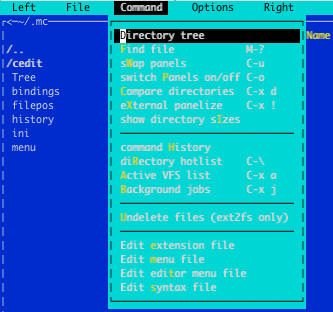

Posted by Alexandra at 1:54 PM

Labels: color scheme , mc , transparency
Oct 15, 2015; 12:13pm [ANN] mc^2
11 posts
 3.2.6 Syntax Highlighting